Apple Music, iTunes Sync, and Your Library in OfflineTunes
Bring your Apple Music library into OfflineTunes: play iTunes- and iPod-synced music directly on device, stream the catalog with your subscription, and import tracks you own as real offline files.
In this article Open
Most people's music lives in more than one place. There are tracks you synced from iTunes or Finder years ago, still riding along on the phone. There is an Apple Music subscription with a catalog of nearly everything. And there are files you actually bought and own outright. They rarely feel like one collection.
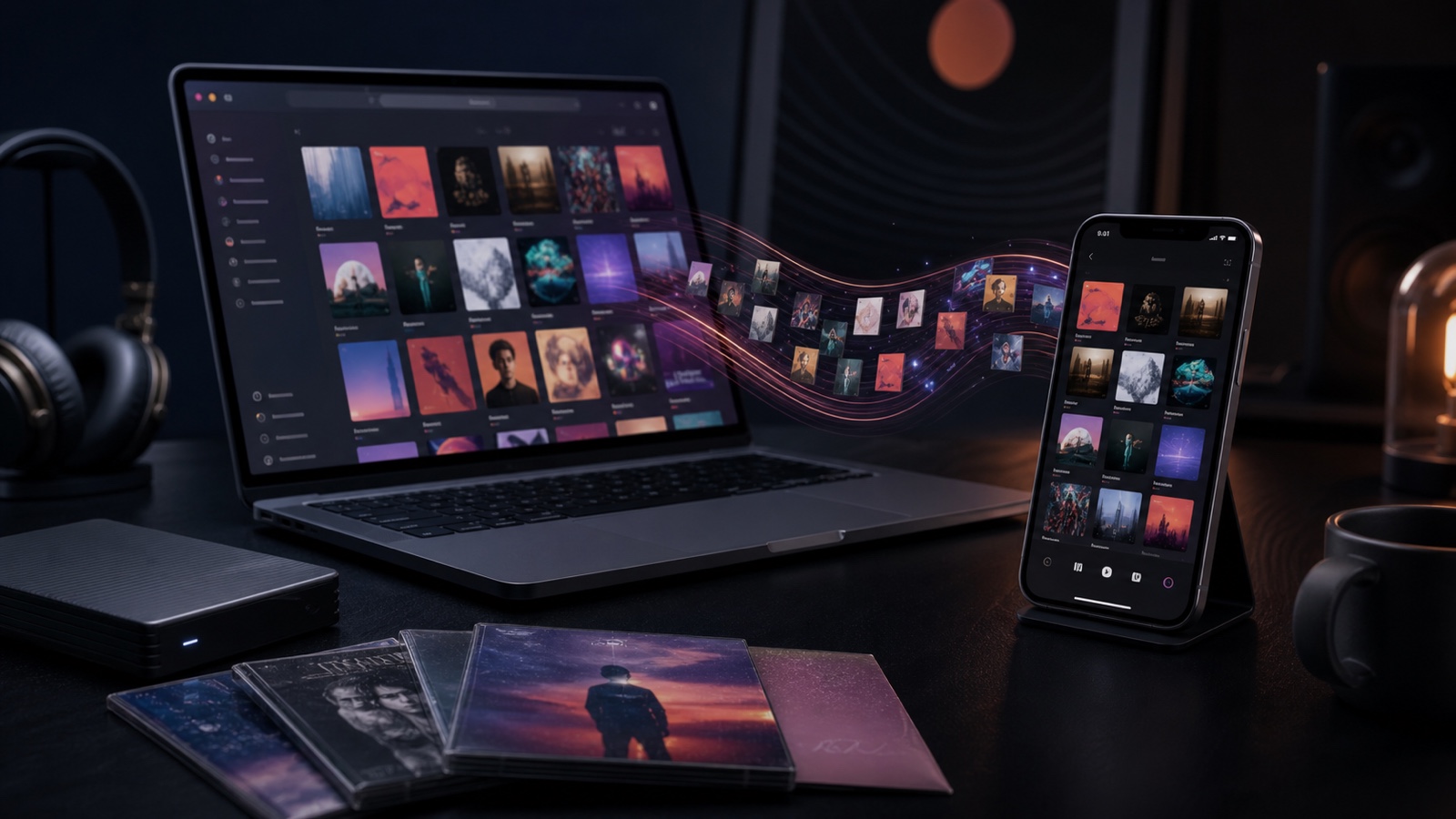
OfflineTunes pulls those threads together. It can surface your Apple Music and iTunes-synced library, play it directly on the device, stream the catalog with your subscription, and even import the tracks you own as real offline files. Here is how each piece works, and when to use which.
Three Ways OfflineTunes Works With Apple Music
It helps to keep three separate ideas straight, because they solve different problems and have different rules around offline playback and subscriptions.
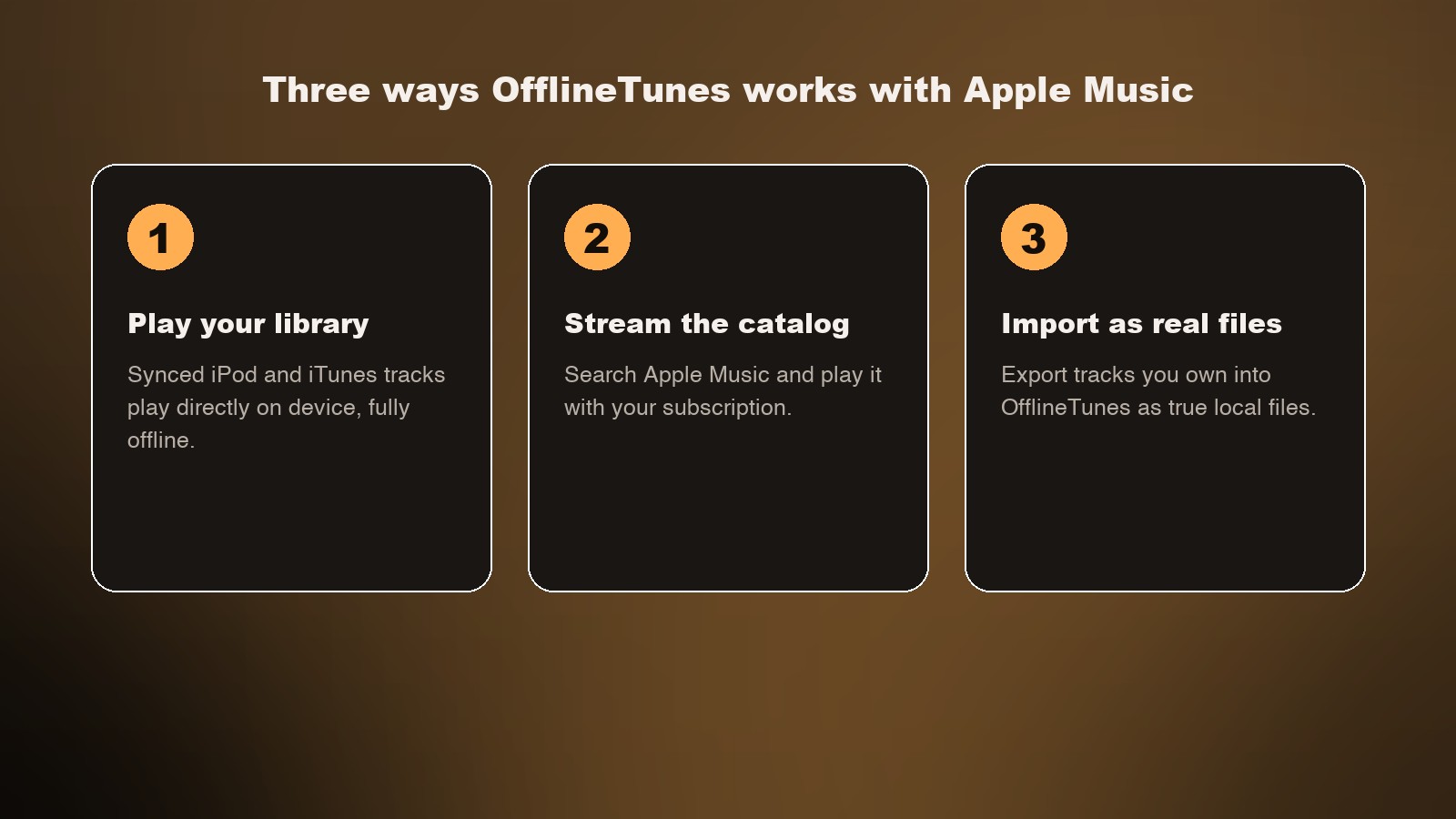
The short version: your synced library plays offline, the catalog streams with a subscription, and files you own can become permanent local tracks. The rest of this guide walks through each one.
Turn On Your Apple Music Library
The starting point is the Apple Music Library toggle. When you enable it, OfflineTunes asks for Apple Music access, then reads the music library already on your device and folds it into your OfflineTunes library. That includes the songs you synced from a computer over the years and, if you subscribe, your Apple Music cloud tracks.
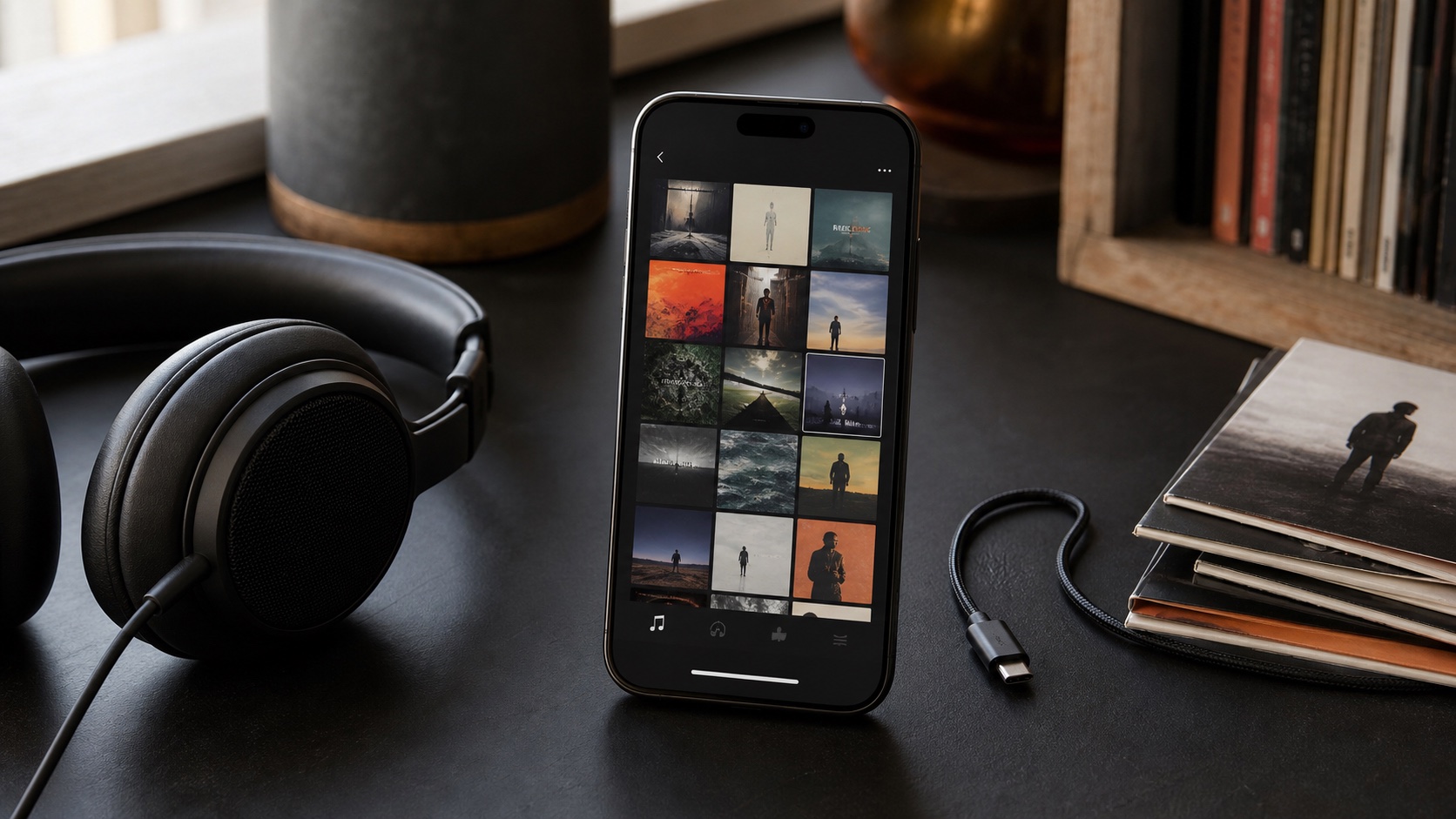
It does not just list titles. OfflineTunes pulls in the metadata that makes a library usable: artist, album, album artist, genre, track numbers, plus high-resolution cover art, your star ratings, and play counts. Your Apple Music playlists come across too. Re-running the sync later refreshes everything and quietly drops tracks you have since removed, so the two stay in step.
You stay in control of what shows up. Local synced tracks and Apple Music cloud tracks are separate switches, so you can bring in only the on-device music if you would rather not mix streaming items into your collection. Turning the library back off hides those tracks again and clears the cached Apple Music metadata and artwork from the device.
“The music already on your phone becomes part of one searchable, taggable, offline library.”
Play iTunes- and iPod-Synced Music Directly
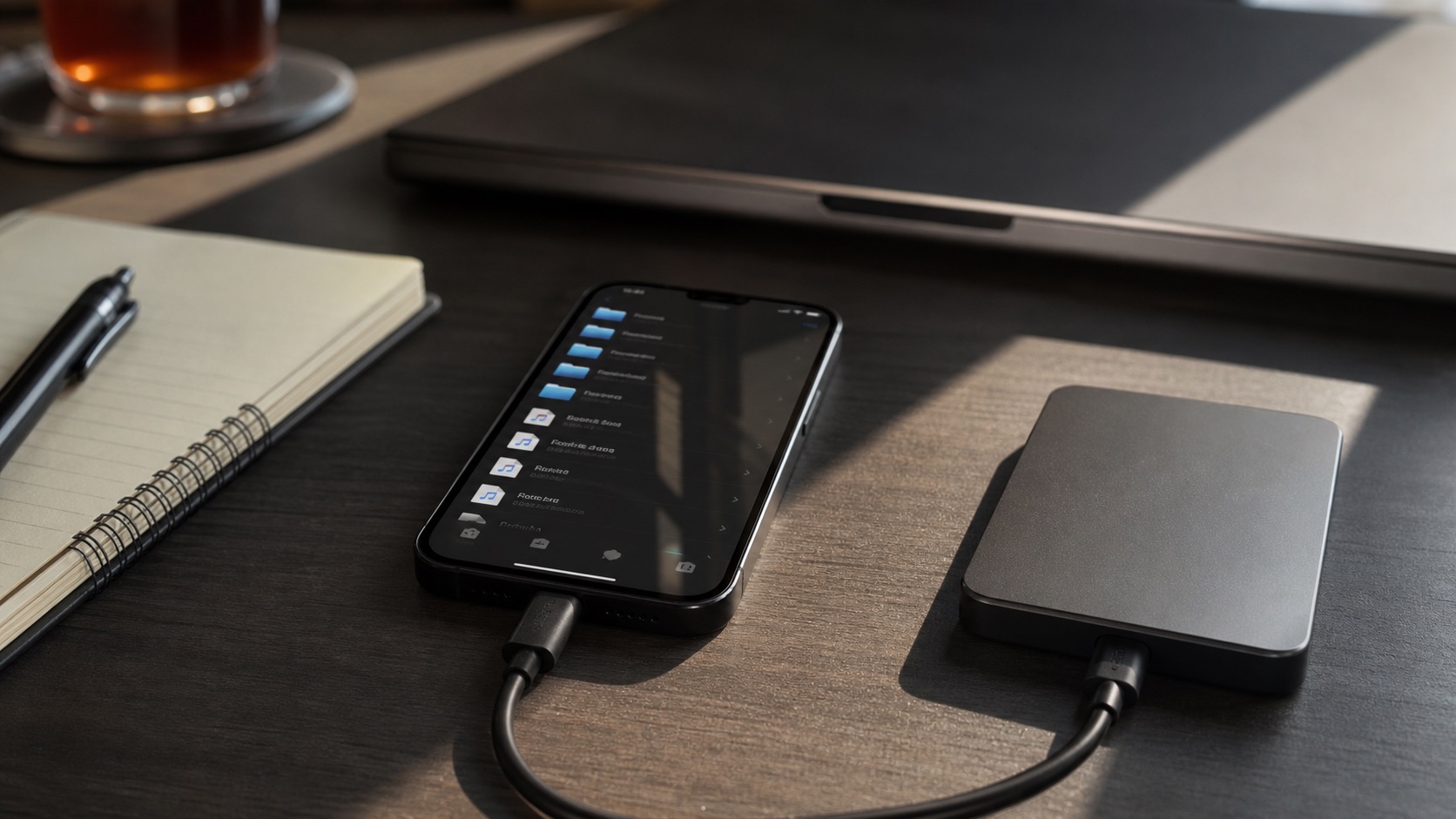
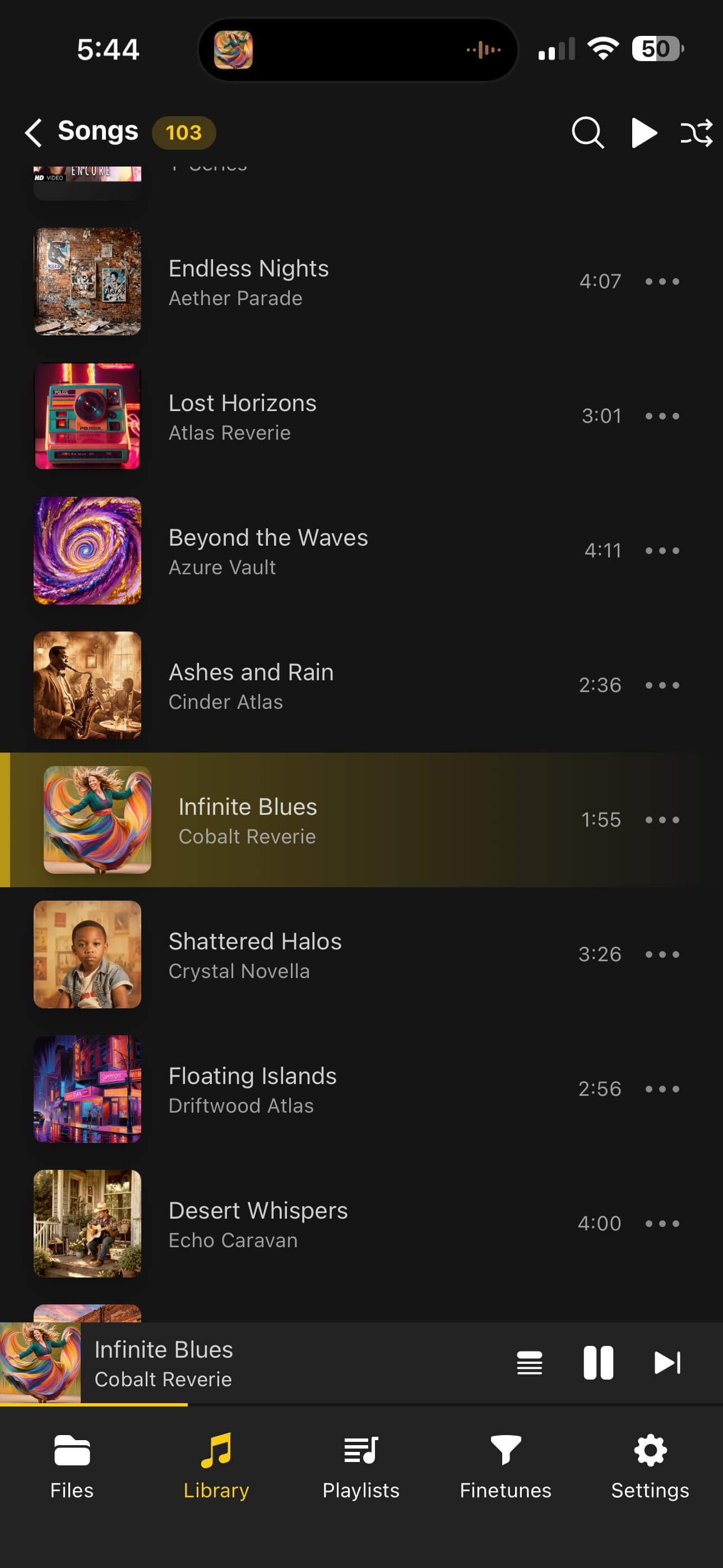
This is the part longtime iPhone owners ask about most. All those tracks you loaded through iTunes or Finder, the classic iPod-style sync, are stored locally on the device. Once the Apple Music Library is on, they appear in OfflineTunes and play directly on the device, with no internet and no subscription required. It is your own music, so it just plays.
Apple Music cloud tracks behave differently. Those are streamed from Apple, so playing one needs an active subscription and a connection. If you tap a stream-only track without a subscription, OfflineTunes offers Apple's subscribe sheet rather than failing silently. The distinction is simple: anything genuinely on the device plays offline; anything that lives in the cloud streams.
Listen to Anything With Your Subscription
If you do subscribe to Apple Music, OfflineTunes lets you reach past your own files into the full catalog. You can search Apple Music for songs, albums, and artists and play the results with your subscription, so a track you do not own is still one tap away.
It also connects your library to the catalog in useful ways. OfflineTunes can match your existing tracks to their Apple Music versions, first by their exact acoustic fingerprint and then by a scored text search, which is handy for filling gaps or finding a streamable copy of something. From there you can save catalog songs into your Apple Music library and build Apple Music playlists without leaving the app. Playback of catalog tracks needs an active subscription, and if one is required OfflineTunes prompts you to subscribe before it plays.
Import the Tracks You Own as Real Files
Surfacing your library is great for everyday listening, but there is a stronger option for music you truly own: import it into OfflineTunes as actual audio files. When you do, those tracks stop depending on Apple's library at all. They become normal local files in your OfflineTunes music folder, yours to keep, back up, and play forever, even if you cancel a subscription or move on from Apple Music.
One important limit keeps this honest. Only tracks that are not copy-protected can be exported this way, such as songs purchased from the iTunes Store or your own files. Apple Music's streaming catalog is DRM-protected by design, so those songs can be played with your subscription but cannot be turned into files. OfflineTunes imports what you are allowed to own and leaves the rest streaming.
On the free tier you can import a batch at a time, which is enough to move over a favorite album or two; Premium lifts the limit and imports your whole eligible library in one pass, with a progress screen as it works. Importing is an iOS capability, since it relies on exporting the on-device audio.
“Play the catalog while you subscribe. Keep the files you actually own, for good.”
One Library, Every OfflineTunes Feature
However a track gets in, once it is in your OfflineTunes library it is treated like any other song, which is the real payoff. Synced and imported tracks get the same tools as your imported FLACs and MP3s.
- Sound: the graphic equalizer, AutoEQ headphone profiles, and ReplayGain loudness leveling.
- Organization: folder browsing, tag editing, ratings, and Smart Lists that build themselves.
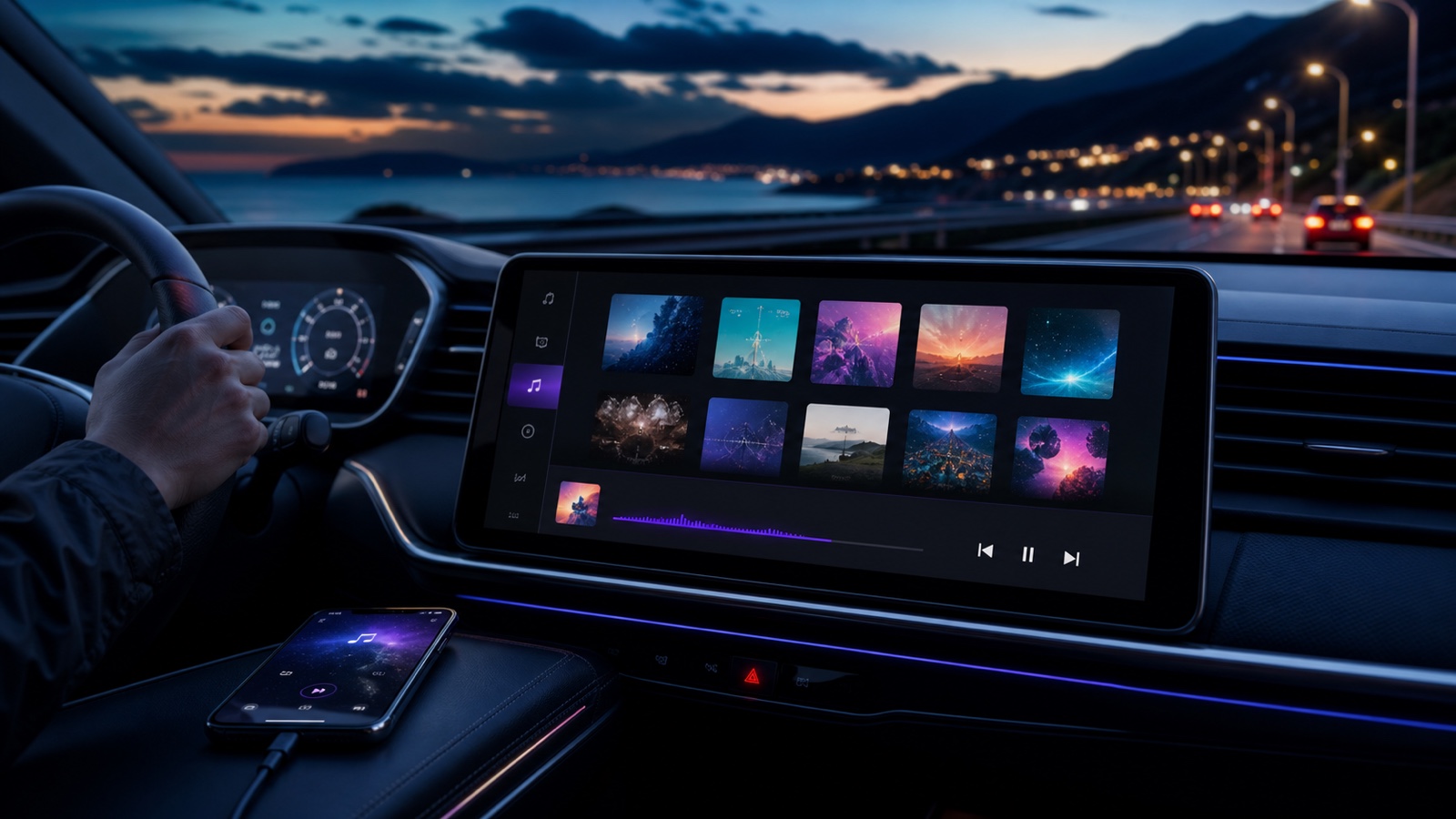
- Everywhere: your synced library rides along into the car through CarPlay, and into the nostalgic click wheel of Retro iPod Mode.
That is the point of gathering everything in one place: your old iPod syncs stop being a dead-end and start benefiting from modern playback tools.
How to Set It Up
Getting your Apple Music and iTunes library into OfflineTunes takes a couple of minutes.
- 1 Open Settings and enable the Apple Music Library.Grant Apple Music access when prompted so OfflineTunes can read your library.
- 2 Choose local, cloud, or both.Bring in on-device synced tracks, Apple Music cloud tracks, or the full set.
- 3 Let it sync your tracks and playlists.Metadata, artwork, ratings, and playlists come across automatically.
- 4 Optionally import owned tracks as files.Turn purchases and your own songs into permanent local files you keep for good.
Your music does not have to stay split between an old iTunes sync, a streaming subscription, and a folder of files you bought. In OfflineTunes it becomes one library: play what is already on your phone offline, reach the catalog when you subscribe, and keep the tracks you own as real files that outlast any service. If you are still assembling that collection, playing local files without iTunes is a good next read.