OfflineTunes on CarPlay: Play Your Own Music, Offline
Play the music you own on your car display with CarPlay - your playlists, albums, and files, offline, with no subscription and no dead-zone silence.
In this article Open
The drive is where music still means something. No notifications, no multitasking, just you, the road, and a record playing front to back. Then you hit a canyon, a tunnel, a rural stretch with one bar of signal, and the streaming app stutters, buffers, and drops you into silence at the best part of the song.
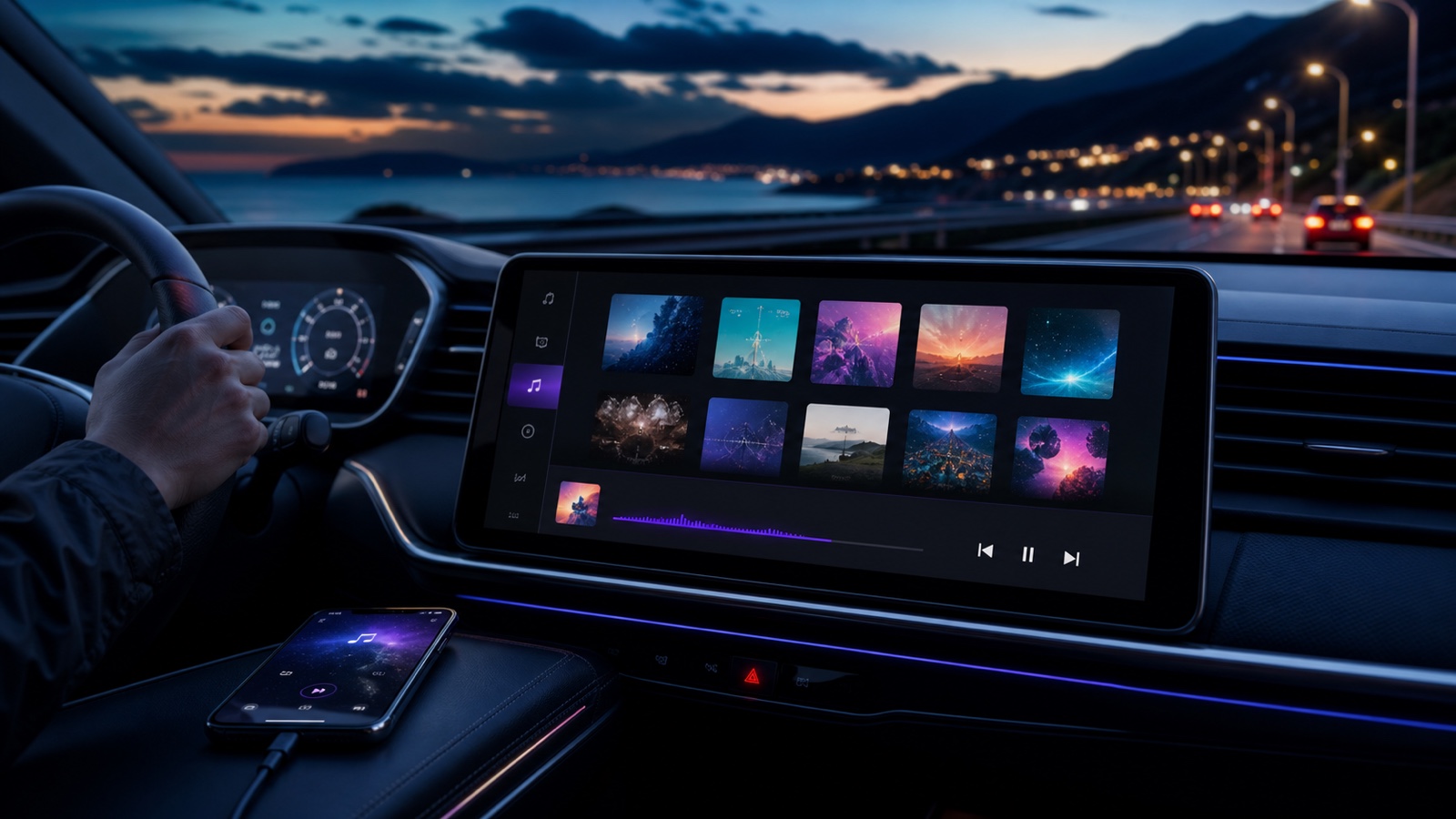
OfflineTunes takes a different approach to the car. It plays the music you already own, stored on your phone, through CarPlay on your dashboard display. Your playlists, your albums, your files, big and readable and safe to reach at a glance, with nothing to buffer because nothing is streaming.
Streaming in the Car Assumes a Signal You Don't Always Have
Streaming services are built around a permanent connection. That is a fine assumption in a city with strong coverage and an unlimited plan. It falls apart the moment you leave one. Dead zones, underground parking, ferries, mountain passes, and long highway gaps all turn a full library into a spinning loader.
Even when the signal holds, streaming in the car quietly costs you: mobile data on every trip, a subscription that has to keep being paid, and a catalog that can remove an album you love without warning. For a daily commute or a long road trip, none of that should stand between you and a song you already have on your phone.
Local playback removes the whole category of problem. If the file is on your device, it plays. Airplane mode, no SIM, the middle of nowhere: it does not matter. The car is exactly where owning your music pays off.
“A tunnel should change the view, not stop the music.”
Your Whole Library, Right on the Dashboard
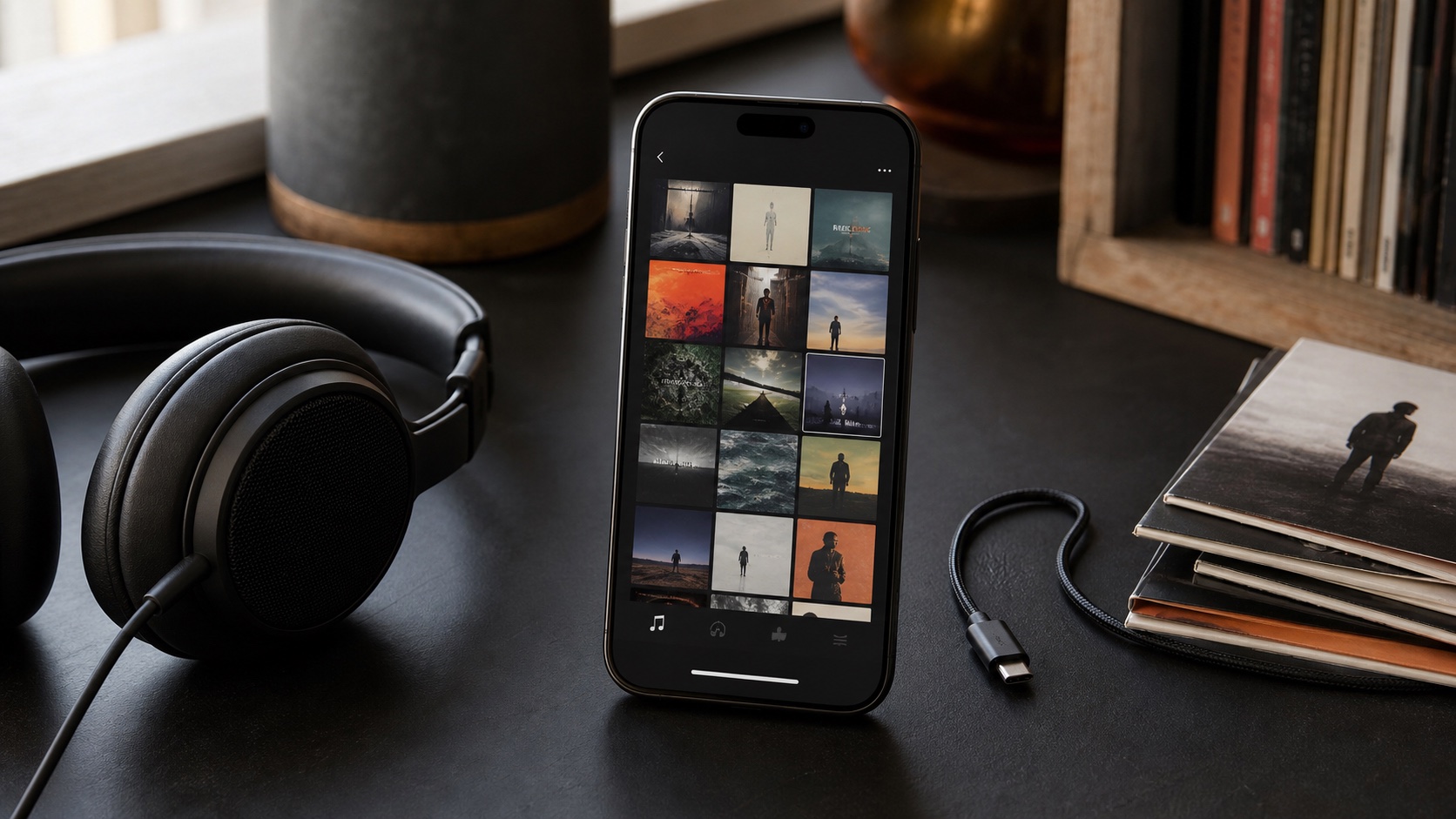
Connect your iPhone and OfflineTunes appears on the CarPlay screen as its own app. It opens to three tabs across the bottom, Library, Files, and Playlists, so the same collection you built on your phone is browsable in the car with album artwork on every row. Tap a row and it plays. No sign-in, no home feed, no recommendations you did not ask for.
Because it is the same library, everything you have organized on the phone carries straight into the car. The playlists you made for the gym, the drive, and deep focus are all right there. If you have not built that library yet, start with How to Play Local Music Files on iPhone Without iTunes.
Three Tabs: Library, Files, and Playlists
Most car apps flatten your music into one shallow list. OfflineTunes keeps the structure you actually use, split across three tabs that each go deep.
Library groups your music the familiar way, with Songs, Albums, Artists, Album Artists, and Genres. It also surfaces two dynamic Smart Lists you will lean on constantly while driving: Favorites and Ratings. Your best and highest-rated tracks are one tap away, and because you can rate songs from the Now Playing screen, those lists keep sharpening as you drive.
Files is the part almost every other car player skips. It mirrors your real folder structure, so you can browse your music tree exactly the way you organized it, open nested subfolders, and tap Play or Shuffle on any folder to start everything inside it at once. Want a single track instead? Tap it. For big libraries and unusual rips that never got clean tags, folder browsing is often the fastest way to the exact thing you want.
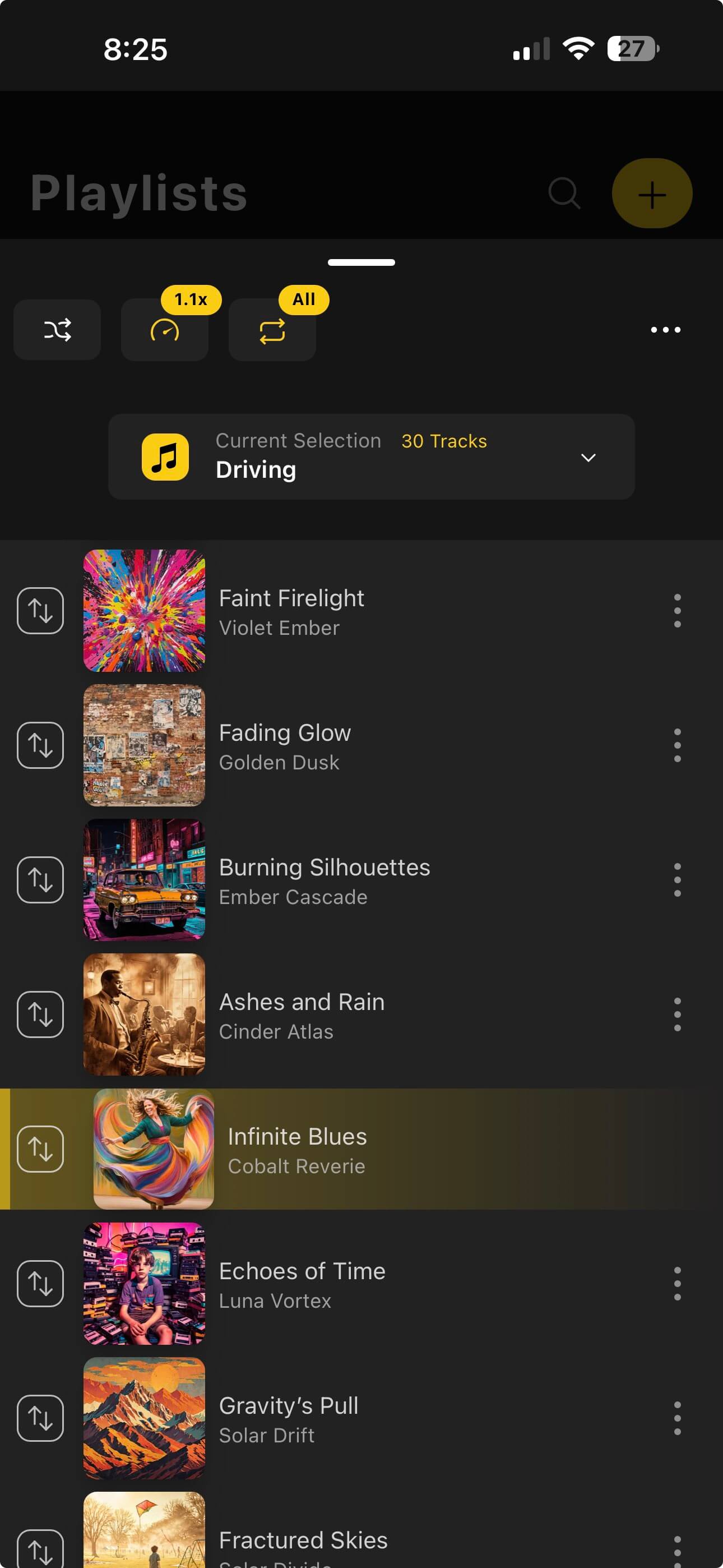
Playlists respects the way real libraries grow, with nested playlist folders rather than one endless list. Open a folder of playlists and keep drilling down, or tap Play on the folder itself to play every playlist inside it back to back, with Shuffle if you want it mixed. Smart playlists are included in that playback too, so a rules-based mix plays in the car exactly like a hand-made one. New to those? See Smart Playlists 101 and Why Your iPhone Music Library Needs Folder Browsing.
Every one of these plays straight from the local files on your phone, so none of it depends on a signal.
Built for Glances, Not for Scrolling
A phone in your hand and a screen on your dashboard are different tools, and OfflineTunes treats them that way. In the car, the interface follows CarPlay's rules: large tap targets, short lists, and a dedicated Now Playing screen so the important controls are always a glance away.
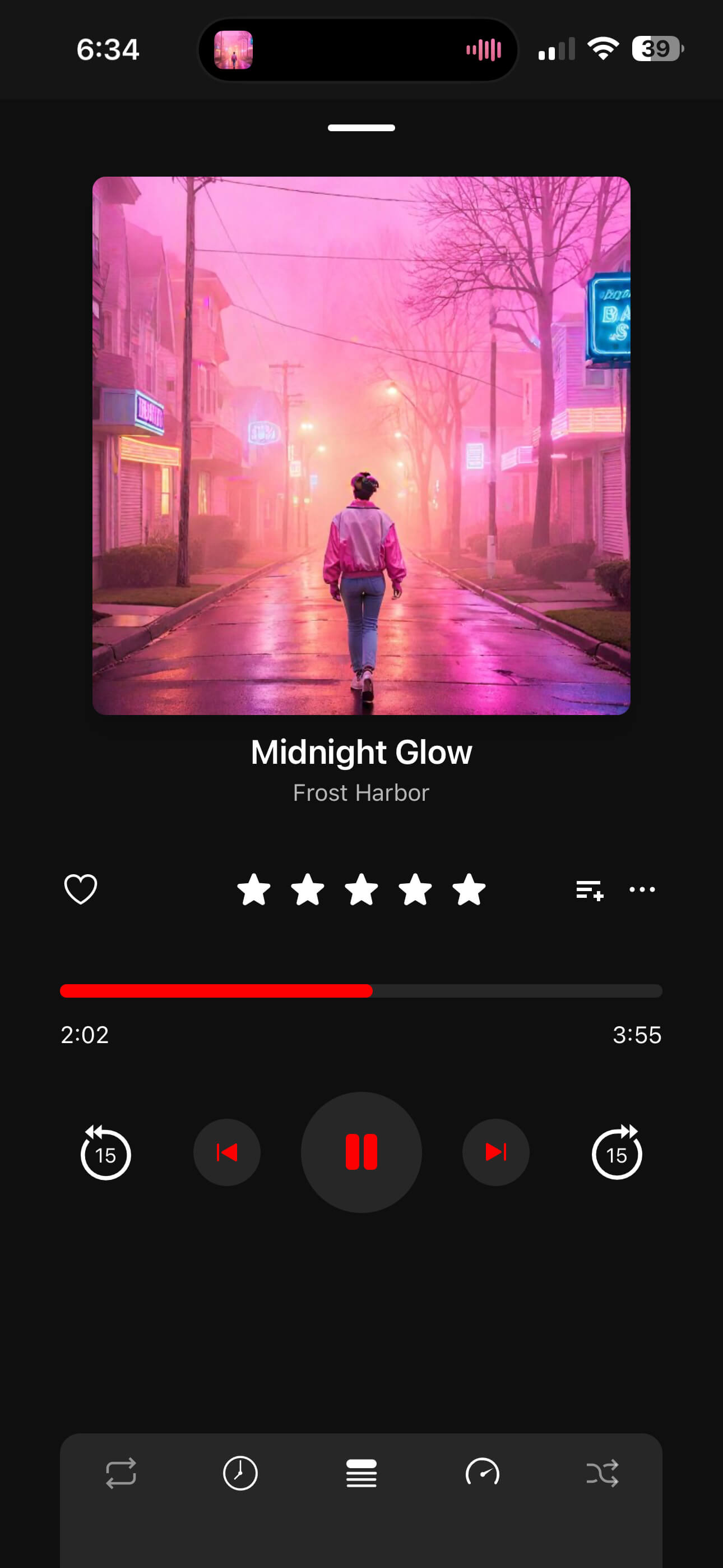
The Now Playing view shows the current track with big artwork and simple transport controls, plus quick actions that suit driving. You can rate a song with a tap so your Favorites and Smart Lists keep improving as you drive, skip forward and back without hunting, and keep the queue rolling. The goal is to get your eyes back on the road as fast as possible.
- Library: Songs, Albums, Artists, Album Artists, Genres, plus Favorites and Ratings Smart Lists.
- Files: browse your real folder tree, open nested folders, and play any folder in a tap.
- Playlists: nested playlist folders, with one tap to play every playlist inside a folder.
- Now Playing: big artwork, transport controls, and a one-tap star rating.
It Just Works, Even With No Bars
Everything in the car runs on the local files on your phone. That includes lossless FLAC, ALAC, and WAV as well as MP3 and OPUS, so audiophiles do not have to trade quality for reliability on the road. There is no account to sign into and no connection to wait for. Start the engine, start the album.
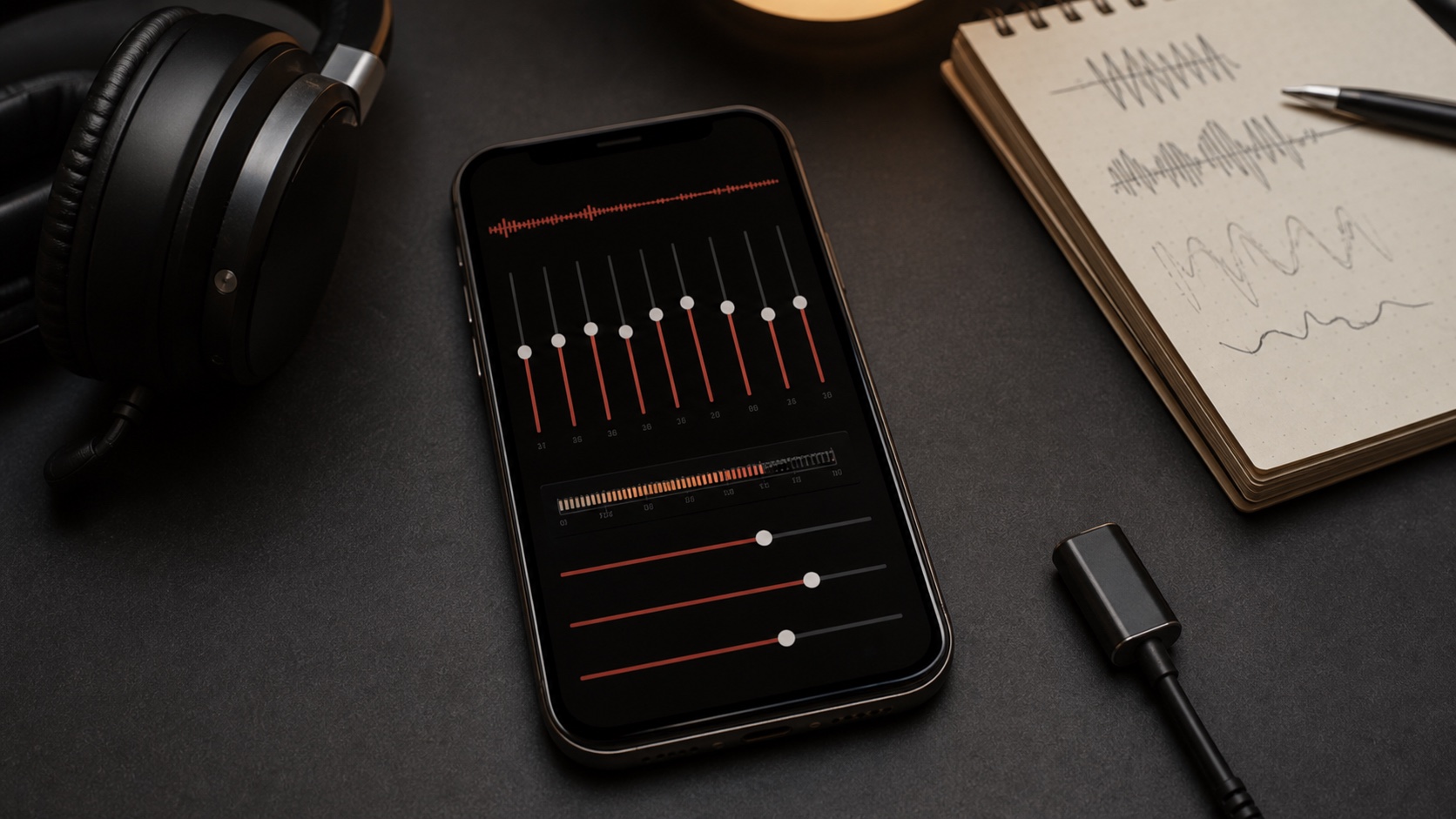
Loudness stays civilized too. With ReplayGain enabled, tracks and albums play back at a consistent volume, so you are not reaching for the dial every time a quiet ballad follows a loud single, an underrated safety win when you are driving. New to it? See What Is ReplayGain.
“If the file is on your phone, it plays. Coverage is no longer part of the deal.”
How to Use OfflineTunes With CarPlay
If your car supports CarPlay, there is nothing extra to buy or configure inside OfflineTunes.
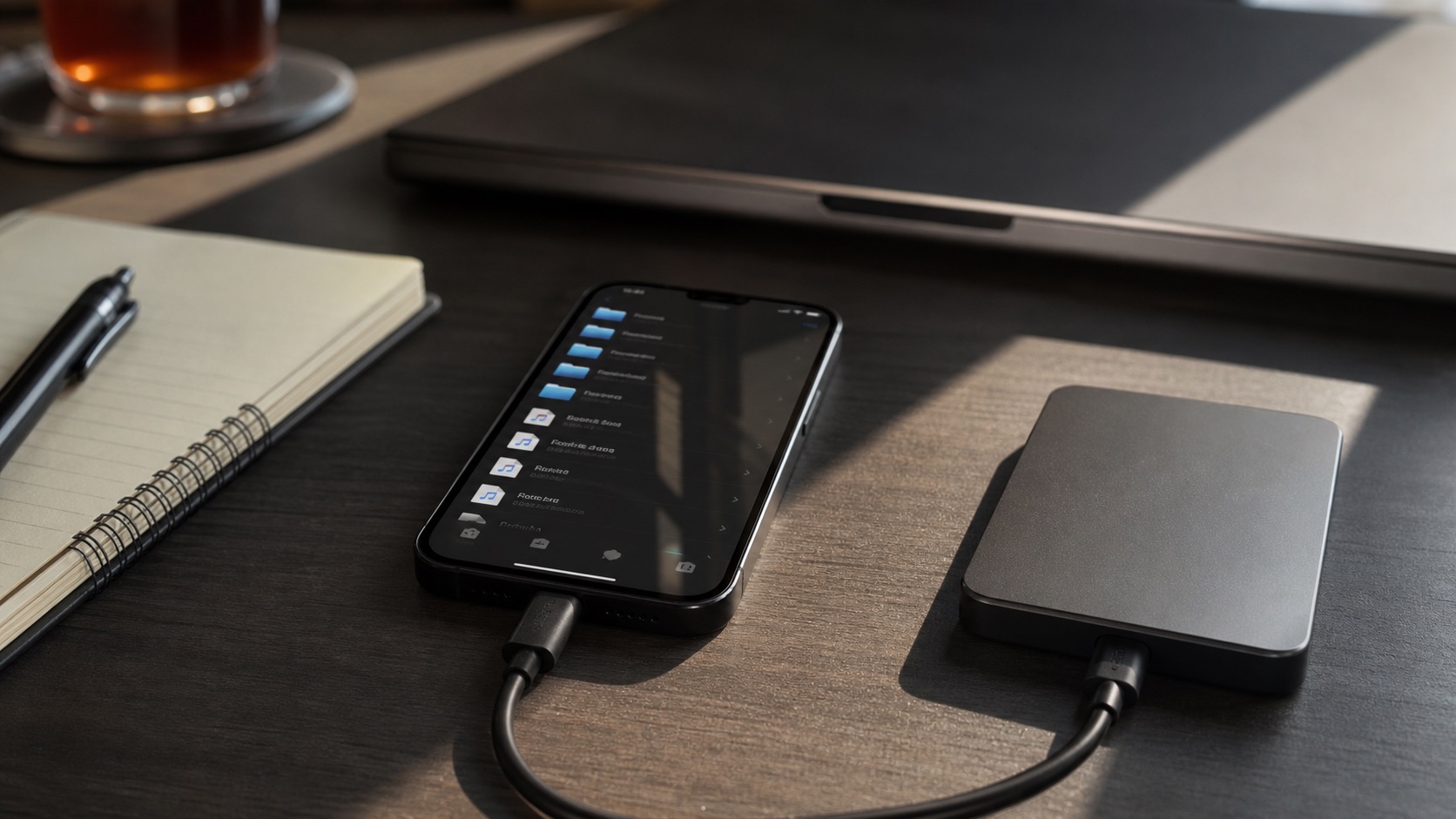
- 1 Import your music into OfflineTunes.From Files, a computer, or cloud storage, so it lives on your phone.
- 2 Connect to CarPlay.Plug in with a cable or connect wirelessly if your car supports it.
- 3 Open OfflineTunes on the car screen.Tap its icon in the CarPlay app grid.
- 4 Browse, tap, and drive.Pick a playlist or album and let your own library carry the trip.
What About Android Auto?
OfflineTunes started on iPhone, so CarPlay is where the in-car experience is available today. The same idea, your offline library on the car display, is what we are bringing to Android Auto for Android drivers. If you are on Android and want offline music in the car, keep an eye on the app updates.
The car is one of the last places music gets your full attention. It deserves better than a buffering wheel and a subscription reminder. With OfflineTunes and CarPlay, the songs you own are on the dashboard, ready the second you turn the key, whether or not there is a single bar of signal for the next hundred miles.