How to Play Local Music Files on iPhone Without iTunes
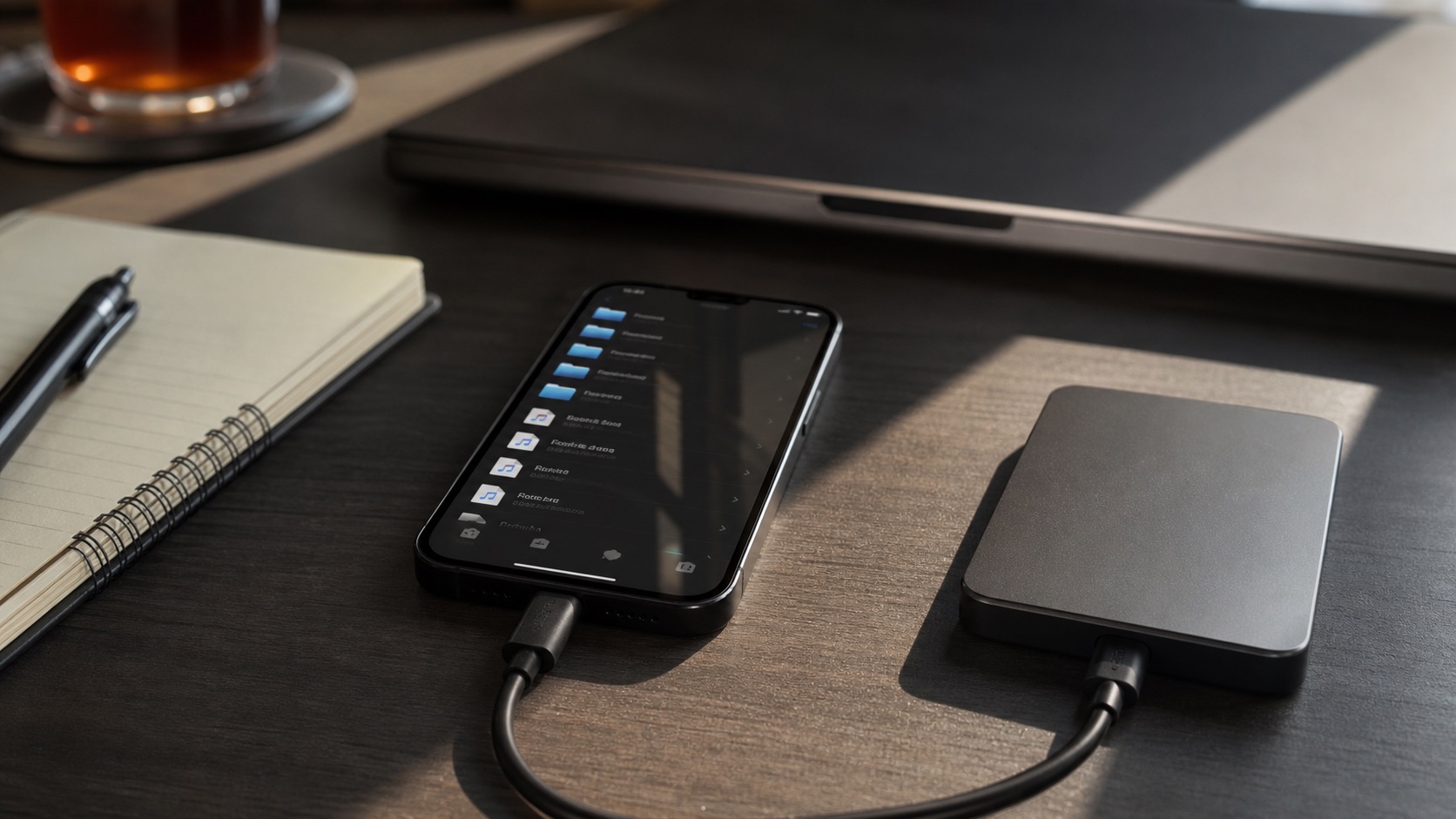
You can play local files on iPhone without rebuilding old iTunes sync habits. Use a file-first workflow that keeps folders, tags, artwork, and playlists usable.
In this article Open
You can play local music files on iPhone without iTunes. The trick is choosing an app that treats imported files as a real music library instead of a temporary download pile.
OfflineTunes is built for that workflow. You bring files from the places you already use, then browse, tag, organize, queue, and play them offline. No subscription catalog has to approve the album before you can hear it.
Short Answer: Import Files, Then Let the Player Build the Library
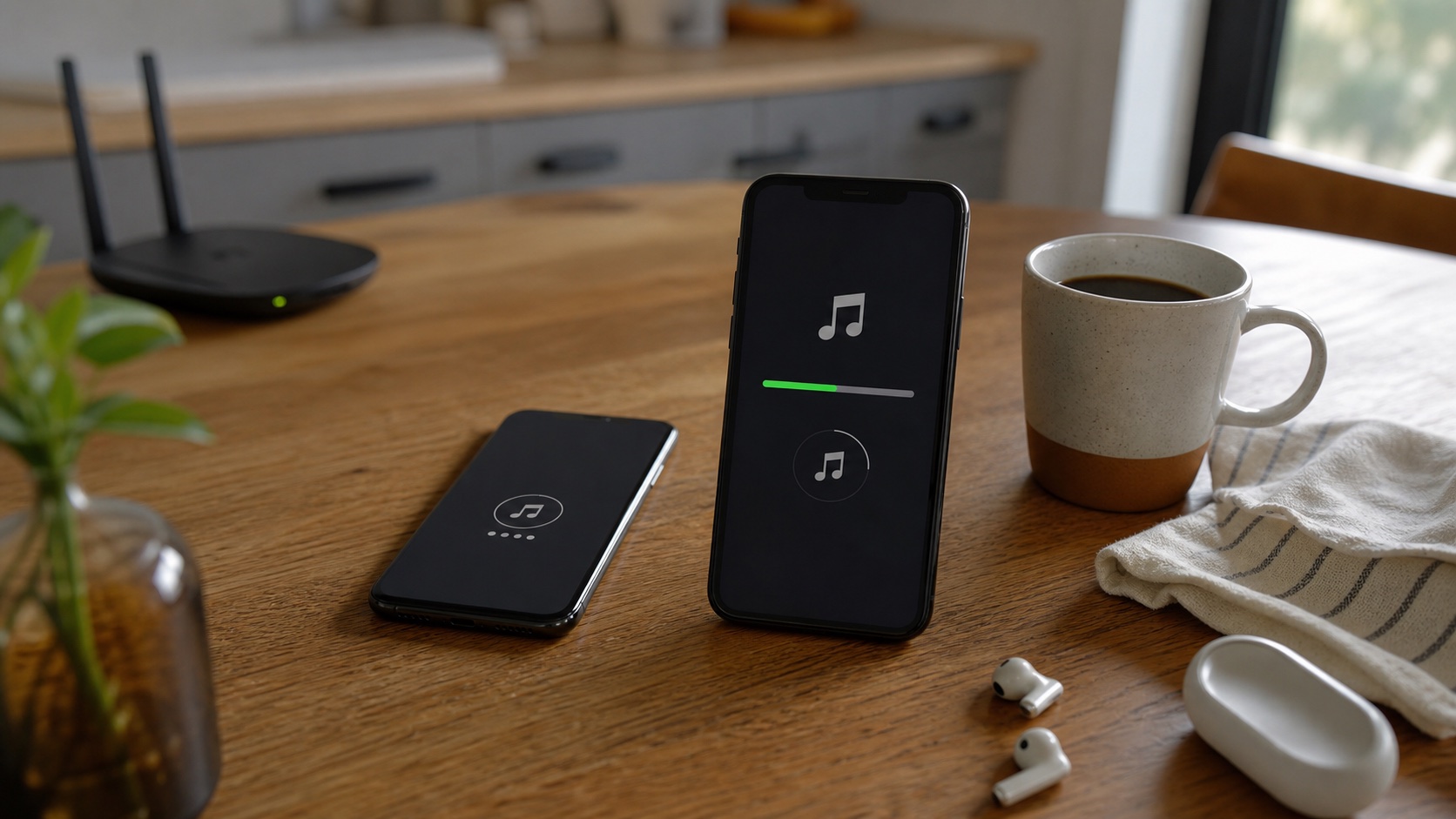
The simplest path is to put audio files where iPhone can share or import them, then open them with OfflineTunes. The app can turn those files into a playable offline library instead of leaving them as isolated downloads.
This is useful for MP3s, M4A purchases, FLAC files, WAV exports, live recordings, and folders from a desktop archive. You are not trying to recreate old iTunes syncing. You are building a local library directly on the phone.
Why Files and Folders Beat One-Off Downloads
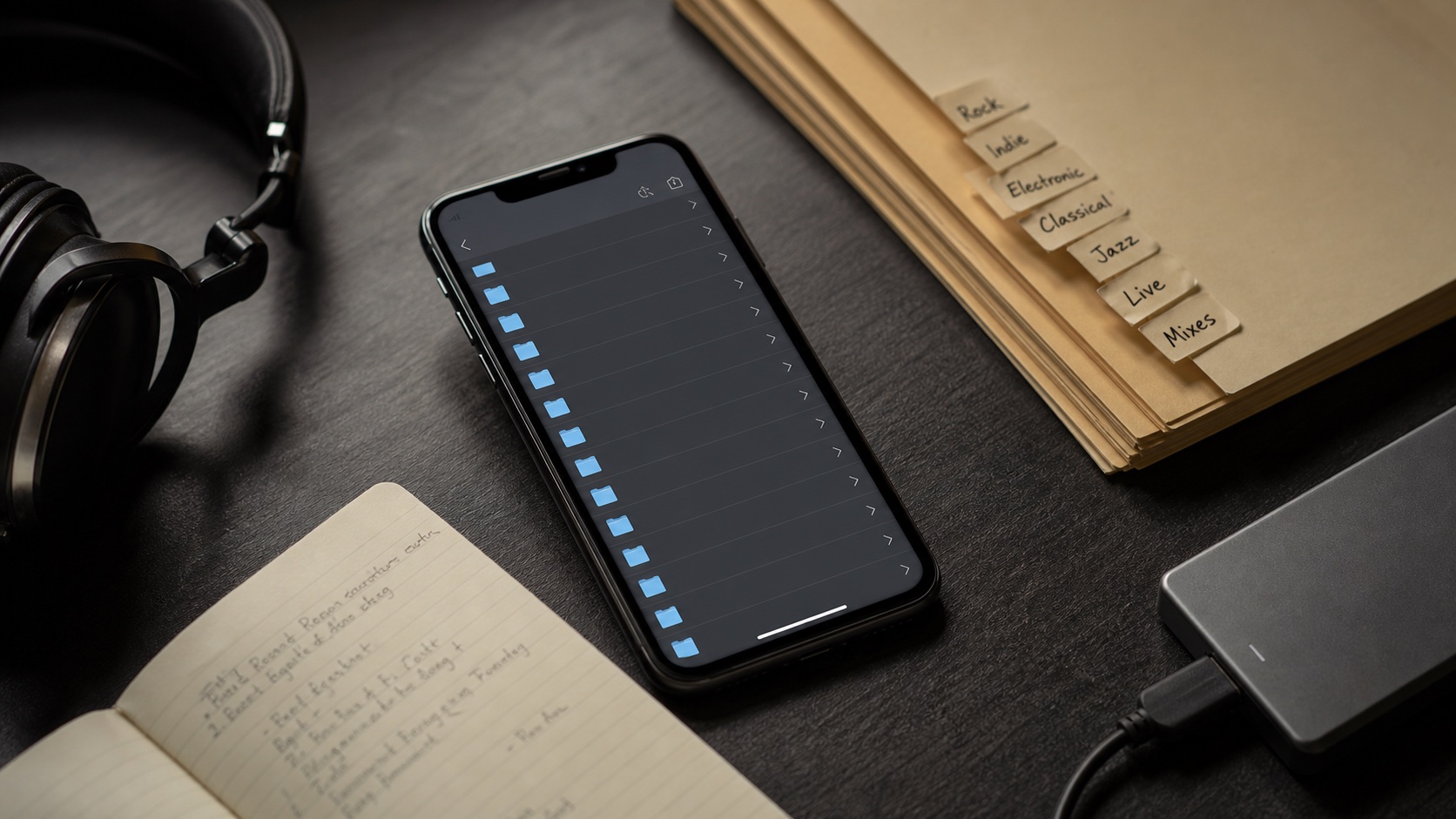
A local music library is easier to trust when the folder structure remains visible. Folders help when tags are wrong, when bootlegs have inconsistent metadata, or when you want to preserve the way your archive is arranged on a computer.
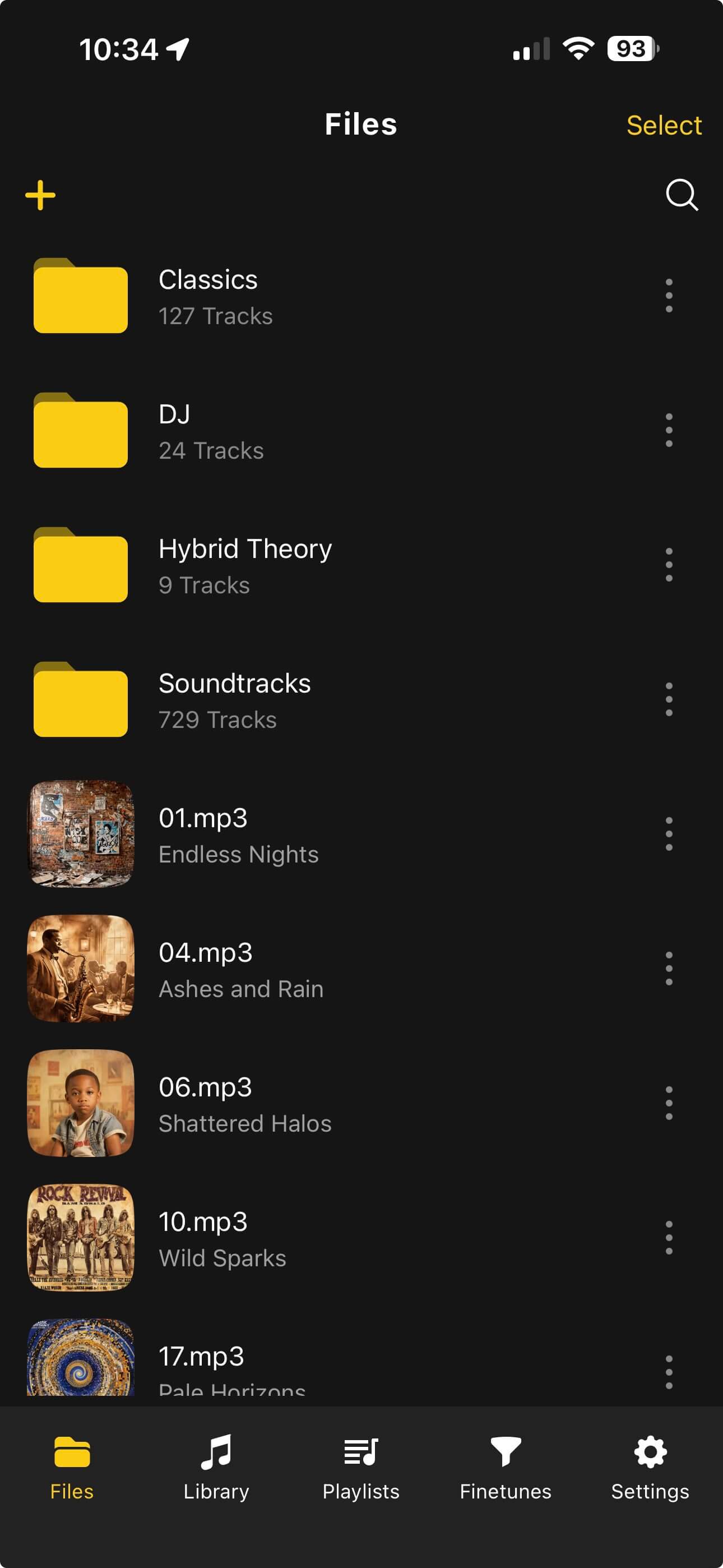
OfflineTunes can browse music as files and as a library. That means you can use folders for control and tags for convenience. The two systems work together instead of fighting each other.
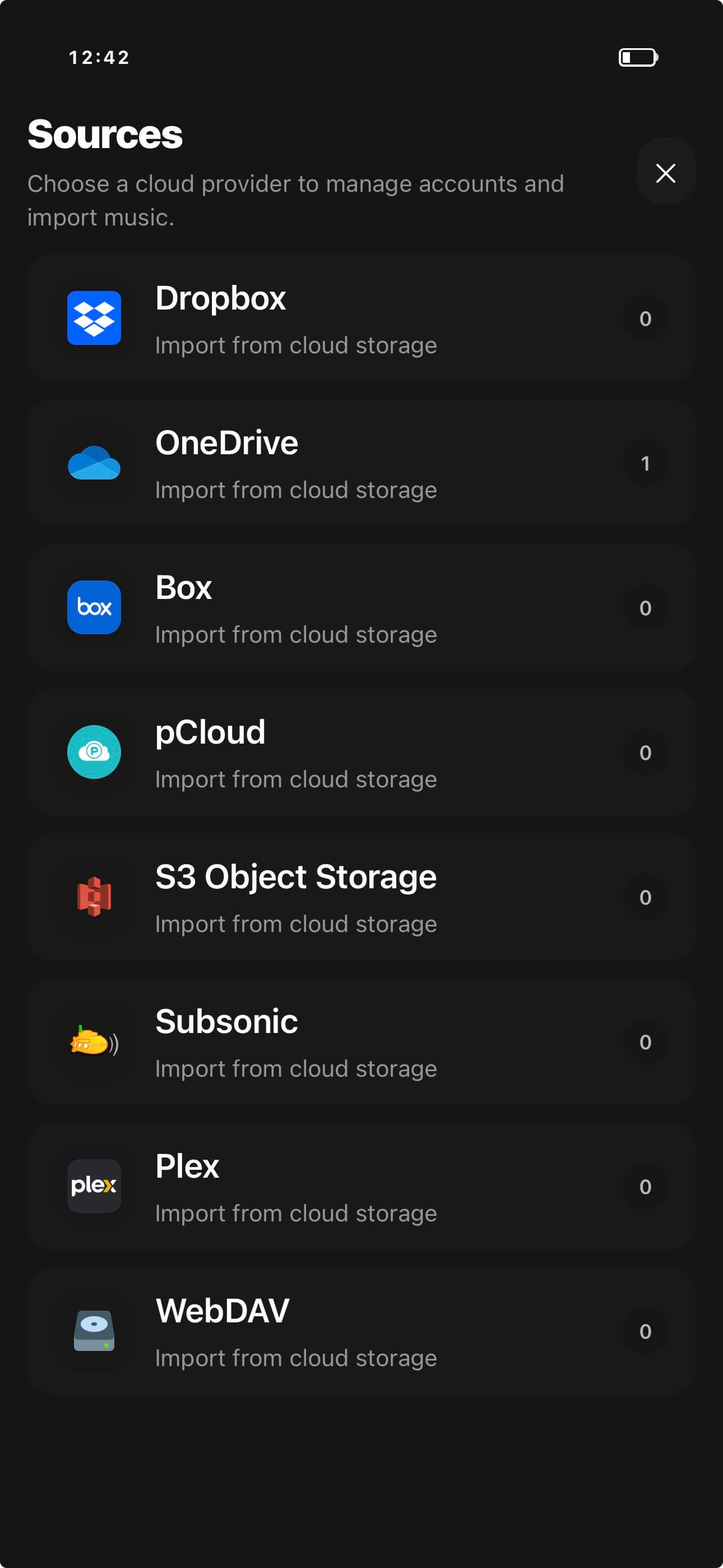
Import Options That Do Not Require iTunes
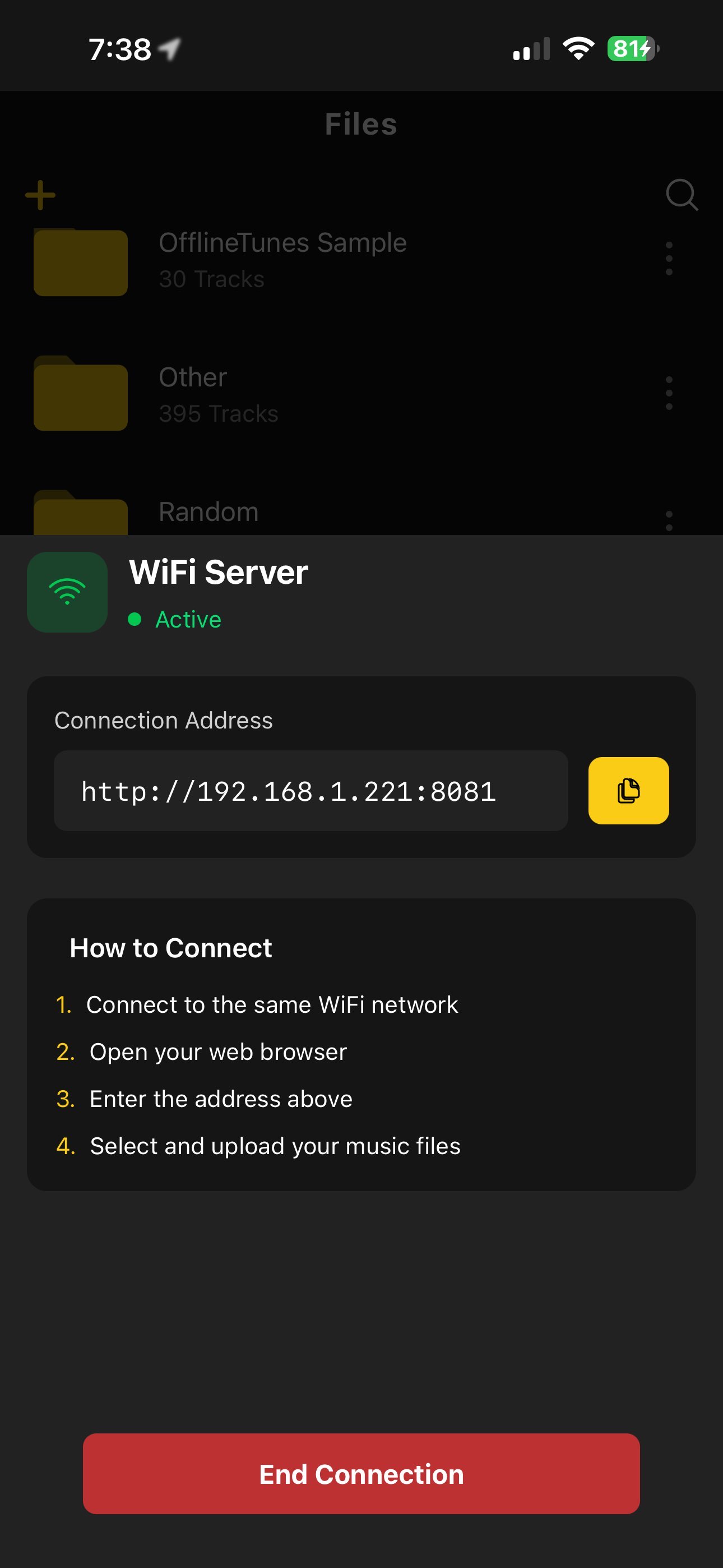
Use Wi-Fi transfer when you are moving files from another device on the same network. Use cloud import when your library already lives in a service or server. Use the Files app for smaller manual batches. Use share sheet imports when a file comes from another iPhone app.
The best method depends on library size. Ten songs can be shared manually. Ten thousand songs need batches, folder discipline, and checks after import.
- 1Start with one album.Import one folder with artwork and tags so you can inspect the result.
- 2Check album, artist, and artwork.Fix metadata before importing the next large batch.
- 3Keep a source copy.Treat iPhone as the listening copy, not the only backup of your library.
- 4Repeat in batches.Batch imports reduce mistakes and make broken tags easier to trace.
What to Do After Files Reach the iPhone
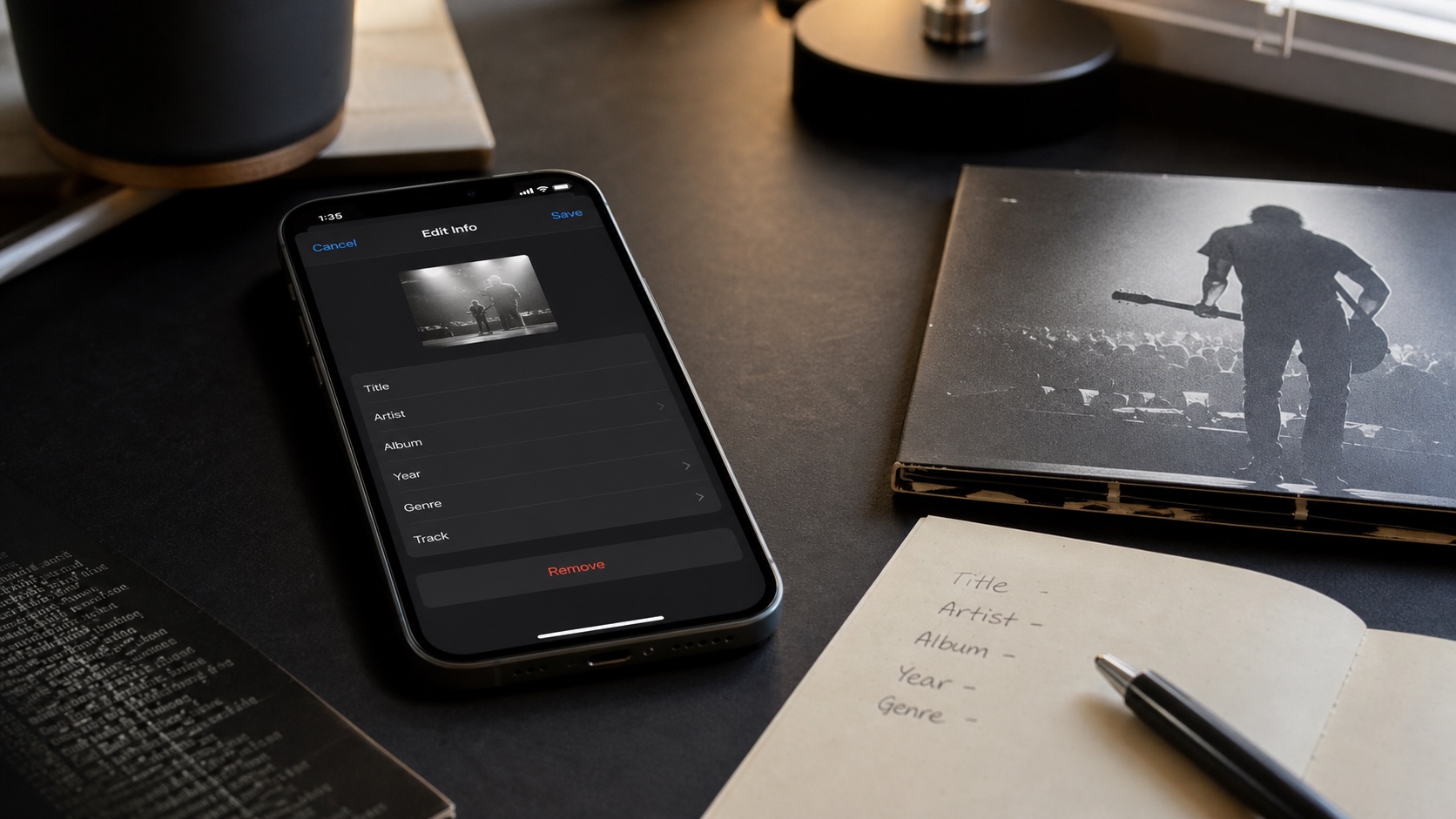
The import is only the first half. After files arrive, check sort order, artwork, album artist, track numbers, and folder location. Then make playlists or smart playlists around the music you actually want to hear.
If you find missing covers, use How to Fix Missing Album Art. If tags are messy, read How to Edit Music Tags on iPhone.
- Use folders for physical structure.
- Use tags for albums, artists, years, and genres.
- Use playlists for intent: workouts, car trips, sleep, favorites, and new imports.
- Use EQ and ReplayGain after organization so playback feels consistent.
Verdict: You Do Not Need iTunes to Own Music on iPhone
iTunes used to be the default mental model for local iPhone music. In 2026, a file-first workflow can be better. Import files directly, keep folders visible, clean metadata inside the player, and listen offline.
OfflineTunes is designed for that path: bring your files, keep control, and build a library that lives on your phone.