How to Transfer Music to iPhone Without a Computer
No computer nearby should not stop your library. Use cloud import, Files, share sheet, or local transfer workflows, then organize everything offline.
In this article Open
You can transfer music to iPhone without a computer, but the best method depends on where the music starts. It might be in cloud storage, another phone, a network server, a shared link, or the Files app.
OfflineTunes gives those imports a destination that behaves like a music player, not a dumping folder. Once files arrive, you can browse folders, edit tags, fix artwork, build playlists, and play offline.
Short Answer: Use Cloud, Files, Share Sheet, or Local Transfer
If you do not have a computer, start with cloud or Files. If another device is nearby on the same network, use a local transfer flow. If the file is inside another app, use the share sheet. The goal is to get music into a player that can keep it offline and organized.
Do not judge the workflow by the first imported song. Judge it after importing a folder, checking artwork, playing offline, and finding the album again two weeks later.
Cloud Import Is the Cleanest No-Computer Path
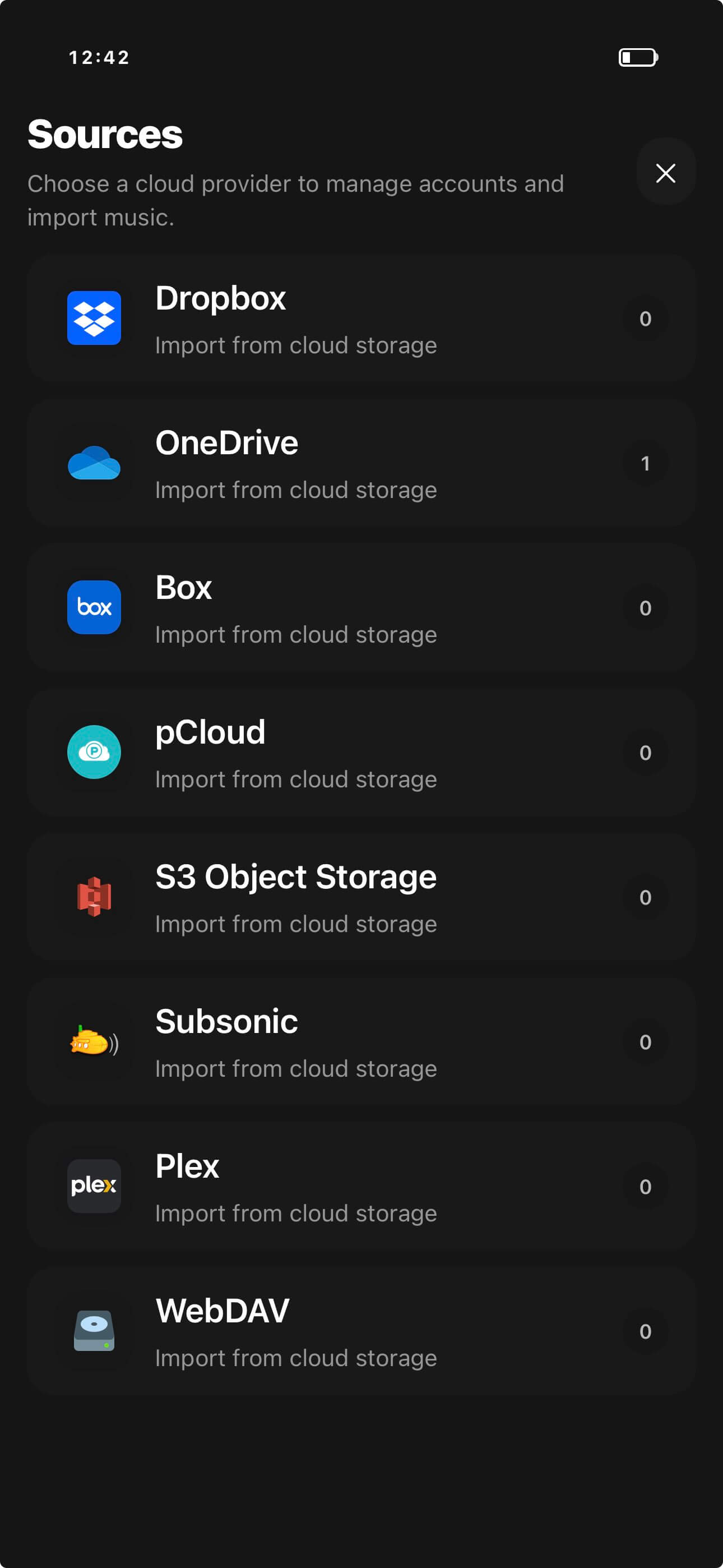
If your music is already in Dropbox, OneDrive, Google Drive, WebDAV, or another storage workflow, import directly from there. This avoids a desktop sync step and lets you choose what should live on the phone.
Cloud import works best when folders are already clean. Keep album folders intact, avoid dumping unrelated files together, and import in batches so artwork and metadata problems stay easy to fix.
Local Transfer Helps When Another Device Has the Files
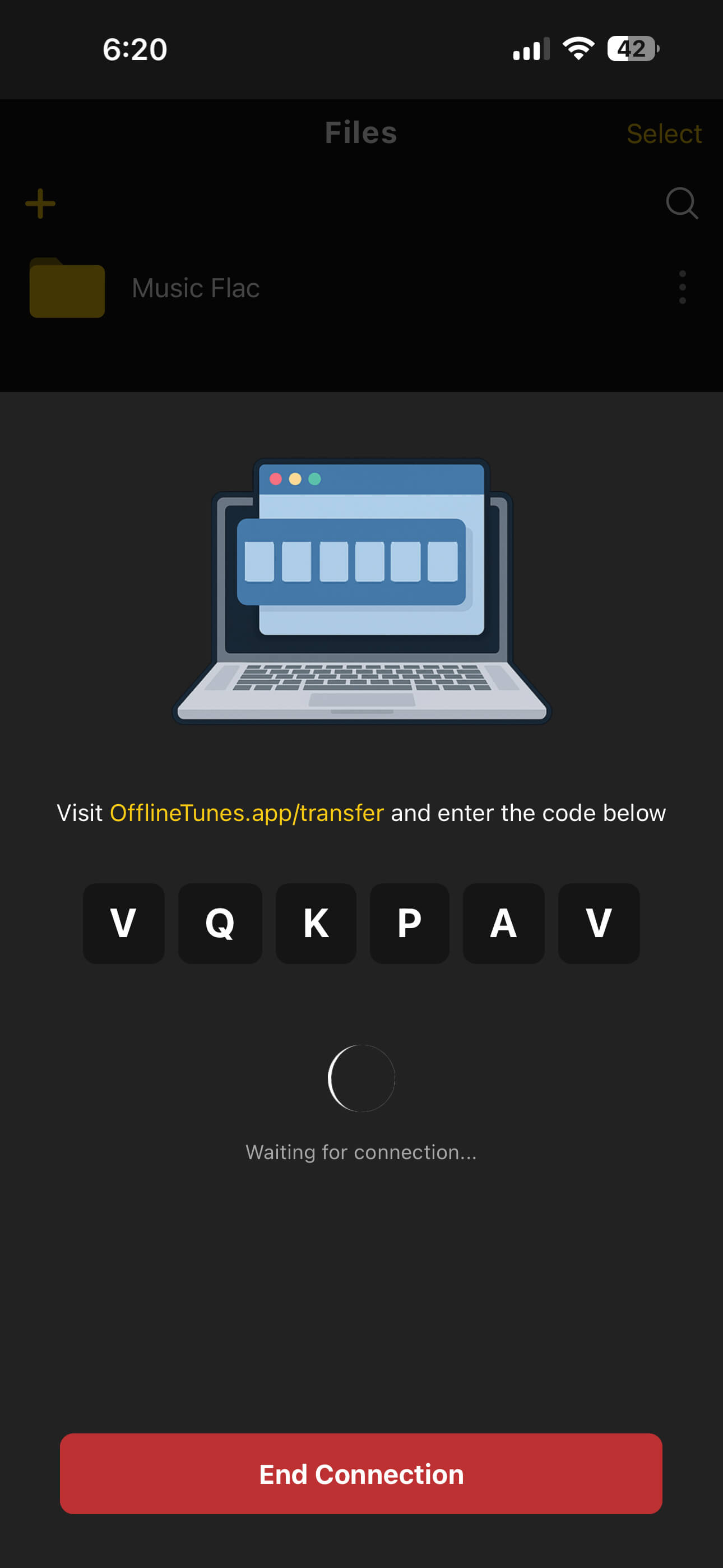
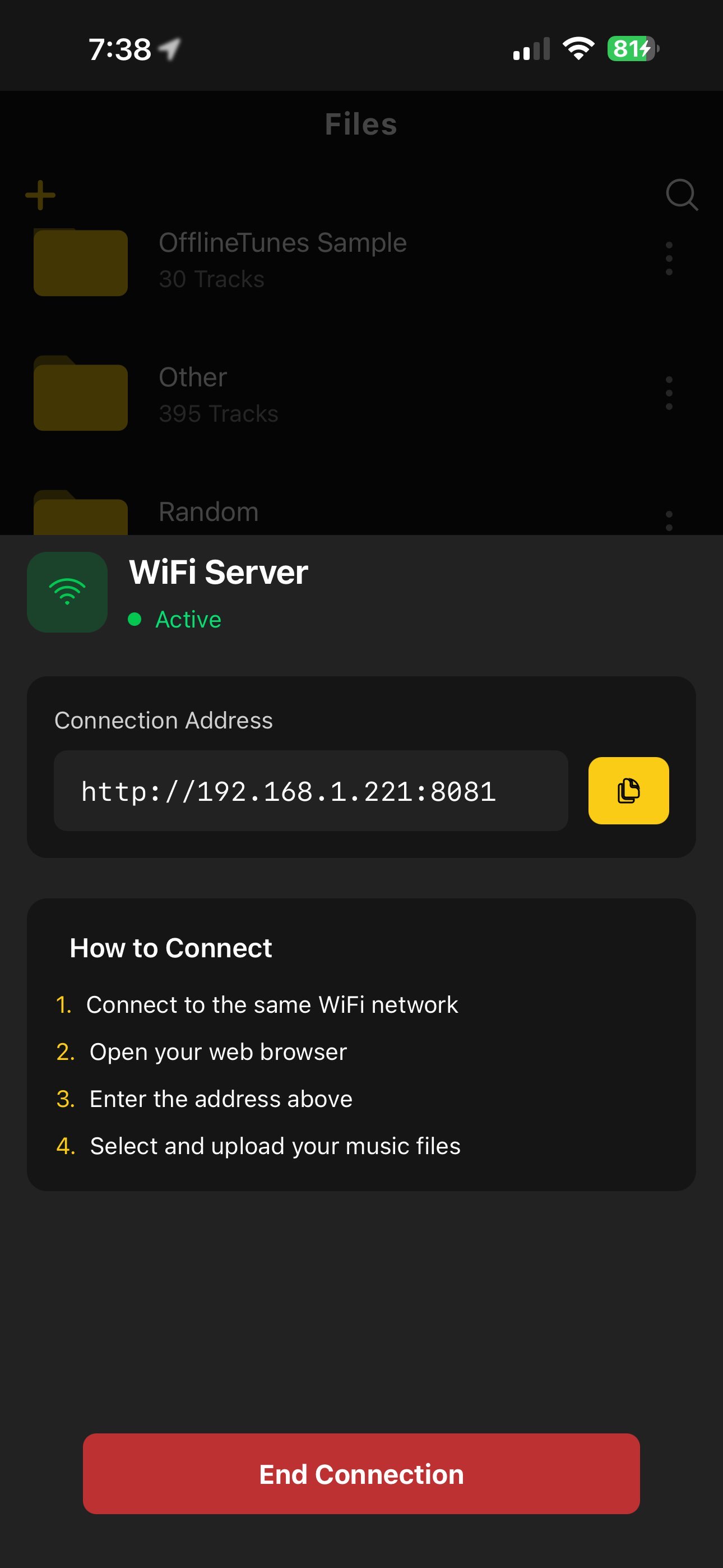
When another device is on the same network, local transfer can be faster than uploading everything to a cloud drive first. This is useful for shared household libraries, travel handoffs, and moving a prepared folder quickly.
The same rule applies: test one folder first. Confirm that the files show up, play offline, and keep metadata before sending a huge library.
After Transfer, Organize Before You Forget
Transfers create momentum, but organization prevents future pain. Rename messy folders, fix missing artwork, edit tags, and build playlists while you still remember what you imported.
If you care about keeping folder structure visible, read Why Your iPhone Music Library Needs Folder Browsing. If you are importing MP3 folders, read Best MP3 Player App for iPhone With Folders.
- 1Import one batch.Pick one folder or album group, not the whole archive.
- 2Open it offline.Turn off data or use airplane mode, then confirm playback.
- 3Check tags and artwork.Clean problems before importing the next batch.
- 4Add playlists last.Playlists make more sense after files are named and grouped correctly.
Verdict: No Computer Needed, But You Still Need a System
The best no-computer transfer method is the one you can repeat without creating chaos. Cloud import, local transfer, Files, and share sheet workflows can all work when the destination app manages the library well.
OfflineTunes gives those transferred files a home: folders, tags, artwork, playlists, queues, and offline playback.