What Is ReplayGain - and Why Your Music Library Needs It
ReplayGain fixes the quiet-song, loud-song problem by leveling playback volume without rewriting the music you own.
Stop riding the volume buttons between every album.
ReplayGain gives loud tracks and quiet tracks a shared target, so your library feels intentional instead of random.
In this article Open
Every music library eventually develops volume chaos. One old CD rip is too quiet. Next modern single is suddenly huge. Live album feels perfect until shuffle drops in podcast-like spoken intro, then your hand goes back to volume buttons again. Nothing is broken. Your files were mastered, ripped, tagged, and imported from different eras with different loudness targets.
ReplayGain is the quiet fix for that problem. It analyzes or reads loudness information for each track, then adjusts playback volume so songs land closer to a shared listening level. It does not turn your library into flat soup. It does not rewrite your music. It just gives playback a smarter starting point, which is why people ignore ReplayGain until they try it, then wonder why every music app does not treat it as basic hygiene.
What ReplayGain Actually Does
ReplayGain stores loudness metadata: how much a track or album should be raised or lowered during playback. If a song is much louder than target, player can turn it down. If a song is quiet, player can bring it up. The audio file remains same. The adjustment happens while listening, like an intelligent gain knob that moves before song starts.
That distinction matters. ReplayGain is not destructive normalization. Destructive normalization changes audio data in file. ReplayGain uses tags or stored values so playback can adapt without permanently editing waveform. If you care about keeping lossless files clean, or you do not want imported MP3s rewritten just to make shuffle less annoying, this is the right idea.
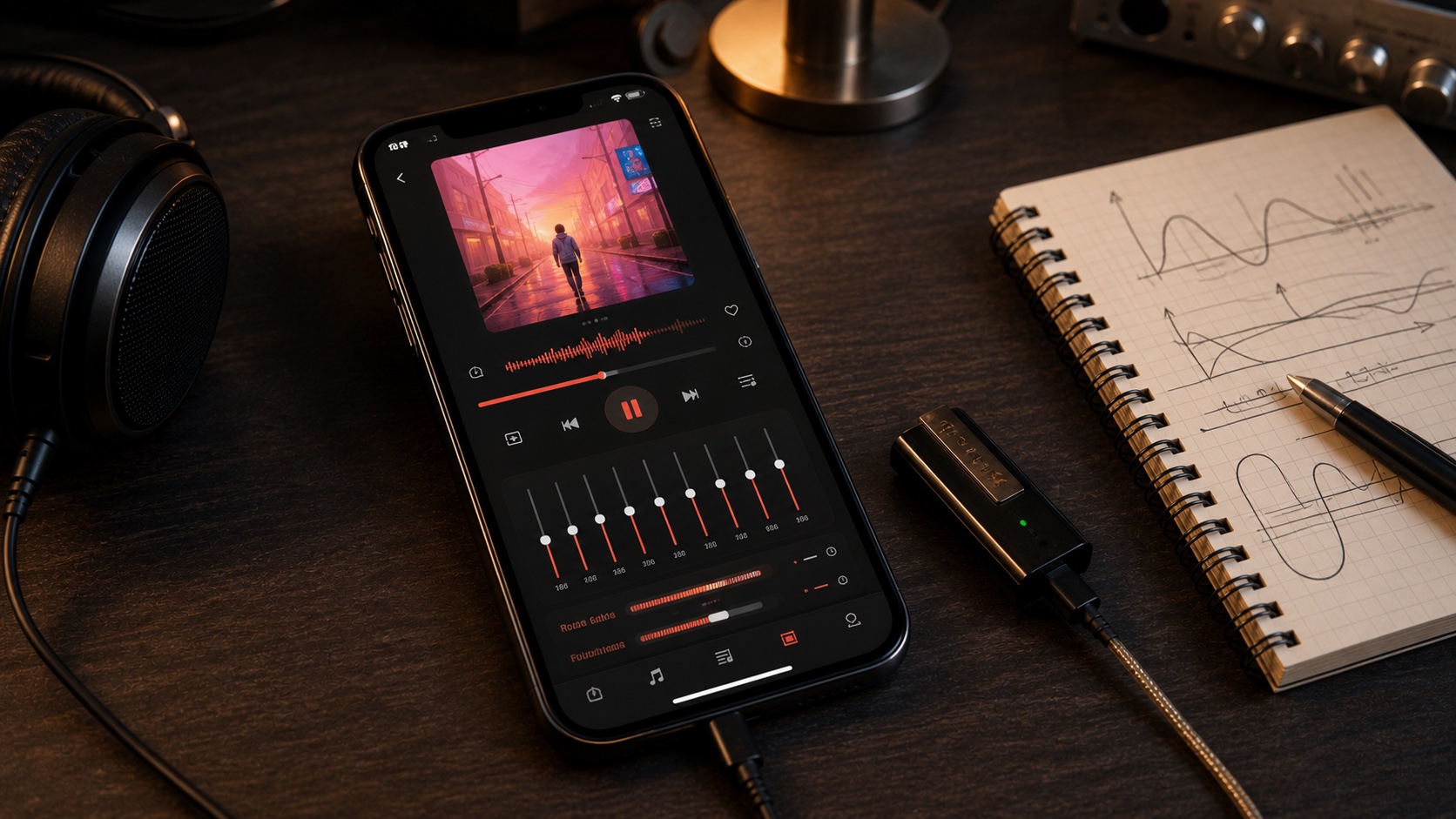
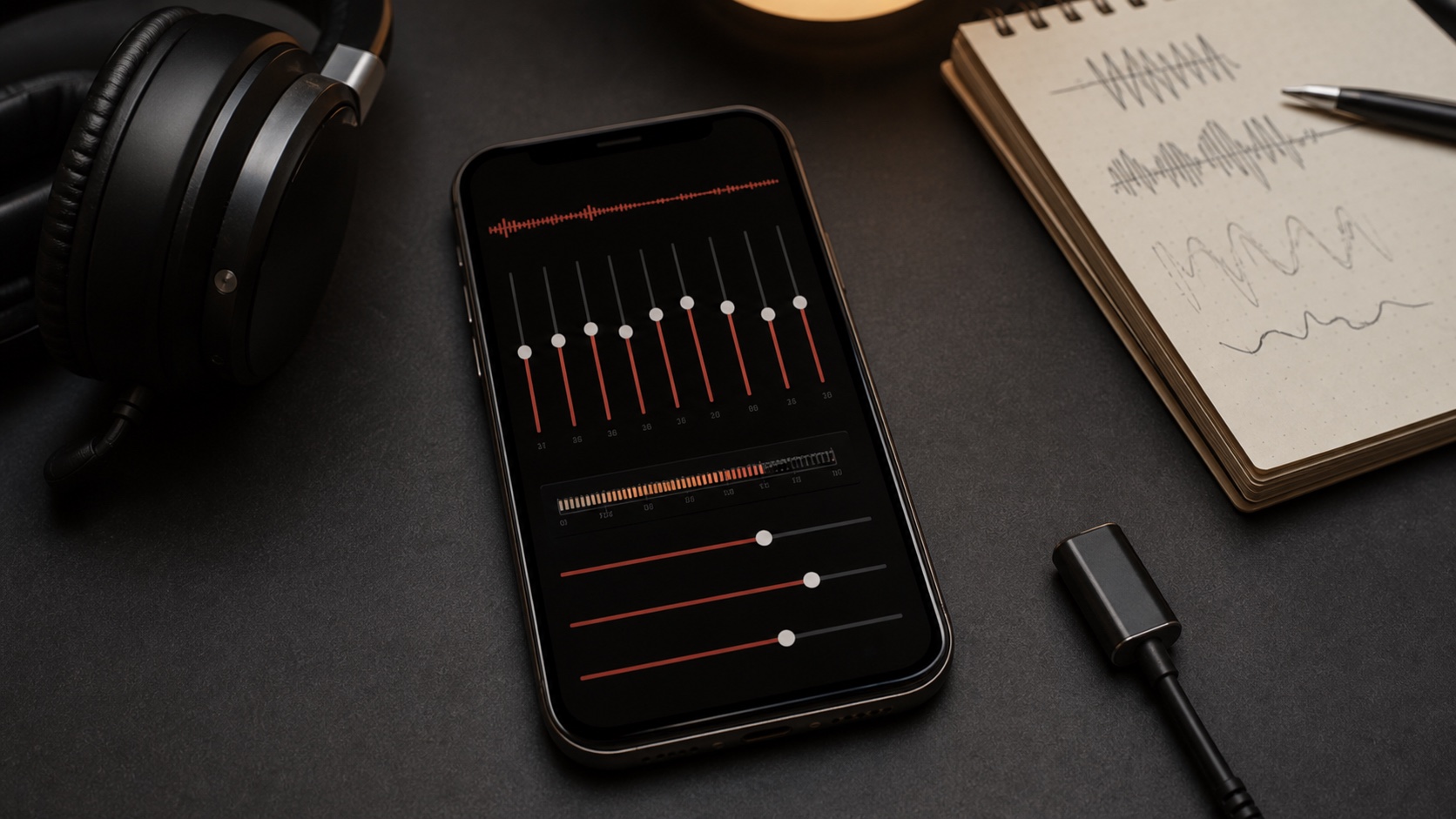
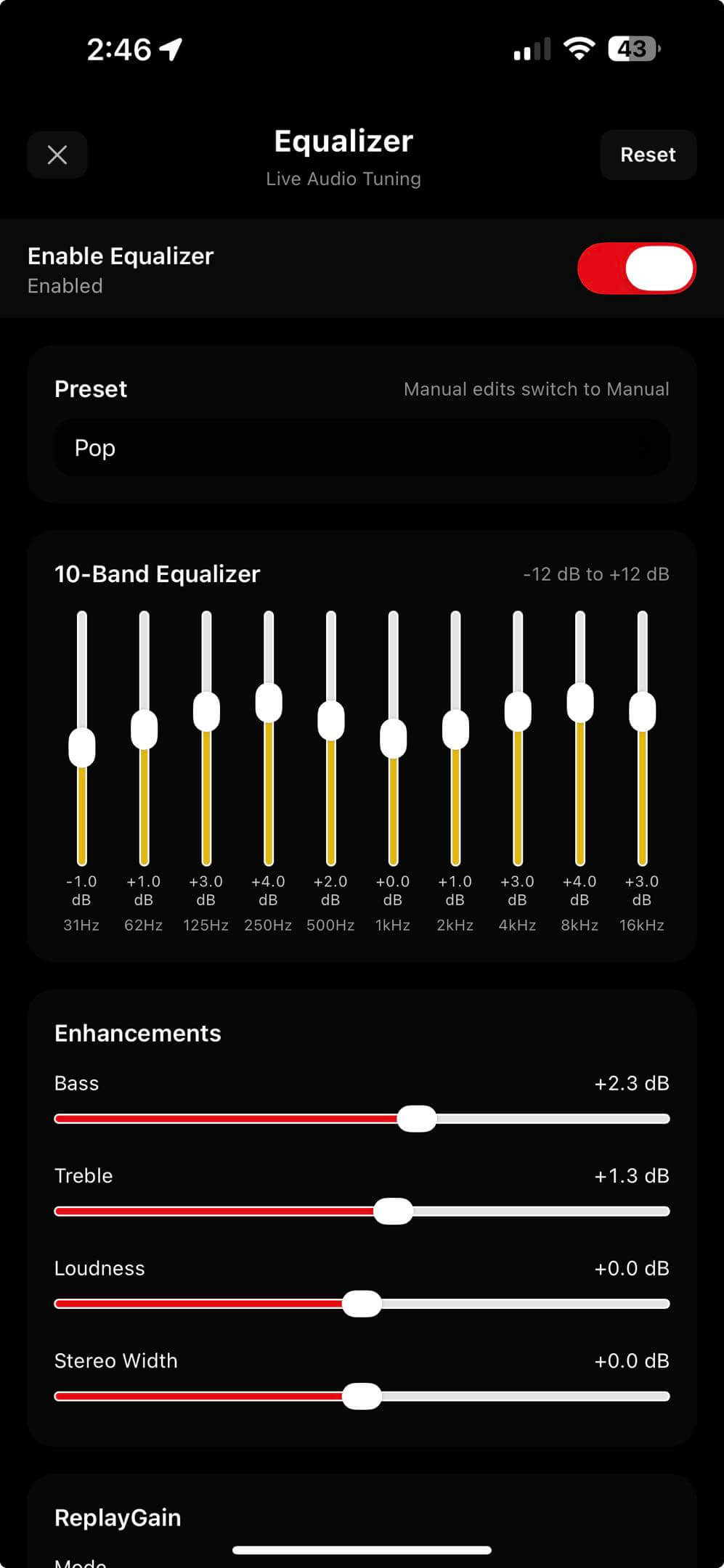
In OfflineTunes, ReplayGain lives with Equalizer because both are part of playback shaping. Equalizer changes tone. ReplayGain handles level. Preamp gives you global headroom control. Prevent Clipping helps avoid harsh overload when boosts stack too high. Together, they make local music feel controlled without making it sterile.
“ReplayGain does not make every song identical. It makes your volume knob less tired.”
Why Local Libraries Get So Uneven
Uneven loudness is normal in real collections. A 1991 album, a 2009 remaster, a Bandcamp FLAC, a YouTube-era MP3, and a live bootleg were not mastered for same playback context. Some were built for hi-fi systems with more dynamic range. Some were built to sound loud instantly in earbuds. Some were encoded from sources you no longer remember.
Streaming services often hide this with their own loudness normalization, but local music apps do not always do that well. If you own files directly, you also inherit their loudness differences directly. That is part of ownership. ReplayGain keeps that ownership from turning into constant volume babysitting.
Track Mode vs Album Mode
ReplayGain usually gives you two ways to listen: Track mode and Album mode. Track mode treats every song independently. It is best for shuffle, mixed playlists, gym queues, road-trip folders, and any listening session where songs from different releases sit next to each other. Each track gets its own correction, so jumps are smaller.
Album mode keeps album relationships intact. It applies album-level correction so quiet interludes, loud choruses, and carefully sequenced dynamics keep their relative shape. Use Album mode for full records, live sets, DJ mixes, classical releases, and anything where track-to-track contrast is part of art.
- Use Track mode for shuffle, mixed playlists, and huge libraries with many sources.
- Use Album mode for full albums, live recordings, concept records, and gapless listening.
- Use Off when you want untouched playback level or you are testing source files.
ReplayGain and EQ Work Better Together
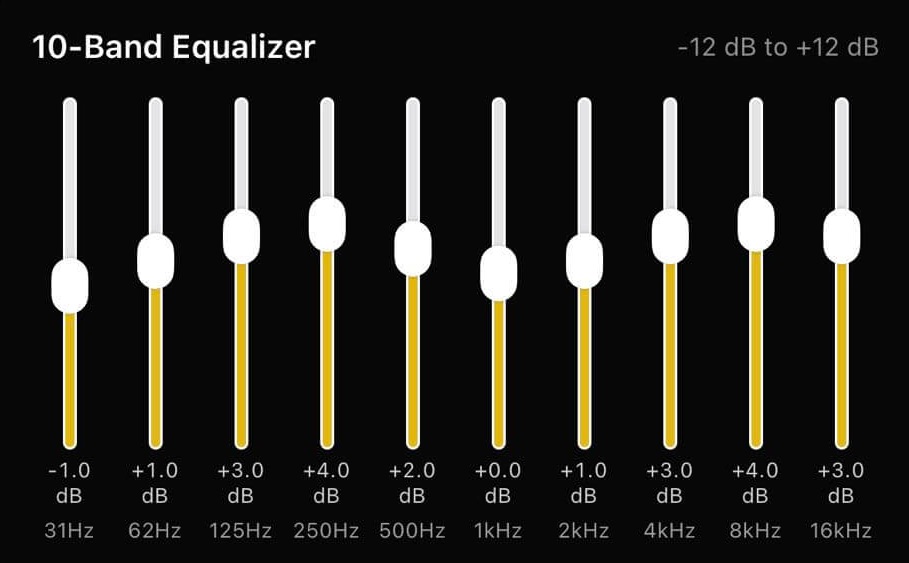
ReplayGain handles volume consistency, but EQ can still add energy. Boost bass by several dB, lift treble, add loudness, then play a track that was already near ceiling, and you can run out of headroom. That is not ReplayGain failing. It is math. More gain from multiple places can push signal past clean limit.
This is why OfflineTunes keeps ReplayGain near EQ and exposes Preamp. If you use bigger EQ boosts, lower preamp a bit. If library has many hot modern masters, leave Prevent Clipping on. If you are chasing maximum loudness, remember that clean loud beats distorted loud every time.
Why Prevent Clipping Matters
Clipping happens when audio is pushed beyond available headroom. Instead of getting louder cleanly, waveform flattens and distortion appears. Sometimes clipping is obvious: crunchy cymbals, smeared bass, vocals that feel sharp. Sometimes it is subtle: music gets fatiguing and you do not know why.
ReplayGain metadata can include peak information, and OfflineTunes has a Prevent Clipping option in ReplayGain controls. Keep it enabled unless you have a specific reason not to. It is one of those boring switches that quietly protects everything else you are doing, especially with EQ boosts and preamp changes.
How to Use ReplayGain in OfflineTunes
Open Equalizer in OfflineTunes and look for ReplayGain section. From there, choose Mode: Off, Track, or Album. Start with Track mode if you mostly shuffle or build mixed playlists. Switch to Album mode when listening to full records where original dynamics matter. Leave Prevent Clipping enabled, then adjust Preamp only when you need more headroom or a touch more output.
- 1 Turn on Equalizer.ReplayGain is part of playback processing in Equalizer screen.
- 2 Choose Track or Album mode.Track for playlists and shuffle. Album for complete releases.
- 3 Keep Prevent Clipping enabled.Especially useful when EQ, loudness, or preamp boosts add extra gain.
- 4 Test with three different sources.Try old rip, modern master, and live track. If jumps are smaller, ReplayGain is doing its job.
ReplayGain vs Normalization
People often use “normalization” to mean any volume leveling, but there are two very different ideas. File normalization changes audio data. Playback normalization reads loudness and adjusts during playback. ReplayGain belongs to second camp. For collectors, that is important because it respects files you already curated.
If you have FLAC archives, carefully tagged albums, or imported files from multiple clouds and computers, you probably do not want volume leveling to rewrite them. You want player to understand them. That is ReplayGain value: smarter playback, not permanent edits.
ReplayGain is not flashy. It will not sell itself in first five seconds. But once your library stops lunging from whisper-quiet to painfully loud, it becomes hard to live without. It makes shuffle more relaxed, albums more faithful, EQ safer, and offline listening less fussy. That is exactly kind of feature local music libraries need: small, technical, and quietly transformative.