AutoEQ: Headphone Correction Profiles for Your iPhone
AutoEQ tunes your exact headphones with a measurement-based correction curve, so your music sounds the way it was mastered - and it works fully offline.
In this article Open
Two people can put on the exact same song, with the exact same file, and hear two different records. Not because their taste differs, but because their headphones do. Every pair of headphones and earbuds has its own frequency response: some push the bass, some dip the mids, some sharpen the treble until cymbals hiss. That coloring is baked into the hardware before your ears get a vote.
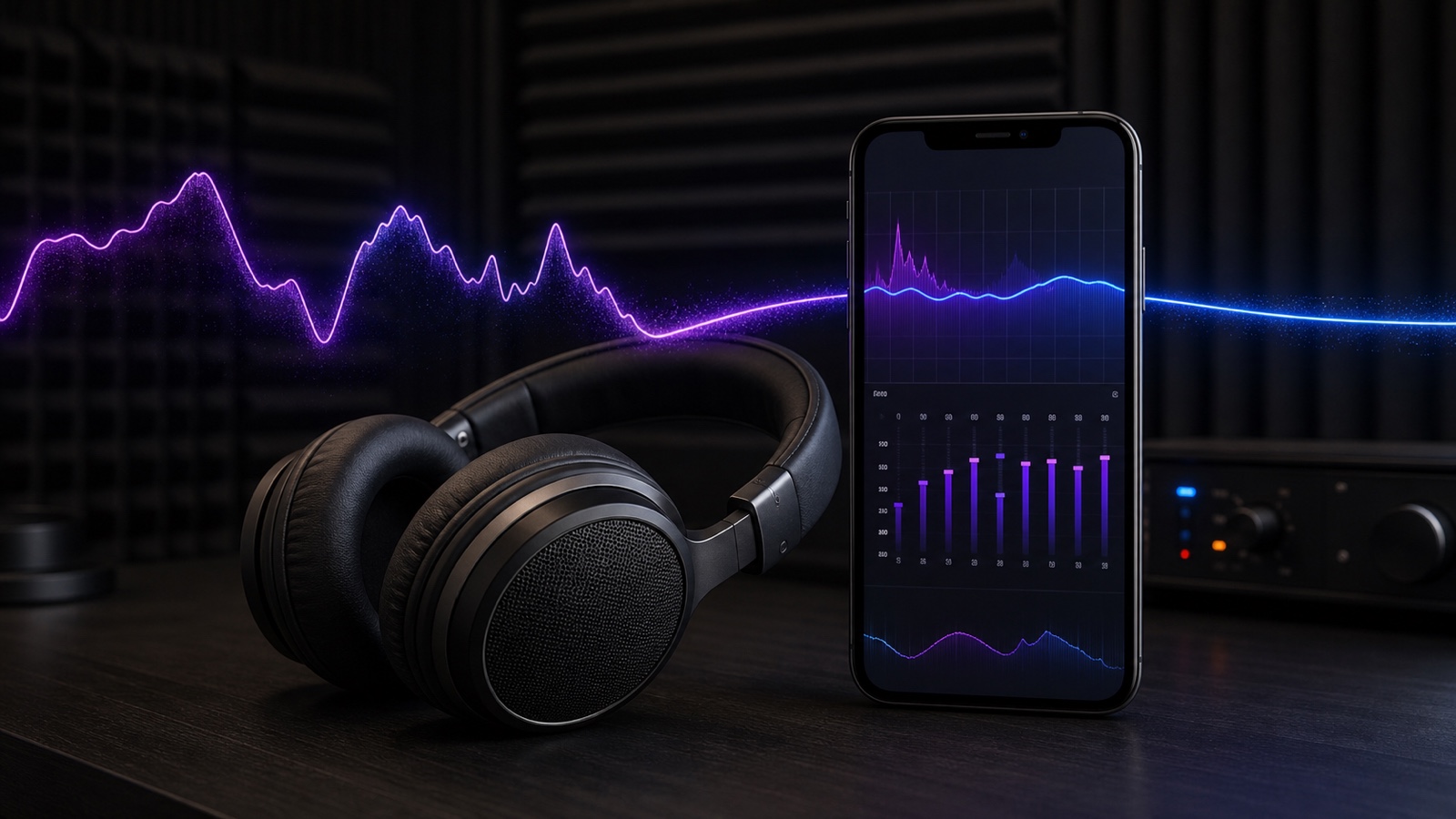
Most people try to fix it by nudging a graphic equalizer until it “sounds better,” which usually means louder. That is guesswork. AutoEQ in OfflineTunes replaces the guessing with measurement: pick your headphone model and it applies a correction curve built from real frequency-response data, so your music sounds closer to how it was actually mastered.
No Headphone Is Actually “Flat”
A studio reference monitor aims for a neutral response so engineers can hear the truth of a mix. Consumer headphones do not. They are tuned to sell, to sound exciting in a shop, or to survive a noisy commute. That is why the same track feels boomy on one pair, thin on another, and harsh on a third.
You can hear this most on music you know cold. A vocal that suddenly sits too far back. A kick drum that swallows everything. A hi-hat that turns into a needle. None of that is in the file. It is the last few centimeters between the driver and your eardrum, adding its own signature to every song you own.
Correcting it by ear is hard because you are chasing a target you cannot see. Boost one band and you mask a problem two bands over. AutoEQ starts from the measurement instead, so the correction has somewhere real to aim.
“The coloring you hear is the hardware, not the music. AutoEQ measures it out of the way.”
What Is AutoEQ?
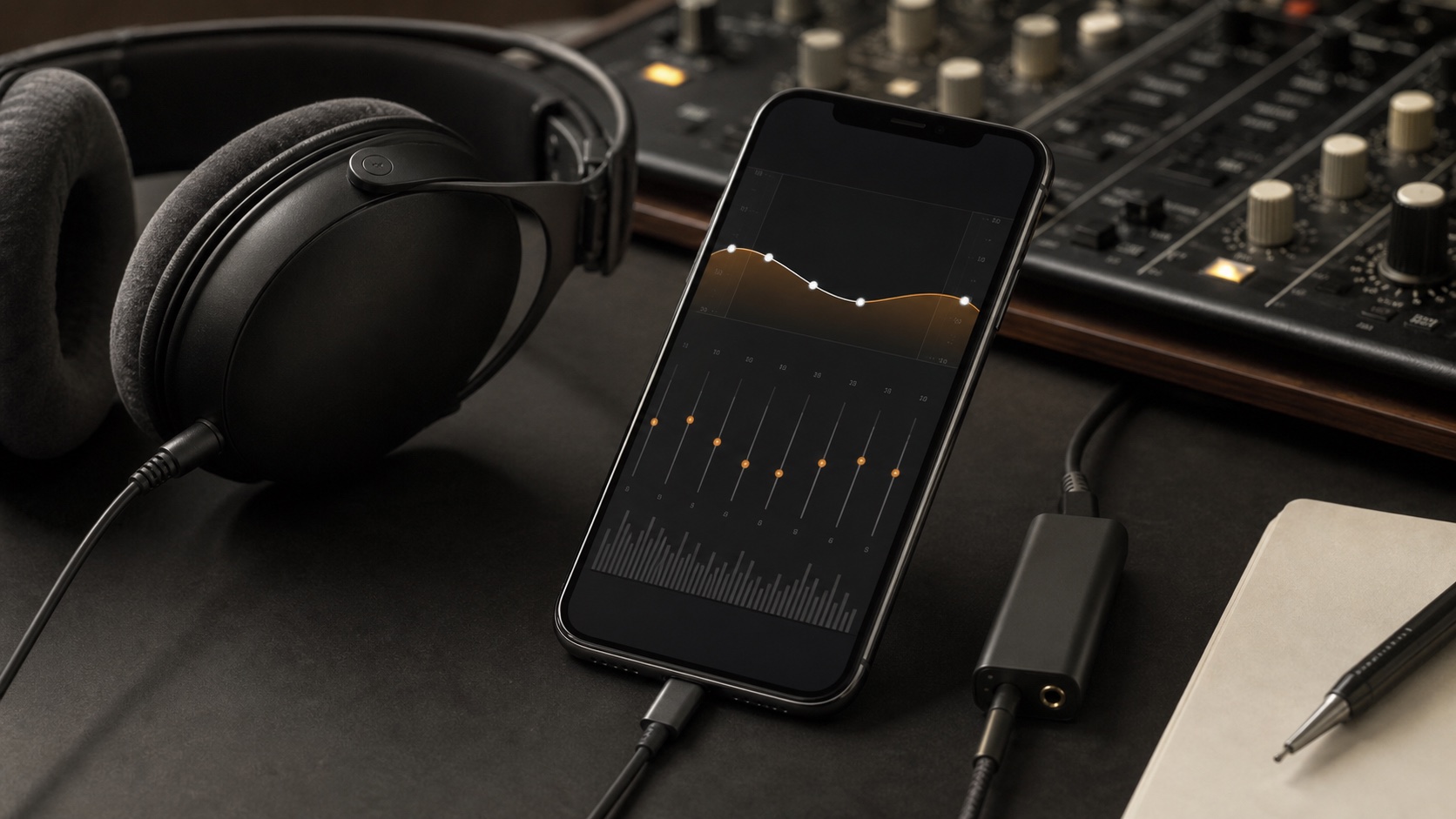
AutoEQ is a headphone-correction feature built into the OfflineTunes equalizer. Instead of asking you to move ten sliders, it ships with a large database of headphones and earbuds. You search for your model, tap it, and OfflineTunes loads a tuned correction profile for that specific pair.
Each profile is a set of precise filters plus a preamp value, derived from published frequency-response measurements compared against a neutral target curve. In plain terms: it knows where your headphones bump and dip, and it applies the opposite shape to flatten the result. The whole database lives on-device, so search and matching work with the app fully offline.
How It Differs From a Normal Graphic EQ
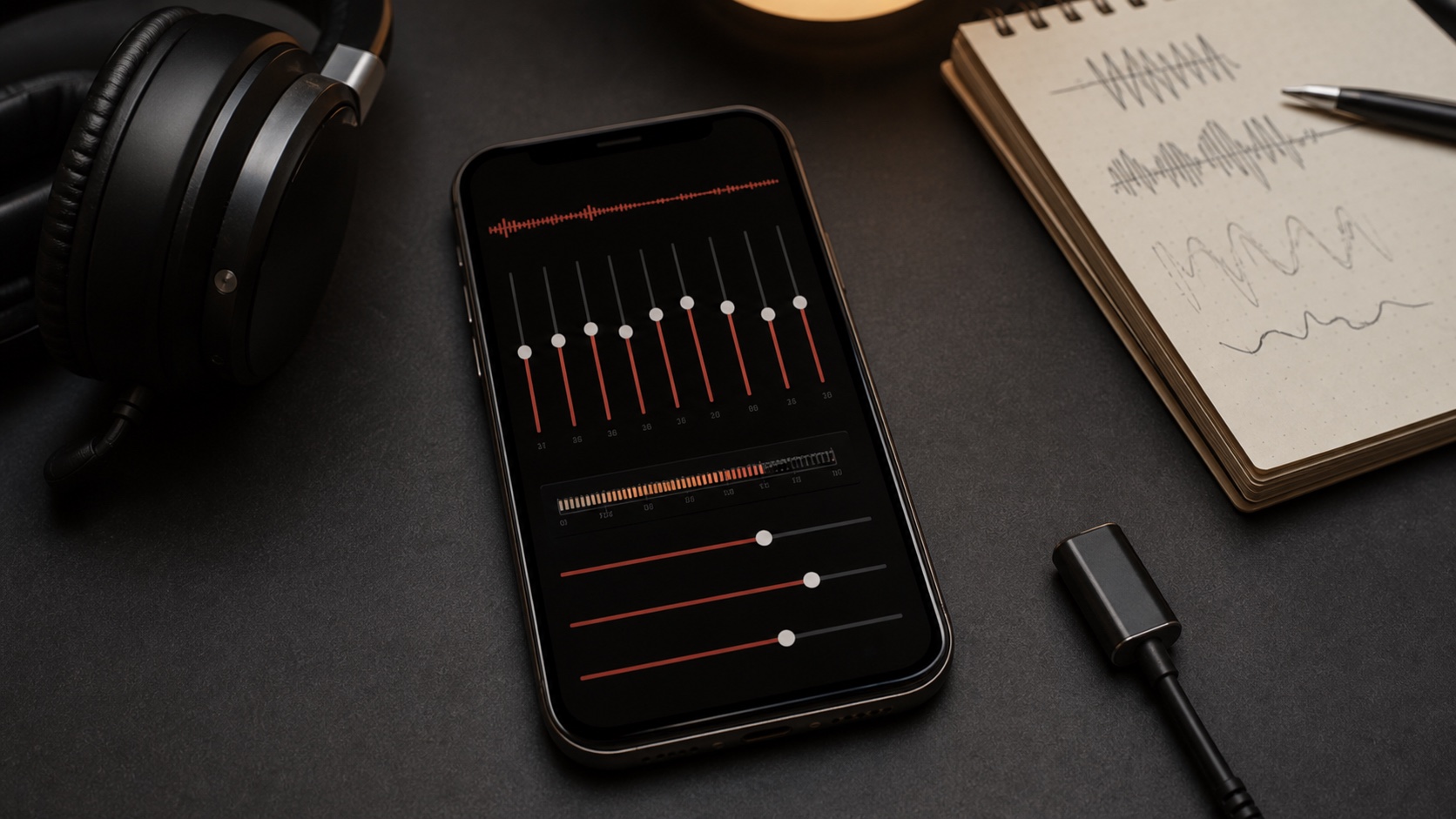
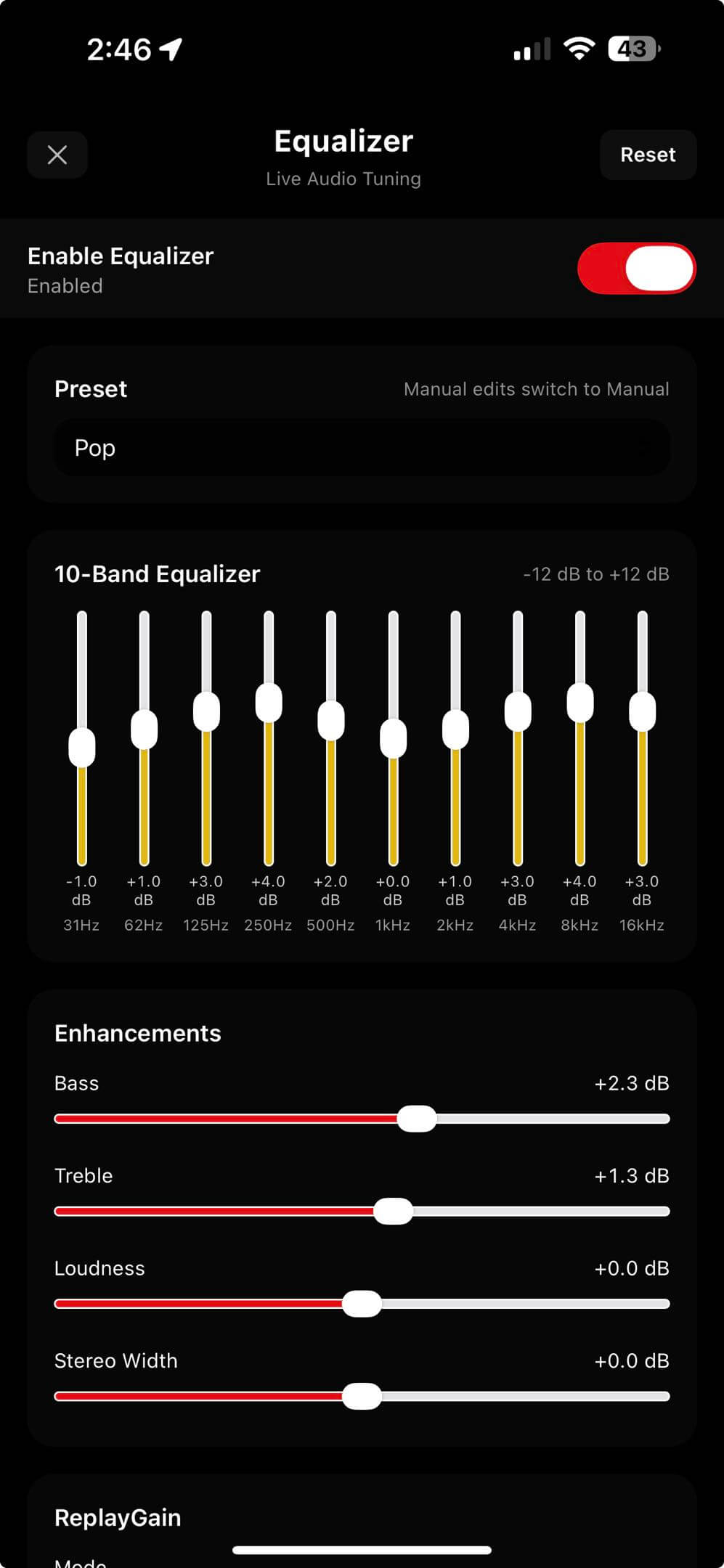
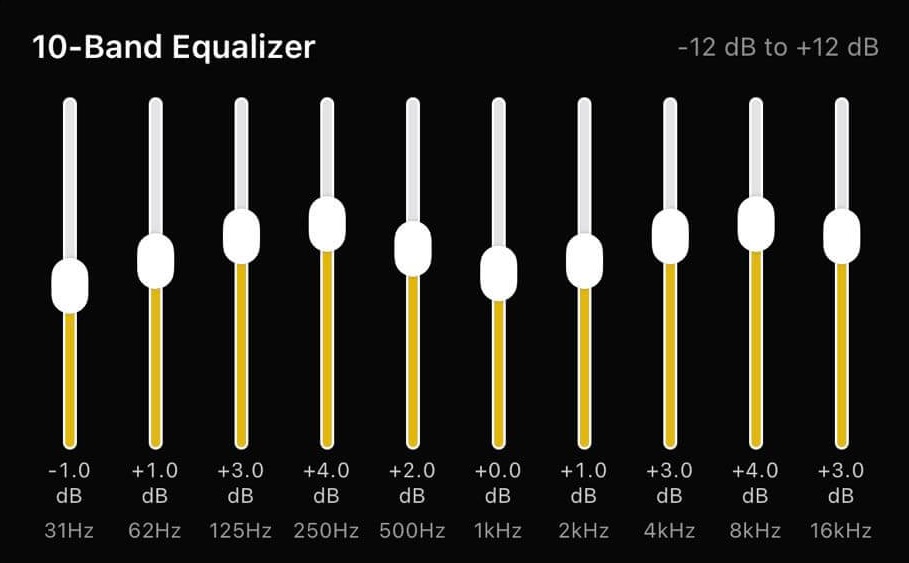
The manual equalizer in OfflineTunes is a classic 10-band graphic EQ: fixed frequencies, one slider each, great for taste. Want more warmth or a brighter top end? Move the sliders. It is broad and immediate.
AutoEQ is doing something narrower and more surgical. A correction profile can place filters exactly where a headphone misbehaves, with the right gain and width to counter a specific peak or dip, and it carries a matched preamp so the correction has headroom and does not clip. That is why it can fix a sharp resonance a graphic EQ would only smear.
They are not rivals. Many people apply an AutoEQ profile to get their headphones neutral, then add a small amount of manual EQ on top for personal taste. If you want a deeper tour of the manual side, read Finally, an iPhone Music Player With a Real Equalizer.
- Search: find your headphones or earbuds by model name.
- Apply: load a measurement-based correction curve in one tap.
- Favorite: star the profiles you use most for quick recall.
- Stack: layer light manual EQ on top for taste, not repair.
Set It Once: Automatic Device Profiles
The real payoff is not applying a profile once. It is never thinking about it again. OfflineTunes can assign an AutoEQ profile to a specific output device, then re-apply it the moment that device connects.
Plug in your wired IEMs and their profile loads. Connect your Bluetooth over-ears and theirs loads instead. Switch back to the phone speaker and the correction steps aside. OfflineTunes watches for the audio route changing and matches the saved profile to whatever you just connected, so every pair of headphones you own gets its own tuning without a single tap mid-song. Automatic device profiles are a Premium feature.
AutoEQ and Your Lossless Library
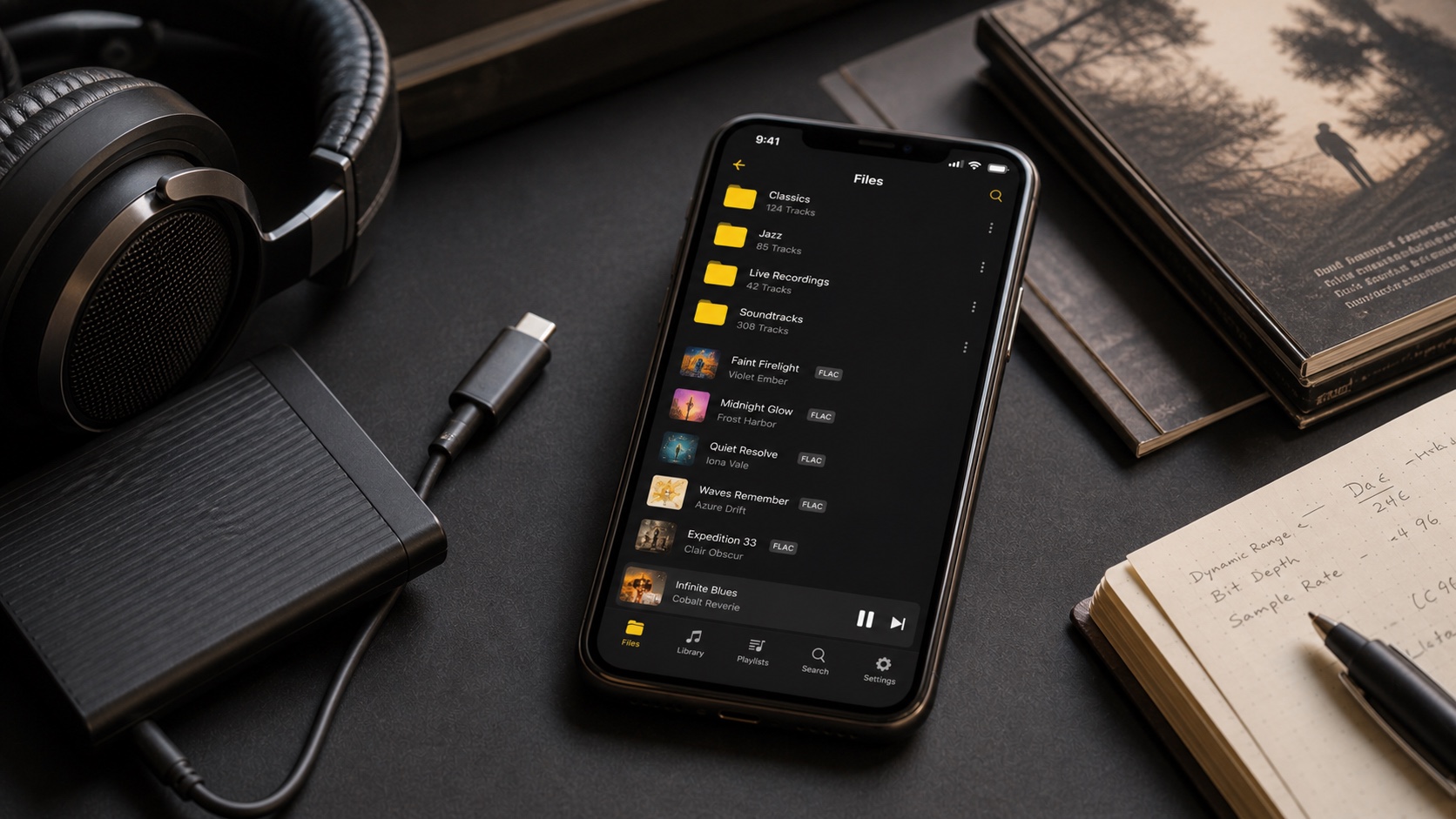
Correction only matters if the source is good, and AutoEQ is built for people who care about the source. It runs on the local files you own inside OfflineTunes, including lossless FLAC, ALAC, and WAV alongside MP3 and OPUS. The profile database is stored on the device, so none of this needs a connection.
It also plays nicely with the rest of the audio chain. Keep ReplayGain on for consistent loudness between albums, apply an AutoEQ profile for accurate tone, and add manual EQ if you like. The one place AutoEQ intentionally steps back is bit-perfect mode: when you ask for an untouched signal path, the app leaves the audio alone rather than inserting correction. If you are new to loudness normalization, What Is ReplayGain pairs well with this feature.
How to Turn On AutoEQ
If your music is already in OfflineTunes, you are a short search away from a better tuning.
- 1 Open the Equalizer.Reach it from the player controls while a track is playing.
- 2 Open AutoEQ and search your headphones.Type your model name and pick the closest match.
- 3 Apply the profile.The correction curve loads instantly. Star it to keep it handy.
- 4 Assign it to that device (Premium).Save the profile to the connected headphones so it re-applies automatically next time.
On the free tier you can apply a profile for a listening session by watching a rewarded ad, which is a fair way to try AutoEQ before you commit. Premium removes the ads and the session limit, and unlocks the automatic device profiles that make correction truly hands-off.
Great sound is not only about expensive headphones or lossless files. It is about getting the hardware out of the way so the recording can speak for itself. AutoEQ measures the coloring your headphones add and quietly subtracts it, on a library you own and can play anywhere. Put on a song you know by heart, apply your profile, and listen for the moment it finally sounds right.