iPhone Music Player With Equalizer: What to Look For
A good iPhone music equalizer needs more than bass boost. Look for multiband EQ, preamp, ReplayGain, presets, and library-aware playback.
In this article Open
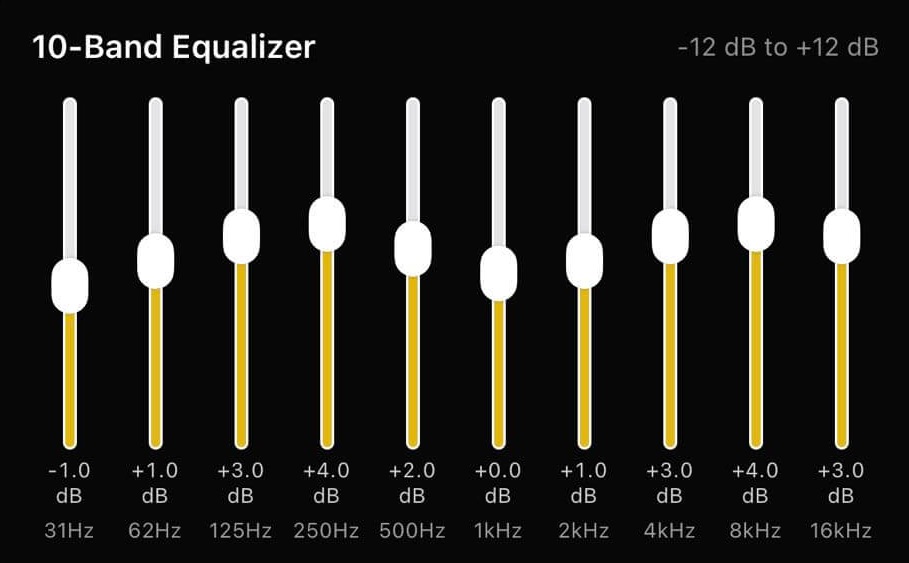
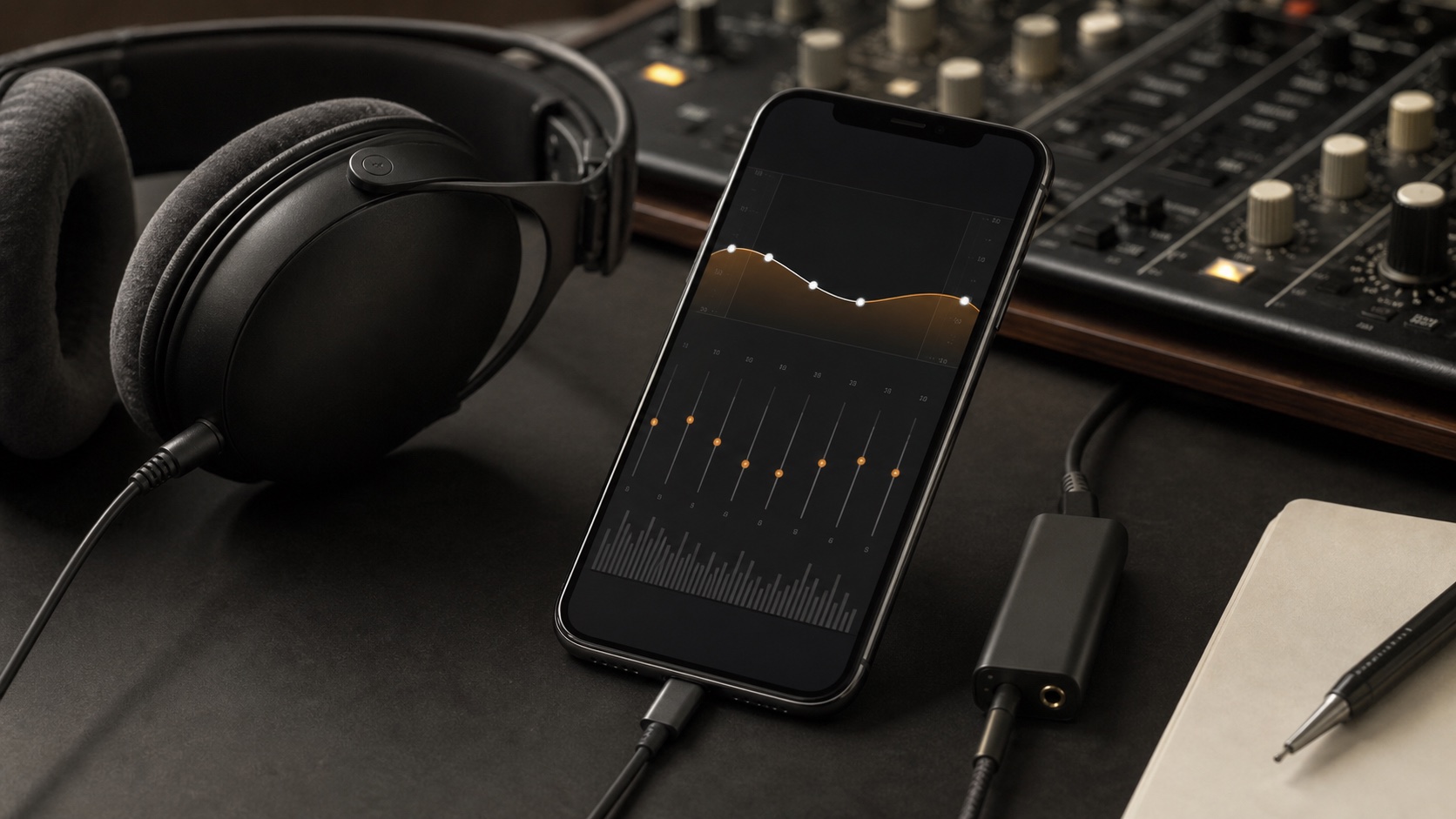
An iPhone music player with equalizer should do more than make bass louder. Good EQ needs headroom, presets, preamp control, ReplayGain, and enough library context to apply sound settings where they make sense.
OfflineTunes pairs a local music library with precision audio tools. That matters if you listen across earbuds, cars, speakers, wired headphones, and lossless files with very different mastering levels.
Short Answer: Look for EQ Plus Headroom
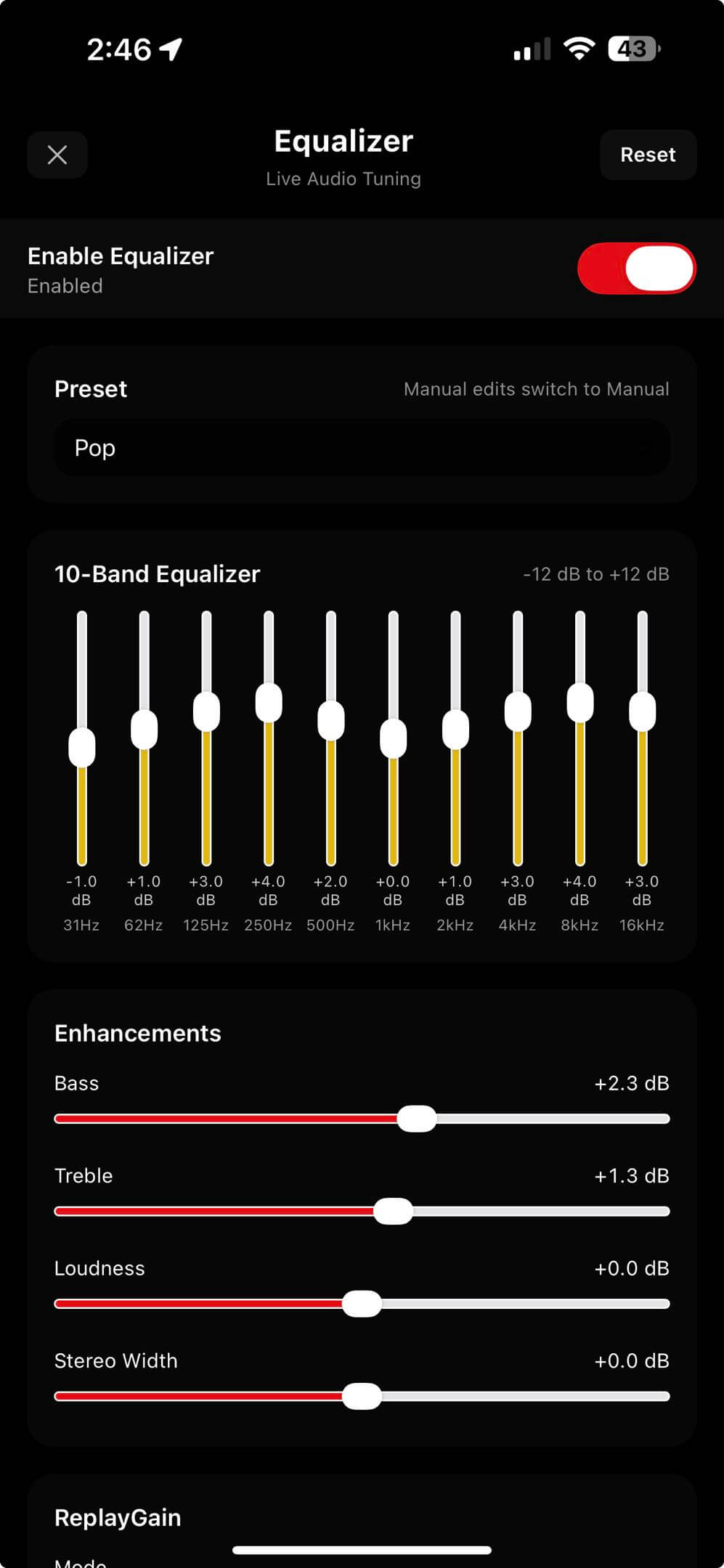
A good equalizer app gives you control without encouraging distortion. Boosting frequencies can clip audio if the player does not give you a way to lower preamp or manage loudness. That is why ReplayGain and preamp controls matter beside EQ.
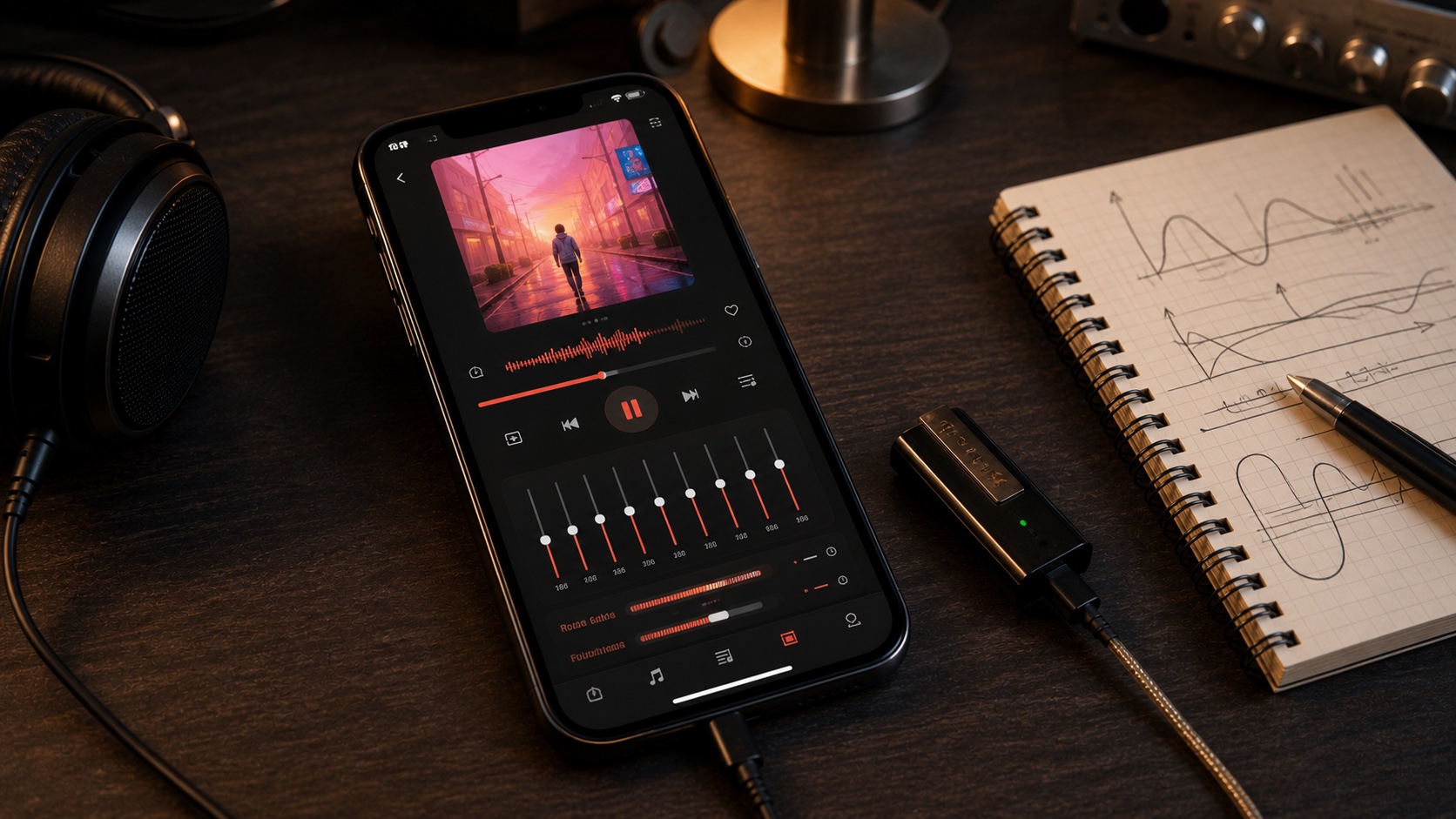
OfflineTunes is a better fit than a simple bass booster because it puts EQ inside a full player: files, folders, playlists, queues, and playback modes all live in the same workflow.
Avoid the Loudness Trap
EQ boosts sound exciting because they increase energy. They can also push audio past available headroom. The result is harshness, crackle, or fatigue that gets blamed on the file when the real issue is gain staging.
Use small moves. If you boost bass or treble, lower preamp. If albums jump in volume, use ReplayGain. If one pair of headphones needs a curve, save that logic rather than adjusting every song manually.
EQ Is Better When It Knows Your Library
A standalone equalizer can shape output, but a music player can make EQ practical. You may want different sound settings for a playlist, folder, genre, or listening situation. Local library context makes that kind of control less annoying.
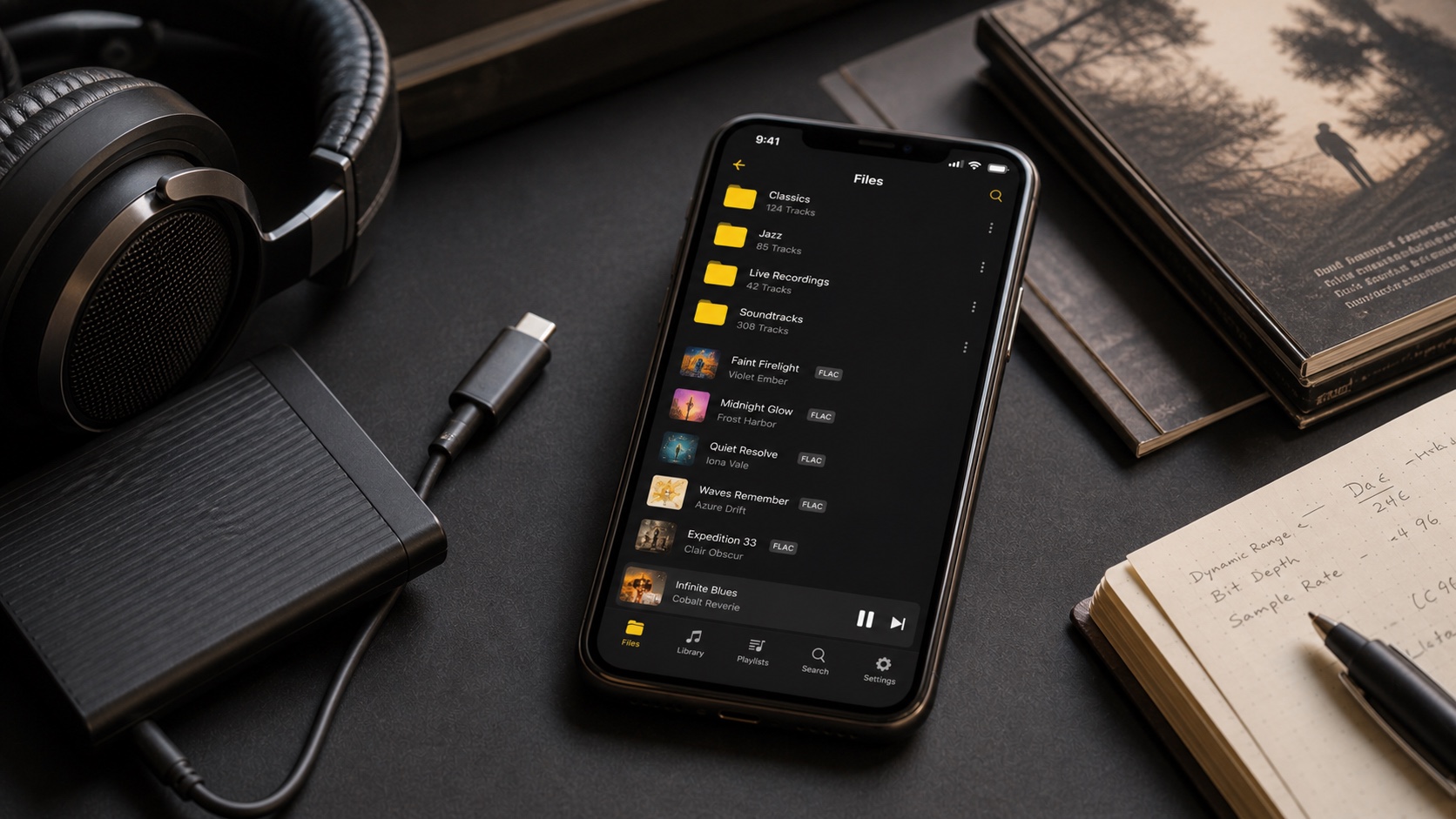
OfflineTunes supports custom folder and playlist playback defaults, so sound settings can follow the way you actually browse music. That matters for live recordings, workout folders, car mixes, and quiet late-night playlists.
- Folder defaults help genre or source-specific folders keep their own playback feel.
- Playlist defaults make mixes more consistent without editing files.
- ReplayGain reduces sudden jumps between old masters and modern loud tracks.
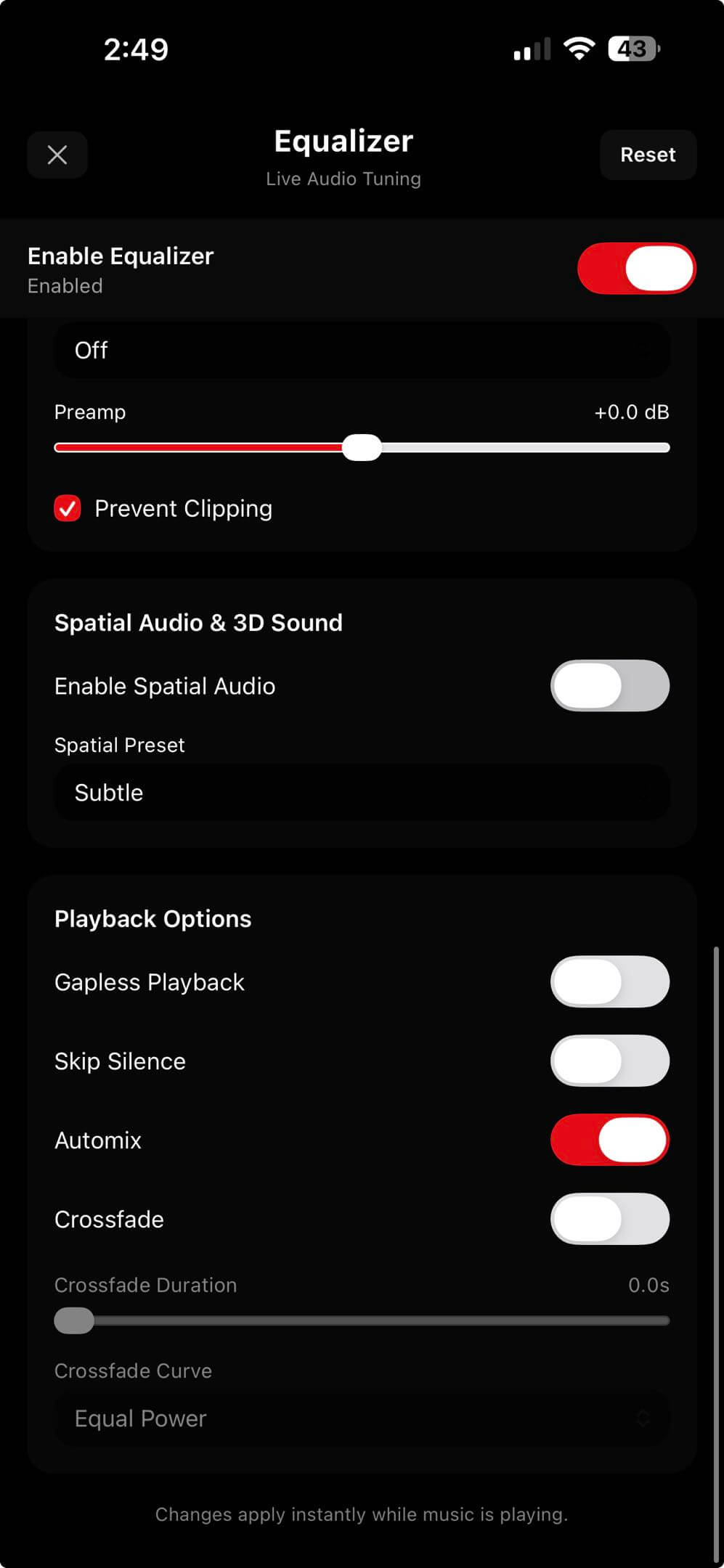
- Crossfade, gapless, and skip silence help playback flow after sound is dialed in.
How to Test an iPhone Equalizer
Test with music you know well. Use one bass-heavy track, one vocal track, one bright recording, and one quiet album. Switch between headphones and speakers. The best setting is not the most dramatic one; it is the one you can enjoy for a full album.
For volume leveling details, read What Is ReplayGain?. For FLAC-focused listening, read The Best FLAC Player for iPhone.
- 1Start flat.Listen before touching sliders so you know what problem you are solving.
- 2Move one band at a time.Small changes beat dramatic curves for daily listening.
- 3Lower preamp after boosts.Headroom keeps boosted frequencies from clipping.
- 4Save by use case.A car curve, headphone curve, and speaker curve usually beat one global curve.
Verdict: EQ Belongs Inside the Player
The best iPhone music player with equalizer is not a slider panel bolted onto playback. It is a player where EQ, ReplayGain, files, folders, playlists, and queues work together.
OfflineTunes gives you that stack, which makes it a strong choice for people who want local music control and better sound without losing organization.