How to Trim, Speed Up, Pitch-Shift, and EQ Audio on iPhone
Prepare a new copy or overwrite a local track after adjusting its start, ending, speed, pitch, gain, and EQ with live preview.
In this article Open
Sometimes a music file is almost right. It starts with thirty seconds of silence, ends after unwanted applause, needs a small gain change, or would be more useful at another speed or pitch.
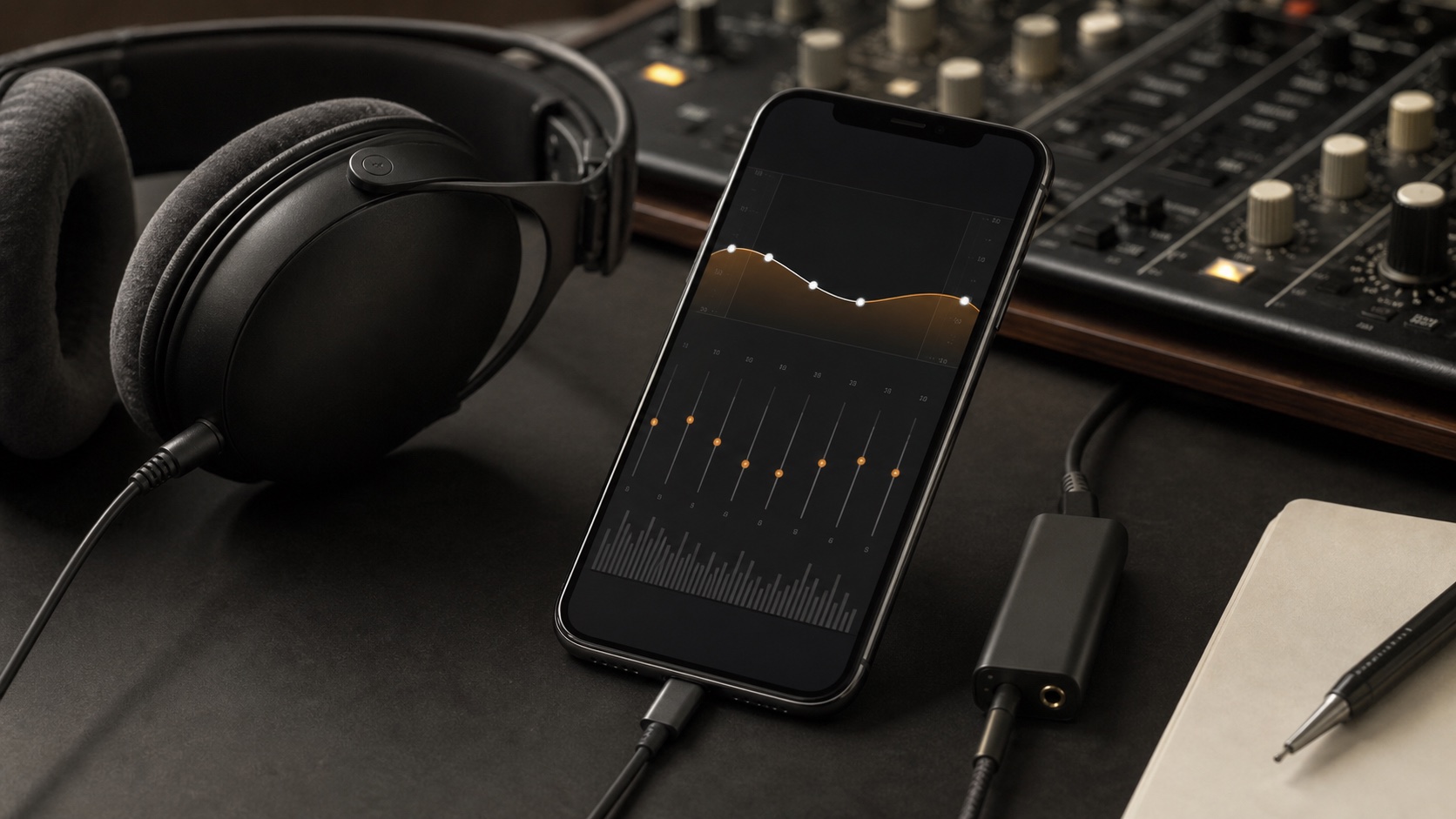
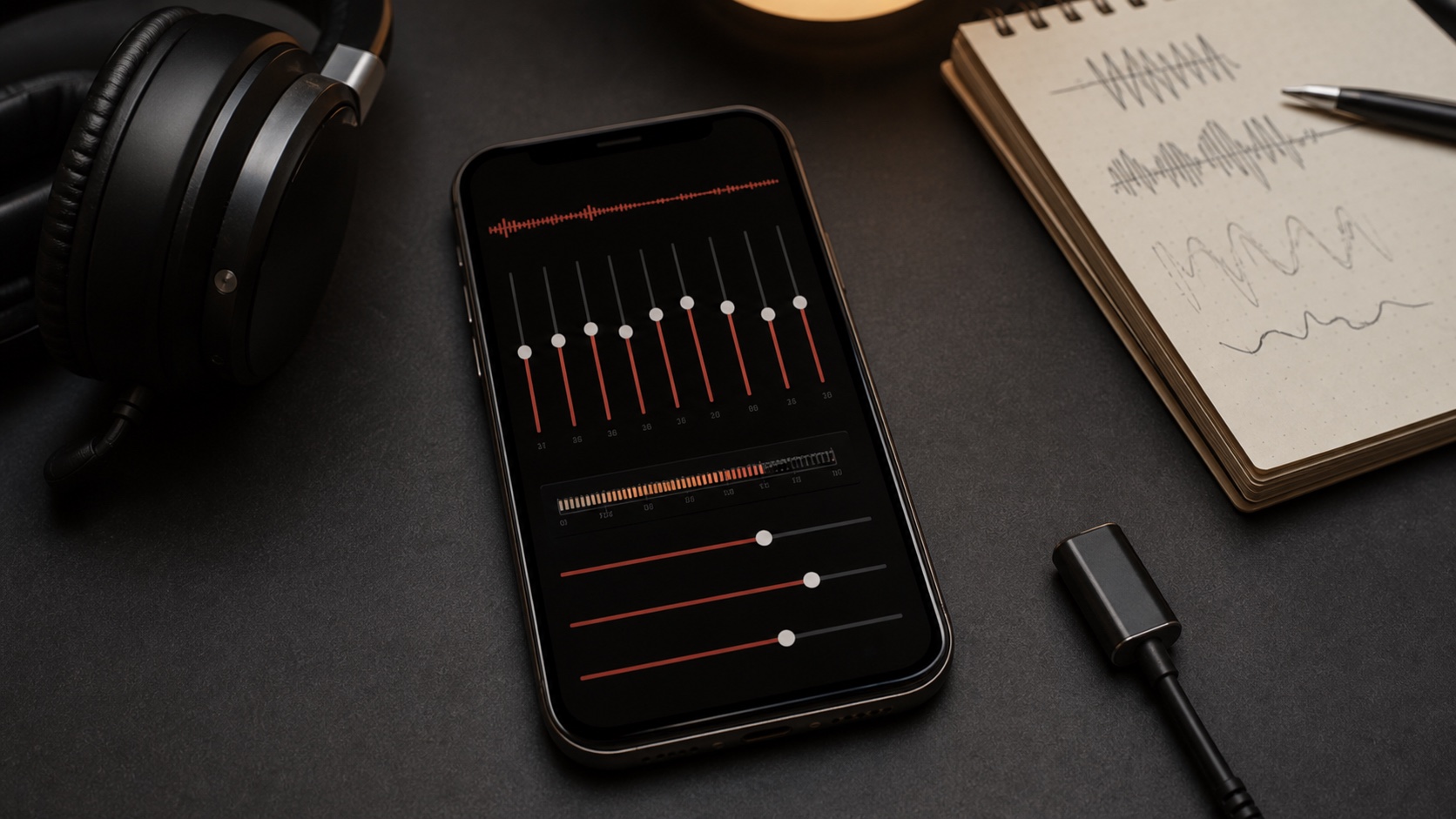
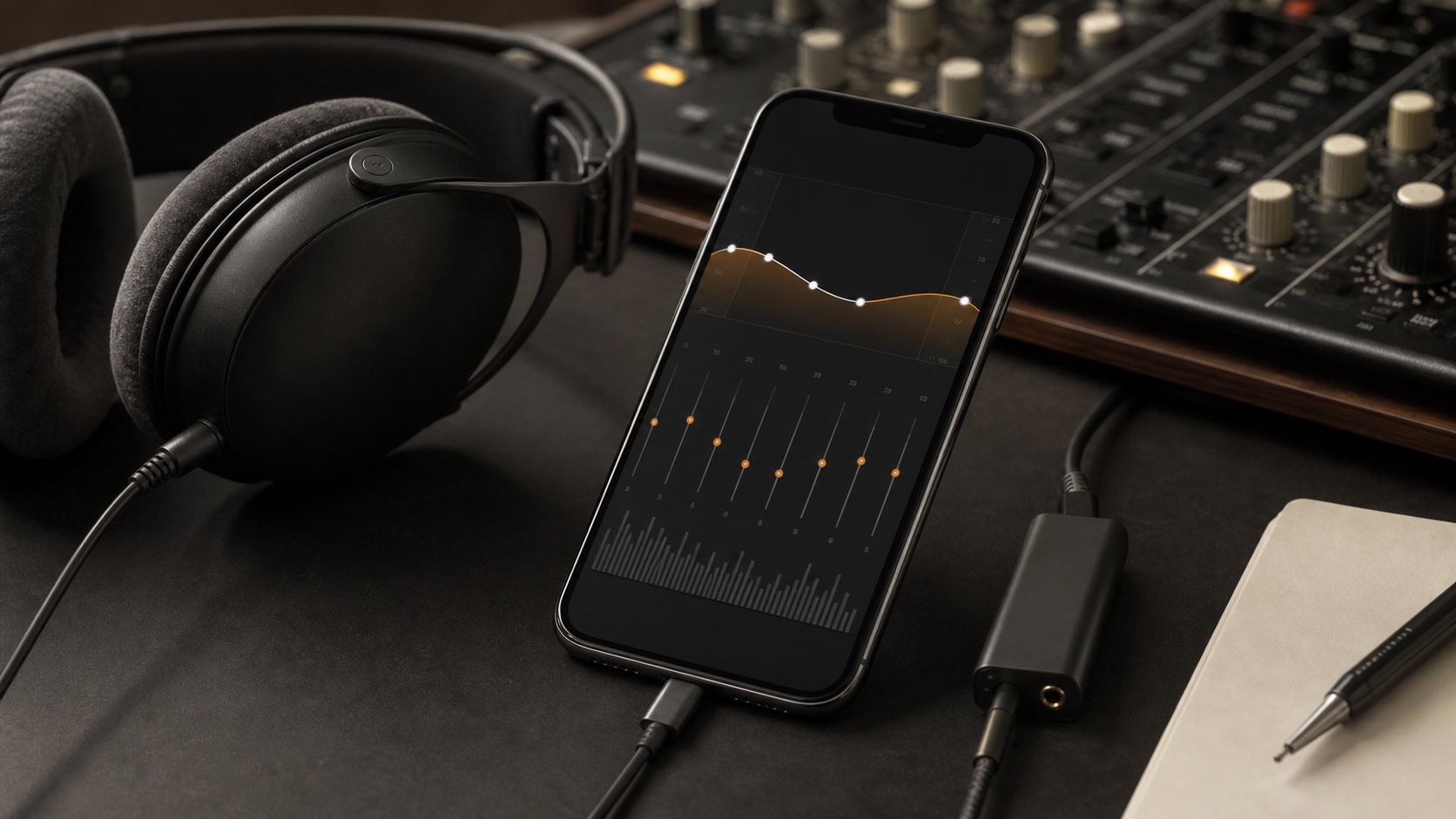
OfflineTunes Process Tracks lets you trim, change speed, pitch-shift, adjust gain, and apply EQ on iPhone. Preview the result before saving a new file or overwriting the original.
Six Controls Cover Most Everyday Repairs
Start and end trim remove material outside the part you want. Speed changes duration and pace, while pitch changes musical height. Gain changes overall level, and EQ changes frequency balance.
These controls can interact. Speed and pitch are especially easy to overdo, while aggressive gain can create clipping. Small adjustments and repeated previewing produce safer results.
Live Preview Prevents Blind Exports
A waveform or number cannot tell you whether the edit feels musical. Live preview lets you hear the trim point, altered speed, shifted pitch, gain, and EQ before committing storage space or changing the source.
Preview around the edit boundary, not only in the middle. Listen just before and after a trim, use the loudest section to judge gain, and test pitch changes on vocals or sustained instruments where artifacts are easiest to hear.
Save a New File or Overwrite Deliberately
Saving a new file preserves the original and is the safer choice for experiments, practice versions, or edits you may want to reverse. It costs more storage and can create duplicate library entries.
Overwrite only after the preview is final and another copy exists somewhere safe. For irreplaceable recordings, keep the master outside the phone before making destructive changes.
- Save new: experiments, alternate versions, practice copies, uncertain edits.
- Overwrite: confirmed repairs with a separate backup.
- Keep metadata: verify title, artist, album, artwork, and format after processing.
- Check storage: new lossless files can be large.
Use a Safe Processing Workflow
Process one representative track before applying the same idea across a batch. A gain or EQ setting that suits one source may not suit files from another album or mastering era.
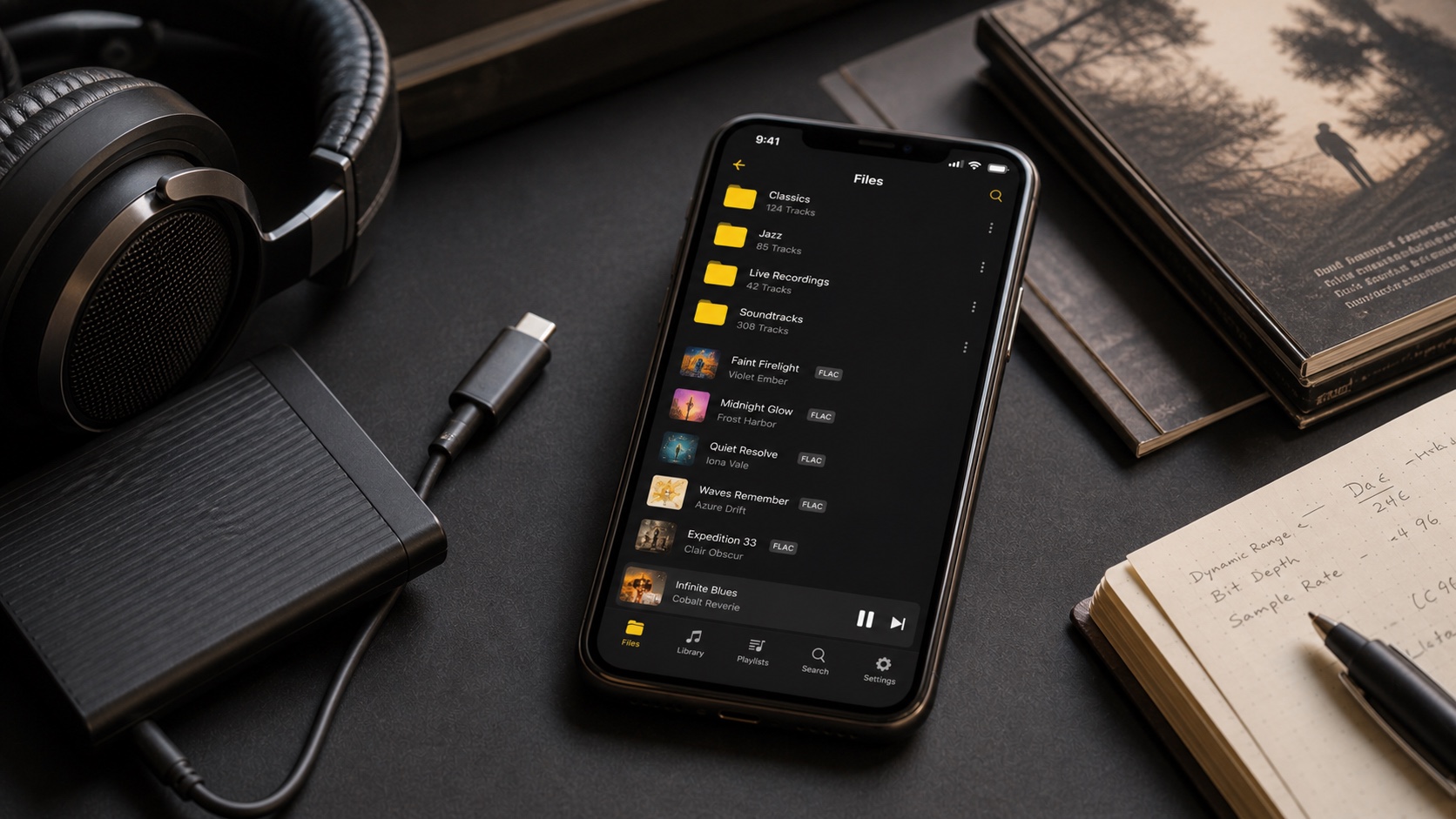
After saving, play the result through the normal OfflineTunes player, inspect tags and artwork, and confirm the file remains easy to locate in folders and search.
- 1Back up the source.Keep an original copy for any important recording.
- 2Make small adjustments.Avoid extreme speed, pitch, gain, or EQ changes.
- 3Preview critical sections.Check trim boundaries and the loudest passage.
- 4Save and verify.Play the output normally and inspect its metadata.