Multiple Cloud Accounts in One Music App: Personal, Work, and Shared
Save several accounts for the same provider, give each one a useful nickname, and keep personal, work, and shared music sources separate.
In this article Open
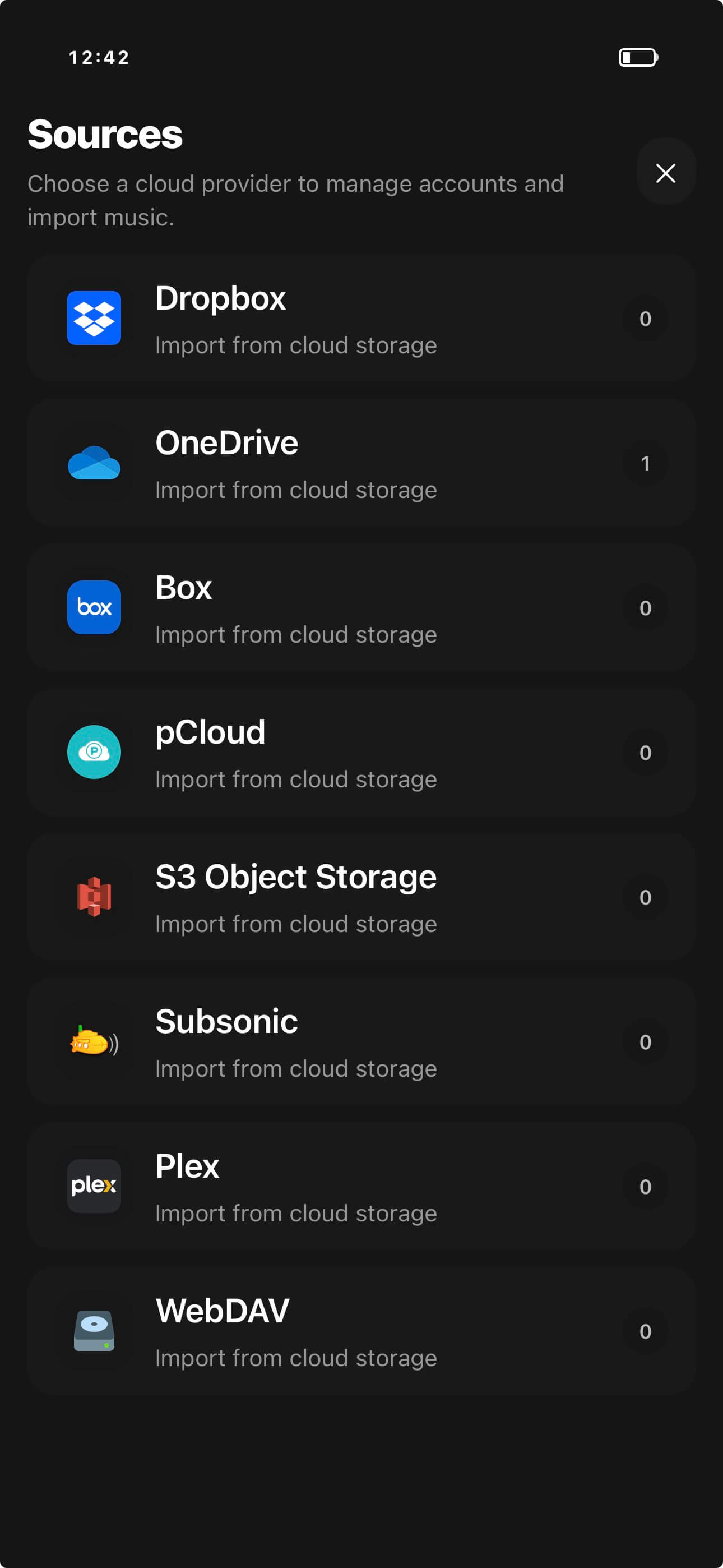
One Dropbox may hold personal albums, another may hold a shared family archive, and a WebDAV account may point to a work or studio server. A single anonymous provider button is not enough.
OfflineTunes supports multiple accounts per cloud provider with custom nicknames. Keep personal, work, family, and shared sources side by side without signing out whenever the library changes.
Why One Account per Provider Breaks Down
People separate storage for quotas, ownership, collaboration, backup, and security. Constant sign-out and sign-in cycles make mistakes more likely, especially when two accounts contain folders with similar names.
Saved accounts keep each connection available. A nickname adds the missing context: “Personal Dropbox,” “Family Box,” “Studio S3,” or “Home Nextcloud.”
Use Nicknames That Explain Ownership and Location
“Dropbox 2” will become meaningless later. Good nicknames answer who owns the account, what it contains, or where the server lives. Keep names short enough to scan in a provider list.
Use the same naming pattern across services. “Personal,” “Family,” “Studio,” and “Home” remain understandable whether the provider is OneDrive, Box, S3, or WebDAV.
Import Without Mixing Similar Sources
Before importing, confirm the account nickname and remote path. This matters when the same album exists as a lossy personal copy and a lossless studio master, or when shared folders contain edited versions.
Import one account batch at a time and inspect the result in Local Files. Distinct destination folders can preserve provenance when identical tags would otherwise merge the source context.
- Confirm source: read the account nickname before selecting files.
- Confirm version: compare format, bitrate, and folder path for duplicates.
- Import in batches: finish one account before moving to another.
- Keep provenance: use folders when source identity matters.
Maintain Connections Without Losing the Library
Tokens, passwords, endpoints, and access policies can change. Rename or reconnect the affected account deliberately instead of deleting several similar entries while troubleshooting.
Imported local files should remain part of the offline library even when a remote account needs attention. Still, keep the remote archive backed up and know which account owns each master copy.
- 1Add one connection.Authenticate the intended account or server.
- 2Give it a role-based nickname.Use ownership, purpose, or location.
- 3Import a test folder.Verify source and destination before a large batch.
- 4Repeat for other accounts.Keep labels and import boundaries consistent.