How to Import Music From Dropbox, OneDrive, Box, and S3 to iPhone
Connect common cloud storage, choose files or folders, and pull owned music into OfflineTunes for playback without a desktop middle step.
In this article Open
A music library may already be divided across Dropbox, OneDrive, Box, and an S3 bucket. Downloading through a desktop first adds a step without improving the files.
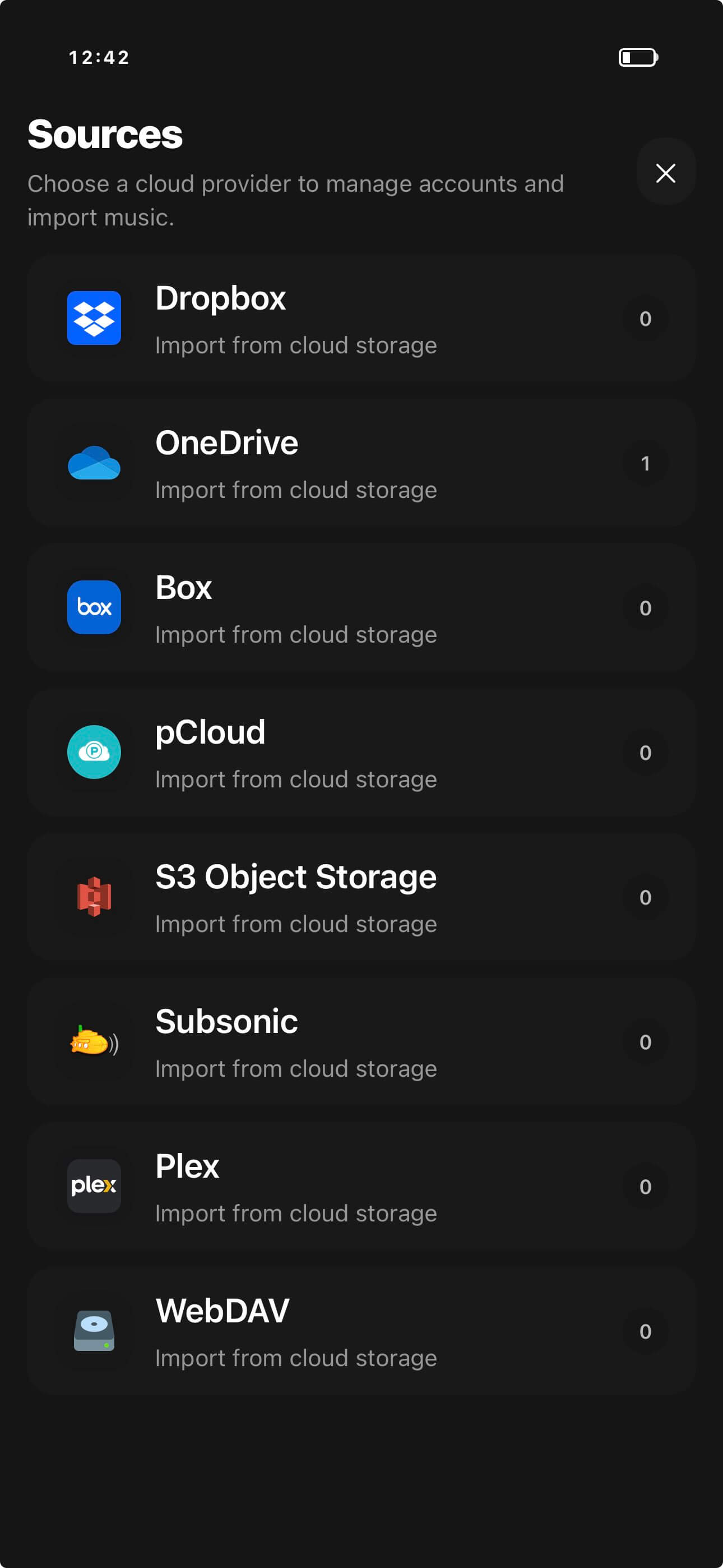
OfflineTunes can connect those cloud sources directly, browse files and folders, and import music to iPhone. Selected tracks become part of the local library for playback when the cloud is unavailable.
Use the Provider That Already Holds the Library
Dropbox, OneDrive, and Box fit ordinary account-based storage. S3 fits bucket-based archives and workflows where you control the object storage directly. The best option is usually the one where folder structure and backups are already trustworthy.
Do not move a complete archive between cloud providers merely to satisfy a player. Connect the existing source, import a representative folder, and confirm the workflow first.
Cloud Source and Offline Library Are Different Layers
A cloud connection makes remote files reachable. Importing selected music makes it device-local. That distinction matters on flights, underground commutes, weak mobile connections, and any situation where credentials cannot be refreshed.
Treat the cloud as source and backup; treat OfflineTunes as the listening library on the phone. Import only what you want available without a network, then verify it in airplane mode.
Import Complete Folders When Possible
Albums arrive more cleanly when audio, artwork, multiple discs, and notes stay together. Folder import also makes it easier to retry one failed release without guessing which individual tracks are missing.
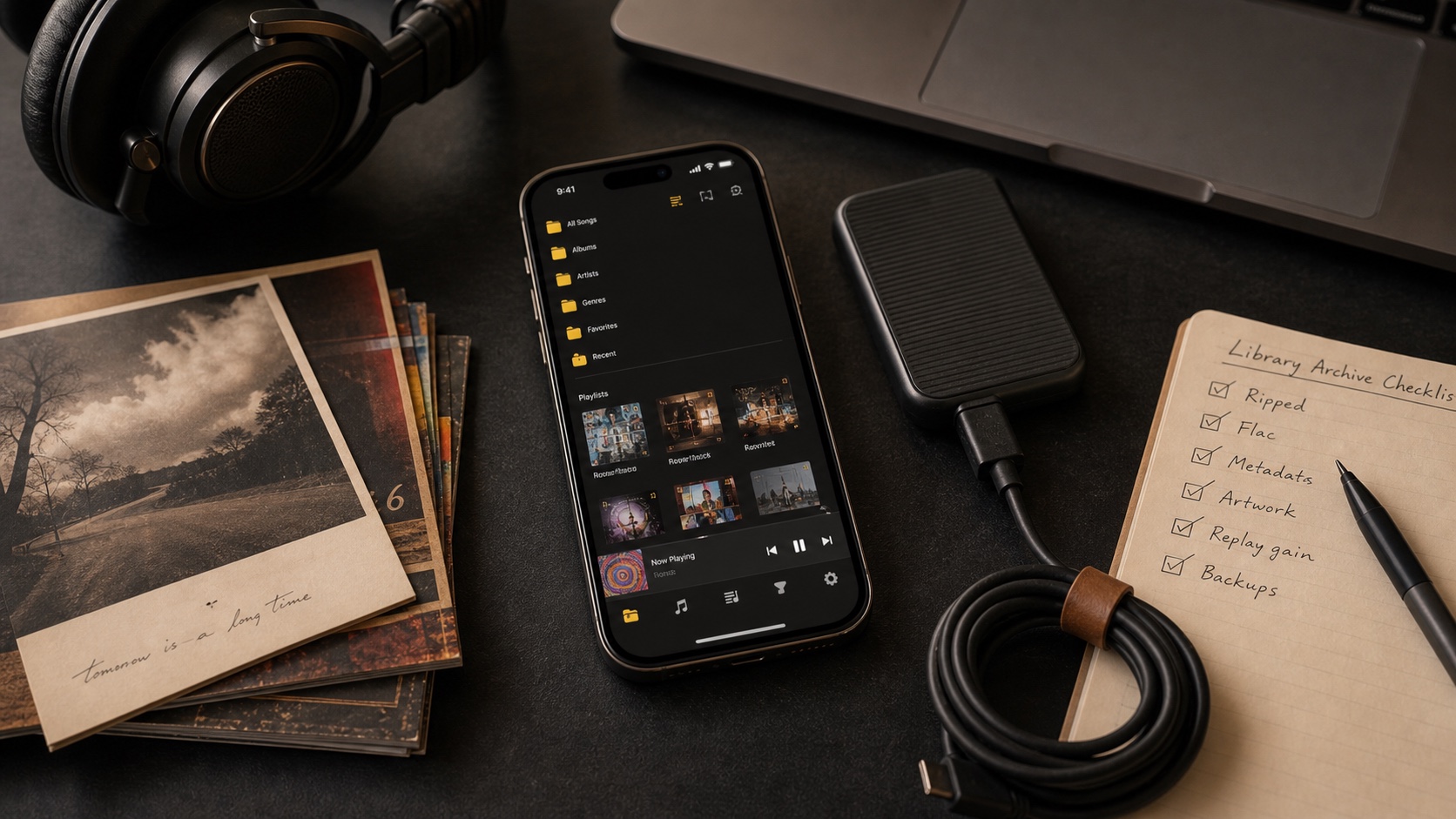
After import, OfflineTunes can build tag-based Artist and Album views while preserving Local Files access. Folder structure remains the fallback when remote metadata was incomplete.
- Before import: remove obvious partial uploads and duplicates from the source folder.
- During import: keep the app active until the batch completes.
- After import: check artwork, tags, track order, and local folder placement.
- Offline test: disable networking and play several tracks.
Build a Repeatable Cloud-to-iPhone Workflow
Organize and back up masters in cloud storage, then import phone-sized batches by artist, album, or listening project. That keeps the device intentional instead of mirroring an archive too large to manage.
When replacing files, compare paths and tags before deleting older copies. Duplicate skipping can help, but clear source folders and consistent metadata remain the strongest protection.
- 1Connect the provider.Authenticate the account that already holds your owned files.
- 2Browse the source.Choose complete, organized folders.
- 3Import a batch.Bring selected music into local OfflineTunes storage.
- 4Verify offline.Confirm the phone no longer depends on cloud access.