Milkdrop Visualizer on iPhone: Turn Local Music Into a Light Show
Make local music visible with hundreds of reactive Milkdrop presets, fullscreen playback, and automatic preset cycling inside OfflineTunes.
In this article Open
A good music visualizer should feel connected to the recording, not like a looping wallpaper. The OfflineTunes Milkdrop visualizer on iPhone reacts to the music as it plays and offers hundreds of preset styles.
Open it inside the player for a quick visual layer or take it fullscreen when the phone becomes part of the room. Automatic cycling can keep the scene changing without constant input.
What Makes a Milkdrop Visualizer Different
Milkdrop is known for preset-driven visuals that respond to audio. Instead of one spectrum bar layout, presets can produce tunnels, fluid fields, geometric motion, waves, and abstract scenes.
The variety matters because the same visual does not fit every recording. A restrained ambient track and a fast electronic track can push very different presets in very different ways.

Use It in the Player, Fullscreen, or on Auto-Cycle
Open the visualizer from the player when you want album playback with extra motion. Switch to fullscreen when the visual should take over the display, especially on a desk, dock, or connected screen.
Auto-cycle is useful for long sessions. It moves through presets so an album, playlist, or party queue does not stay trapped in one visual language.
Pair Presets With the Right Listening Session
There is no universally best preset. Slower, spacious visuals often suit ambient or acoustic music; sharper geometric motion can fit electronic and rhythm-heavy tracks. The fun comes from letting unlikely combinations surprise you.
Build a Smart Queue or Mood playlist first, then open the visualizer. That separates the listening decision from the visual one and keeps both parts flexible.
- Albums: leave auto-cycle on and watch the palette evolve across a complete record.
- Parties: use energetic local playlists and fullscreen output.
- Focus sessions: choose calmer music and a less distracting preset.
- Retro nights: switch back to Retro Mode when tactile nostalgia matters more than animation.
A Visualizer That Does Not Need Streaming
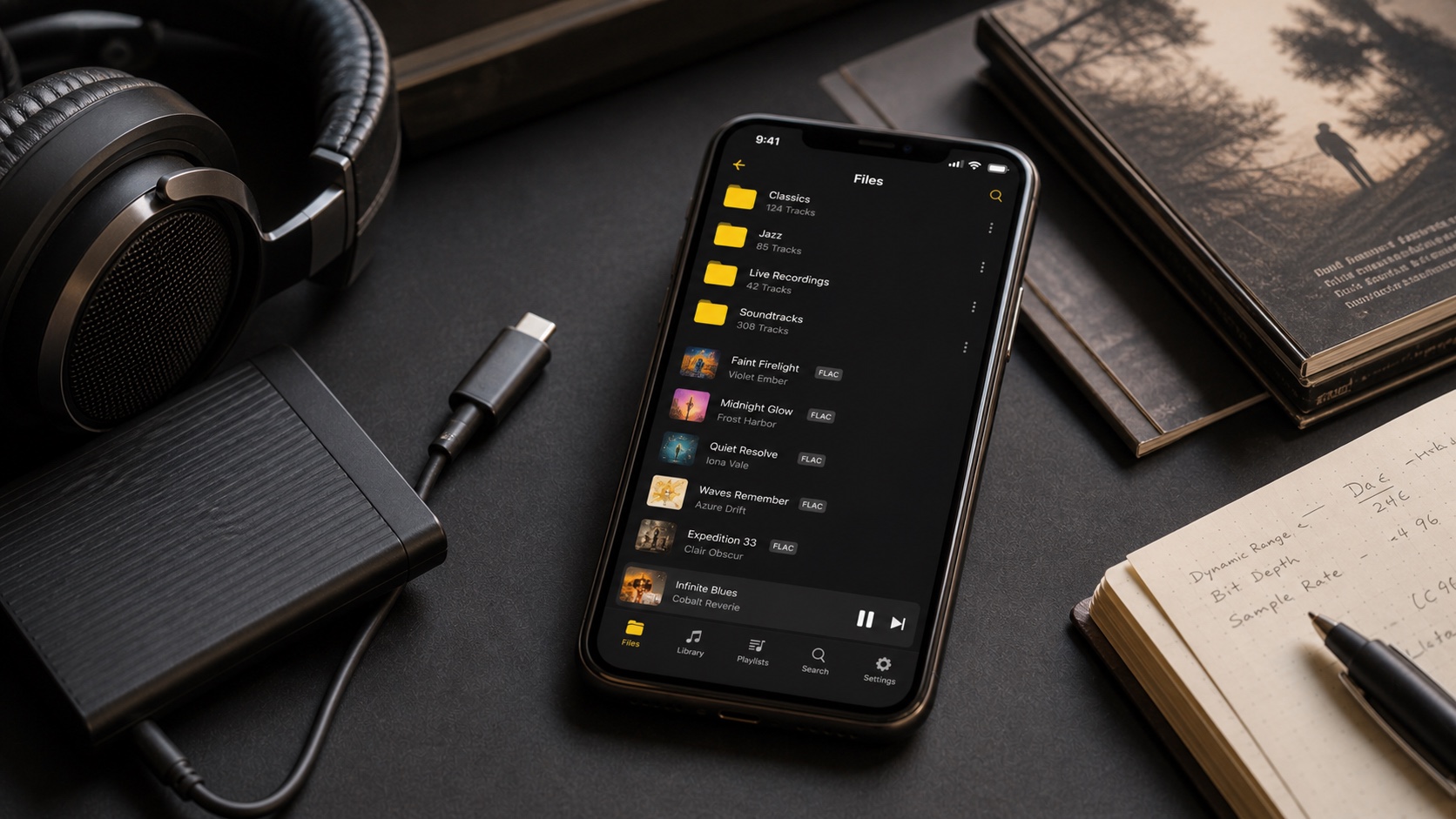
The visualizer follows whatever OfflineTunes can play from your local collection. FLAC albums, MP3 folders, old live recordings, and carefully tagged playlists all receive the same visual treatment.
That makes it useful in places where a streaming visual experience would fail: a flight, cabin, basement party, or old iPhone repurposed as a dedicated music display.
- 1Start local playback.Choose any track, album, playlist, or queue stored in OfflineTunes.
- 2Open Visualizer.Launch it directly from the player.
- 3Choose the view.Stay in-player or expand to fullscreen.
- 4Enable cycling.Let presets rotate automatically during a longer session.