How to Download and Import Audio With OfflineTunes’ In-App Browser
Browse to files you are allowed to download, save audio or ZIP archives, extract them, and import everything without leaving OfflineTunes.
In this article Open
Music sold by artists, public-domain archives, your own server exports, and direct download links often live behind a web page. Moving those files through several apps can lose context and create a messy Downloads folder.
OfflineTunes includes an in-app browser for audio import. Browse to a source, download audio or ZIP archives you have permission to use, extract them, and import the result without leaving the app.
Use Sources You Own or Have Permission to Download
A browser is a transfer tool, not permission to copy protected music. Use it for purchased downloads, artist-provided files, public-domain or Creative Commons material, personal server exports, and other audio you may lawfully store.
Keep receipts, license notes, or source folders when they matter. A well-organized owned library includes provenance as well as tags and artwork.
- Good fit: Bandcamp-style purchases, artist downloads, personal archives, and public-domain recordings.
- Good fit: ZIP packages containing an album, artwork, and text notes.
- Avoid: bypassing access controls or downloading material without permission.
- Keep: original archives when they are the only complete source package.
Import Single Audio Files or Extract ZIP Archives
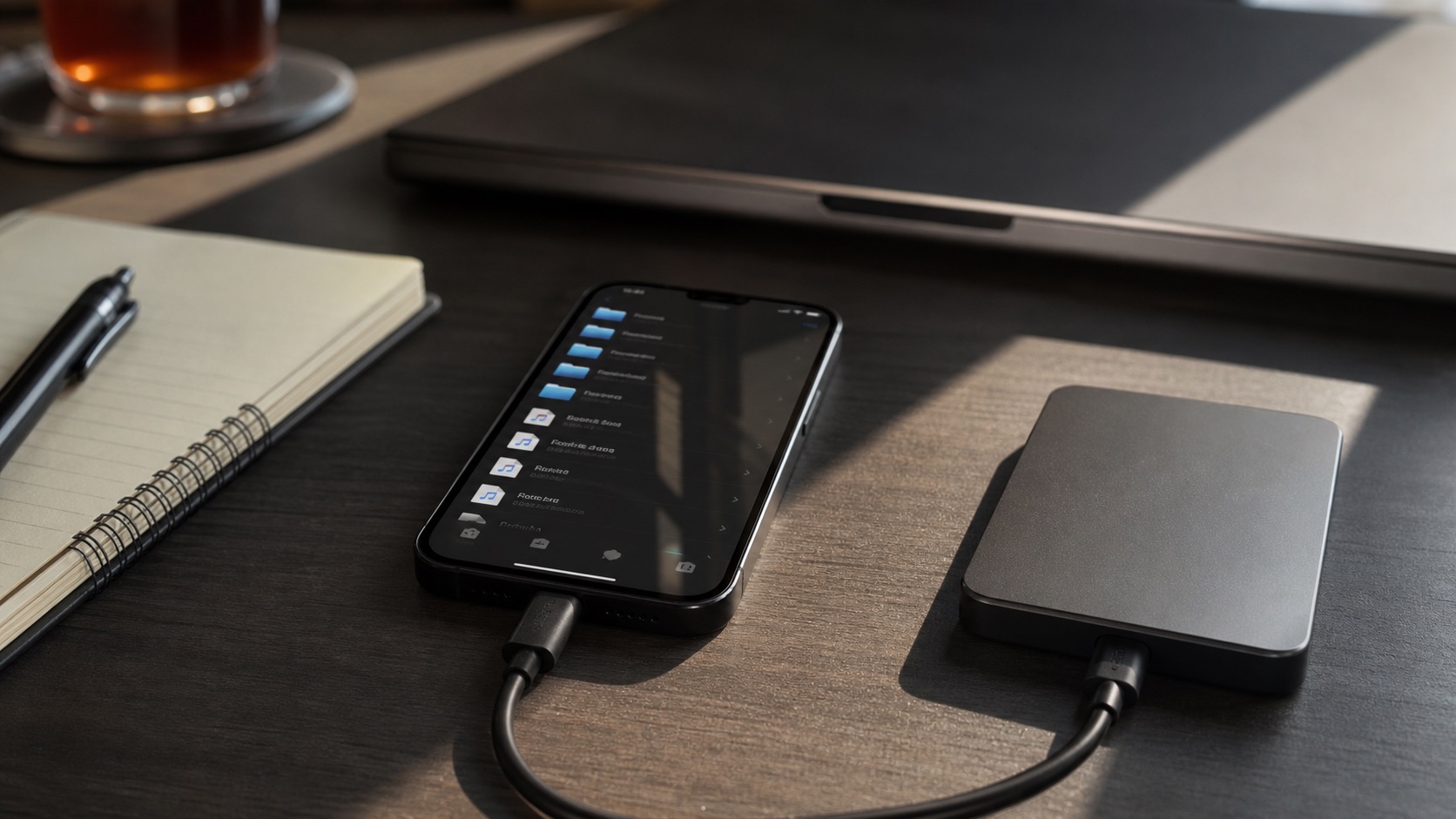
A single track can move directly into the library. A ZIP archive is useful for complete albums because it can preserve folder structure, artwork, liner notes, and multiple discs during one download.
After extraction, inspect the folder before import. Remove unrelated files only when they are truly unnecessary; cover art and notes may be worth preserving beside the audio.
Organize Immediately After Import
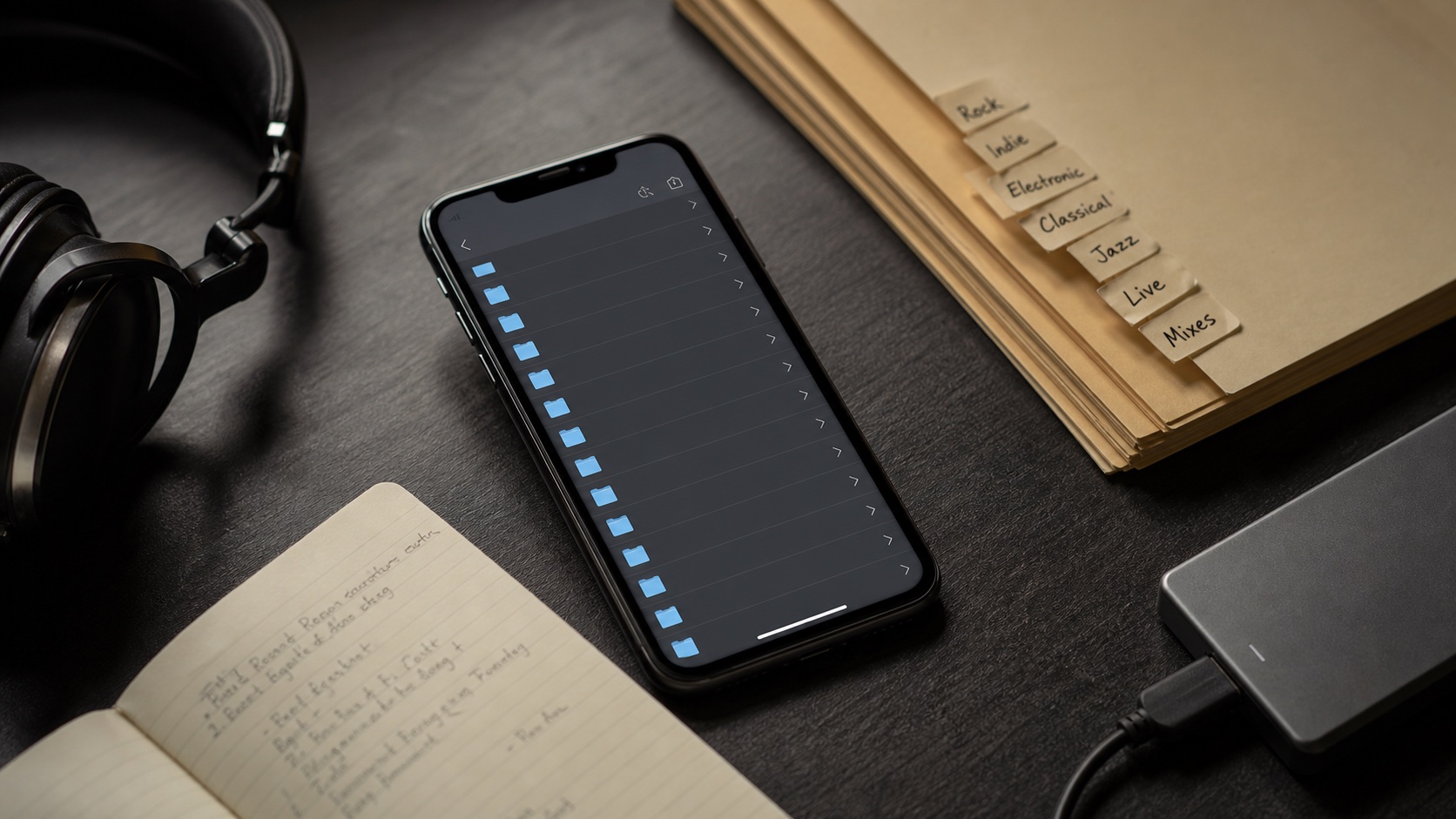
Downloads often contain inconsistent names such as track-number prefixes, uppercase extensions, or generic cover filenames. Fix the batch while the source is still fresh in your mind.
Check title, artist, album artist, album, track and disc numbers, genre, and artwork. Then place the folder where it belongs and add the music to playlists or Smart Lists as needed.
Use a Repeatable Browser Import Workflow
Download one release at a time. This keeps extraction, cleanup, and metadata verification tied to a clear source instead of mixing several anonymous archives together.
Once the files play in airplane mode and appear correctly in folder and tag views, the browser job is finished. The music has become part of the local library rather than a temporary download.
- 1Open the authorized source.Use the OfflineTunes in-app browser.
- 2Download audio or ZIP.Keep one release together.
- 3Extract and inspect.Preserve useful folders, artwork, and notes.
- 4Import and verify.Fix tags, then test playback offline.