How to Convert FLAC, MP3, AAC, ALAC, and OPUS on iPhone
Convert one track or a batch on the phone, choose format and bitrate, and decide how metadata should move into the new files.
In this article Open
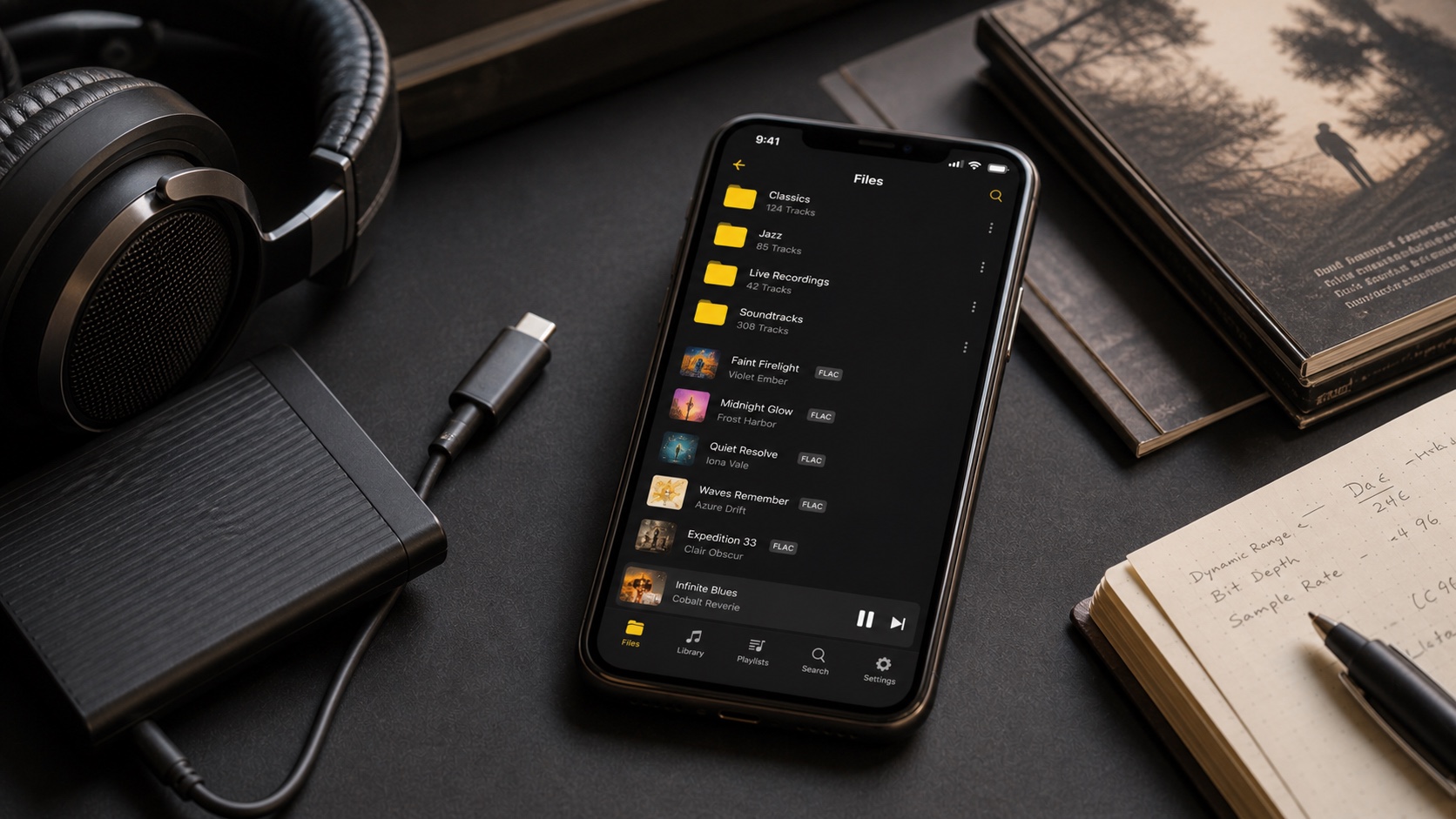
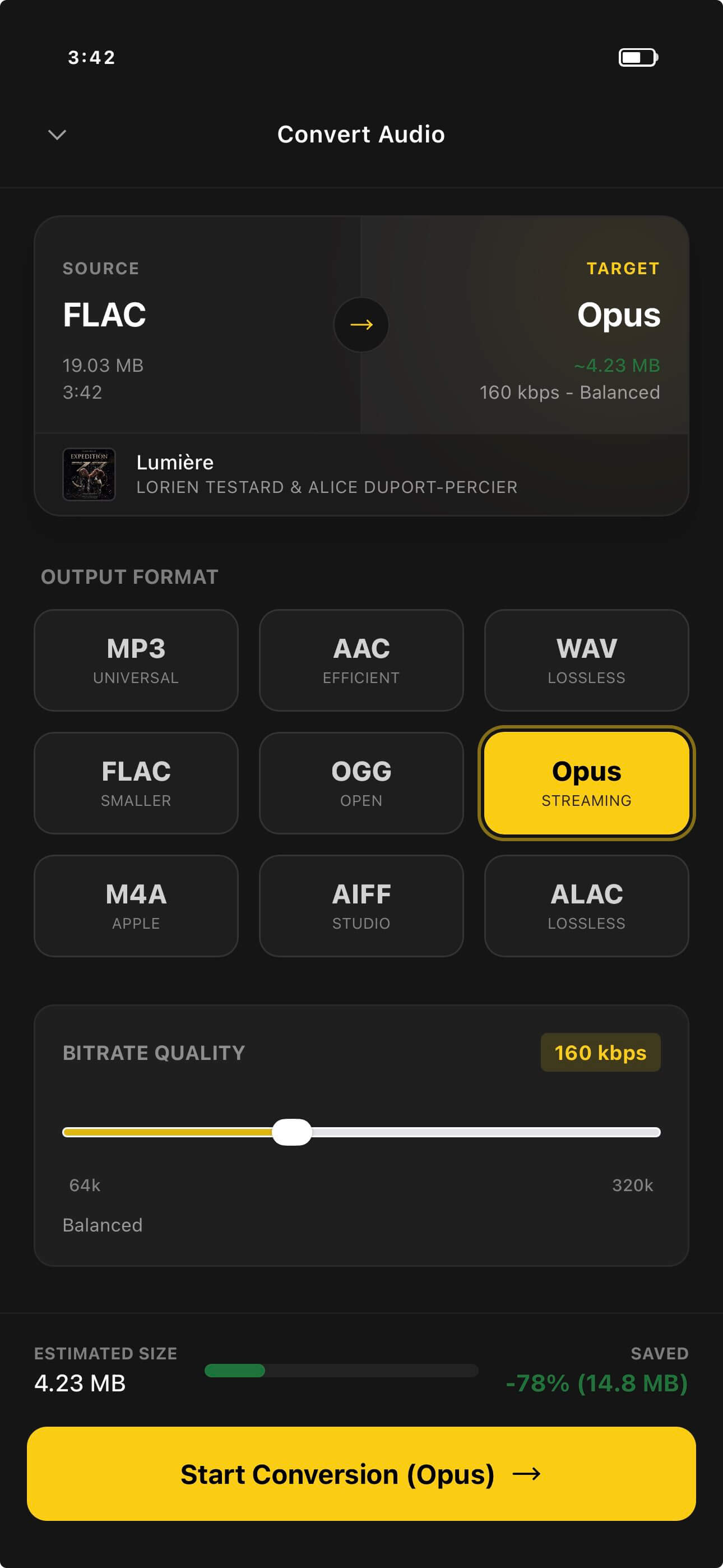
Audio format debates often ignore the actual job. A FLAC archive and a small phone copy have different priorities. OfflineTunes lets you convert FLAC, MP3, AAC, ALAC, and OPUS on iPhone instead of returning to a desktop for every output.
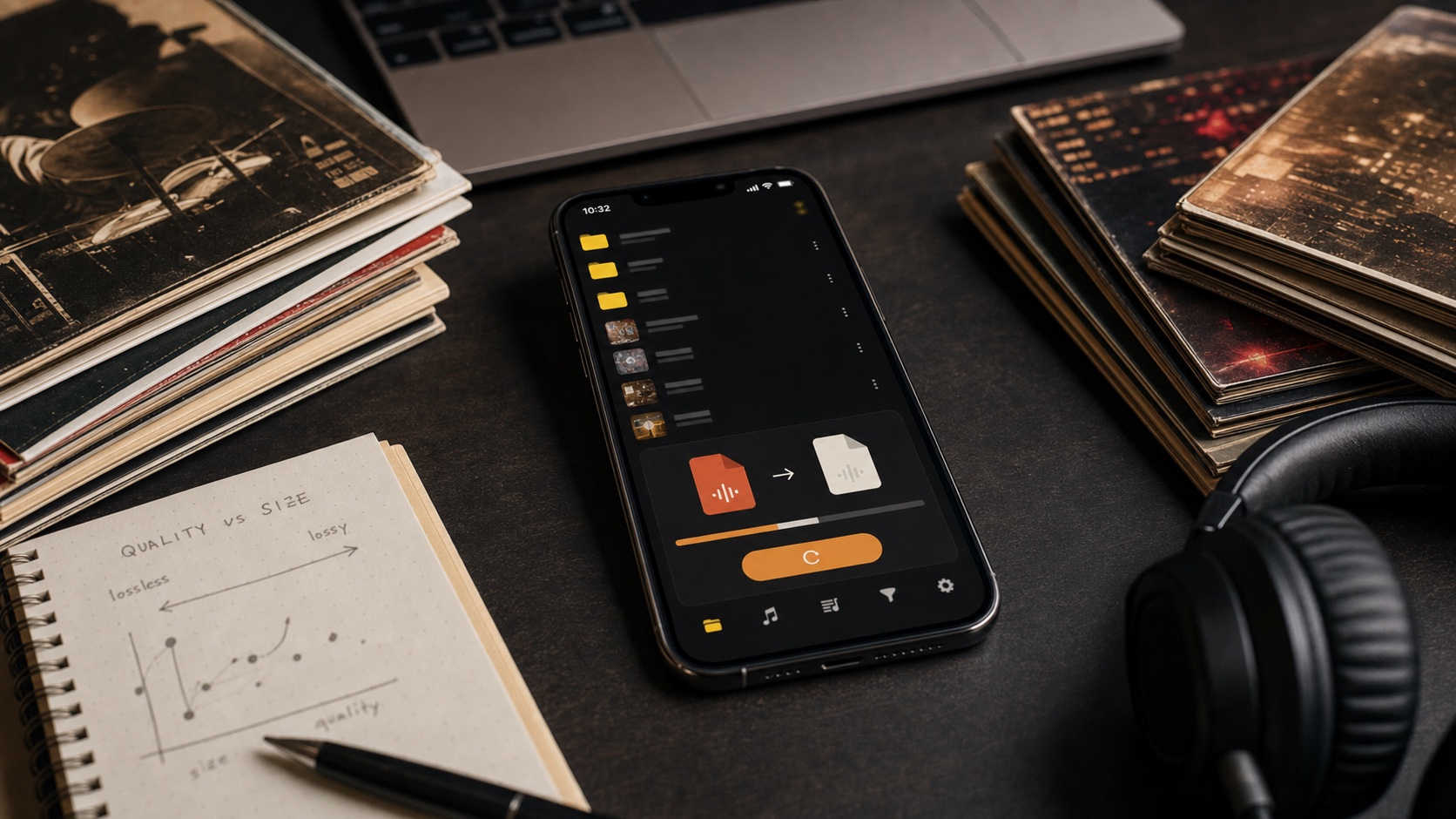
Choose a destination format and bitrate, process files in batches, and decide how metadata should move. Conversion cannot restore quality already lost, so keep good source files before creating smaller versions.
Choose Format by Purpose
Use FLAC or ALAC when lossless preservation matters. Use MP3 or AAC for broad compatibility. OPUS is efficient at smaller sizes, making it useful when storage matters and the playback environment supports it.
Do not convert one lossy format into another merely to change the extension. Every lossy re-encode can discard more information. Start from the best available source whenever possible.
Bitrate Controls Size and Lossy Quality
Higher lossy bitrates generally preserve more detail and create larger files. The right point depends on the codec, music, headphones, available storage, and whether the file is a permanent copy or a travel version.
Test one demanding track before converting hundreds. Cymbals, dense guitars, reverberation, and complex electronic textures can expose weak settings faster than a simple spoken recording.
Batch Conversion Needs a Naming and Storage Plan
Batch processing saves time, but it multiplies mistakes. Decide whether converted files belong beside originals, in a separate mobile folder, or as replacements. Keep destination names predictable.
Preserve artwork and tags when the new files should remain part of the main library. After conversion, verify one full album for track order, artwork, titles, and gapless behavior before deleting anything.
- Archive plus travel copy: keep FLAC masters and create smaller AAC, MP3, or OPUS files.
- Compatibility copy: convert unsupported destination formats from a lossless source.
- Metadata check: verify album artist, track number, disc number, genre, and artwork.
- Never assume: play outputs before removing sources.
Protect the Source Library
Conversion should create options, not erase the best copy. Keep lossless masters or original purchases in a separate backed-up location even when the phone only holds smaller versions.
If storage is the problem, remove verified duplicate outputs rather than overwriting sources during the first pass. A reversible workflow is slower for ten minutes and safer for years.
- 1Define the goal.Archive, compatibility, or smaller mobile copy?
- 2Choose source and output.Prefer the highest-quality source available.
- 3Convert one album.Test bitrate, metadata, artwork, and playback.
- 4Batch only after verification.Scale the exact settings that passed the test.