Bit-Perfect Audio on iPhone: When an Untouched Signal Matters
Bit-Perfect mode protects the original signal path when faithful output matters more than EQ, spatial processing, fades, or loudness tools.
In this article Open
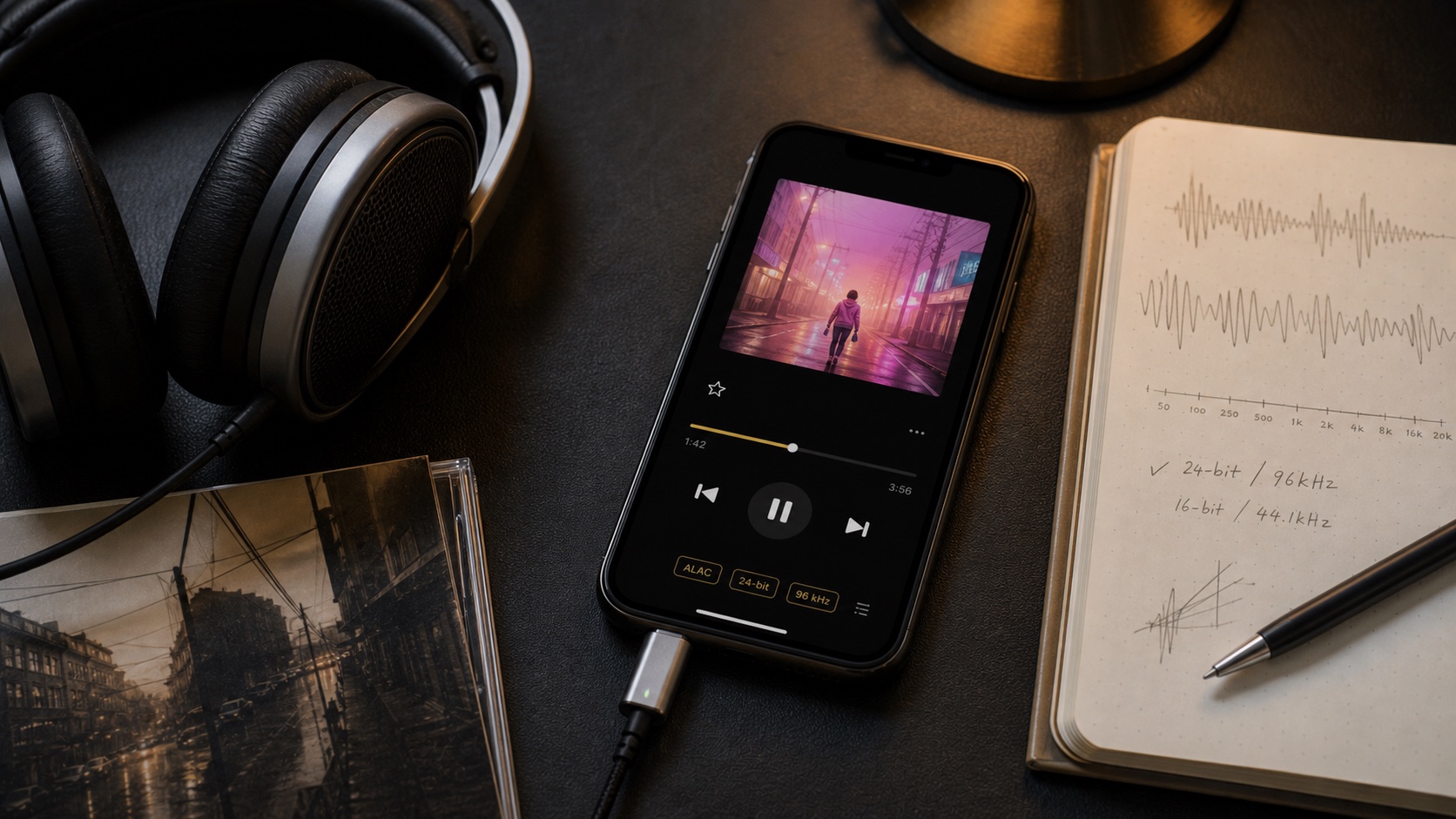
Bit-Perfect audio on iPhone matters when your goal is an untouched signal path from a local file to compatible output hardware. It is a listening choice, not a promise that every recording will suddenly sound better.
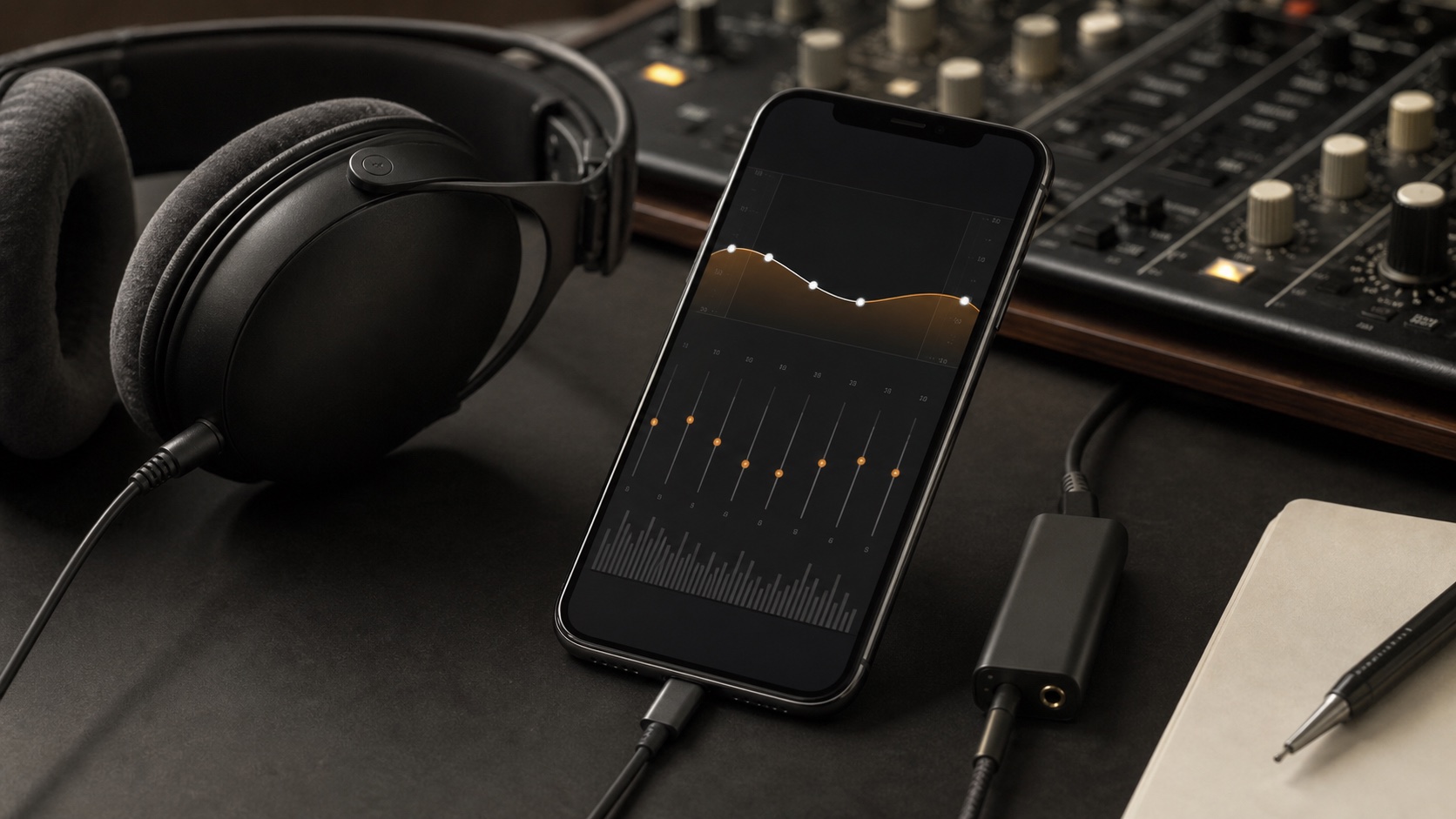
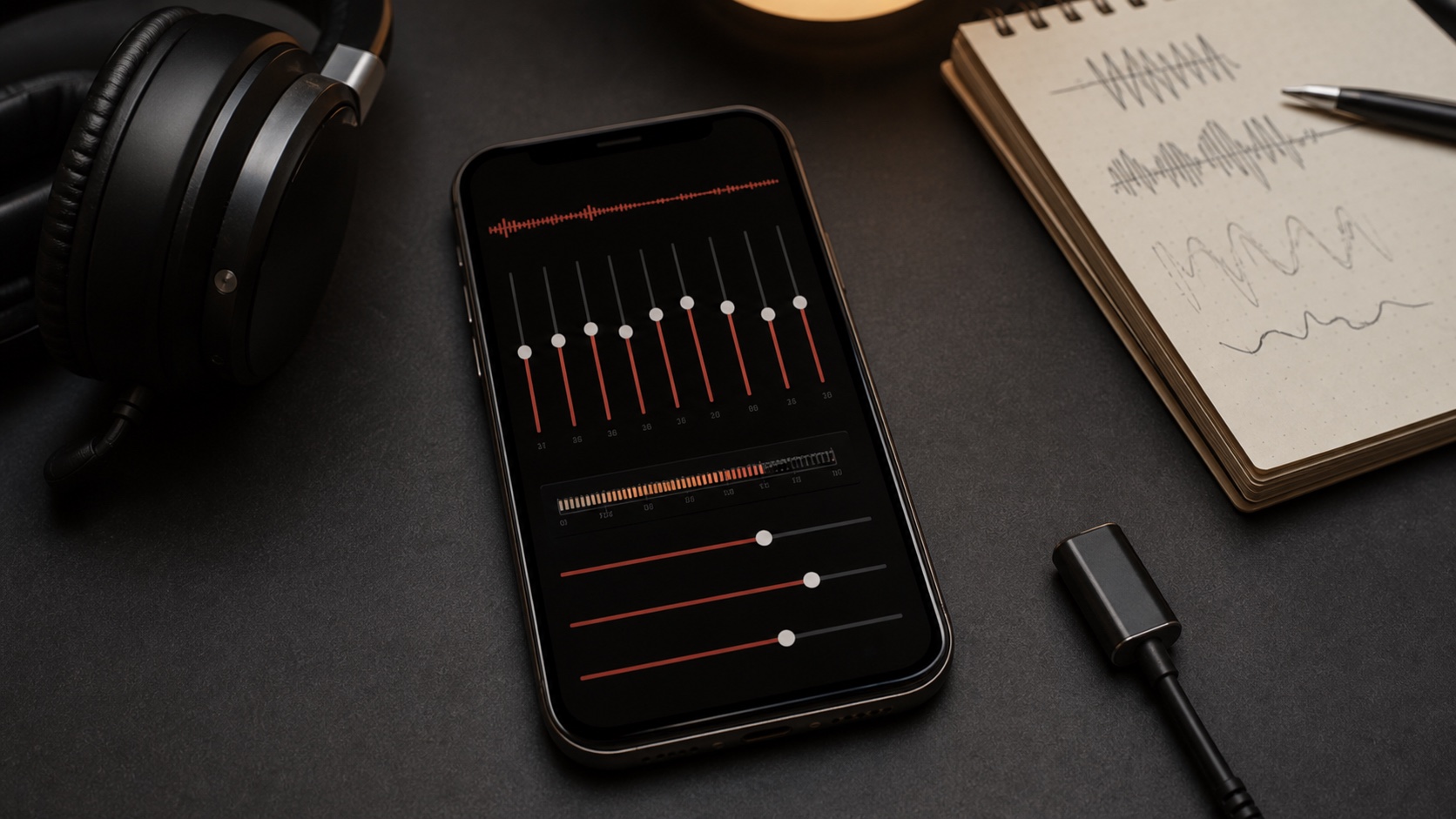
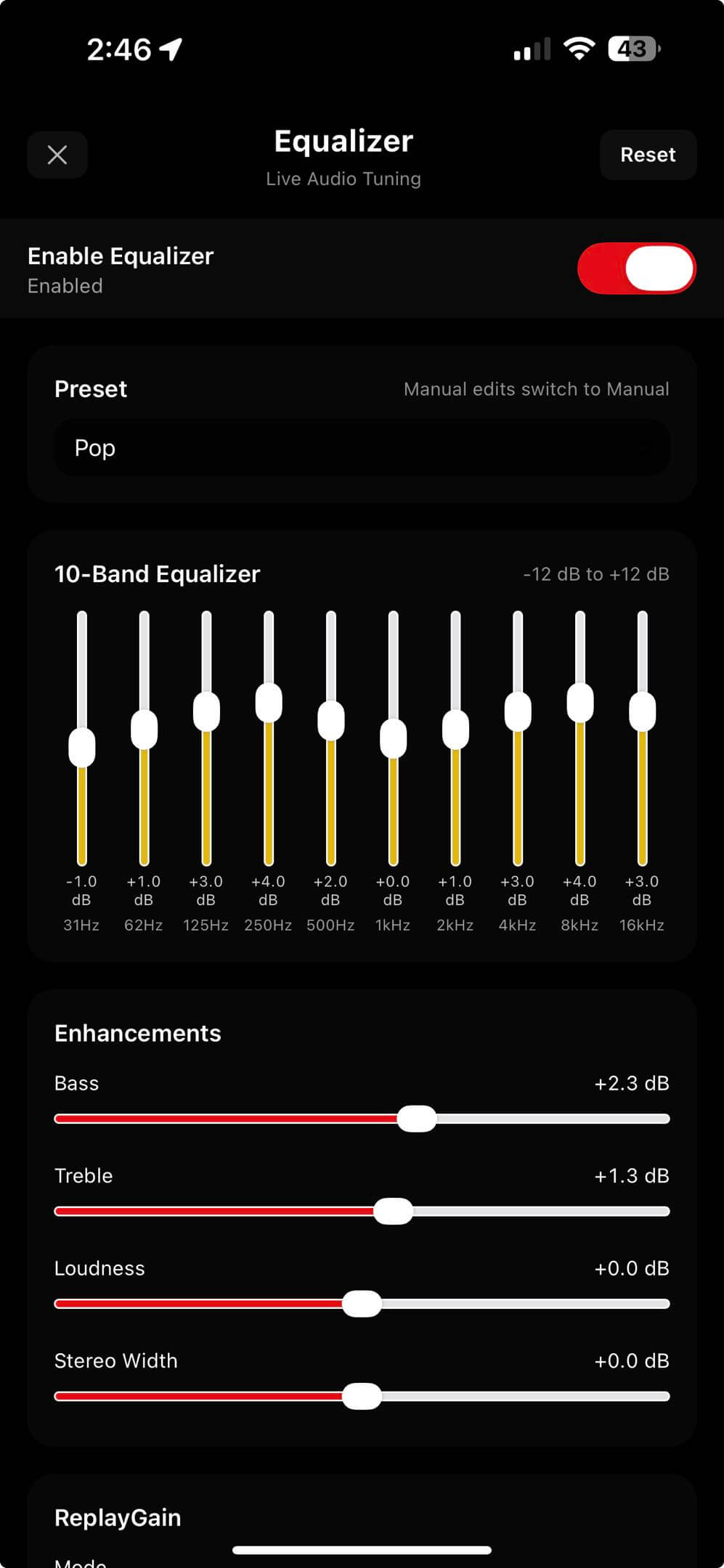
OfflineTunes makes that choice explicit. When Bit-Perfect is enabled, processing features that would change the signal step aside, including EQ, AutoEQ, ReplayGain, spatial audio, Crossfade, Automix, Gapless, and Skip Silence.
What Bit-Perfect Means
A bit-perfect path aims to deliver the audio data without volume normalization, equalization, spatial widening, fades, resampling effects, or other intentional changes. The output should reflect the file and supported hardware path as directly as possible.
That is most relevant for lossless libraries, careful listening, and external DAC setups. It is less important when the room, headphones, or inconsistent mastering would benefit more from correction.
Why Audio Enhancements Turn Off
EQ changes frequency balance. ReplayGain and preamp change level. Spatial Audio changes the stereo presentation. Crossfade overlaps tracks, while Skip Silence analyzes and changes timing. Every one of those tools conflicts with an untouched path.
OfflineTunes disables them when Bit-Perfect takes priority. This prevents a confusing state where the interface claims untouched playback while effects are still operating underneath.
When Bit-Perfect Is the Better Choice
Use it when you trust the master, want direct lossless playback, and have headphones, speakers, or a DAC that do not need correction. It is also useful when comparing files or hardware without extra processing.
Leave it off when uneven album loudness, headphone tuning, or smoother transitions matter more. ReplayGain and AutoEQ can improve real-world listening even though they are not bit-perfect.
- Use Bit-Perfect: critical listening, trusted masters, external DAC comparison.
- Use ReplayGain: shuffled libraries with inconsistent loudness.
- Use AutoEQ: headphones that benefit from measured correction.
- Use playback flow: parties, workouts, and continuous queues.
Test the Complete Playback Path
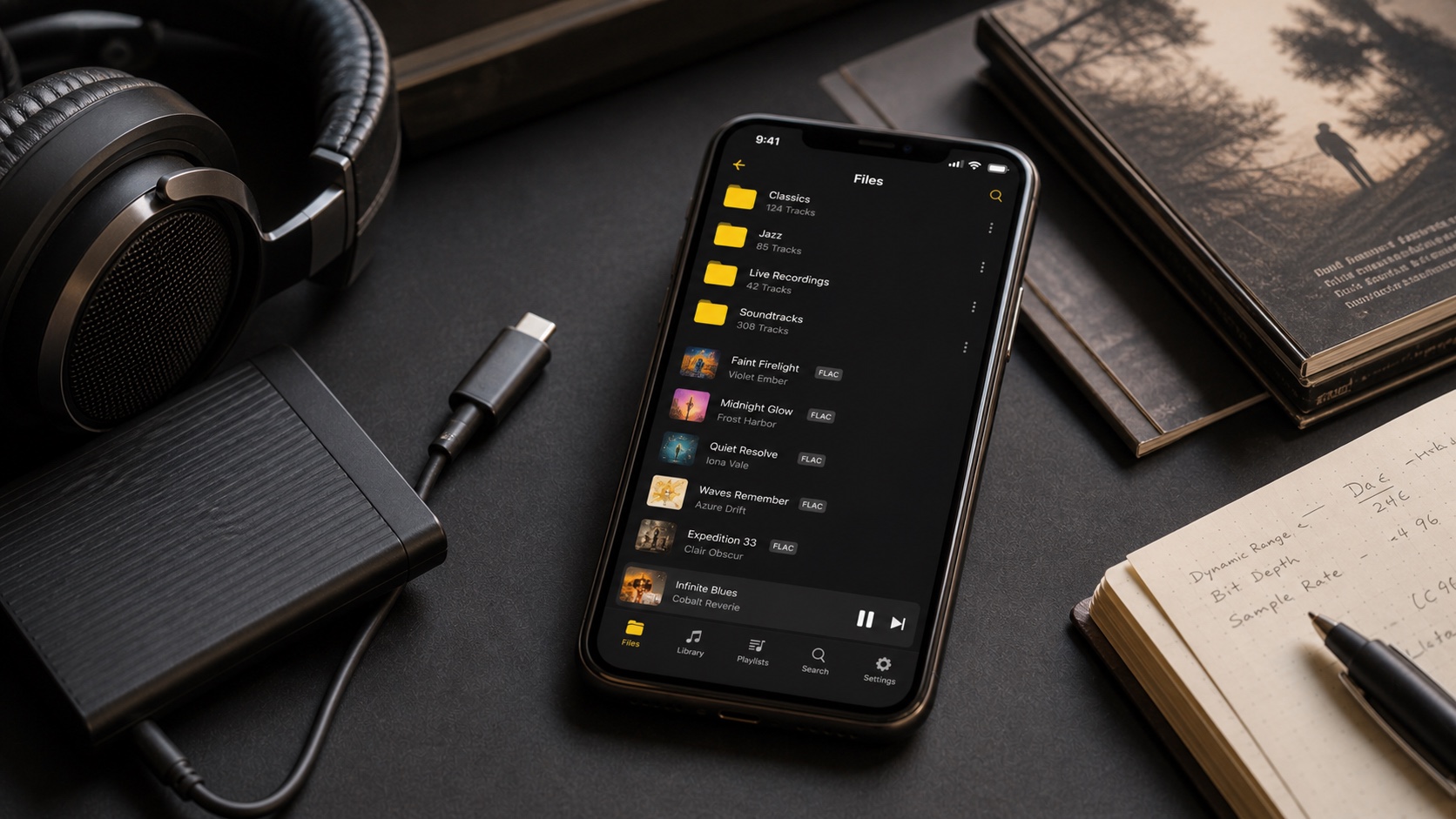
Start with a known lossless file and compatible output device. Enable Bit-Perfect, check its status, and confirm that processing controls have stepped out of the path.
Then compare at matched listening levels. A louder option often seems better even when the difference is only volume. The useful question is which mode serves the current setup and recording.
- 1Choose a known file.Use a trusted FLAC, ALAC, or WAV recording.
- 2Connect output hardware.Use the headphones, speakers, or DAC you intend to evaluate.
- 3Enable Bit-Perfect.Check active status and disabled processing.
- 4Compare fairly.Match volume before deciding which path sounds better.