What Apple Music and iPod Sync Unlocks in OfflineTunes
Sync your Apple Music cloud and iPod libraries, then use FineTune, playlist folders, ratings, Smart Lists, Track Radio, synced lyrics, Retro iPod Mode, backups, and playlist export.

In this article Open
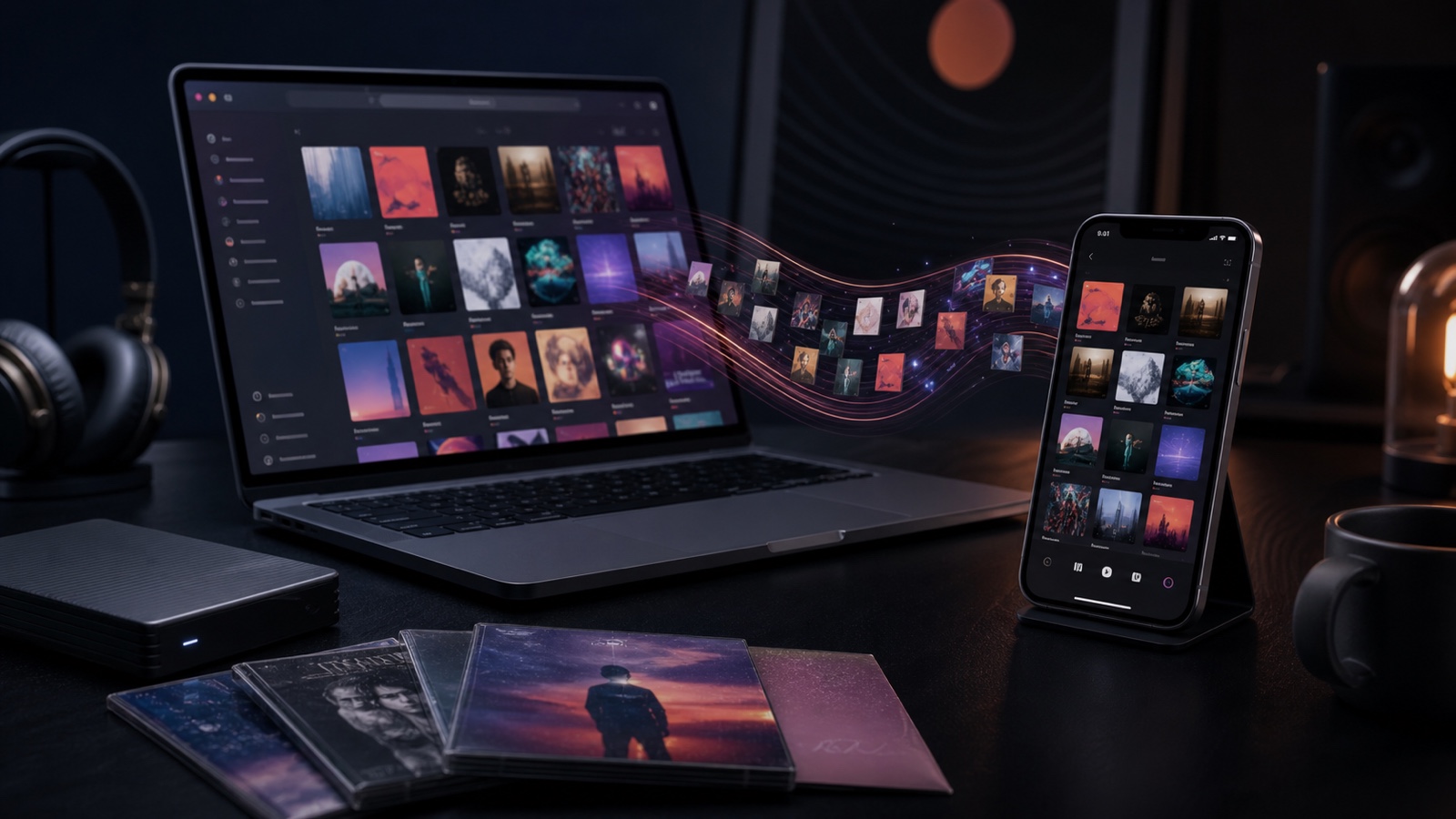
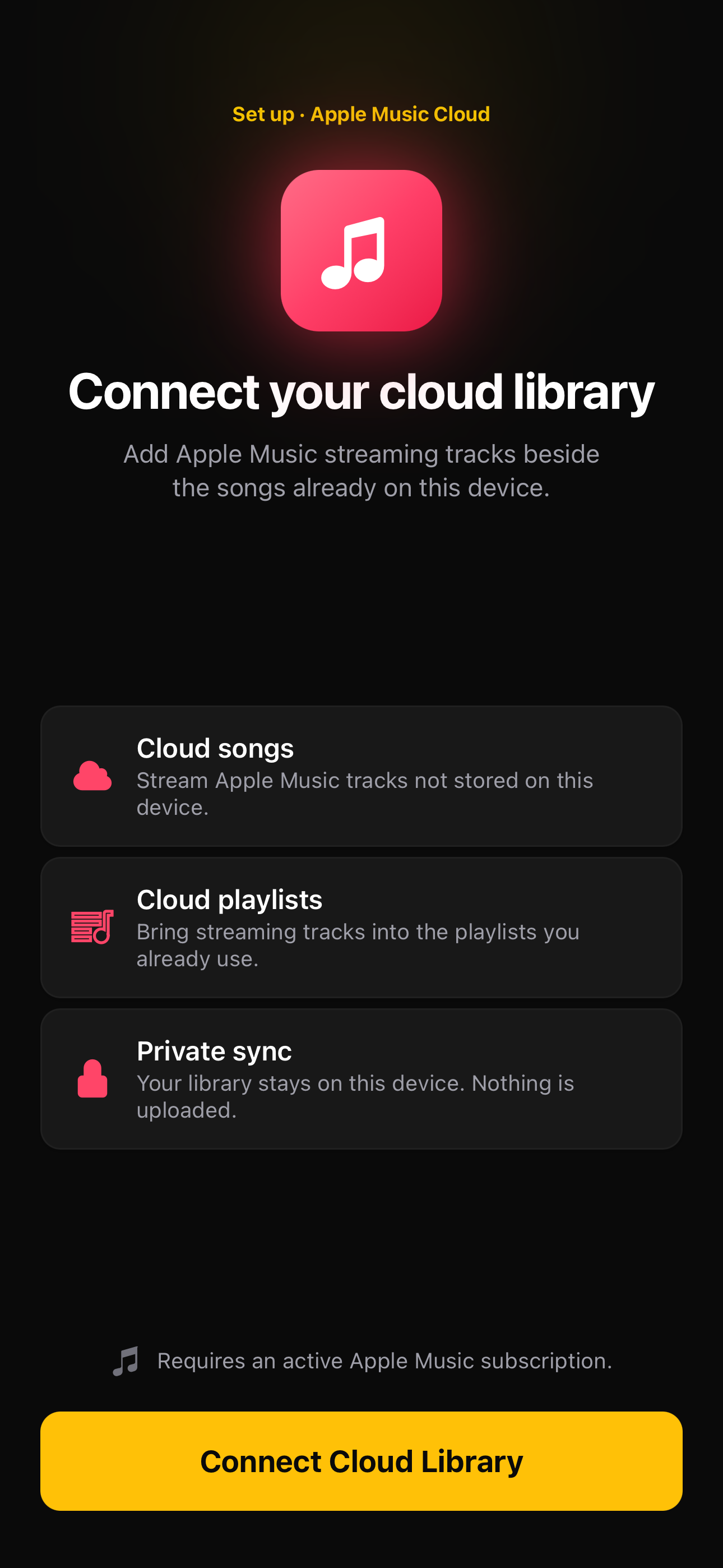
Syncing an Apple Music or iPod library into OfflineTunes is not only a way to see the same songs in another app. It gives those tracks a larger system for listening, organizing, rating, curating, backing up playlists, and building better mixes.
The practical upgrade is control. Apple Music cloud tracks and songs already stored on the iPhone can sit beside local files, Plex or Navidrome tracks, and music from connected cloud storage. From there, OfflineTunes can bring them into FineTune, playlist folders, Smart Lists, Smart Playlists, Track Radio, synced lyrics, Retro iPod Mode, playlist backup, and scrobbling.
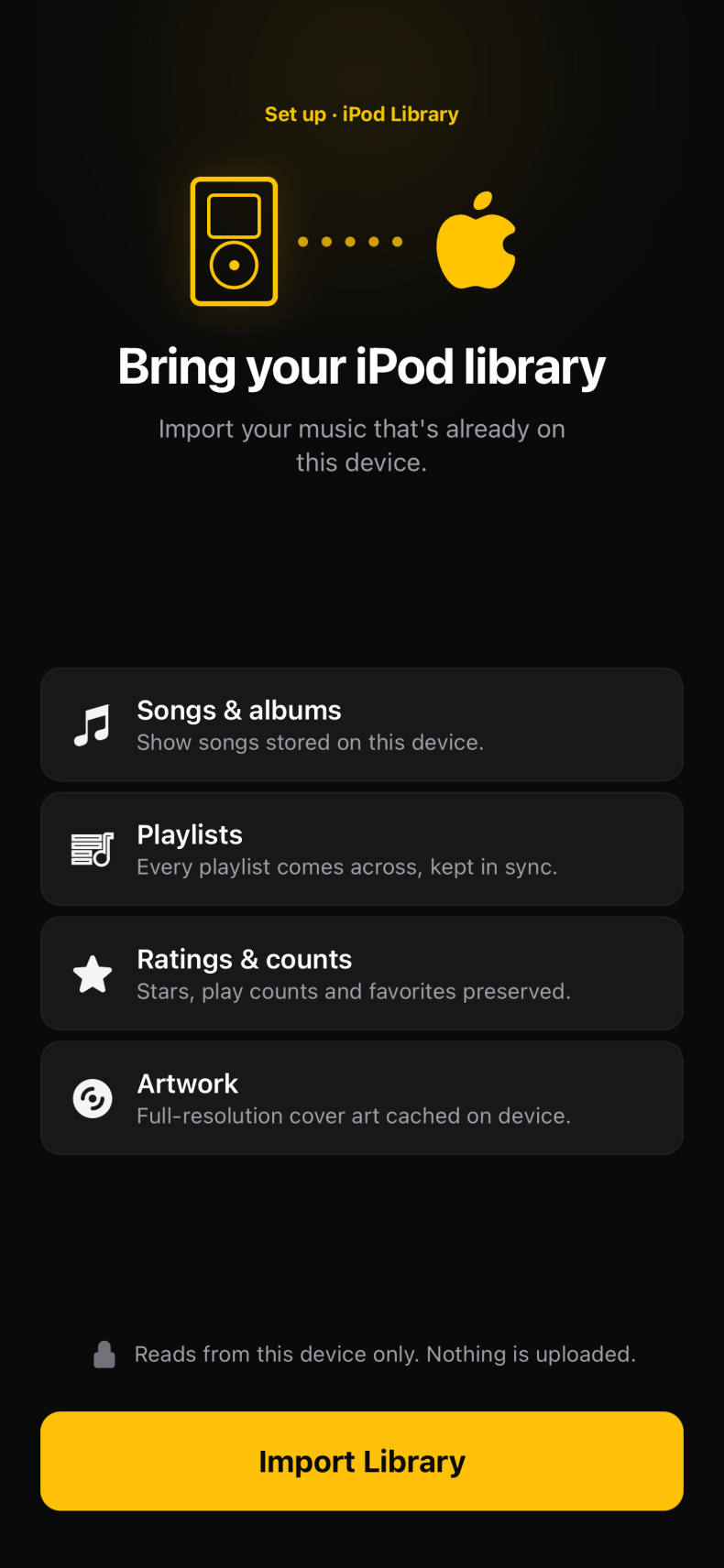
There is one important boundary: Apple Music Cloud requires an active Apple Music subscription. The iPod Library path reads music already stored on the device and can be used without an Apple Music subscription.
Start With the Right Sync: iPod Library or Apple Music Cloud
OfflineTunes separates music stored on the iPhone from music that remains in Apple Music Cloud. That distinction matters because the two sources have different subscription and connectivity requirements.
The iPod Library brings in on-device songs, albums, playlists, ratings, play counts, favorites, and artwork. These are the tracks synced from a Mac or PC through the classic iTunes, Finder, or iPod-style workflow. Because the audio is already on the phone, it can play without an Apple Music subscription and without an internet connection.
Apple Music Cloud adds streamable tracks and cloud playlists beside the songs already on the device. OfflineTunes keeps the library data private on the device, but Apple Music playback still follows Apple rules: authorization, a network connection, and an active subscription are required for cloud tracks.
Sync Turns Separate Sources Into One Working Library
After sync, Apple Music and iPod tracks are not trapped in a separate browsing screen. They become library records OfflineTunes can search, sort, group, rate, add to playlists, and use throughout the player. High-resolution artwork is cached on the device, while existing ratings and play counts help preserve the history behind an older collection.
Cloud songs can appear beside device songs, local MP3 or FLAC files, and tracks connected through Plex, Navidrome, Dropbox, OneDrive, WebDAV, S3, and other supported sources. The audio still comes from its original source, but the surrounding library becomes consistent.
That unified view is the foundation for every upgrade below. A track can be streamed from Apple Music and still participate in an OfflineTunes playlist folder, a FineTune decision session, a rating-based Smart Playlist, or a Last.fm listening history.
- Search once: find local, iPod, Apple Music, server, and cloud-storage tracks from the same library.
- Organize once: add mixed-source tracks to regular playlists and nested playlist folders.
- Use the same taste signals: ratings, favorites, plays, skips, and FineTune decisions can shape later lists.
- Keep source rules visible: local audio remains available offline; cloud audio still needs its source connection.
Unlock Visualizer, Track Radio, Synced Lyrics, and Retro iPod Mode
Once Apple Music and iPod tracks are visible in OfflineTunes, they can use the app experiences around playback instead of living as plain rows in a library.
Track Radio can start from an Apple Music track, match it to the Apple catalog, and build a recommendation queue around that seed. For local or server tracks, OfflineTunes can use its own sonic analysis to find similar music; Apple Music tracks use Apple Music recommendations and therefore require an active subscription.
Synced Lyrics can be searched, selected, cached, and followed during playback. Apple Music tracks do not expose a local audio file for embedded-tag editing, so OfflineTunes stores fetched lyrics separately rather than embedding them into the song.
- Audio Visualizer: open the MilkDrop-style visualizer, switch presets, use auto-cycle, and fill the screen with reactive visuals.
- Track Radio: turn one track into a longer discovery queue instead of choosing every next song manually.
- Synced Lyrics: follow timed lines, search alternate results, and cache selected lyrics for later use.
- Retro iPod Mode: browse and control the same library through a nostalgic click-wheel interface, including ratings on Now Playing.
- Playlist and Folder Mode: give collections their own playback sessions and keep separate listening contexts ready.

FineTune Apple Music Until Every Playlist Fits Your Taste
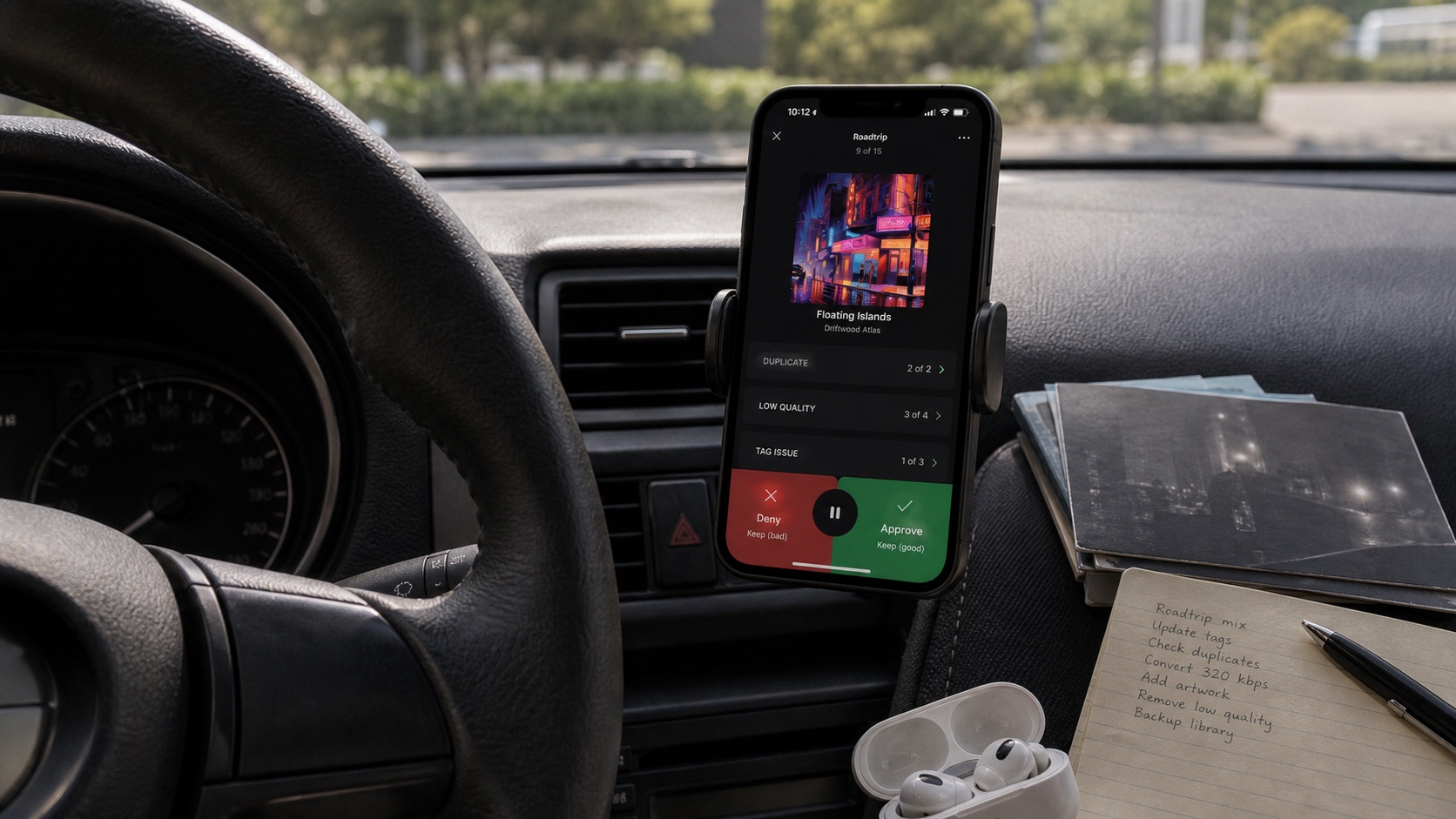
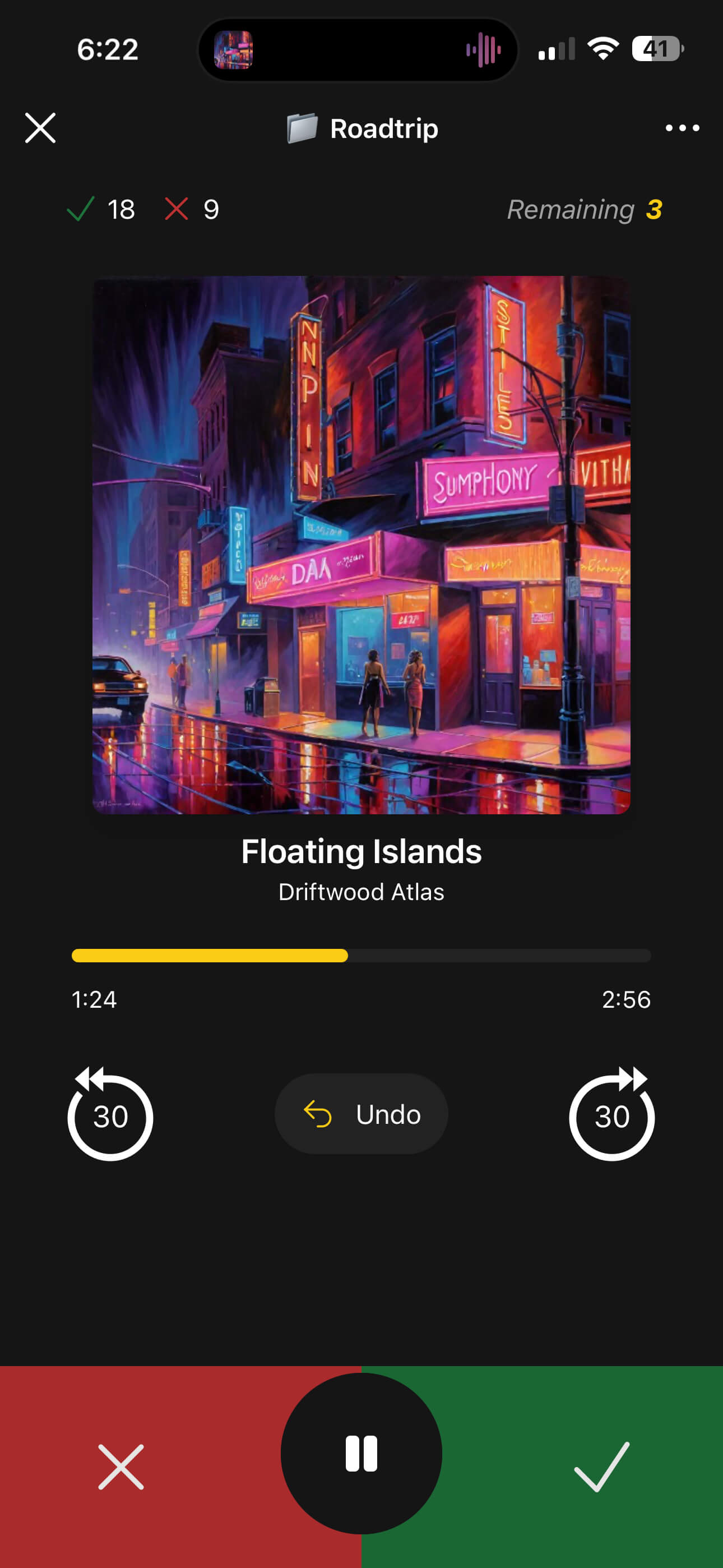
FineTune is where sync becomes personal. Add a track, album, artist, folder, playlist, or search result to a FineTune list, then listen through it one song at a time. Approve what belongs. Deny what does not. Undo the last decision when a song deserves another chance.
The goal is not a generic recommendation profile. It is a precise answer to a specific question: which songs from this album, artist, playlist, or mood do you actually want? Narrow FineTune sessions work especially well. Review one long Apple Music playlist, one artist catalog, or one road-trip candidate list instead of making vague decisions across the entire library.
FineTune decisions are safe until you choose an action. Deny marks a track; it does not delete it. When the session is complete, review Approved and Denied tabs, move mistakes between them, then turn either group into a playlist, add favorites, apply ratings, move local files, start another FineTune, or remove selected tracks from OfflineTunes.
Apple Music audio is not a normal local file, so removing an Apple Music track from OfflineTunes hides it inside OfflineTunes. It stays in the Apple Music library and can be restored later from Hidden Tracks. This makes FineTune useful for cleaning what you see without pretending the app can delete Apple-controlled media.
- 1Choose one useful candidate set.Start with an Apple Music playlist, artist, album, or mixed-source OfflineTunes playlist.
- 2Approve and deny while listening.Use the screen, headphones, lock screen, steering-wheel controls, or CarPlay controls to make each decision.
- 3Review both sides.Move false positives and false negatives before taking a bulk action.
- 4Build the exact playlist.Add approved tracks to a playlist, rate them, favorite them, or run a second narrower FineTune.
- 5Hide clutter safely.Removing Apple Music tracks hides them only in OfflineTunes; use Hidden Tracks to bring them back.
Turn Ratings Into Smart Lists and Smart Playlists
A five-star rating is more useful when it changes what appears next. OfflineTunes lets you rate synced tracks from the player, the library, Retro iPod Mode, or a completed FineTune action. Those ratings then become conditions for Smart Lists and Smart Playlists.
Smart Lists provide ready-made ideas and more than 100 presets. They can surface top-rated music, new arrivals, unplayed songs, rising favorites, deep cuts, missing artwork, or tracks that fit a particular listening pattern.
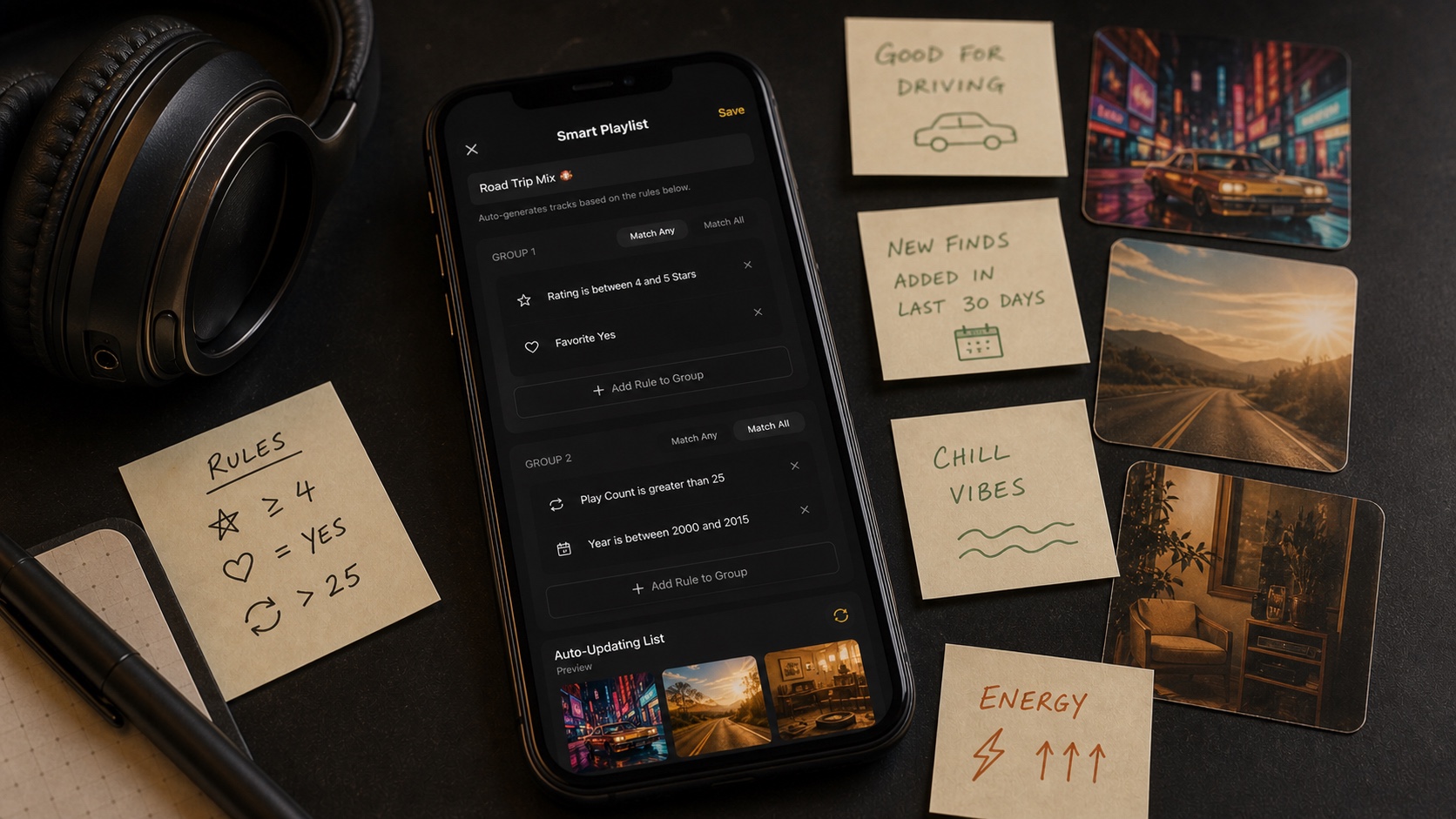
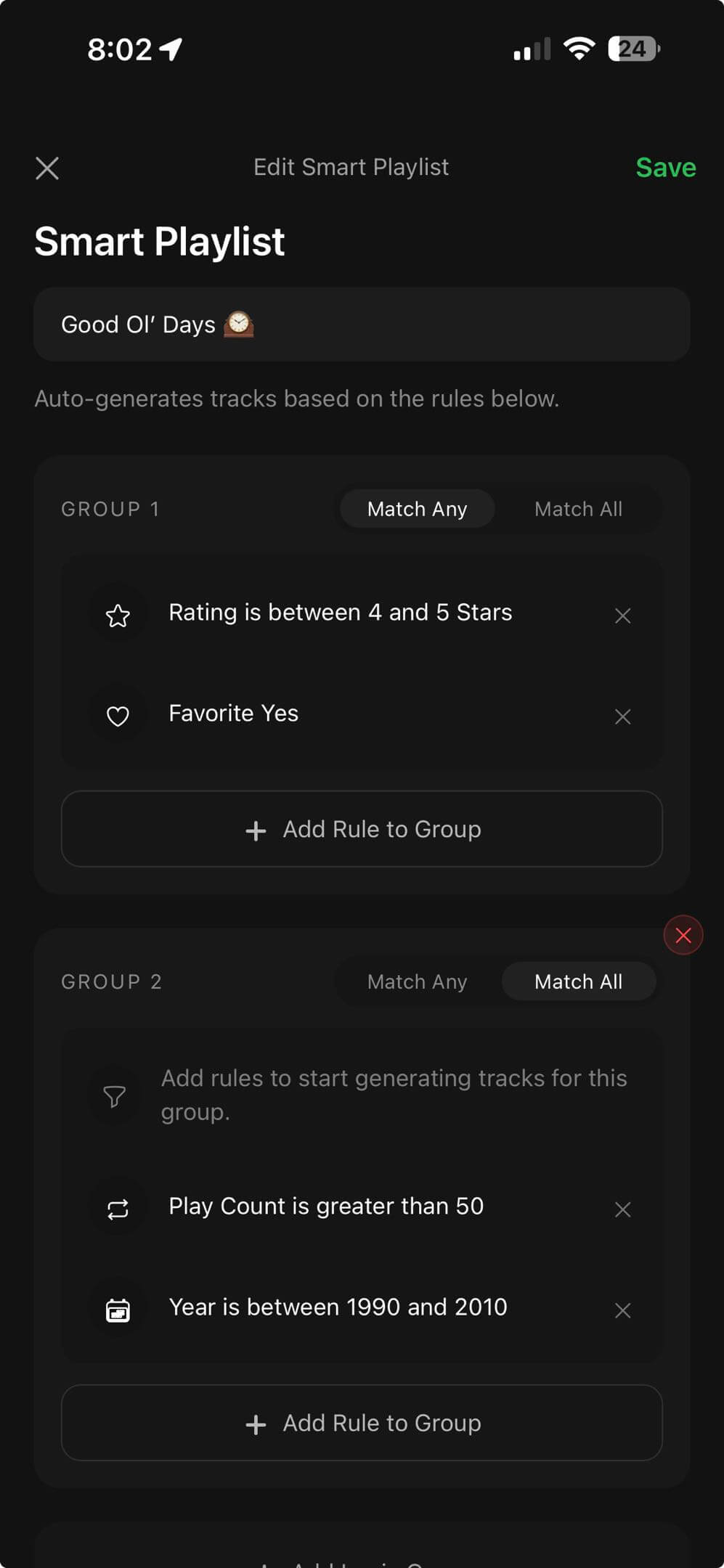
Smart Playlists let you build the rules yourself. Combine rating with favorite status, play count, skip count, date added, year, genre, format, artist, and other library fields. As you rate more Apple Music, iPod, local, and server tracks, the lists update without manual dragging.
FineTune and ratings work best together. FineTune answers “keep or cut?” for one candidate group. Ratings add degree: a keeper can be useful, excellent, or essential. Smart rules can then reserve the strictest playlists for five-star approvals while leaving broader mixes open to three- and four-star tracks.
- Perfect favorites: approved in FineTune, favorite is yes, rating is at least 4.
- Revisit good strangers: rating is at least 4, play count is below 3.
- Apple Music review queue: source is Apple Music and rating is empty.
- No-skip rotation: rating is high and skip count stays low.
Organize Apple Music Playlists in Folders, Then Back Them Up
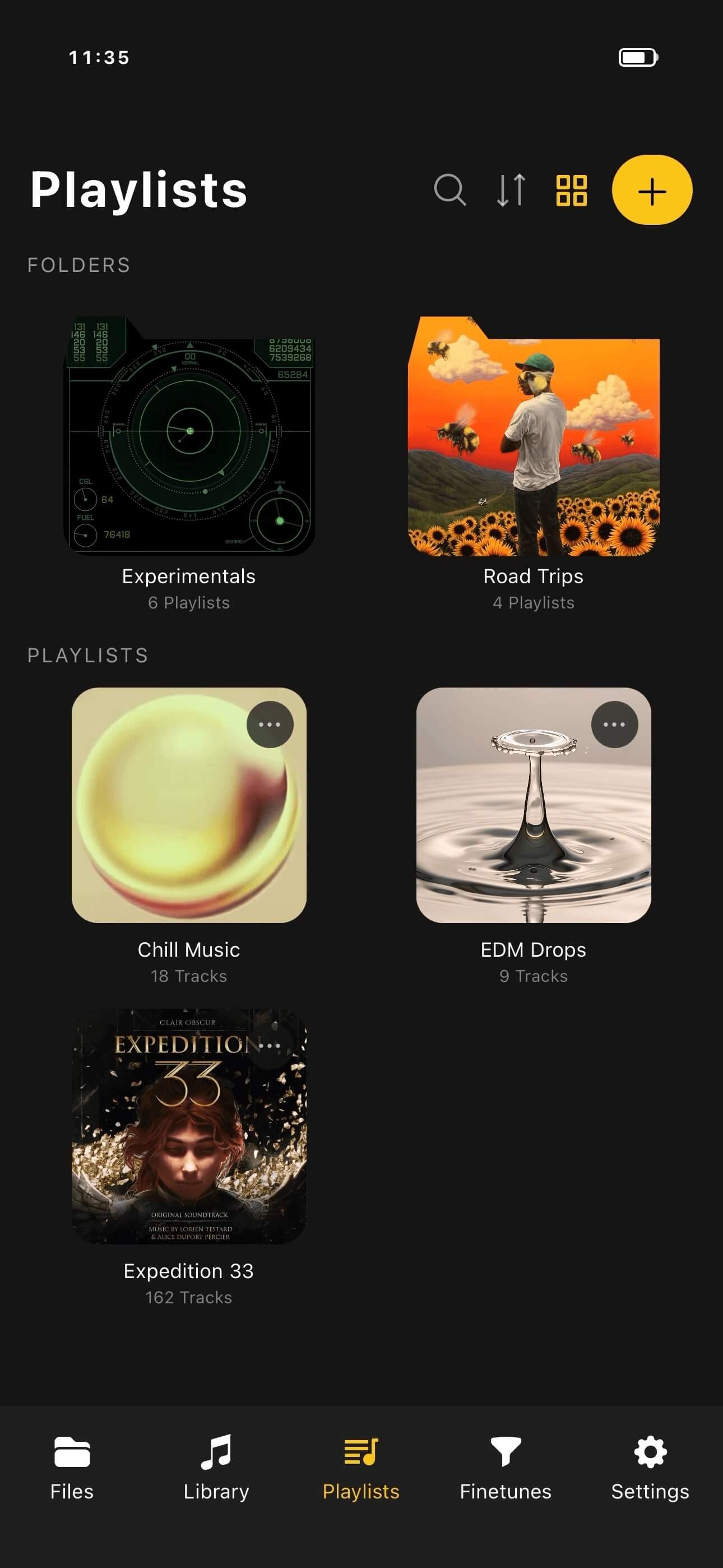
Apple Music and iPod playlists come across during library sync. OfflineTunes can place them into source-aware playlist areas, then let them live beside your own regular playlists. From there, nested playlist folders can organize large collections by mood, year, person, activity, or any hierarchy that makes sense.
The Playlist Backup Manager protects regular playlists, Smart Playlists, folder paths, and playlist artwork. Because synced Apple Music playlists become OfflineTunes playlist records, they can be included in the same backup workflow as local and mixed-source lists.
Choose Files or iCloud Drive, Dropbox, OneDrive, Box, pCloud, S3, or WebDAV as a backup location. Manual sync updates the backup on demand; Premium can keep connected locations synchronized automatically. During restore, selected playlists can replace the local copy or return as a separate copy, which is useful when comparing an older playlist with its current version.
Restoring a backup restores the OfflineTunes playlist structure. If you want that restored version in Apple Music too, export it back as a new Apple Music playlist after review.
- Protect Apple Music playlists: preserve their imported OfflineTunes copies outside the live Apple library.
- Restore selectively: bring back only the playlists you need instead of replacing everything.
- Keep both versions: restore as a copy when you want to compare old and new track choices.
- Preserve organization: nested folder paths and Smart Playlist definitions travel with backup files.
Sync Finished Playlists Back to Apple Music as New Lists
When a FineTune session or Smart Playlist produces the right result, turn it into a regular OfflineTunes playlist and choose Sync to Apple Music. OfflineTunes reads the playlist, matches each track to an Apple Music catalog song, saves successful matches to the Apple Music library, and creates a new Apple Music playlist with those songs.
The export intentionally creates a new Apple Music playlist. It does not rewrite the existing Apple playlist or remove tracks from it. That behavior works around the current removal limitation and keeps the original list safe while your cleaner OfflineTunes version becomes a separate result.
Matching is honest about misses. Tracks need enough metadata to find a confident Apple Music catalog match. If a rare recording, live bootleg, private file, or unusual edit has no match, OfflineTunes reports the matched count and leaves unresolved tracks out of the Apple Music copy rather than substituting a random song.
- 1Finish the OfflineTunes playlist.Use FineTune, ratings, Smart Lists, or manual edits until membership is right.
- 2Convert dynamic results when needed.Save the current Smart Playlist result as a regular playlist before Apple Music export.
- 3Choose Sync to Apple Music.Authorize Apple Music and confirm an active subscription.
- 4Review the match count.OfflineTunes shows how many tracks matched and which ones could not be resolved.
- 5Use the new Apple Music playlist.The original list remains untouched; the exported version appears as a separate playlist.
Match Local, Plex, Navidrome, and Cloud Tracks to Apple Music
Apple Music export is not limited to tracks that began in Apple Music. OfflineTunes matches from library metadata, so a playlist can contain local files, Plex tracks, Navidrome or another Subsonic-compatible server, and supported cloud-storage sources.
For each playlist track, OfflineTunes checks identifying metadata such as title, artist, album, duration, and available catalog identifiers. Confident matches become Apple Music catalog song IDs. This is matching, not uploading: your original file stays where it is, and the Apple Music playlist points to Apple Music’s own catalog copy.
That can improve the listening path when a playlist currently depends on a low-bitrate remote copy, a server that is not always reachable, or a cloud file that takes time to fetch. When Apple Music has the correct release, its catalog stream may offer better available quality and easier playback across Apple devices. Exact quality still depends on the matched release, Apple Music settings, connection, and playback hardware.
Scrobble Apple Music and iPod Listening to Last.fm and ListenBrainz
A unified player should produce a unified listening history. OfflineTunes works with Last.fm and ListenBrainz scrobbling, so plays from synced Apple Music, iPod, local, and connected-source tracks can contribute to the same personal record.
Now Playing sends the active track while connected. Completed listens become scrobbles after playback meets the expected conditions. If a submission cannot reach the service, OfflineTunes can keep an offline scrobble backup and submit it after connectivity returns.
Clean metadata matters here too. Apple Music and iPod sync brings useful artist, title, album, duration, ratings, and counts into the library. Better tags mean cleaner scrobbles, more reliable artist histories, and stronger Smart Playlist rules later.
- Last.fm: keep long-running artist charts, listening reports, and profile history.
- ListenBrainz: send listens to an open listening-history service.
- Offline backup: queue disconnected listens and synchronize after the device reconnects.
- Mixed-source history: record one listening story across Apple Music, iPod, local files, Plex, Navidrome, and cloud storage.
A Practical Workflow for Building the Perfect Playlist
The best result comes from treating sync as the beginning, not the finish. Bring the library in, create taste data while listening, let smart rules surface candidates, then export only the version that deserves to travel back to Apple Music.
This loop improves over time. Every rating gives Smart Lists more evidence. Every FineTune session separates “I know this song” from “I want this song here.” Every backup protects the work. Every restored version gives you a second chance when a playlist changes too far.
- 1Sync iPod Library, Apple Music Cloud, or both.Use iPod Library without a subscription; connect Apple Music Cloud only with an active subscription.
- 2Pull playlists into folders.Separate imported Apple lists, works in progress, archived versions, and finished mixes.
- 3FineTune one focused group.Approve and deny while listening instead of judging from titles alone.
- 4Rate the approved tracks.Use stars to distinguish acceptable songs from the tracks that define your taste.
- 5Build Smart Lists and Smart Playlists.Combine ratings, favorites, plays, skips, dates, genres, and source data.
- 6Back up before the final edit.Protect regular lists, smart rules, folders, and artwork in a separate location.
- 7Sync the winner to Apple Music.Match local and remote tracks, review misses, and create a new Apple Music playlist.
- 8Keep listening history connected.Use Last.fm or ListenBrainz so every source contributes to the same record.