FineTune: Clean Your Music Library While You Listen
FineTune turns listening into library cleanup: approve keepers, deny clutter, use steering-wheel or Bluetooth controls, then create playlists, rate, move, split, or delete in bulk.
In this article Open
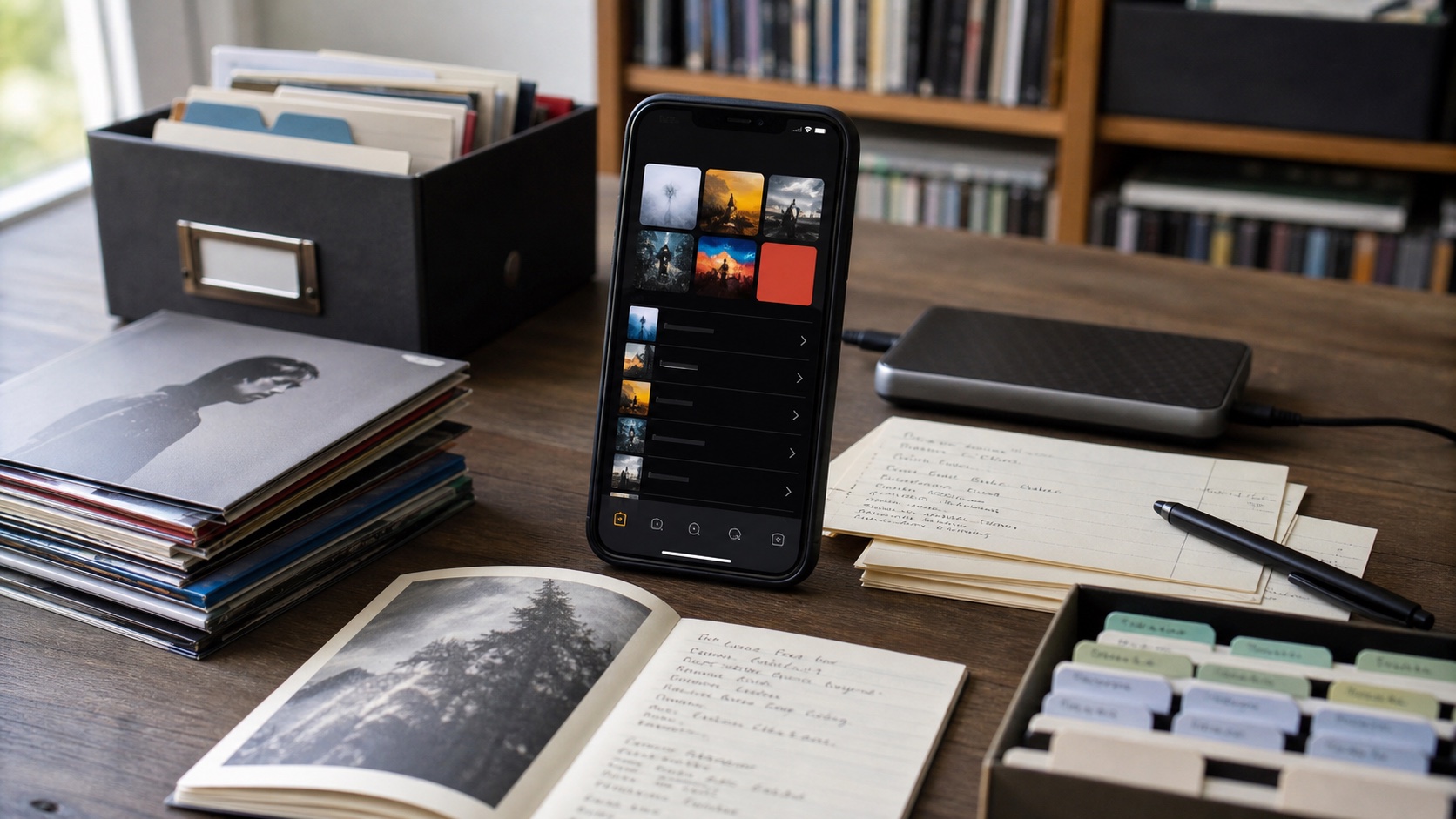
FineTune is the OfflineTunes feature for turning a huge local music library into a cleaner, sharper, more intentional collection. It is not another playlist screen. It is a decision system: play a focused batch of songs, approve the ones that belong, deny the ones that do not, then use bulk actions to turn those decisions into real library changes.
This matters because most music libraries do not become messy overnight. They get messy slowly. A few old downloads stay on the phone. A few albums have only one good song. A few artist folders have duplicates. A few tracks were imported for one trip and never removed. After years, the library is full of songs you skip, half-like, forgot, or never meant to keep.
FineTune gives that cleanup a listening-first workflow. You do not have to stare at a spreadsheet of tracks. You listen, decide, and move on. Approve. Deny. Undo if needed. Finish the list. Then turn approved songs into playlists, split approved and denied into their own FineTune lists, rate a whole group, favorite a whole group, move files, or delete denied tracks from storage.
What FineTune Is
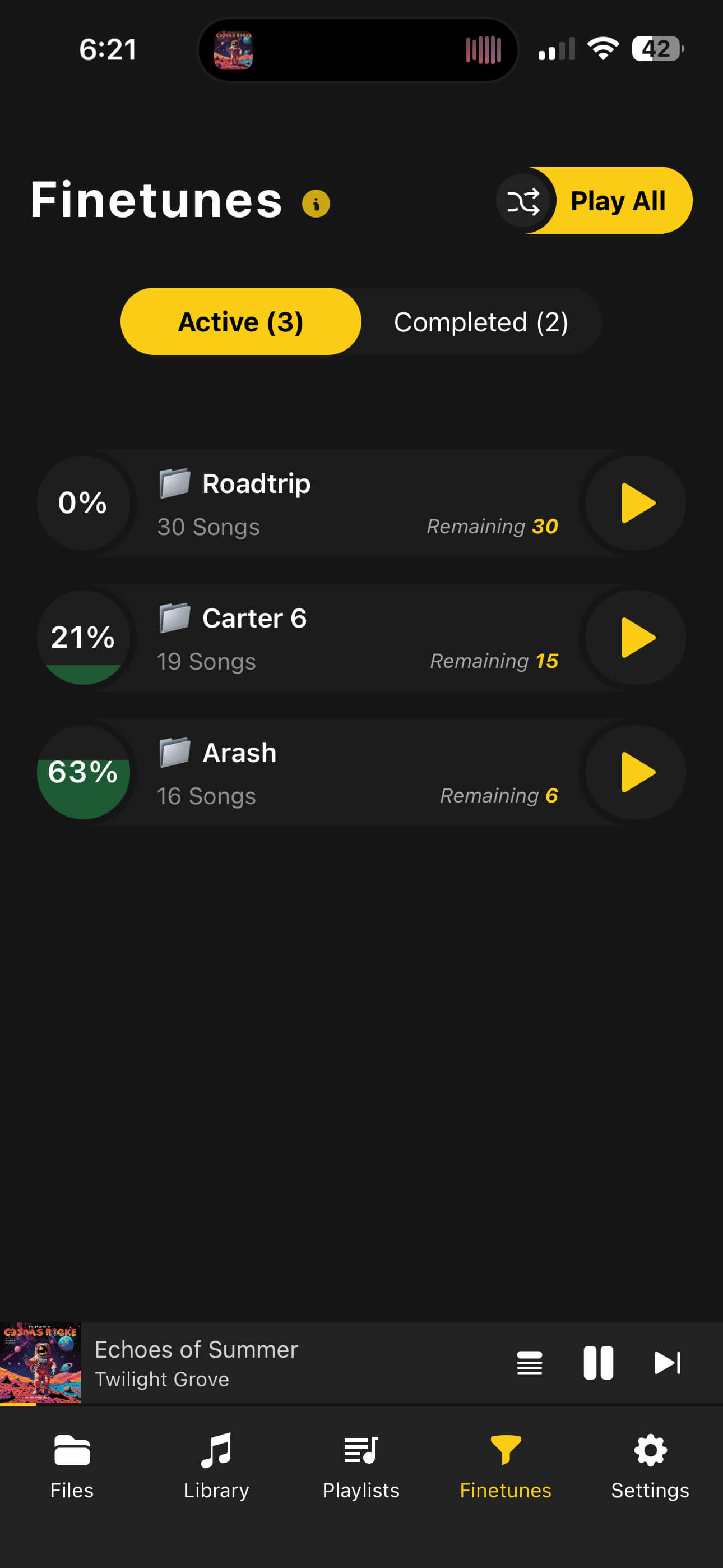
A FineTune list is a temporary curation lane. You fill it with songs from a track, album, artist, folder, filtered search result, or any focused batch you want to judge. While it plays, each song has three possible states: remaining, approved, or denied.
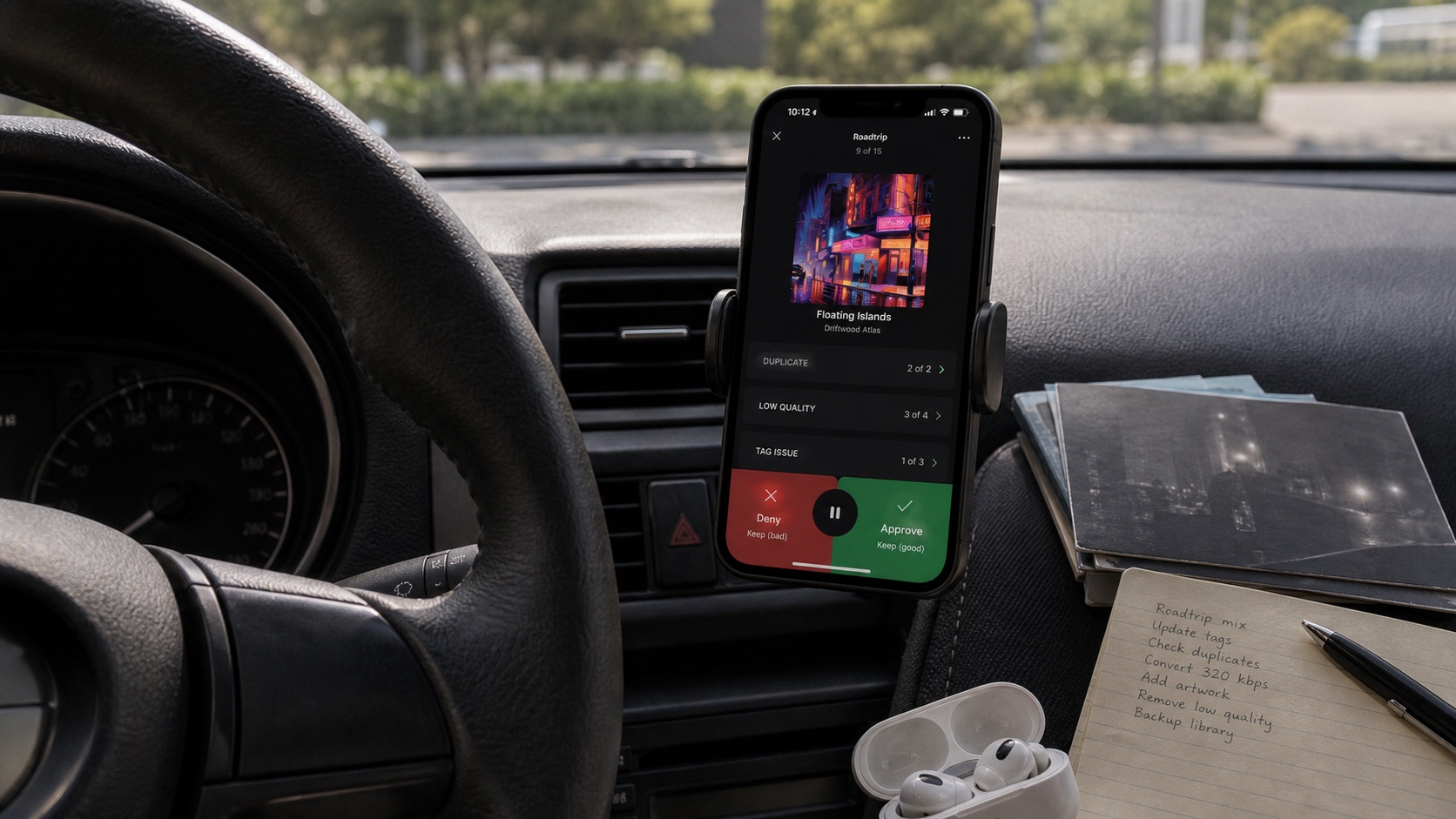
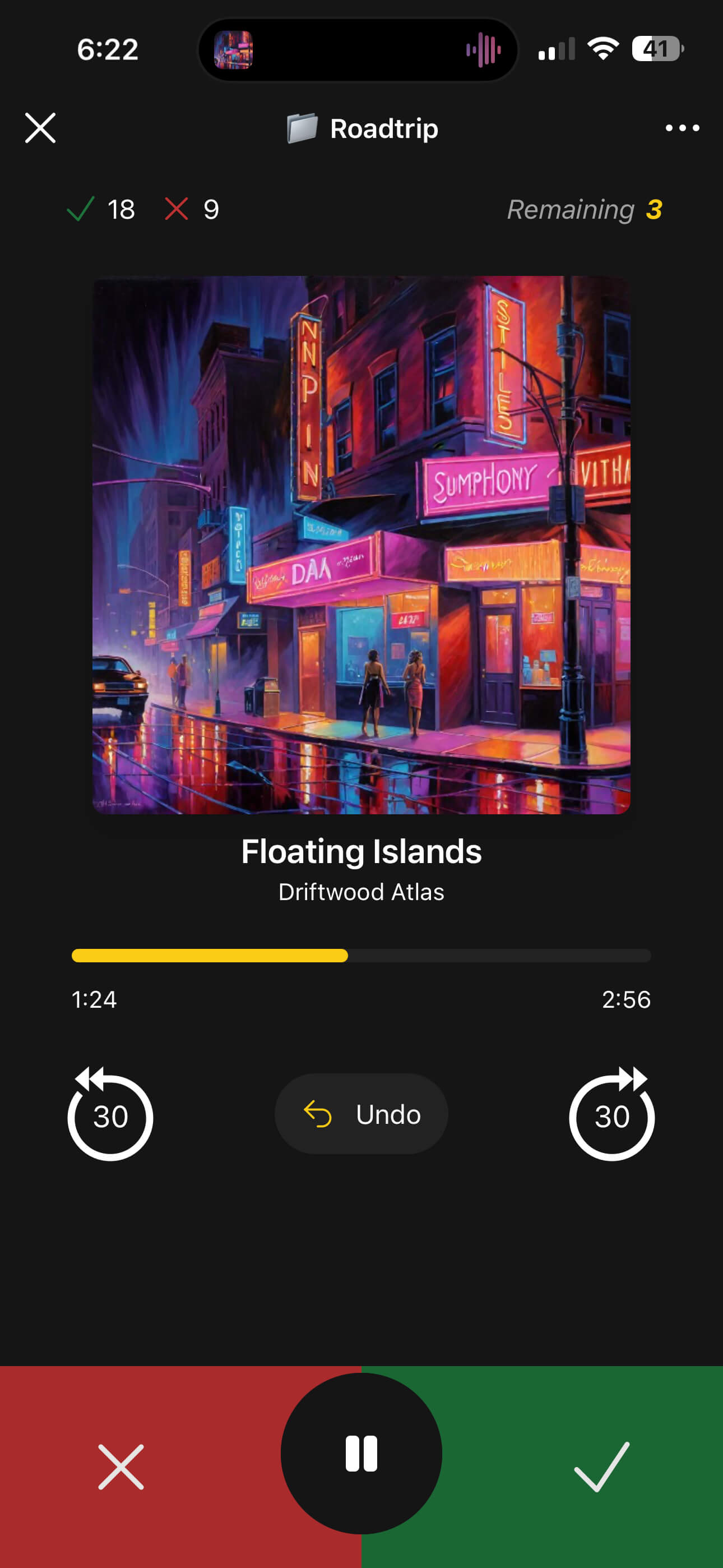
The active screen keeps the decision simple. Green means approve. Red means deny. The list tracks approved, denied, and remaining counts so you always know how much cleanup is left. You can pause, skip within a track, undo the last decision, or finish the list when the remaining songs no longer matter.
Why FineTune Exists
Normal music apps are good at adding songs. They are bad at helping you decide what should stay. That creates the classic local-library problem: the phone becomes a museum of everything you ever imported, not the collection you actually want to hear.
FineTune exists because cleanup has to happen during real listening. You cannot judge every song from its title. You need to hear the chorus, the mix, the vocal, the energy, the memory, the skip instinct. FineTune lets you make that judgment as the song plays and stores the result without forcing an immediate destructive action.
That is the difference between a cleanup tool and a delete button. Denying a song does not have to delete it immediately. It marks the decision. Later, when you are looking at the completed FineTune list, you can decide whether denied tracks should be deleted, moved, split into another list, rated lower, or left alone.
Build Focused FineTune Lists From Albums, Artists, Folders, and Filters
The best FineTune lists are narrow. Do not start by dumping your whole library into one giant cleanup session. Start with a scope: one album, one artist, one folder, one search result, one import batch, one genre, or one playlist that has gotten stale.
OfflineTunes lets you add songs to FineTune from places where you already find music. The empty-state guidance says to tap the three-dot menu on any track, album, artist, or folder and select Add to FineTune. That means FineTune is not separate from browsing; it is attached to the way you already inspect the library.
The most powerful move is filtering first. Search for an artist, open an album group, drill into a folder, or isolate a set of local files. Then create a FineTune list from that exact scope. A focused list creates better decisions because every song is being judged against the same context.

Good FineTune list scopes
- One album: approve the tracks that belong in rotation and deny filler, intros, skits, duplicates, or tracks you always skip.
- One artist: build a personal essentials list from an artist with a large catalog.
- One folder: clean downloads, DJ sets, imports, road-trip folders, or old CD-rip batches without losing file structure.
- One import batch: review new music before it becomes permanent library clutter.
- One smart list: review forgotten songs, low-rated tracks, unplayed tracks, or old favorites that need a second pass.
Drive Mode: Steering Wheel Cleanup
FineTune becomes especially useful when normal playback controls become curation controls. In FineTune mode, next track approves the current song and previous track denies it. That maps naturally to steering-wheel controls, Bluetooth controls, lock-screen controls, media-session buttons, and CarPlay transport commands.
The point is not to make you manage files while driving. The point is to reduce the decision to the same kind of control you already use for music: next or previous. If a song earns a place, approve it. If it does not, deny it. Keep eyes on the road and let the completed list hold the cleanup work for later.
Use this only when it fits the situation. Start the FineTune list before driving. Keep the phone mounted or put away. Use the same quick controls you already use for playback. Do not browse, filter, delete, or manage files behind the wheel.
Drive Mode use cases
- 1Commute cleanup.Load a FineTune list for one artist or one import batch before leaving. Approve songs that still work. Deny songs you keep skipping.
- 2Road-trip playlist building.Approve songs that fit the trip. After parking, create a playlist from approved tracks.
- 3Album trimming.FineTune one album and keep only the tracks that still deserve phone storage.
- 4Storage cleanup.Mark obvious rejects during listening, then delete denied files only after reviewing the completed list.
Bluetooth Controls While Running
The same idea works outside the car. While running, walking, biking in a safe environment, or cleaning the house, you already have a lightweight music decision interface: headphone controls. FineTune lets those controls become a cleanup tool.
Start a focused list before the run. If the song hits, approve it. If it drags, deny it. By the end, you have a result list created during real listening conditions: pace, energy, mood, and attention all count.
What Happens When a FineTune Is Completed
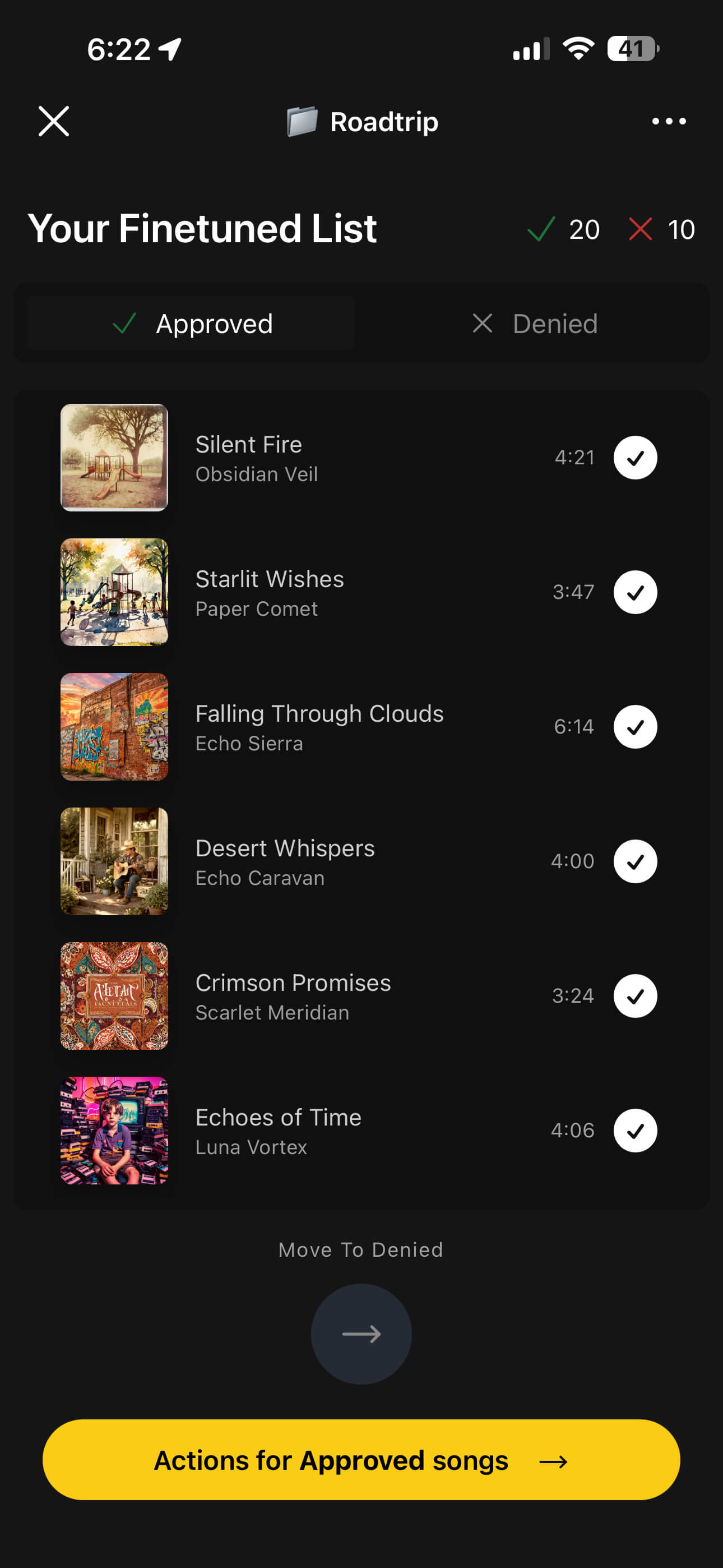
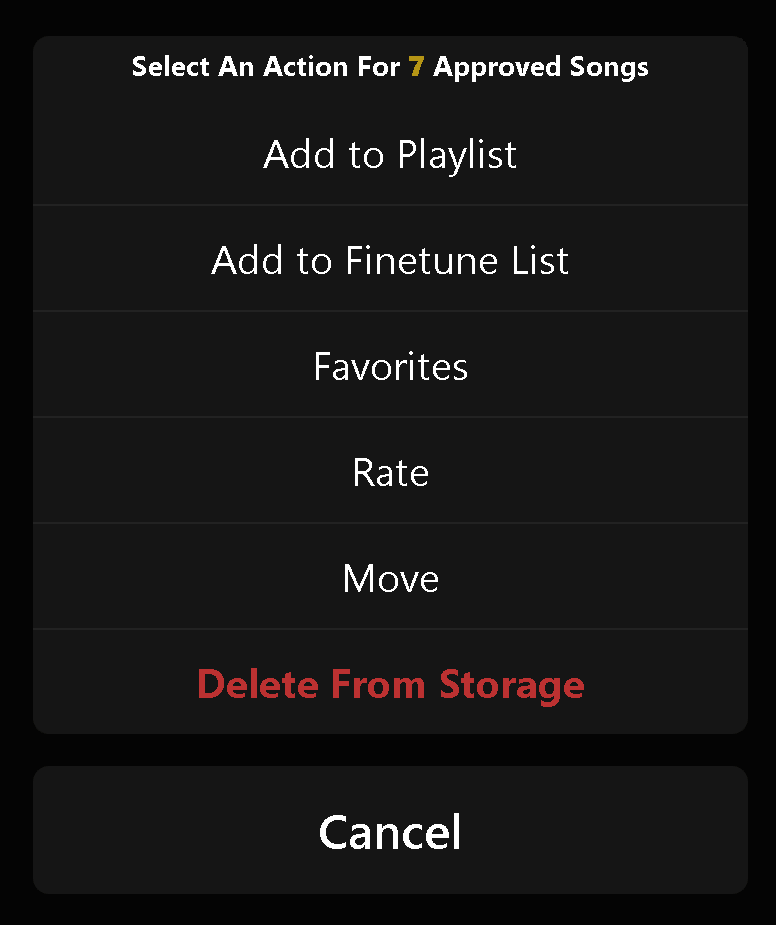
The completed view is where FineTune becomes library management. You can switch between Approved and Denied tabs, select tracks, move selected tracks between approved and denied, then run actions on the active group.
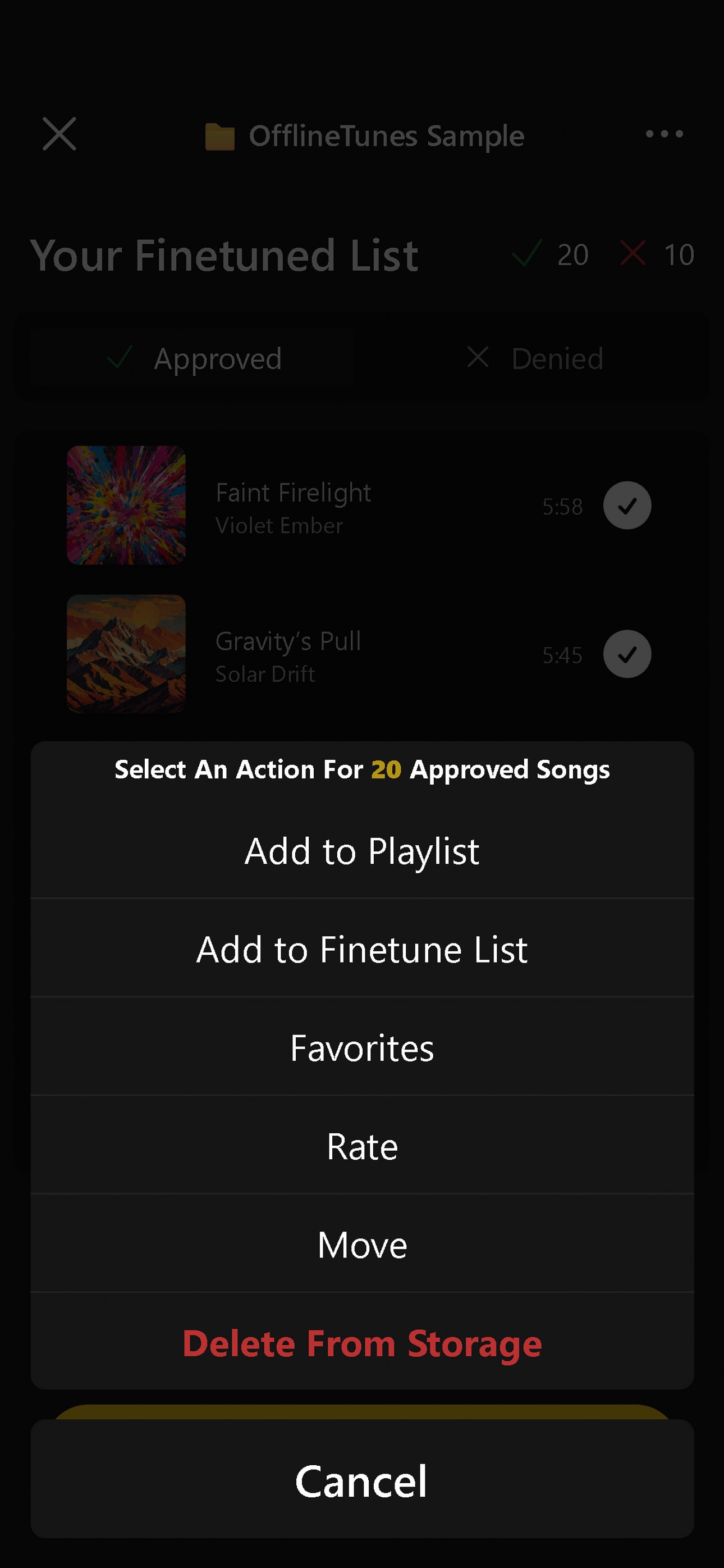
The current completed-action menu supports adding approved or denied tracks to a playlist, adding them to another FineTune list, marking favorites, rating tracks, moving files, and deleting tracks from storage. Completed FineTune menus also support share, reset, split, and delete.
Completed FineTune actions explained
FineTune Use Cases
FineTune is broad because the approve/deny model is broad. Any time you can reduce a library decision to keep or reject, FineTune can help.
1. Clean a bloated phone library
Create a FineTune list from old imports, downloads, or a folder you never finished reviewing. Deny songs that no longer need to live on the phone. When the list is complete, open Denied and choose Delete From Storage only after reviewing the batch.
2. Filter albums and artists before deciding
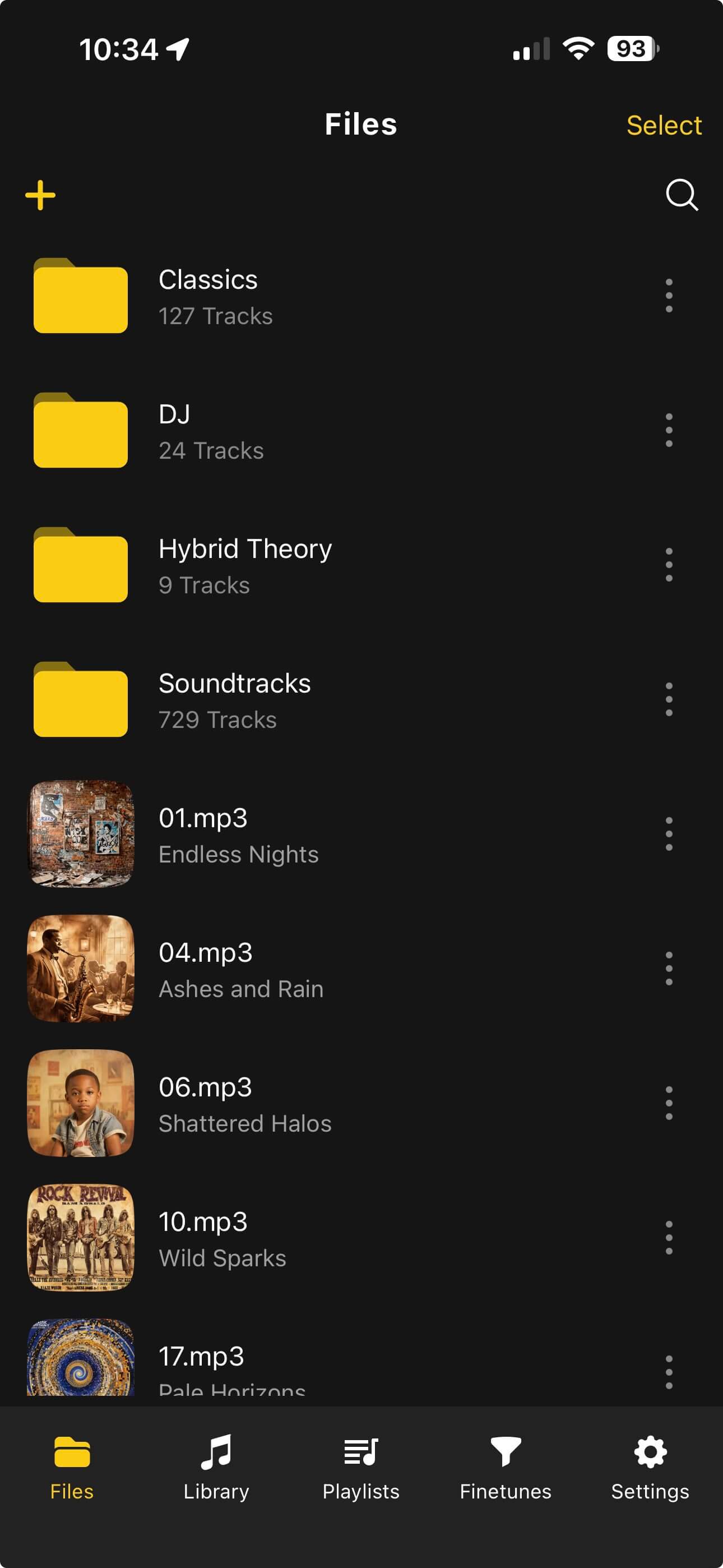
FineTune is strongest when the input is specific. Filter an artist, an album, or a narrow search result first. Then FineTune exactly those filtered songs. That keeps the listening test fair. You are not comparing a piano ballad to a workout track; you are deciding which songs belong in a specific context.
3. Split approved and denied into their own lists
The completed menu can split a FineTune into separate approved and denied FineTune lists. This is useful when the first pass is not enough. Approved songs might become a second pass for a tighter playlist. Denied songs might become a review list before deletion.
4. Create a playlist from approved songs
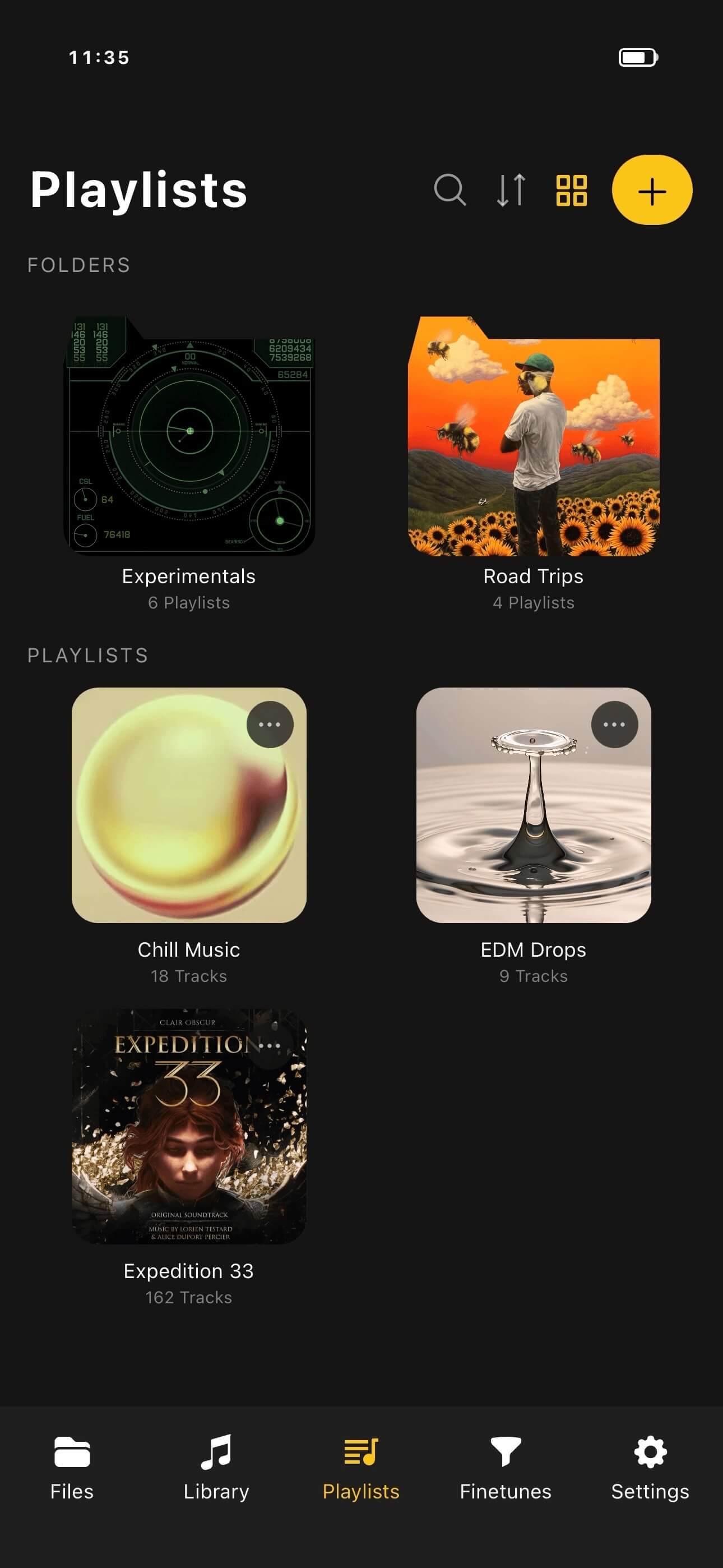
This is the cleanest positive outcome. FineTune an artist, album group, folder, or road-trip candidate list. Open Approved. Choose Add to Playlist. You now have a playlist made from real listening decisions, not memory or guesswork.
5. Mass rate and favorite tracks
Rating one track at a time is slow. FineTune lets listening create a batch first. If approved songs are all keepers, open Approved and rate or favorite them together. If denied songs should be marked low before deletion, open Denied and rate them as a group.
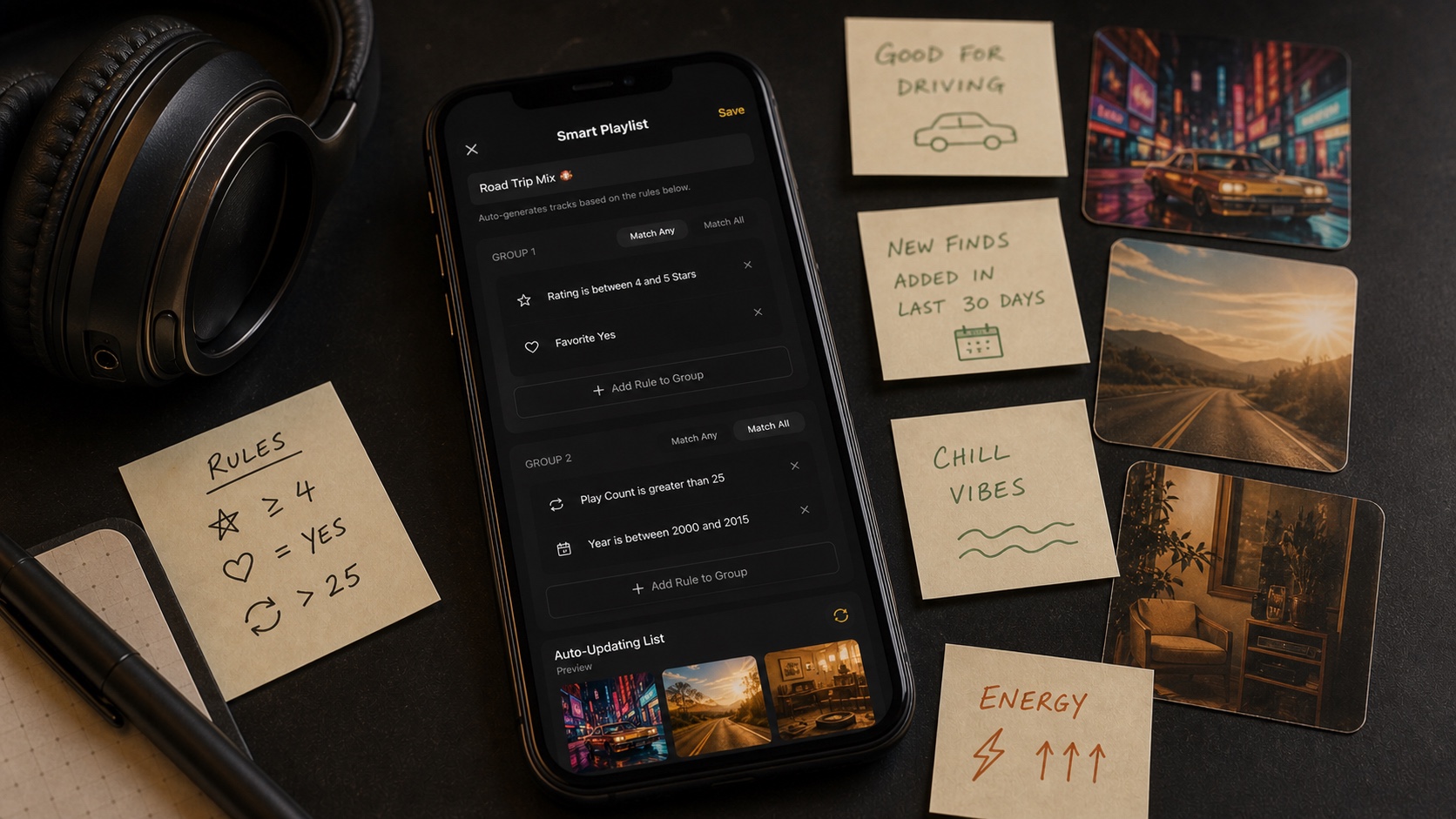
This pairs well with smart playlists. Once ratings are clean, smart lists can surface high-rated songs, low-rated review candidates, forgotten favorites, or tracks that deserve another FineTune pass.
6. Move files after judging them
Move is useful when you want cleanup without deletion. Approved songs can move into a polished folder. Denied songs can move into an archive, review, or delete-later folder. This keeps storage organized while still giving you a chance to change your mind.
7. Fix metadata while the decisions are fresh
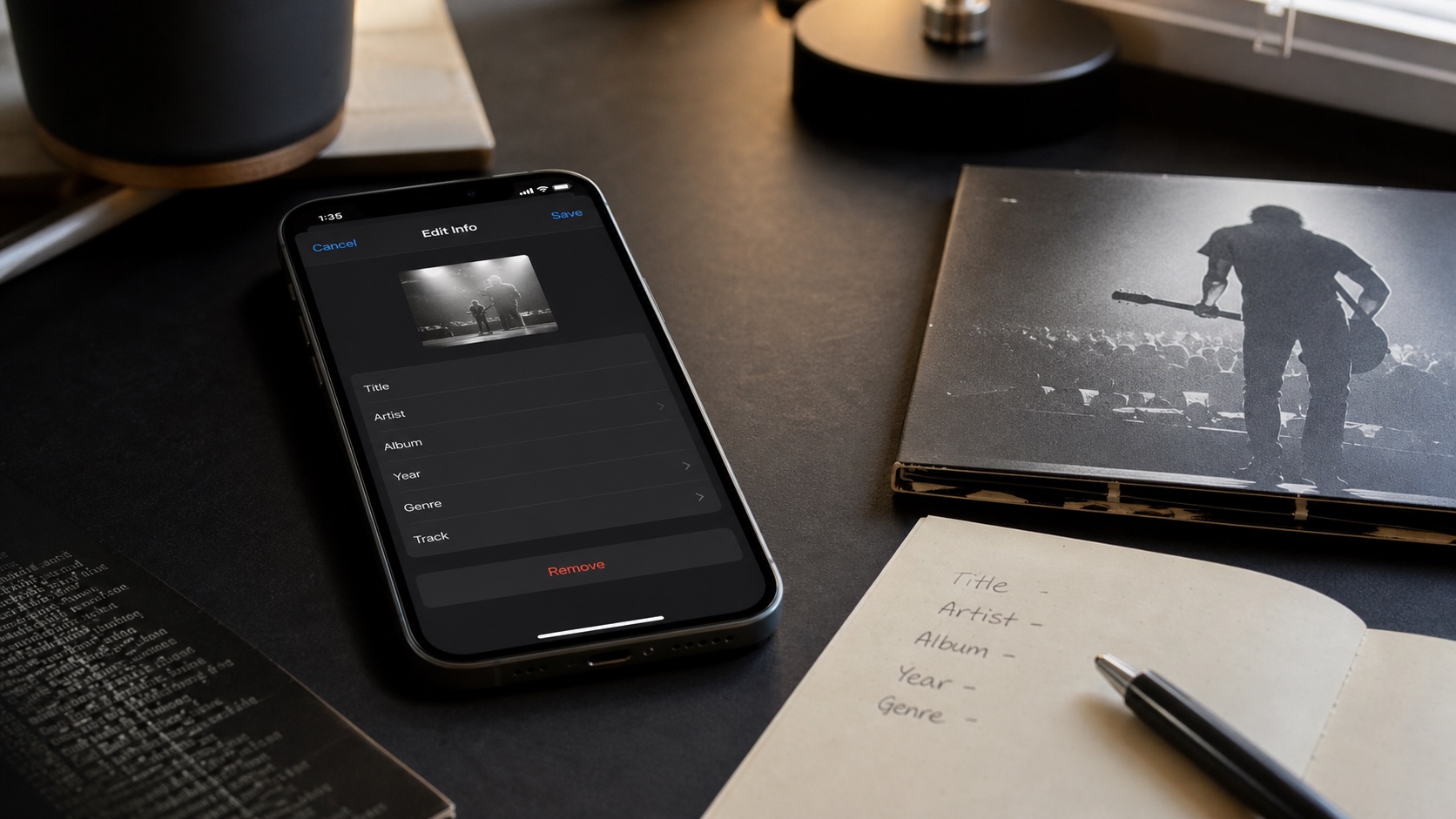
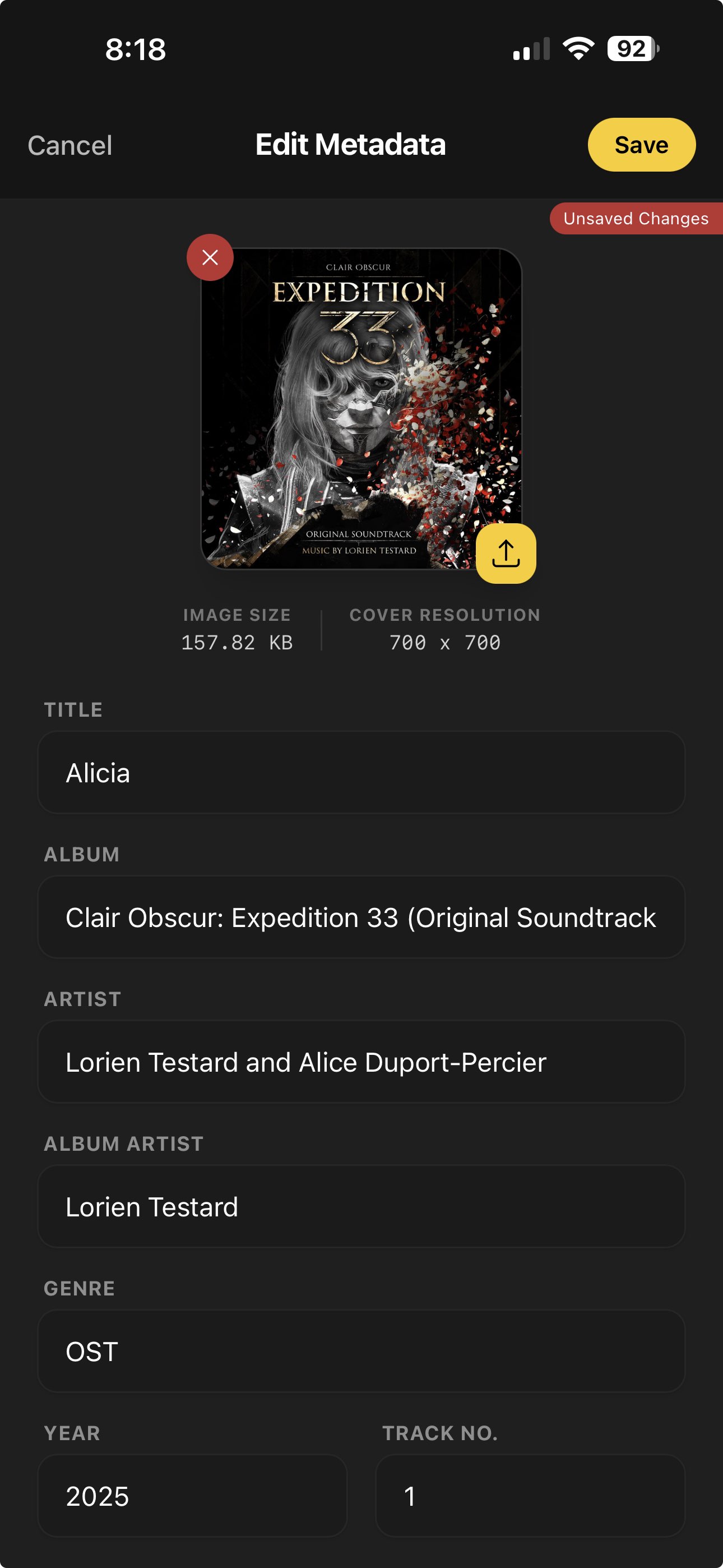
FineTune tells you which songs are worth cleaning. There is no reason to repair metadata for songs you are about to remove. Approve the keepers first, then use metadata tools on the songs that actually deserve cleanup.
The Full FineTune Workflow
FineTune works best as a loop. Scope the batch. Listen. Decide. Review. Act. Repeat.
- 1Choose one specific batch.Album, artist, folder, search result, smart list, or import batch. Narrow beats huge.
- 2Add it to FineTune.Use track, album, artist, folder, or filtered music menus to create a focused list.
- 3Listen in real conditions.Drive, walk, run, work, cook, or sit down with headphones. Let actual use decide.
- 4Approve or deny quickly.Use screen controls, media controls, Bluetooth controls, steering-wheel controls, or CarPlay transport controls where available.
- 5Review completed results.Check Approved and Denied before running destructive actions.
- 6Run the right bulk action.Playlist, favorite, rate, move, split, add to another FineTune, or delete from storage.
Safe Cleanup Rules
FineTune can delete denied tracks from storage, so treat deletion as a final step. Deny is a judgment. Delete is an action. Keep those mentally separate and the workflow stays safe.
- Use Deny generously, Delete carefully. A denied track can be moved, rated, re-reviewed, or deleted later.
- Keep backups. If a track is rare, ripped, live, or hard to replace, move it to an archive before deleting from phone storage.
- Review Denied before deletion. A quick accidental deny is easy to make during a run or drive.
- Split before final cleanup. If unsure, split denied into a second FineTune and listen again later.
FineTune Is the Main OfflineTunes Workflow
FineTune is where OfflineTunes becomes more than an offline player. It is the feature that turns listening into maintenance, maintenance into playlists, and playlists into a cleaner library. It makes every song earn its place without making cleanup feel like office work.
Use it for album trimming, artist essentials, running mixes, road-trip lists, storage cleanup, import reviews, duplicate suspicion, low-rated tracks, forgotten folders, and any batch where you want the answer to be simple: keep it or cut it.
When the library is clean, everything else in OfflineTunes works better: smart playlists, search, folders, queues, ReplayGain, EQ, ratings, and offline playback. FineTune is the bridge between owning a lot of music and actually wanting to hear what is on your phone.