How to Organize a Large Music Library on iPhone
Large music libraries need a system: folders for storage, tags for browsing, artwork for scanning, playlists for intent, and backups for safety.
In this article Open
Learning how to organize a large music library on iPhone is less about one perfect app setting and more about repeatable habits. Formats, folders, tags, artwork, playlists, and backups all need a role.
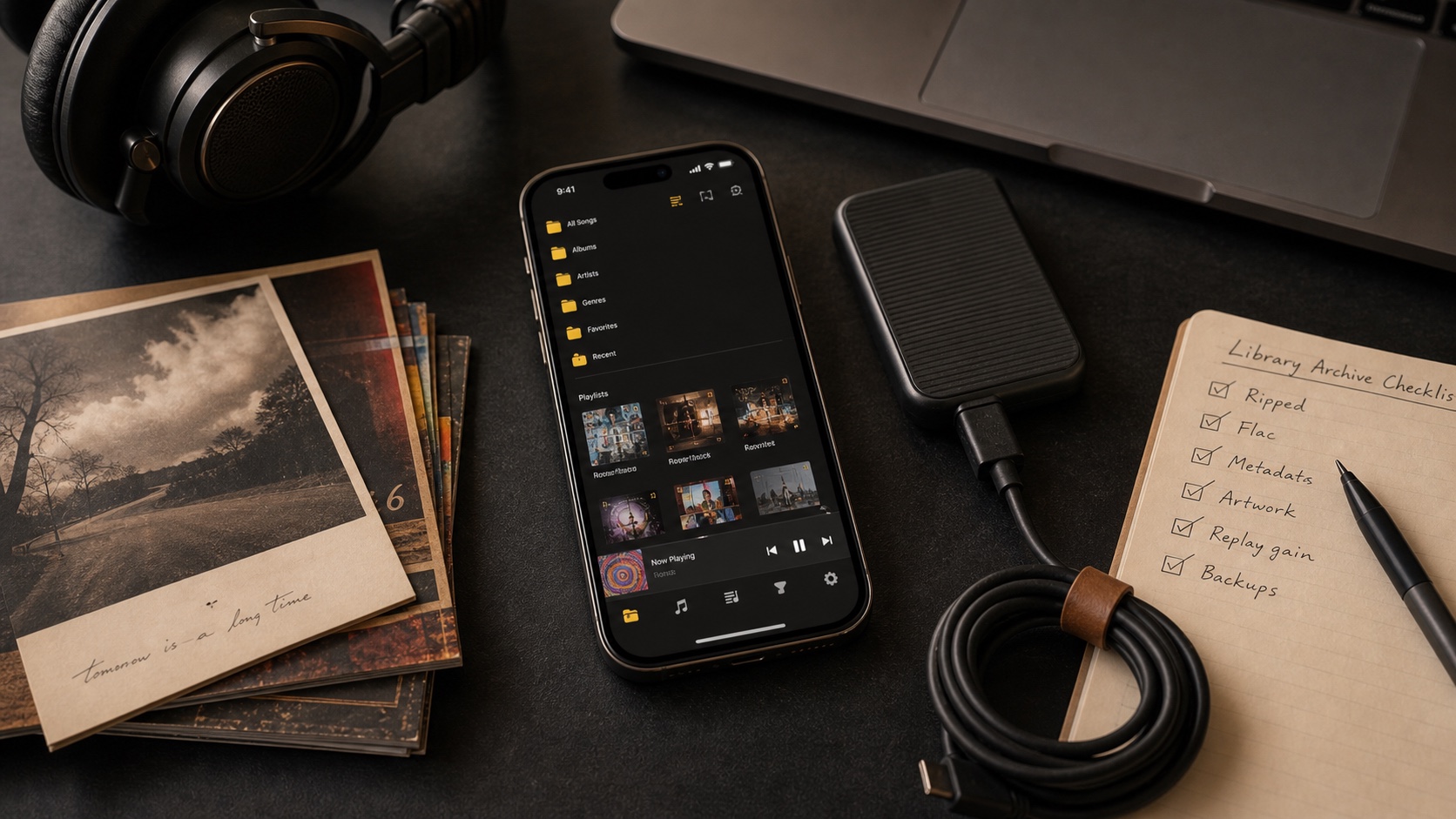
OfflineTunes is useful because it supports both sides of the job: file control and music-library control. You can preserve folders while improving metadata, artwork, playlists, and playback.
Short Answer: Use Folders for Storage and Tags for Browsing
A large library needs two systems. Folders preserve where files live. Tags decide how music appears in album, artist, genre, year, and search views. If either system is weak, the whole library gets harder to use.
Do not try to fix ten thousand tracks in one sitting. Work in batches, verify each batch, and keep a clean backup outside the phone.
Start With a Folder Plan
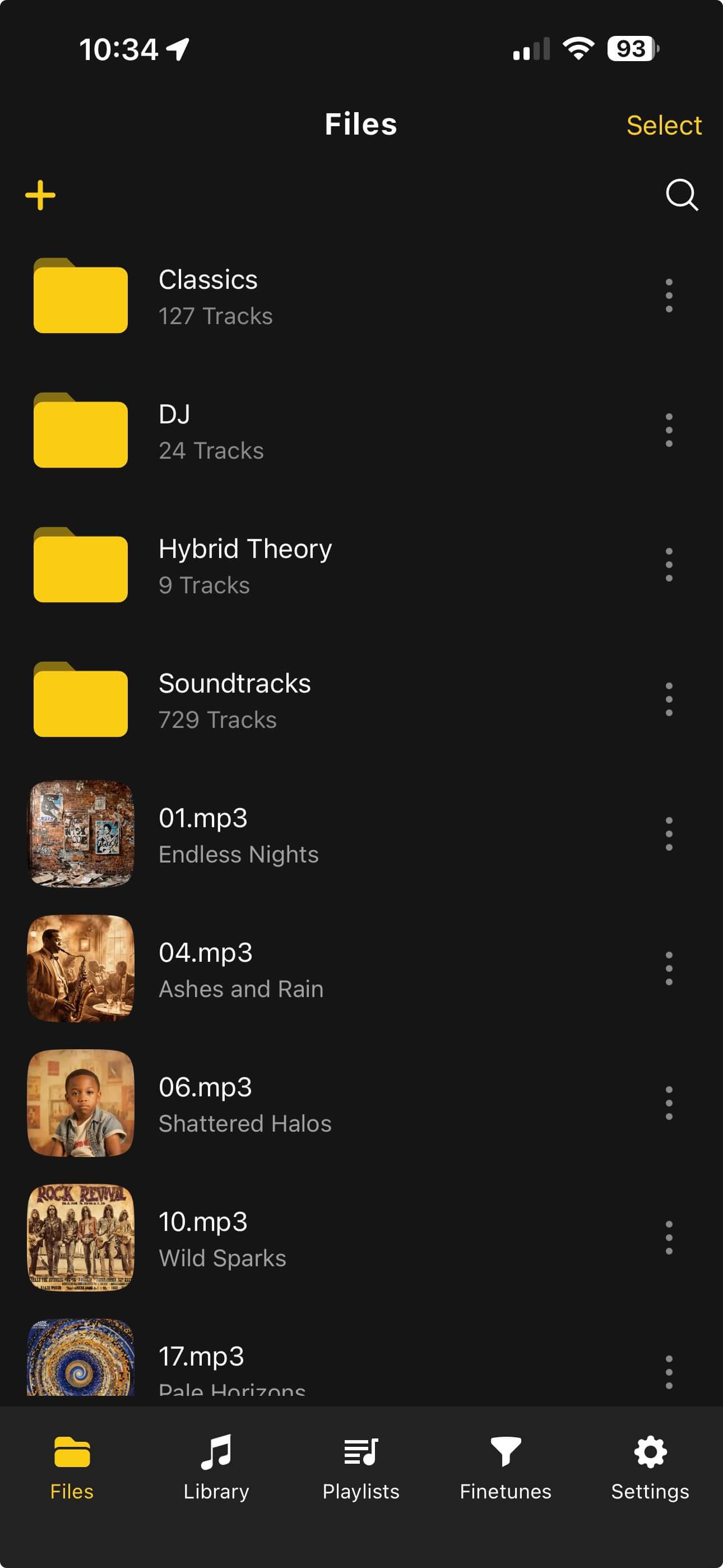
Folders should be boring. Boring is good. Pick a structure you can maintain: artist folders for normal music, separate folders for live recordings, one folder for compilations, and another for temporary imports.
OfflineTunes makes this visible on iPhone, which means the folder plan continues to matter after files leave the desktop archive.
Then Run a Metadata Pass
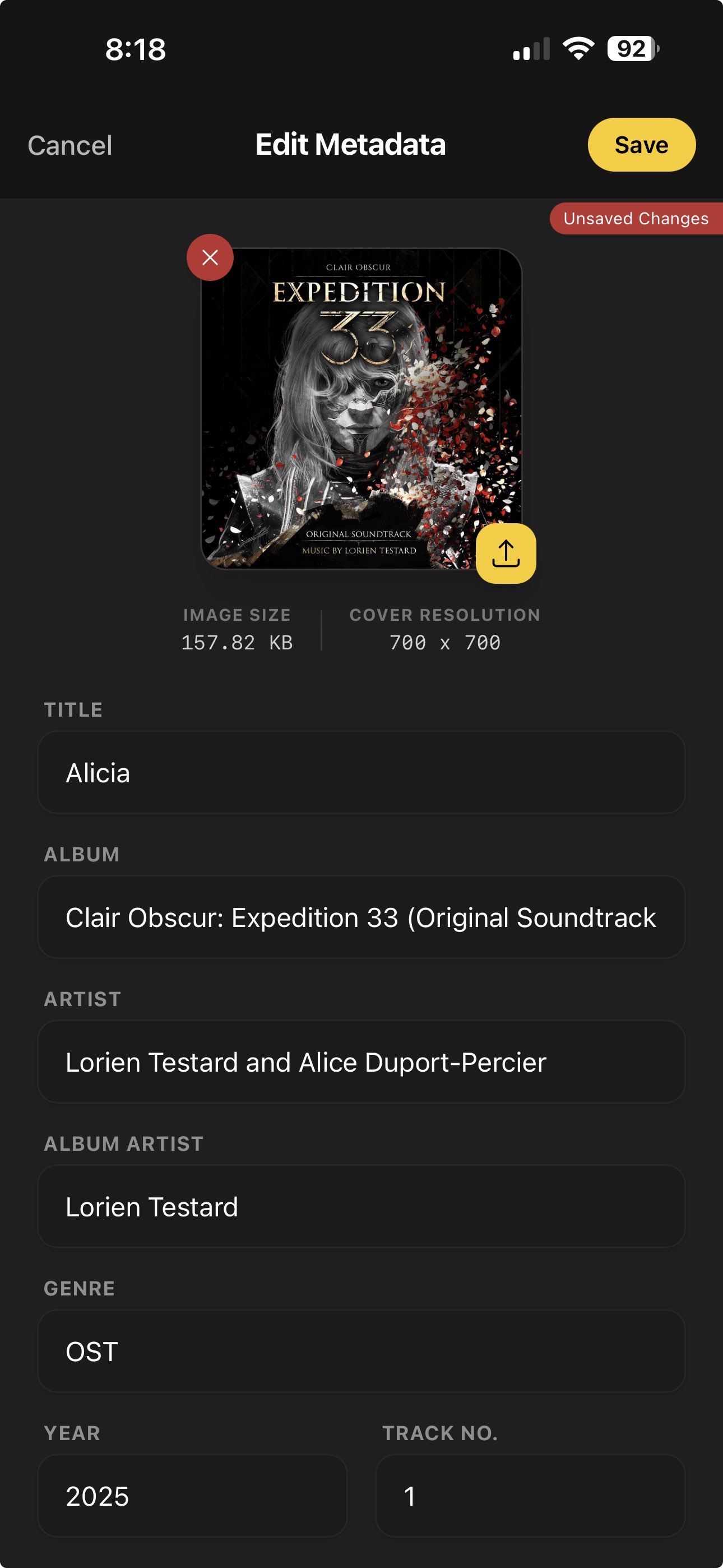
Metadata is where large libraries either become pleasant or painful. Focus on fields that affect browsing: title, artist, album, album artist, track number, disc number, genre, year, and artwork.
You do not need perfect trivia tags. You need enough consistency that albums sort correctly and search finds what you expect.
- 1Fix album artist first.This prevents compilations and guest-heavy albums from scattering.
- 2Check track and disc numbers.Sort order matters more than decorative metadata.
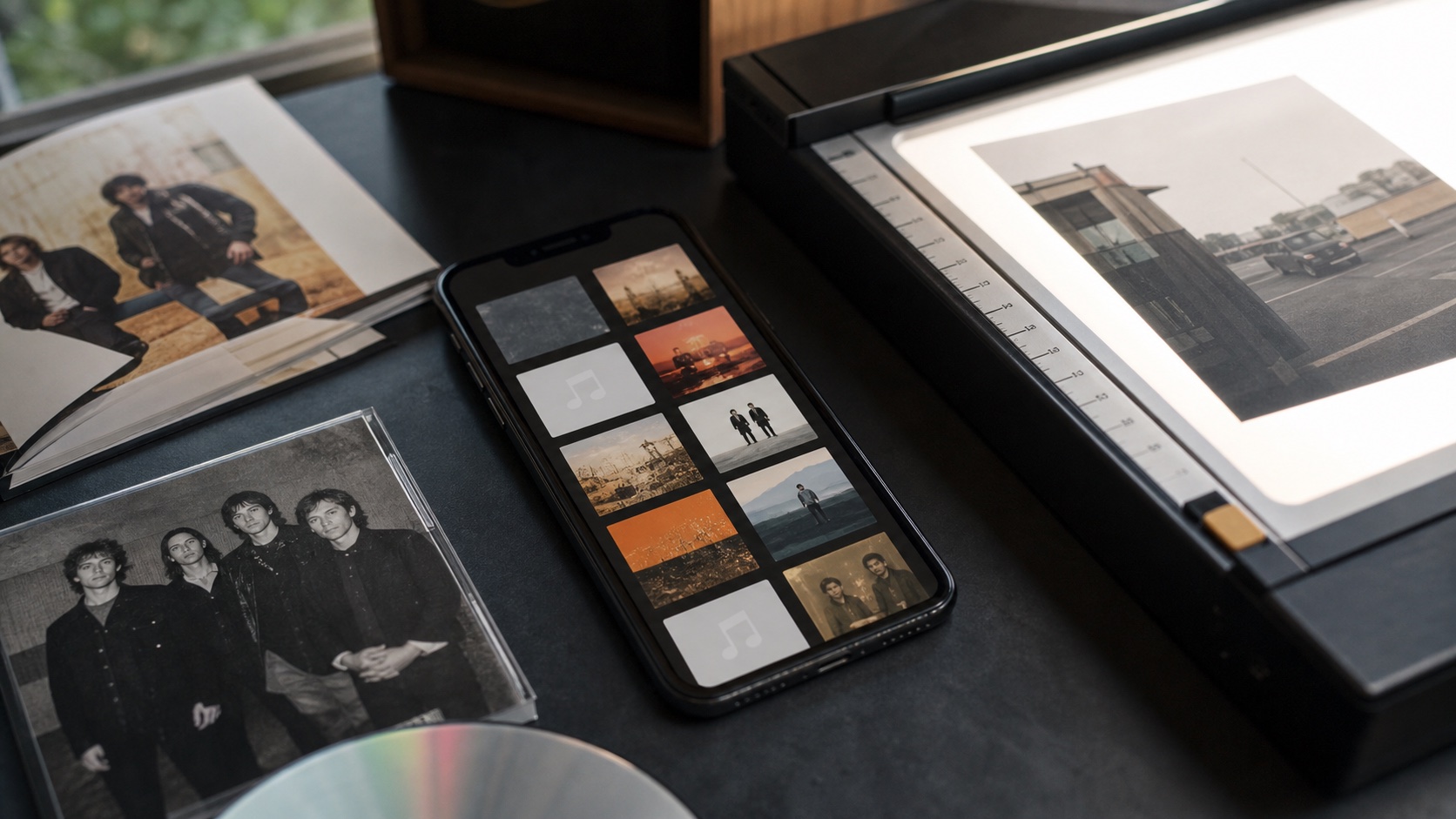
- 3Repair artwork.Covers make large libraries much easier to scan.
- 4Retest in library views.Look at artist, album, and songs after each batch.
Use Playlists and Smart Playlists for Listening
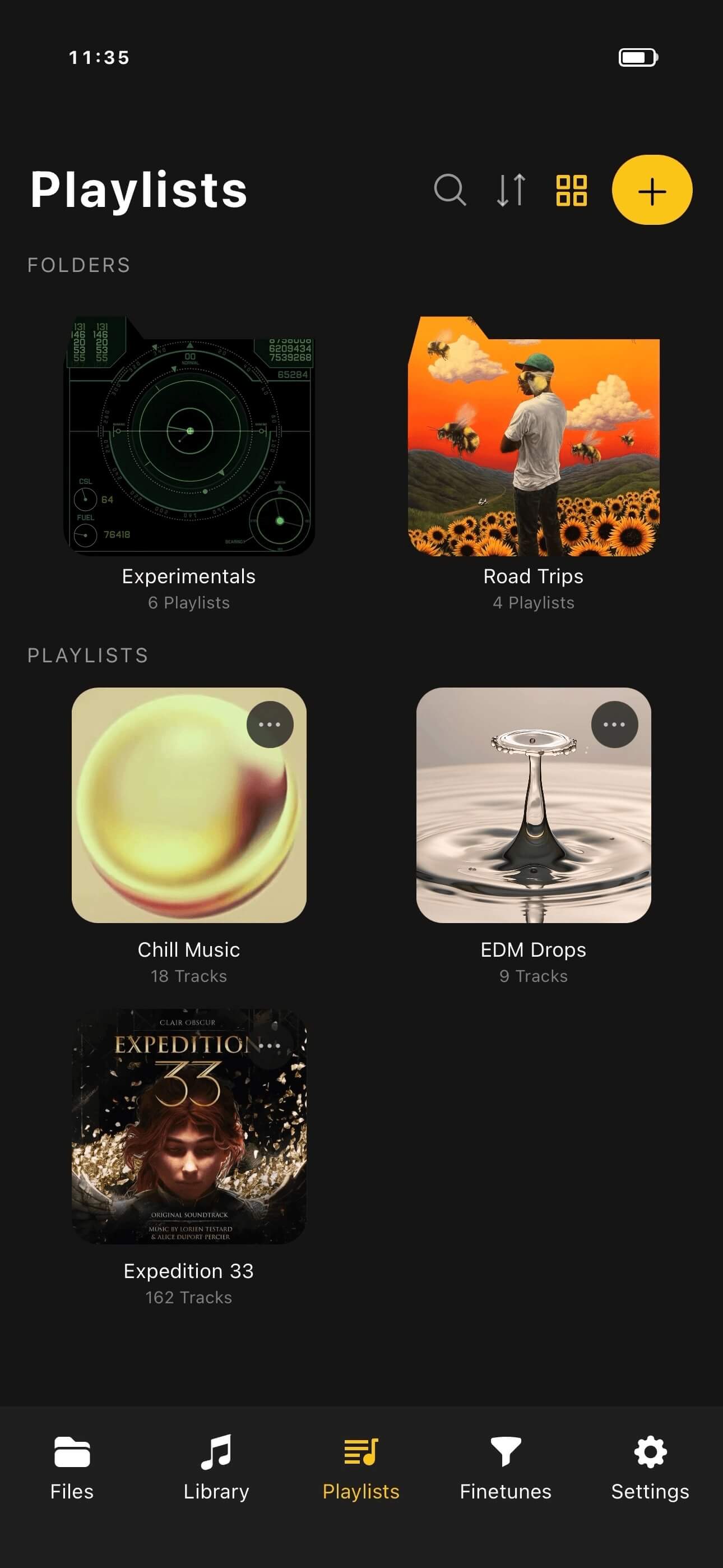
Folders are not playlists. Folders answer where files live. Playlists answer why you want to hear them. Keep both concepts separate and your library stays easier to reason about.
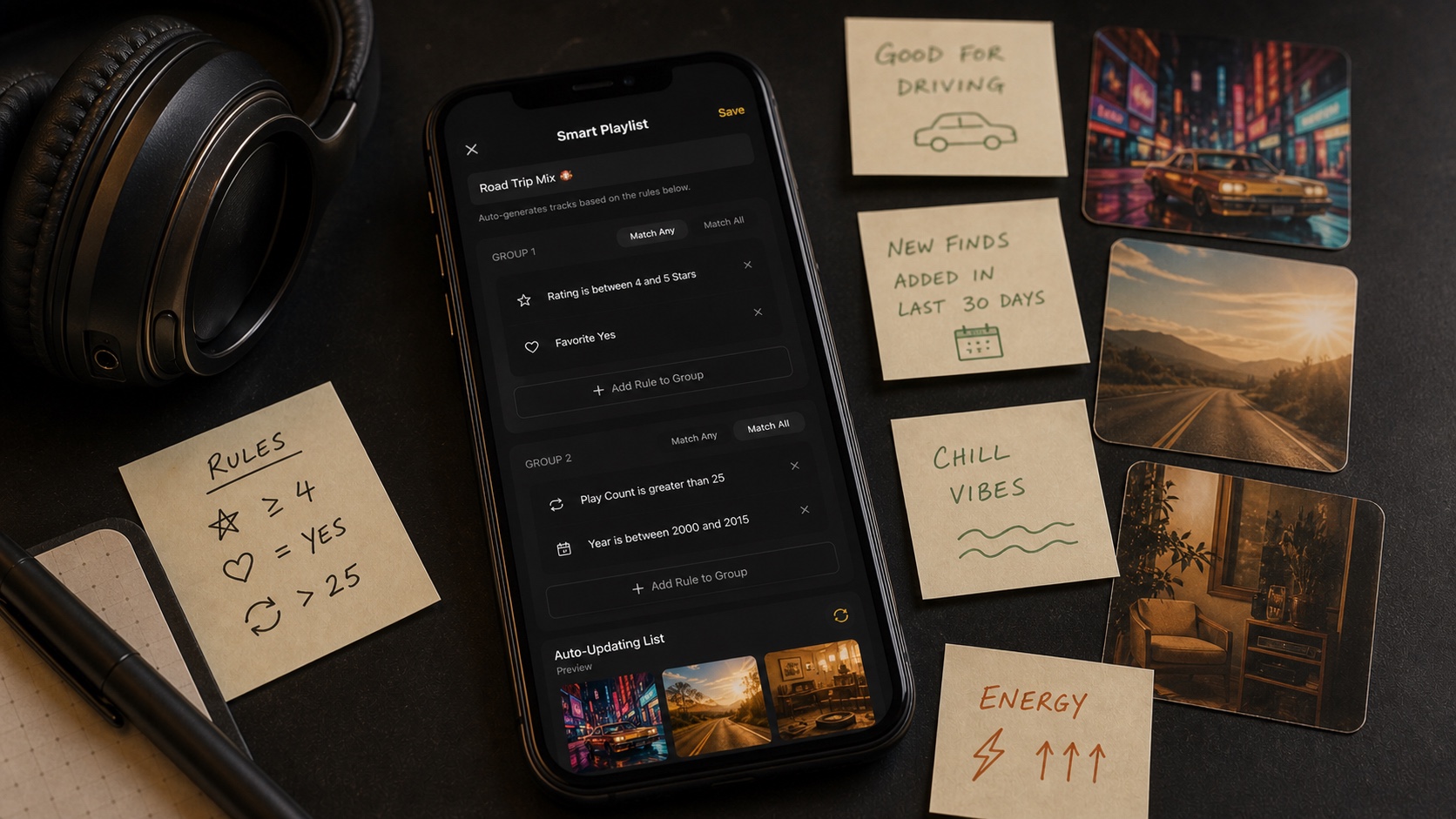
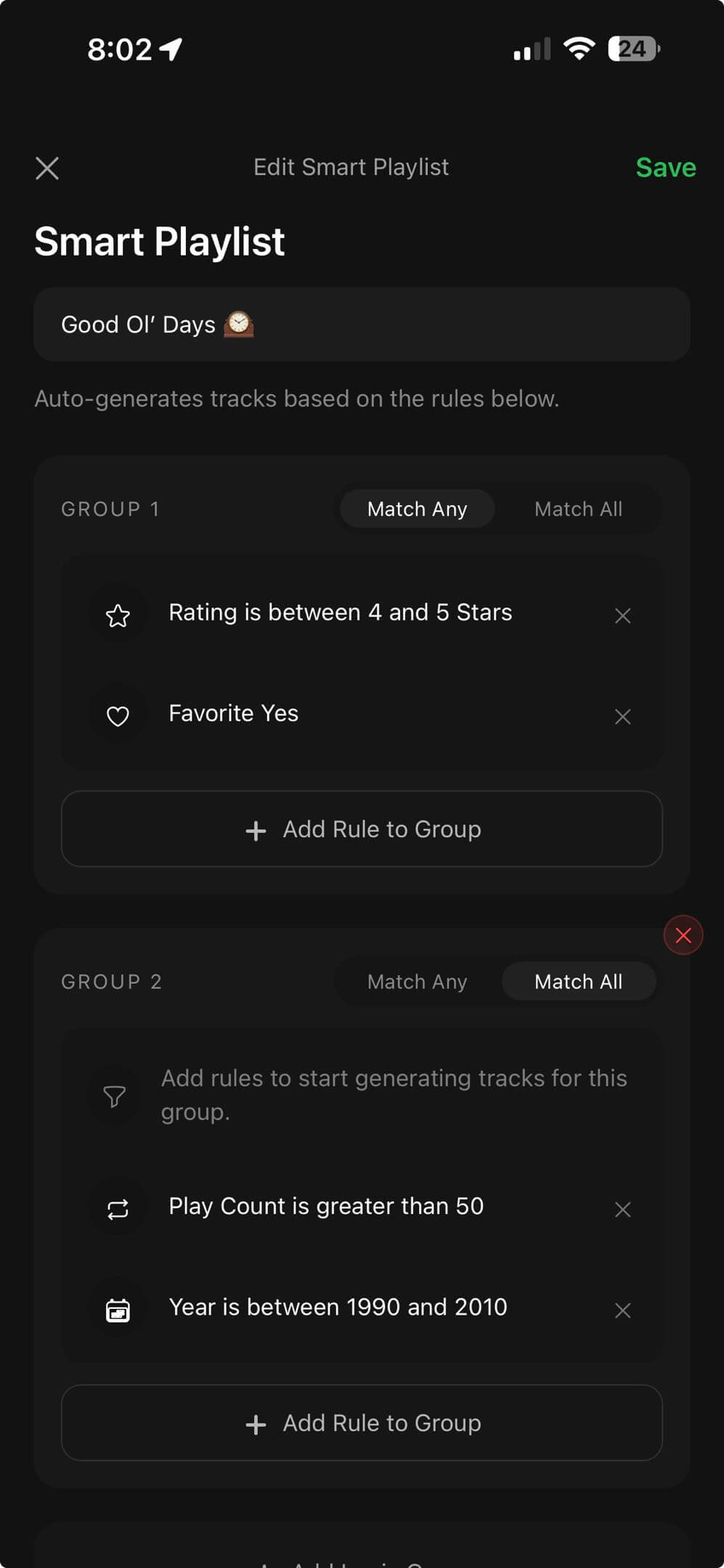
OfflineTunes supports normal playlists and smart playlists. Smart playlists are especially useful for large libraries because rules can surface songs by rating, genre, date added, play count, favorite status, and more. Read Smart Playlists 101 for the full workflow.
Keep a Maintenance Routine
Large libraries stay healthy when you handle new imports the same way every time. Import, inspect, tag, add artwork, add to playlists, then back up. Skipping that routine is how duplicate folders and mystery tracks appear.
For the full ownership workflow, read How to Build a Music Library You Actually Own.
- New imports folder: one staging area for anything unverified.
- Monthly cleanup: fix missing art, bad tags, and duplicate imports.
- Backup rule: never let iPhone be your only copy.
- Playlist review: remove stale lists and let smart playlists handle repeat work.