How to Transfer Entire Music Folders to iPhone Over Wi-Fi
Open OfflineTunes’ built-in Wi-Fi server in any browser, drag over complete folders, and preserve nested structure without cable syncing.
In this article Open
Moving one audio file through a share sheet is easy. Moving a carefully organized library with nested artist and album folders is where iPhone transfer usually becomes painful.
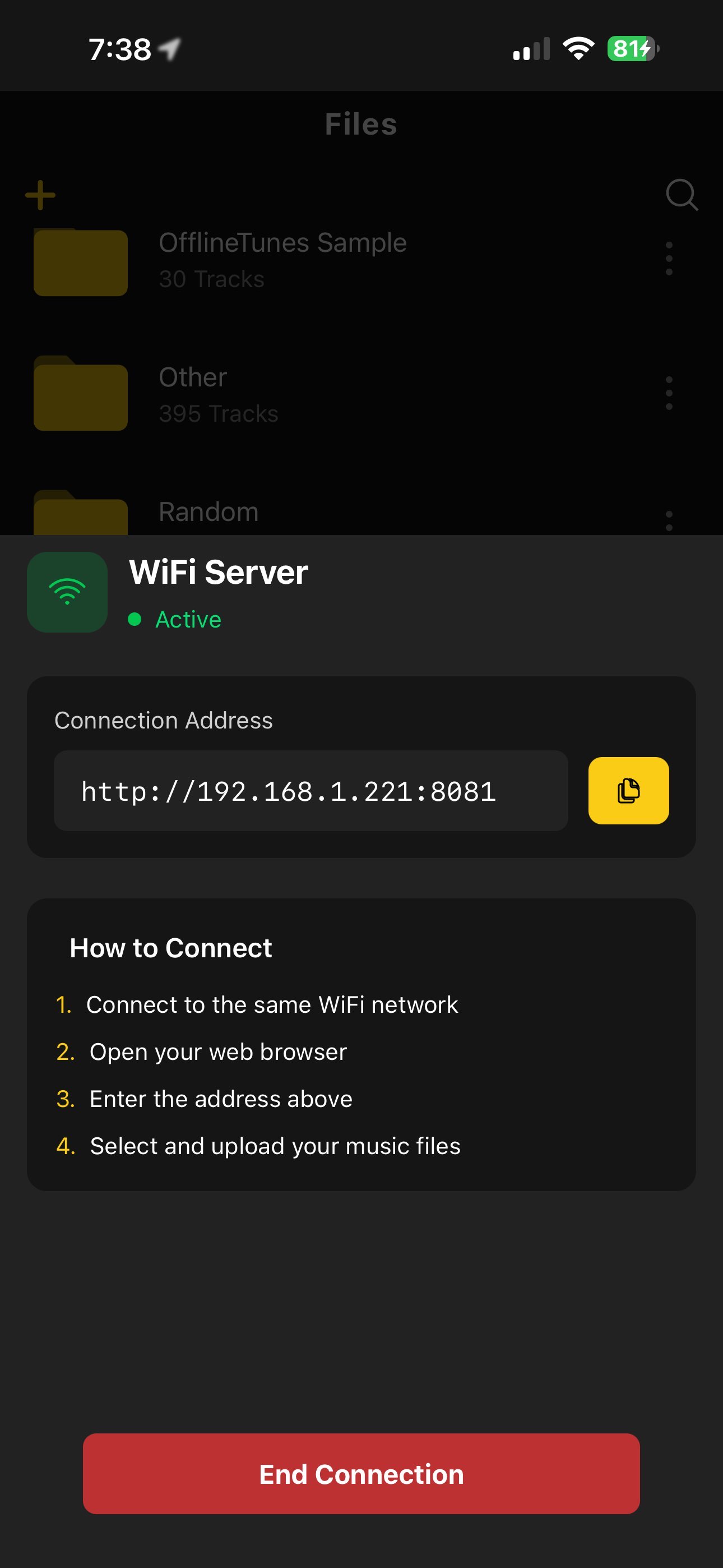
OfflineTunes includes a built-in Wi-Fi server. Turn it on, open the displayed address in a browser on another device, and drag complete folders to the phone while preserving their nested structure.
How Browser-Based Wi-Fi Transfer Works
The phone and sending device join the same local network. OfflineTunes displays an address for its temporary transfer server. Enter that address in a desktop, laptop, tablet, or other browser and the upload page connects directly to the app.
Files travel across the local network instead of first going to a cloud service. Keep OfflineTunes open and the devices connected until the browser reports completion.
Why Complete Folder Uploads Matter
Folders remain a reliable map when metadata is incomplete. Artist and album structure also helps separate box sets, live recordings, DJ archives, language courses, and personal projects that do not fit a flat song list.
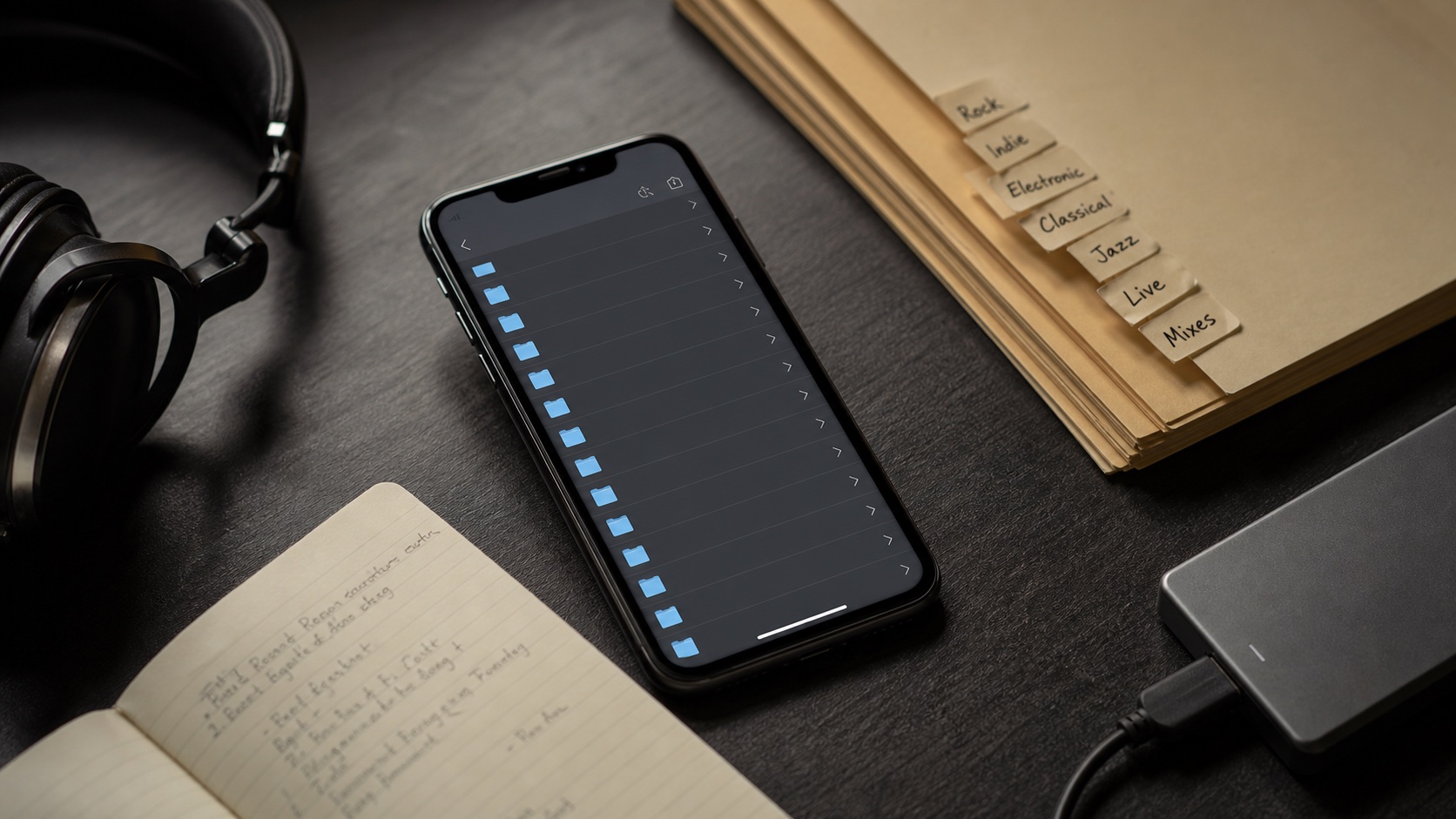
OfflineTunes preserves nested folder uploads, so a prepared “Artist / Year - Album / Disc” layout can reach the phone intact. Tag-based views remain available, but the original structure does not disappear.
Prepare the Library Before Sending Thousands of Tracks
Clean obvious duplicate folders and confirm the source files play before a large transfer. A local network can move mistakes quickly, and fixing them on both devices later takes longer.
Start with one album that contains artwork, multiple track numbers, and a representative format. Verify it inside OfflineTunes before sending the remaining collection.
- Same network: both devices must reach each other locally.
- Keep the page open: do not close OfflineTunes or the browser during upload.
- Test one folder: confirm structure, tags, artwork, and playback.
- Use batches: smaller transfers are easier to verify and retry.
Verify the Library After Transfer
Open Local Files and confirm the expected nested folders exist. Then check Albums, Artists, and Search so metadata-driven views match the physical structure.
Turn on airplane mode and play several tracks. A successful offline test proves the files are on the device rather than still depending on the sending computer or network.
- 1Start the Wi-Fi server.Use the transfer screen inside OfflineTunes.
- 2Open the address.Enter it in a browser on the same local network.
- 3Drag complete folders.Preserve the organization already built on the source.
- 4Test offline.Check folders, tags, artwork, and playback with networking disabled.