How to Transfer Music From Android to iPhone Without Losing Your Library
Move MP3, FLAC, album folders, playlists, and artwork with a verifiable plan instead of trusting one opaque phone-transfer step.
In this article Open
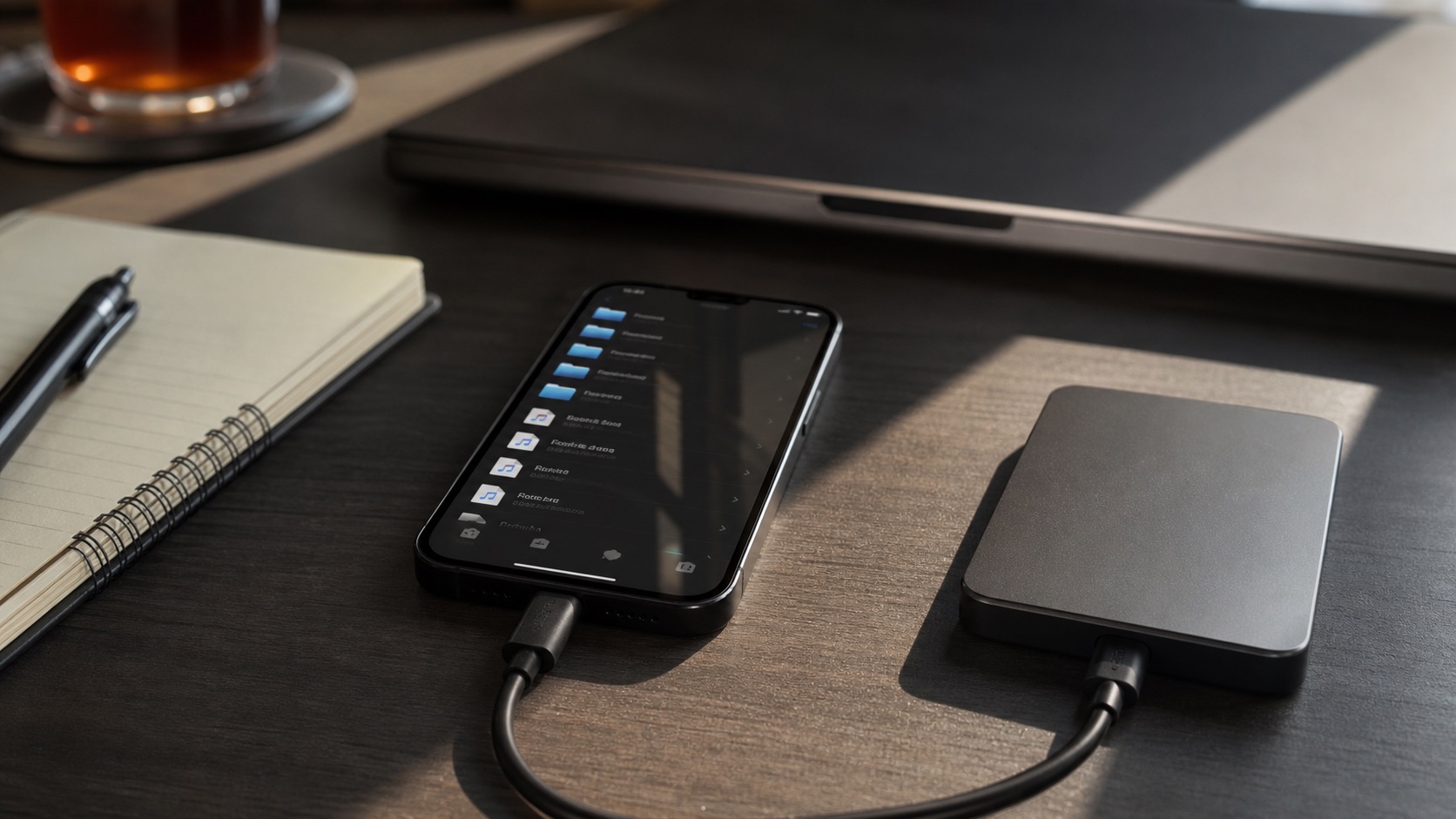
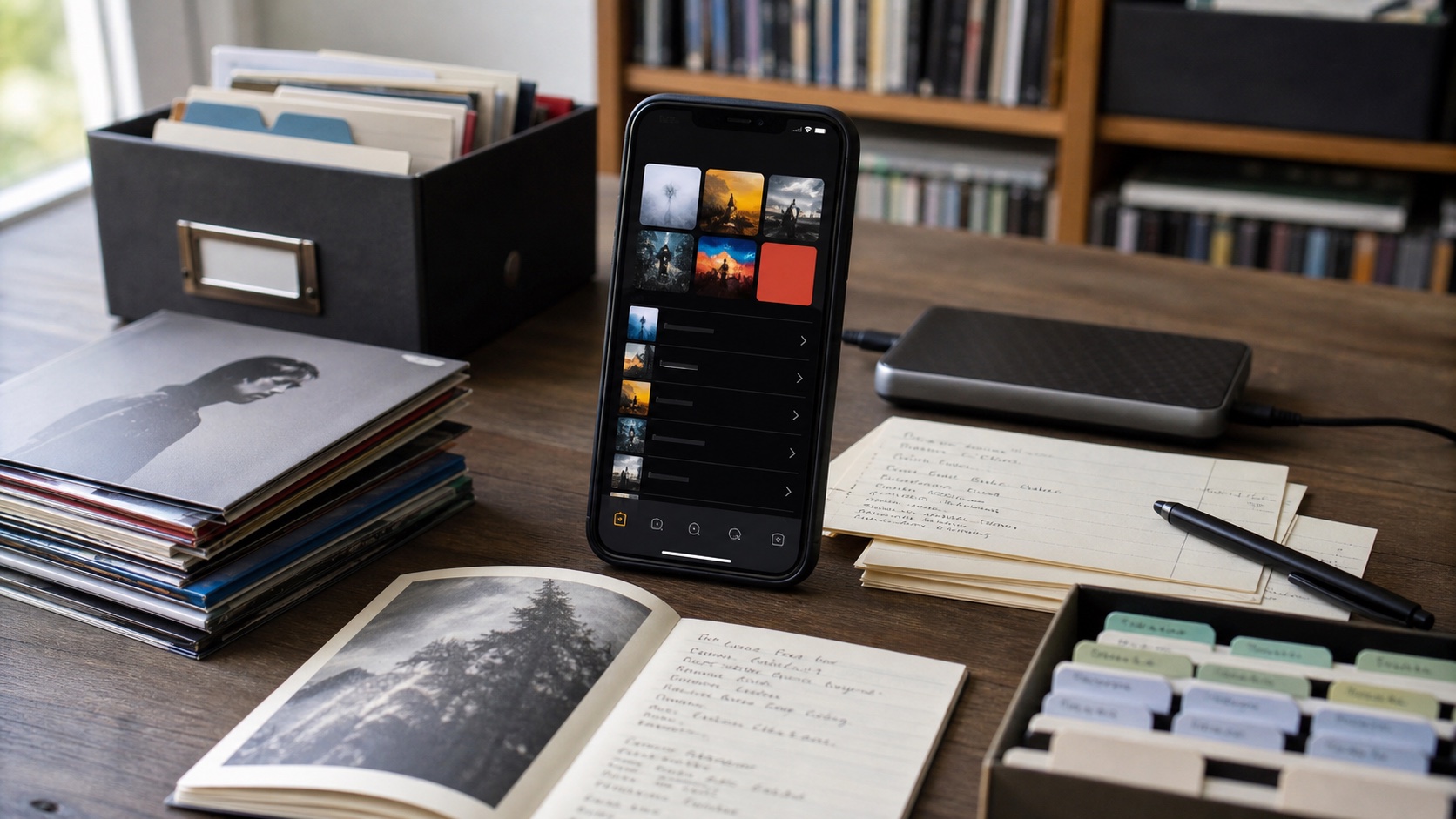
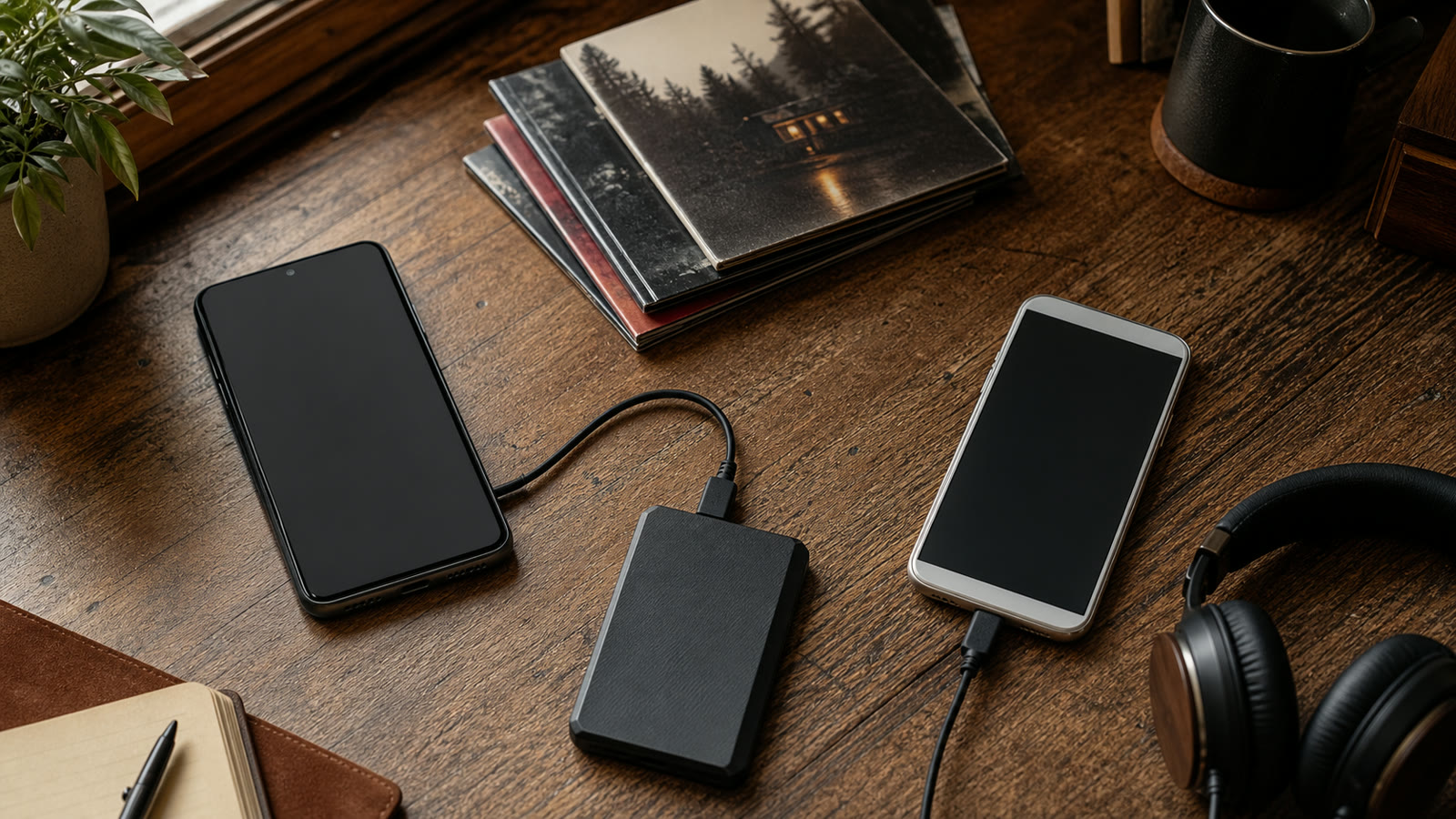
Moving contacts and photos from Android to iPhone is mostly guided. Moving a personal music library is different. Apple's setup transfer does not treat a folder full of MP3 and FLAC files like a streaming account, and a successful phone migration can still leave your music behind. Apple's own manual migration guide sends owned music through a computer.
Use a three-copy rule during the move: original Android copy, temporary backup, and new iPhone copy. Do not erase the Android phone until track counts, representative albums, artwork, and playback all pass inspection.
Before You Move Anything
Inventory source, not app. Streaming downloads from Spotify, YouTube Music, or another subscription are app-controlled cache files; they are not ordinary songs you can copy into a different player. This guide covers audio files you own or are allowed to move: MP3, AAC, M4A, FLAC, ALAC, WAV, OGG, OPUS, and similar files.
- Find every music location. Check internal storage, SD card, Downloads, Music, messaging-app folders, and any player-specific folder.
- Record totals. Note file count and total bytes. Counts give you a fast integrity check later.
- Open samples. Test one old file, one recent file, one lossless album, and one album with artwork.
- Copy before reorganizing. A migration is wrong time for bulk renames, tag edits, or deduplication.
If your collection lives on microSD, remove it only after Android has finished writing. Copy its entire music root to a computer or external drive, including playlist files and cover images.
Choose a Transfer Route
Computer + cable
Best for large libraries. Fastest to audit, easiest to back up, and least dependent on cloud space.
Cloud staging
Good for smaller libraries already in Dropbox, OneDrive, Box, S3, or another supported source.
Local Wi-Fi
Good when both devices share a trusted network and your target player offers browser-based upload.
For thousands of songs, computer route wins because you can compare folders and create a real backup in same pass. Cloud and Wi-Fi remain useful when no computer is available, but transfer in album-sized batches so failures stay visible.
Safest Computer Method
- Connect Android. On Windows, use File Explorer. On Mac, use Android-compatible file-transfer software or read the SD card directly.
- Copy, do not move. Place whole library in a dated folder such as
Music-Android-2026-07-15. - Back it up once more. Copy that folder to a second drive before touching source phone.
- Connect iPhone. On Mac, Finder's Files tab can drag files into apps that support file sharing. On Windows, use Apple Devices or target app's Wi-Fi import.
- Import in batches. Start with one album. Confirm tags, artwork, order, and playback; then transfer rest.
Apple documents app file sharing in Finder: select iPhone, open Files, then drag files onto a compatible app. This route copies files directly and does not require an Apple Music subscription.
Transfer Without a Computer
Upload Android library to a cloud provider, verify upload, then import it on iPhone. Keep folder tree intact. Avoid selecting all 10,000 tracks in one job; mobile operating systems can suspend long transfers, and a single failed file becomes hard to find.
Local Wi-Fi transfer avoids uploading library to internet. Start web uploader on iPhone player, open shown local address in Android browser, and send folders while both devices stay awake and on same private network. Keep phones charging. Never expose a local uploader on public airport or hotel Wi-Fi.
Preserve Playlists and Folders
Folders survive when copied as folders. Playlists may not. An M3U playlist is a text file containing paths; Android paths such as /storage/emulated/0/Music/... will not match iPhone storage. Keep original M3U files as records, then rebuild or rewrite paths after import.
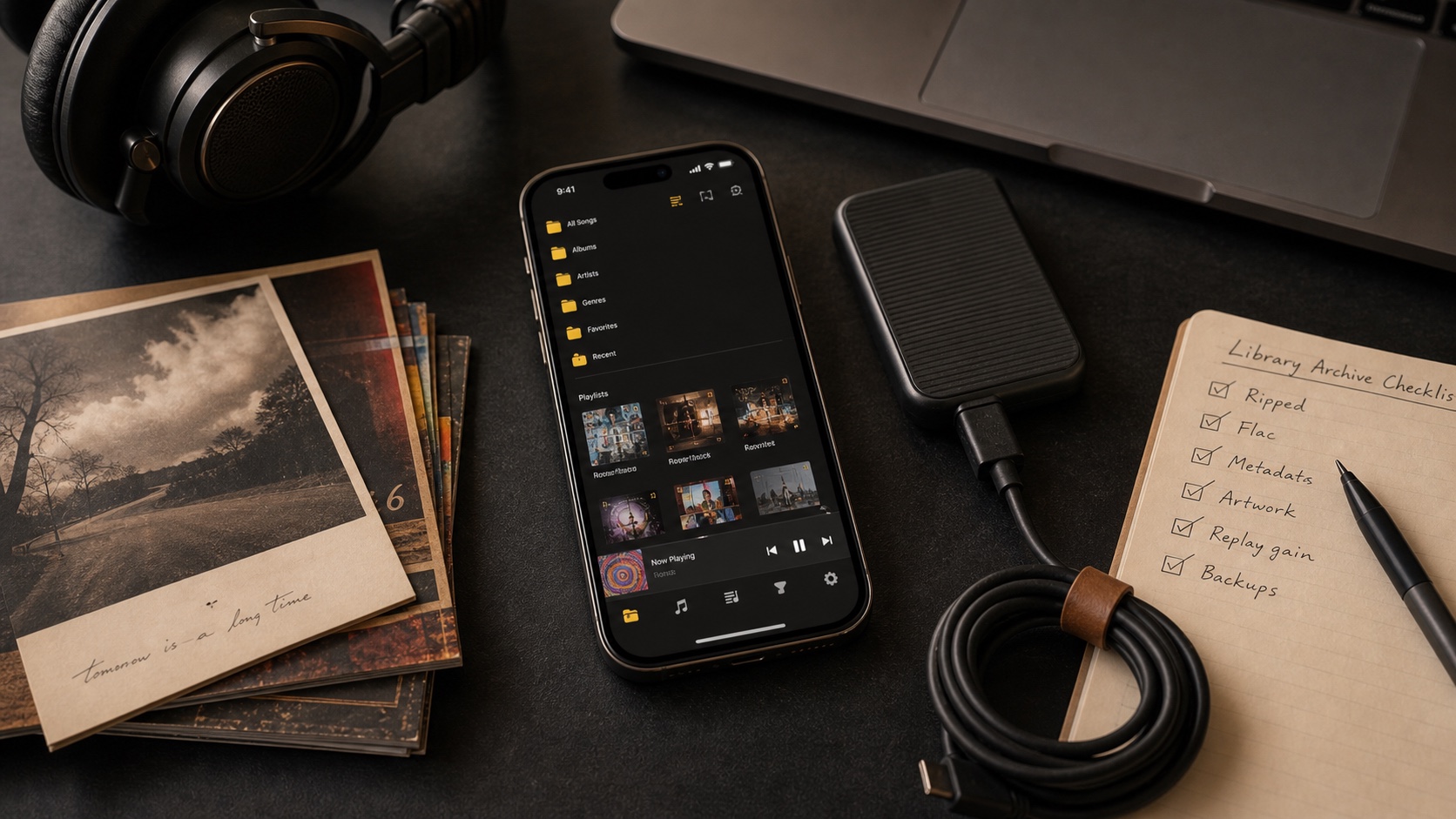
Before migration, export screenshots or a plain list of important playlists. For irreplaceable hand-built sequences, save playlist name, track title, artist, album, and order. Tags matter too: a player can rebuild Artist and Album views only when files contain consistent metadata.
Verify Before Deleting
Compare more than total count. Some apps skip unsupported or corrupt files without making missing album obvious.
- Compare source and destination file or track counts.
- Search first and last artist alphabetically.
- Play complete gapless album, large FLAC file, and an old MP3.
- Check compilation albums, multi-disc sets, embedded artwork, lyrics, and track order.
- Enable airplane mode and play tracks from several folders.
- Keep computer or drive backup after Android is erased.
Only after iPhone passes offline test should you factory-reset old phone. Migration is complete when new library works and an independent backup exists-not when progress bar reaches 100%.