How to Transfer Your iTunes Library to iPhone Without Apple Music
Put music you own on iPhone with Finder, Apple Devices, or app file sharing-no Apple Music subscription or cloud library required.
In this article Open
You do not need Apple Music to put music from an old iTunes library on iPhone. Apple still supports wired syncing from Finder on current macOS and Apple Devices on Windows. A second route-app file sharing-copies owned audio directly into a compatible local player without adding it to Apple's Music library.
Choice matters because traditional music sync and file sharing have different rules. Traditional sync builds Apple Music app library. File sharing gives a specific app its own copies. Decide which library you want before connecting phone.
Subscription Is Not Required
Apple's Sync Library documentation says cloud Sync Library needs Apple Music or iTunes Match, but it also points non-subscribers to manual syncing. "Sync Library" and "sync music over cable" are not same feature.
- Cloud Sync Library: subscription-based matching and cloud access across devices.
- Manual music sync: Mac or PC copies selected music to iPhone Music app.
- App file sharing: Mac or PC copies files into another iPhone app.
If goal is familiar Music app with existing playlists, manual sync may fit. If goal is FLAC, folder browsing, flexible imports, and direct file ownership, app file sharing is often cleaner.
Protect the Library First
Find actual media folder before syncing. An iTunes database can list tracks stored across several disks; exporting only library database does not copy missing audio. In iTunes or Music, reveal several tracks in Finder/File Explorer and confirm locations.
- Consolidate files if necessary.
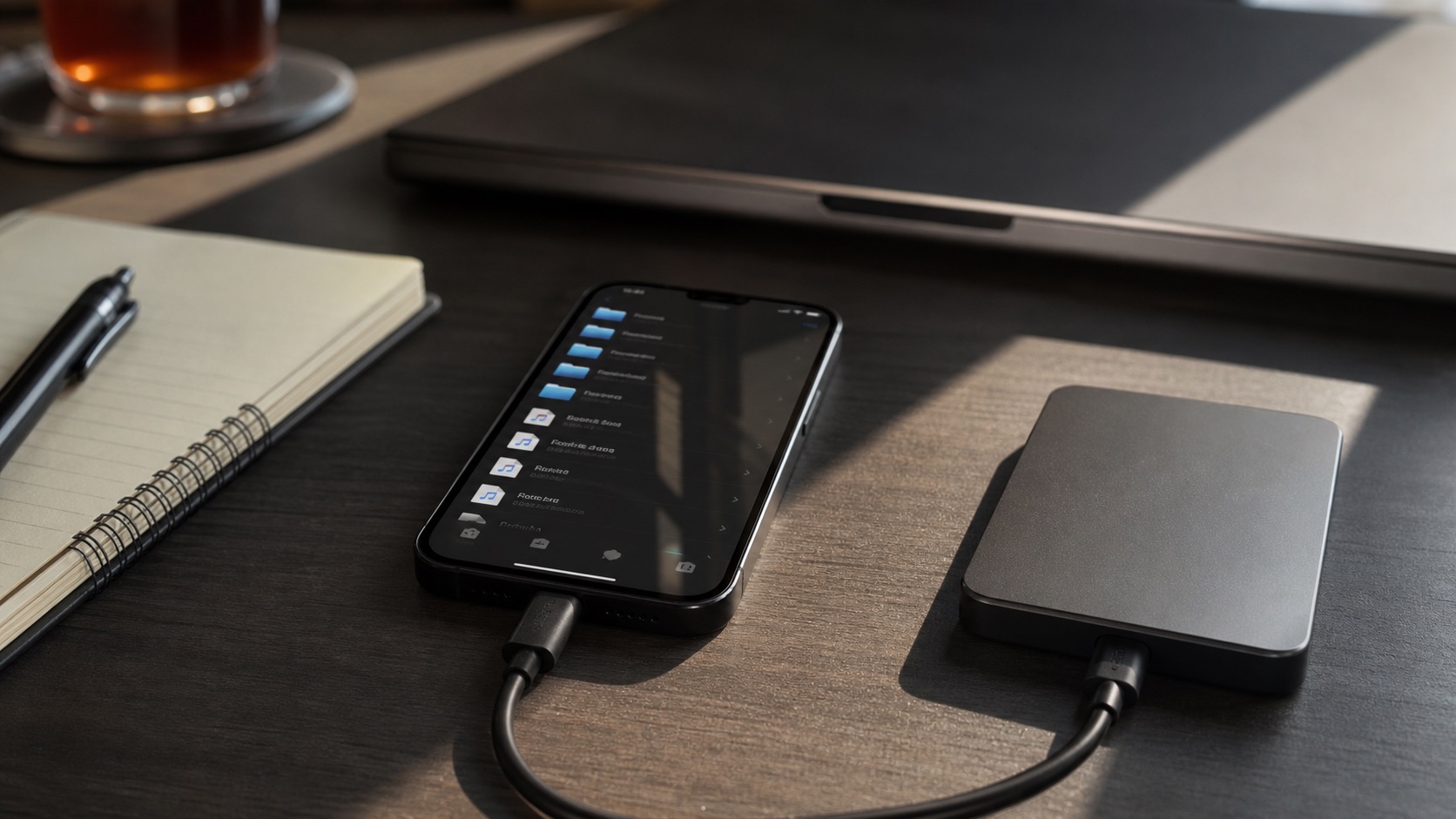
- Copy media folder and library database to external drive.
- Open random tracks from backup.
- Record playlist count and important smart-playlist rules.
Apple explicitly warns that Sync Library is not a backup. Treat any sync operation the same way: preserve originals independently.
Sync With Finder on Mac
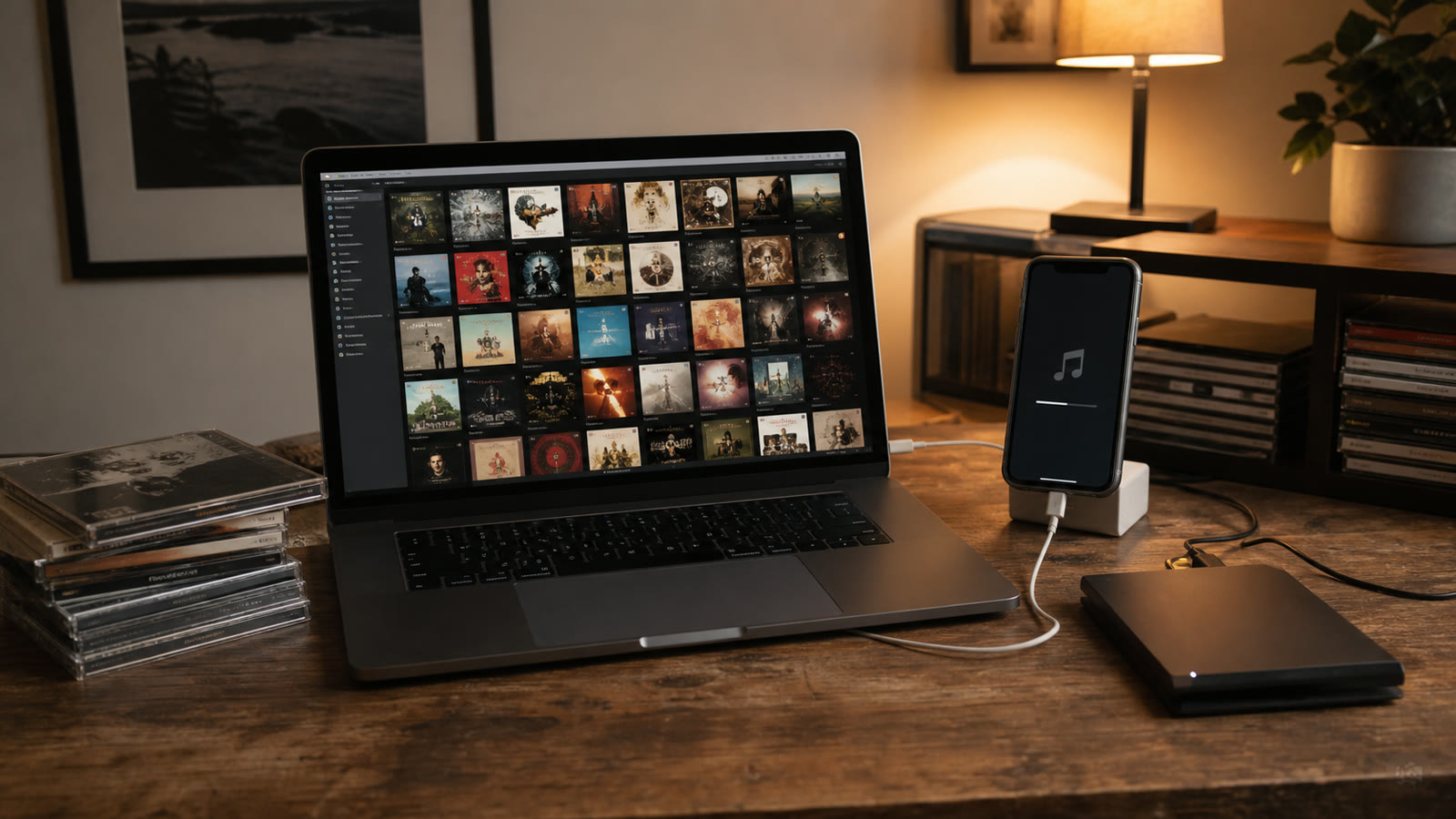
On macOS Catalina or later, connect iPhone, open Finder, select device, then open Music tab. Enable "Sync music onto iPhone," choose entire library or selected artists, albums, genres, and playlists, then Apply. Apple's Finder sync guide documents same flow and optional Wi-Fi syncing.
Use selected playlists for first test. Confirm songs appear in Music app before increasing scope. Traditional Apple music library favors Apple-compatible formats; convert unsupported formats or choose file-sharing route for a player that handles them directly.
Use Apple Devices on Windows
On current Windows setups, Apple Devices manages iPhone sync. Import or confirm songs in Apple Music/iTunes library, connect iPhone, choose Music, select scope, and apply. Older installations may still use iTunes. Same safety rule applies: do not accept library replacement warning until you know which computer library is authoritative.
Use App File Sharing Instead
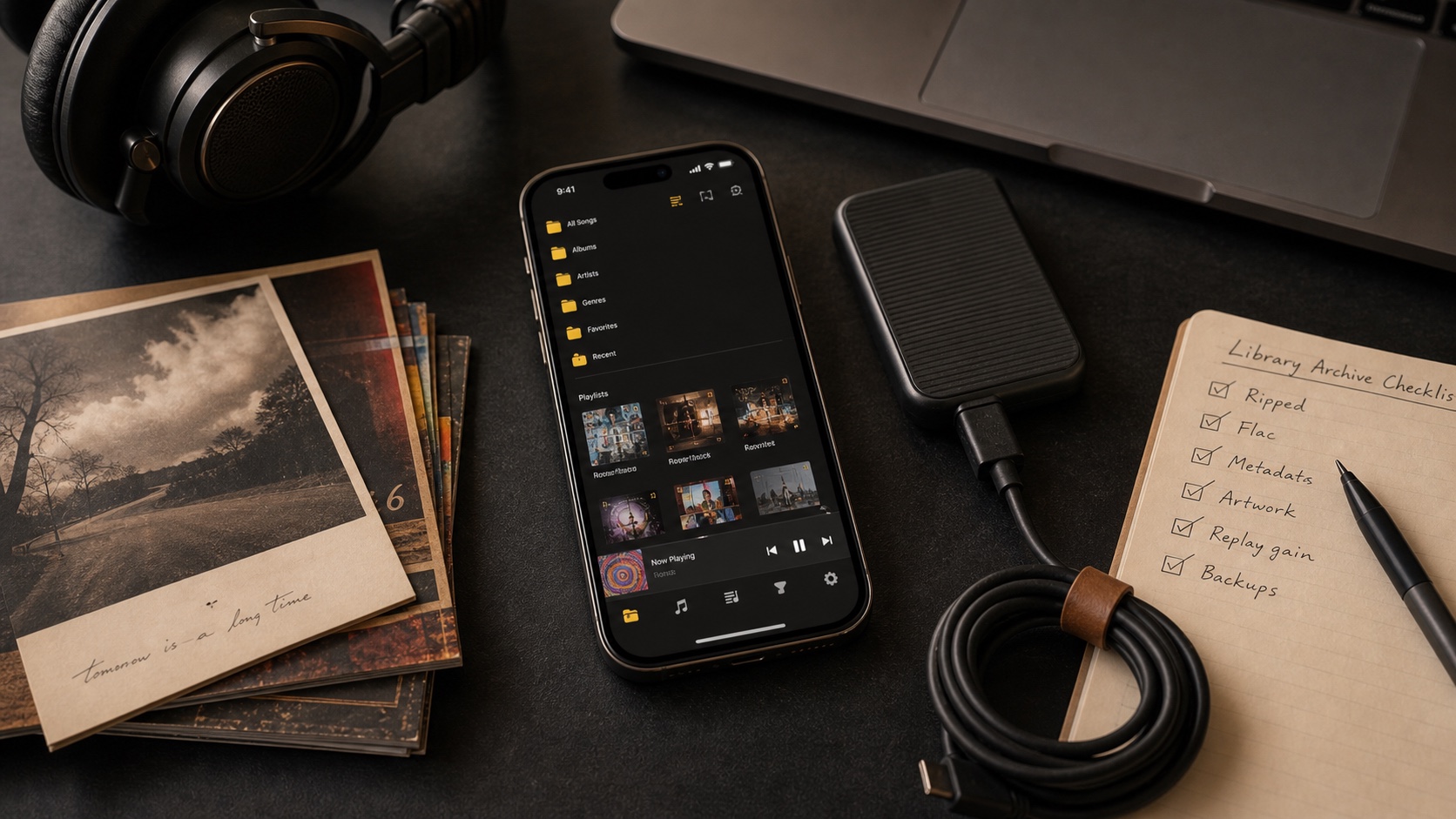
File sharing bypasses Apple Music library. In Finder, select iPhone, open Files, choose compatible player, and drag folders or files onto it. Files become that app's documents. You can also use trusted local Wi-Fi upload or import from Files and cloud storage.
This route is useful for FLAC, OGG, OPUS, WMA, carefully designed folder trees, or anyone who wants separate local player. Tradeoff: tracks will not automatically appear in Apple Music app because they belong to target app's sandbox.
Avoid Erase and Sync Surprises
Apple allows iPhone to sync a content type with one computer library at a time. If Finder says phone was synced with another library, "Erase and Sync" replaces synced music from previous library. It does not mean computer backup is bad; it means iPhone and computer disagree about sync authority.
Before proceeding, copy any irreplaceable phone-only files out through their owning apps, confirm master library backup, and test with small selection. After sync, enable airplane mode and play several tracks. Keep original iTunes media folder even after iPhone looks correct.