Smart Multi-Queue on iPhone: Separate Queues for Every Mood
OfflineTunes Smart Multi-Queue lets you create separate named queues, switch between them, and keep different listening sessions ready without rebuilding them each time.
In this article Open
One music queue is fine until your day changes. Morning drive has one shape. Focus work has another. A gym set needs different energy. Dinner music should not inherit the last 40 tracks from a workout. A long local music library makes that problem bigger because the queue becomes a scratchpad for every mood at once.
Smart Multi-Queue in OfflineTunes fixes that by giving each listening mode its own queue. Create a named queue, fill it with tracks, switch away, and return later without rebuilding from memory. It keeps your offline music sessions separated without forcing everything into permanent playlists.
This guide explains what multiple music queues are for, how OfflineTunes handles them, when to use a queue instead of a playlist, and how to keep local listening sessions clean on iPhone.
What Smart Multi-Queue Is
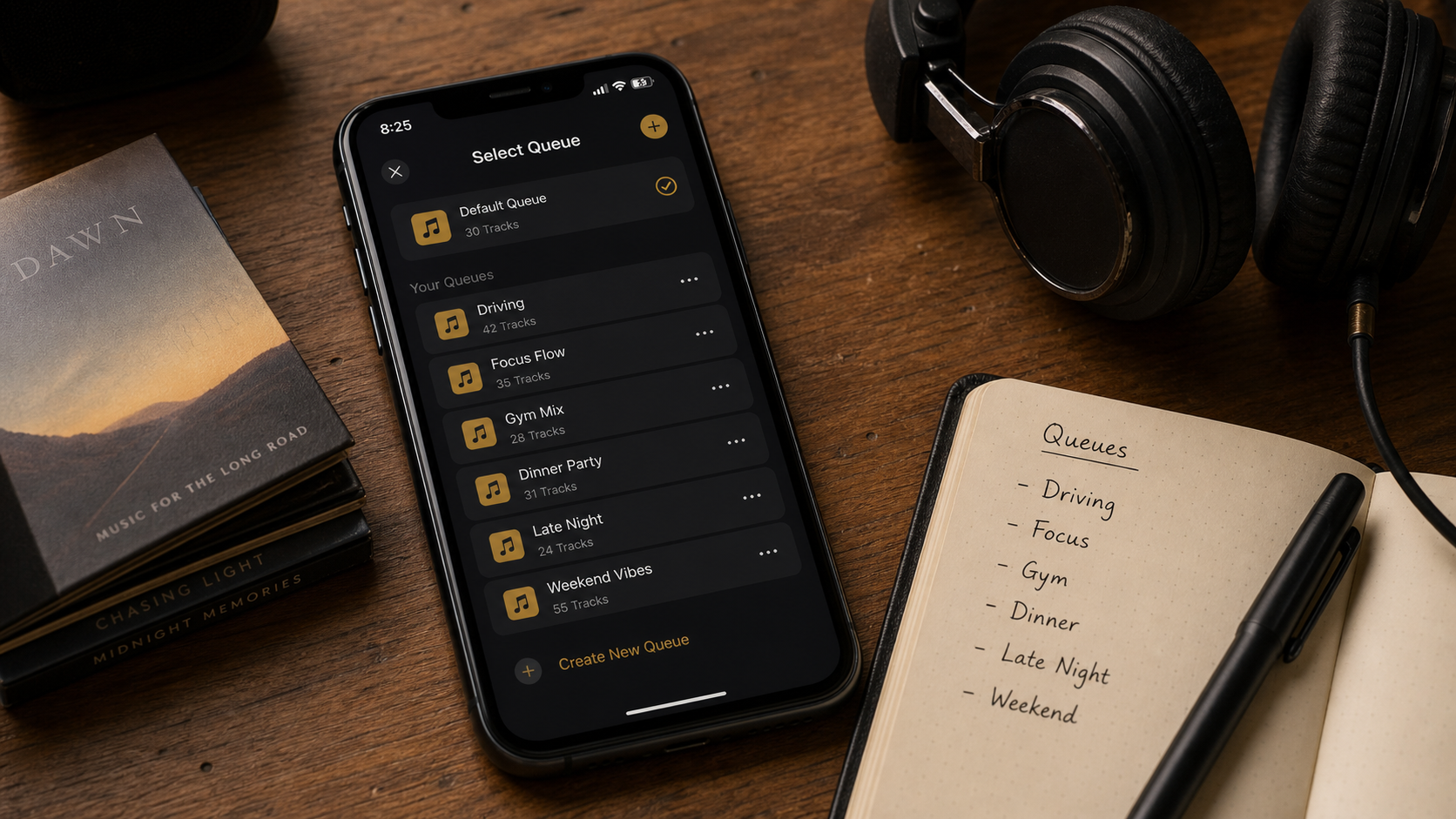
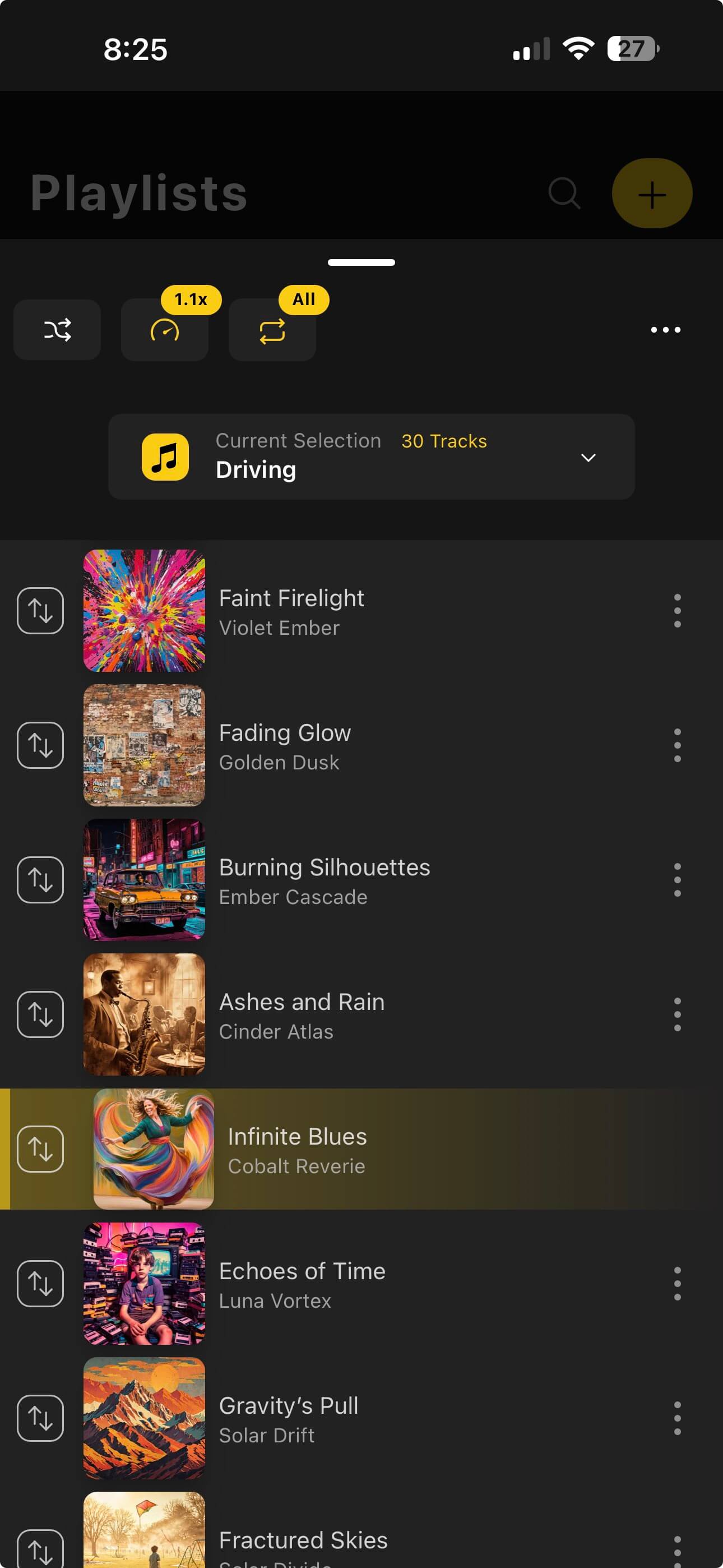
A queue is the immediate plan for what plays next. A multi-queue system lets you keep more than one immediate plan alive at once. Instead of one long Up Next list that gets overwritten every time you change context, OfflineTunes lets you create separate named queues and switch between them from the queue picker.
Each queue can have its own track list, current position, and playback settings. The default queue is always available. Extra queues can be named for the way you listen: Driving, Focus, Gym, Study, New Imports, Party, Sleep, Deep Cuts, or any other session that deserves its own lane.
Why One Queue Breaks Down
Most music players treat the queue like a disposable tray. Add songs, play them, clear them, repeat. That works for short sessions, but it fails when your music habits overlap. You build a road-trip queue, then a friend asks to hear one album. You build a focus queue, then start a workout. You queue new imports for review, then lose them when another album starts.
That friction creates two bad habits. First, you stop using the queue for anything serious because it feels too fragile. Second, you turn every temporary idea into a playlist because playlists feel safer. After a while, the playlist screen gets cluttered with half-finished sessions that were never meant to become permanent collections.
Multiple queues make temporary listening safe again. A queue can be serious without being permanent. It can hold a mood, a task, a trip, or a review session, then stay available until you are done with it.
Create and Switch Queues Without Rebuilding the Session
The queue selector is the center of Smart Multi-Queue. Open the queue, tap the current queue name, and choose another queue from the picker. The picker shows the default queue and each extra queue with its track count. Tapping a different queue exports the current queue state, loads the selected queue, and keeps playback moving when music is already playing.
Creating a new queue is direct: tap Create New Queue, enter a name, and start adding tracks. Good queue names should describe the context, not the genre alone. “Driving” is better than “Rock” if the queue exists for car listening. “New Imports” is better than “Random” if the queue exists for library review.
Free and Premium queue limits
OfflineTunes keeps the default queue available for everyone. Free users can create a limited number of extra multi-queues. Premium unlocks unlimited queues, removes that cap, and fits listeners who want many named sessions across work, travel, review, practice, and shared listening.
Smart Multi-Queue Use Cases
The feature is strongest when you treat queues as working spaces. Each queue should answer one question: what should play next in this situation?
Driving queue
A driving queue can hold songs that work in motion: clear energy, familiar favorites, road-trip albums, long stretches without fiddly decisions, and tracks that sound good through car speakers. It should not be polluted by quiet focus music or library-review experiments.
Focus queue
A focus queue is for work sessions, reading, coding, studying, or deep chores. It might favor albums, instrumental tracks, familiar low-distraction music, or long sequences that do not pull attention away. Keep it separate so workouts and parties do not break the flow.
Gym queue
A gym queue benefits from momentum. Build it around tempo, confidence, and tracks you do not skip. If a song loses energy during a workout, remove it later. The queue becomes a practical test for what actually works under pressure.
New imports queue
Local libraries grow in batches: downloaded albums, Bandcamp folders, CD rips, cloud imports, old hard-drive finds. A New Imports queue gives those tracks a temporary review lane before you rate them, tag them, move them, or turn keepers into playlists.
Guest or party queue
Shared listening should not destroy your personal queue. A guest queue can hold requests, party tracks, dinner music, or one-off songs someone wants to hear. When the moment ends, switch back to your own queue without reconstructing it.
Keep Context
Each queue holds one listening situation instead of mixing every mood into one list.
Switch Fast
Move from driving to focus to party listening without clearing and rebuilding everything.
Stay Offline
Queues work with files already in your OfflineTunes library, not cloud recommendations.
Queue vs Playlist: Use the Right Tool
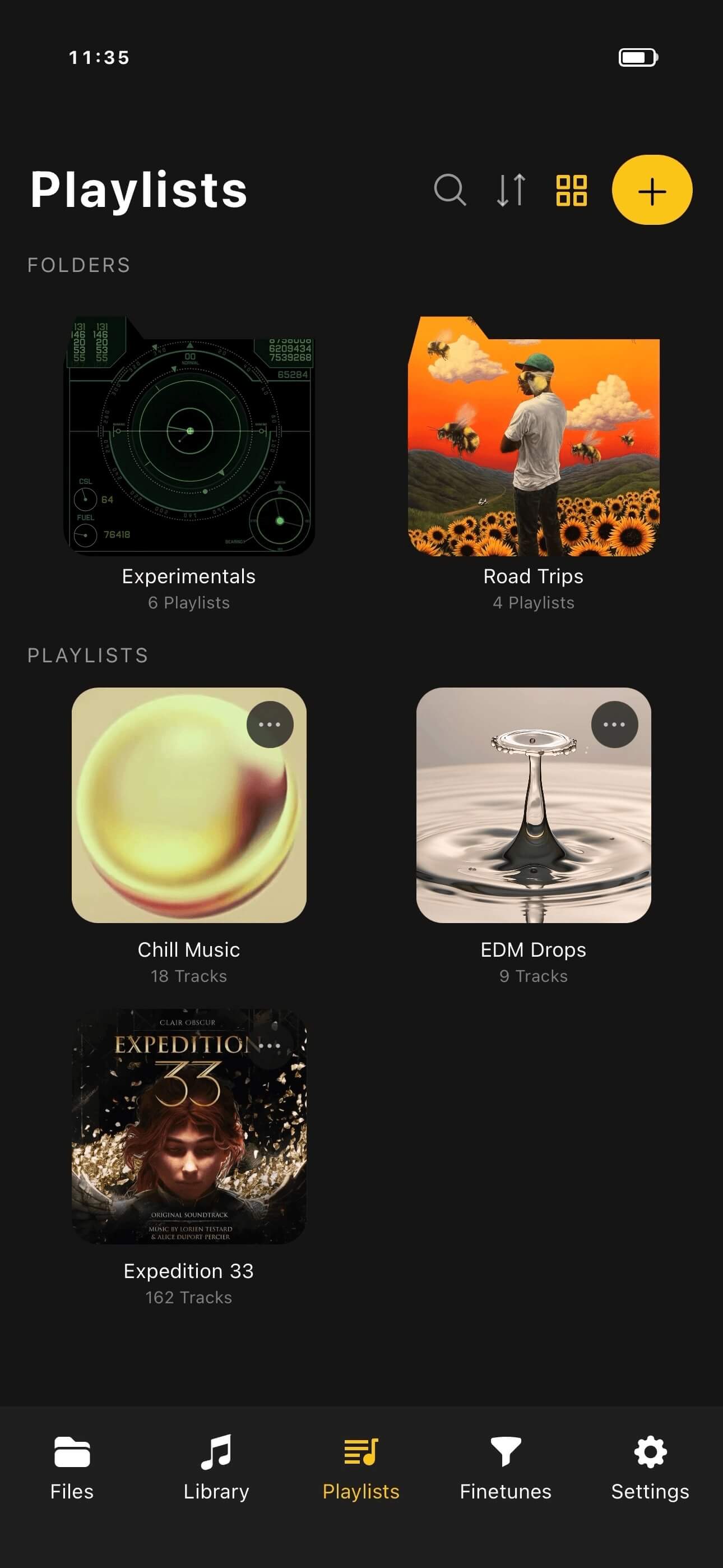
Playlists and queues overlap, but they are not the same job. A playlist is a saved collection. It should survive because it has a clear purpose: favorites, road trips, workouts, artist essentials, study music, or one specific mix. A queue is the current play plan. It can be messy, temporary, experimental, and easy to change.
Smart Multi-Queue sits between throwaway Up Next and permanent playlists. You can build a serious queue for a week, edit it during real listening, then either keep it as a queue, turn the best tracks into a playlist, or delete it when the job is done.
Rename, Delete, and Keep Queues Clean
Queues stay useful when names stay honest. If “Gym” turns into general high-energy listening, rename it. If “Dinner” was only for one weekend, delete it after the event. OfflineTunes lets extra queues be renamed or deleted from the picker. The default queue stays protected.
Deleting a queue does not remove tracks from your device. It removes the queue container. That matters for local files: queue cleanup is not file deletion. Your music remains in your library unless you choose a separate file action elsewhere.
Good queue maintenance habits
- Name by job. Use Driving, Focus, Party, New Imports, Practice, or Sleep instead of vague names like Mix 1.
- Prune often. Remove finished event queues so the picker stays fast.
- Promote winners. If a queue becomes useful over and over, turn its best tracks into a playlist.
- Separate review from listening. Keep experimental imports out of queues you use for focused listening.
The Full Smart Multi-Queue Workflow
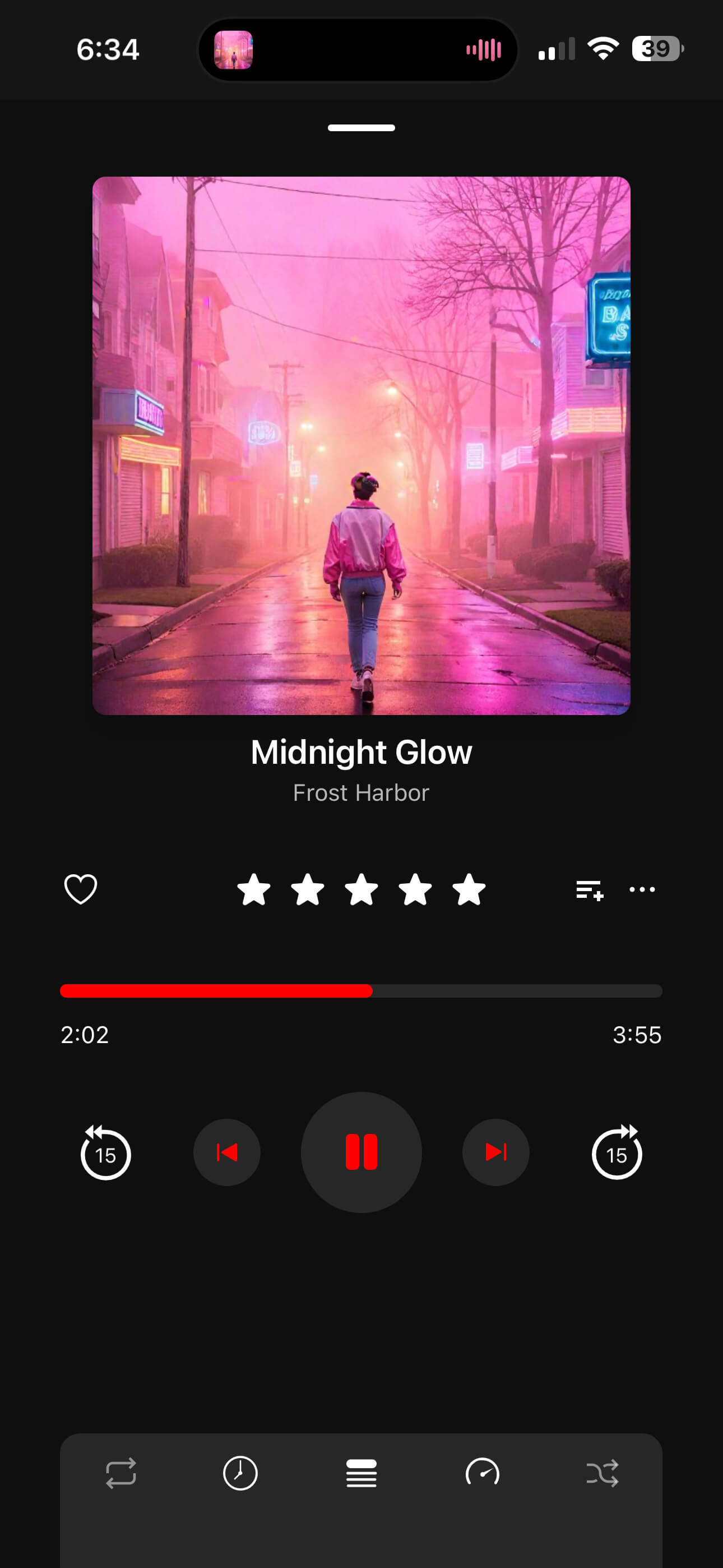
Use this workflow when you want separate queues without turning every idea into a playlist.
- 1Pick one listening context.Driving, work, gym, study, dinner, review, or party.
- 2Create a named queue.Open the queue picker, tap Create New Queue, and use a name that describes the job.
- 3Add tracks from real library places.Use albums, folders, playlists, artists, search results, or new imports as source material.
- 4Listen and reorder.Move songs around, remove weak fits, and let real listening shape the queue.
- 5Switch when your context changes.Return to another named queue instead of clearing the current one.
- 6Delete or promote later.Delete temporary queues. Turn proven queues into playlists when they deserve long-term storage.
Where Multi-Queue Fits in OfflineTunes
Smart Multi-Queue is one part of the OfflineTunes library-control stack. Smart Playlists can collect tracks automatically from rules. Library organization keeps folders, tags, and artwork readable. FineTune helps decide what stays. Multi-Queue handles the moment-to-moment listening plan.
That split matters. Rules decide what qualifies. Playlists save collections. FineTune makes decisions. Queues decide what happens next. When each tool has its own job, local music starts feeling less like file storage and more like a working library.
Bottom line
Smart Multi-Queue is for listeners whose next song depends on context. Keep one queue for the road, one for focus, one for the gym, one for review, and switch without losing the work you already did.