Playlist and Folder Mode: Every Collection Remembers Its Session
Give every playlist and music folder its own queue, position, speed, shuffle, repeat, timer, and EQ—then return later without rebuilding the session.
In this article Open
A workout playlist wants shuffle, Repeat All, normal speed, and an energetic EQ. A language-study folder wants 0.8x playback, Repeat One, a carefully ordered queue, and the exact timestamp where you stopped. Most players force both sessions through one global set of controls.
OfflineTunes Playlist Mode and Folder Mode work differently. Every individual playlist and music folder can keep its own queue, current track, playback position, shuffle setting, repeat state, playback speed, timer, and equalizer. Leave the session, use the player normally, then come back without rebuilding everything.
What Every Playlist and Folder Session Remembers
Session memory covers two different jobs. Playback settings define how the collection should sound and behave. Queue memory defines where the listening session currently is.
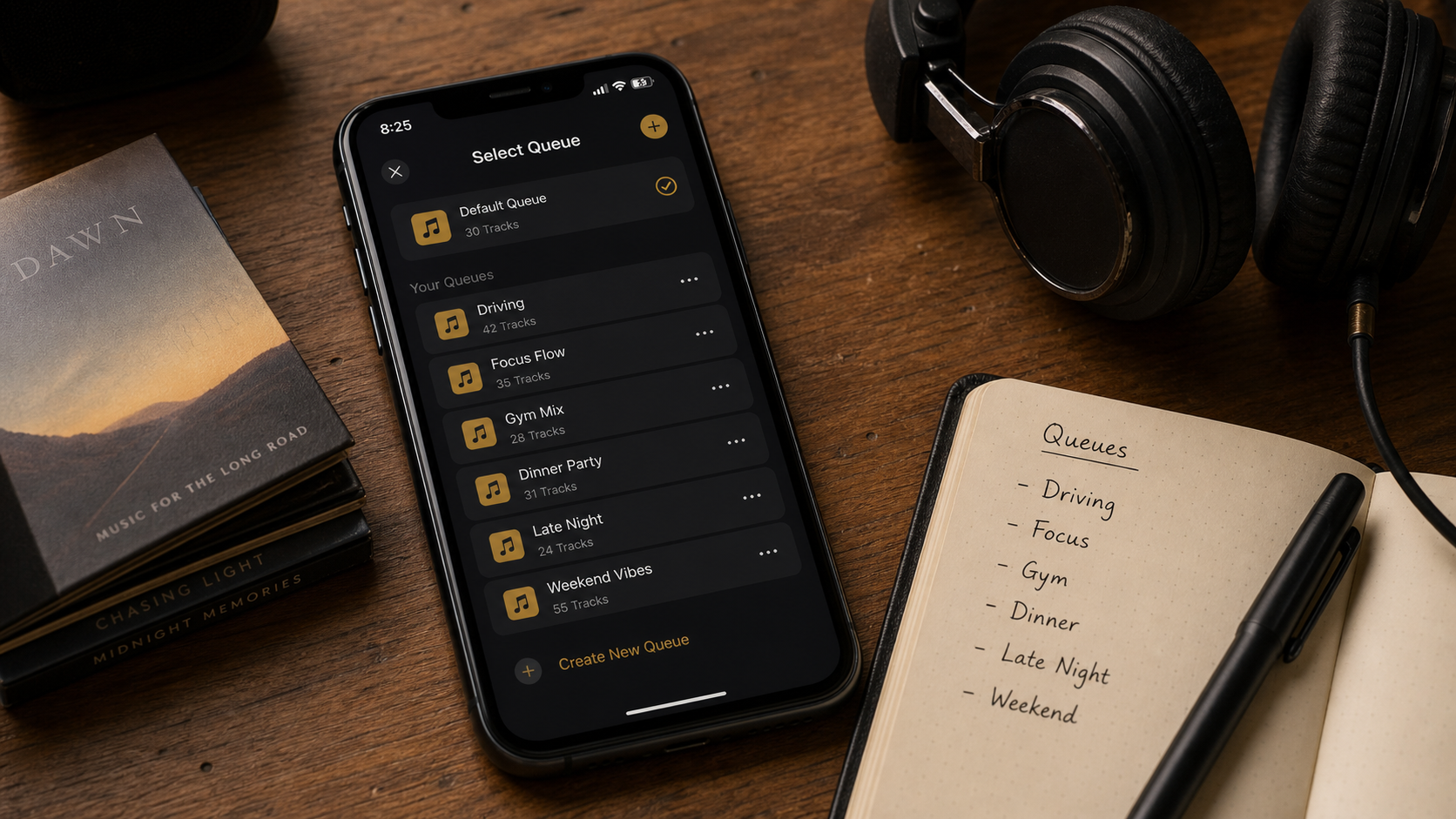
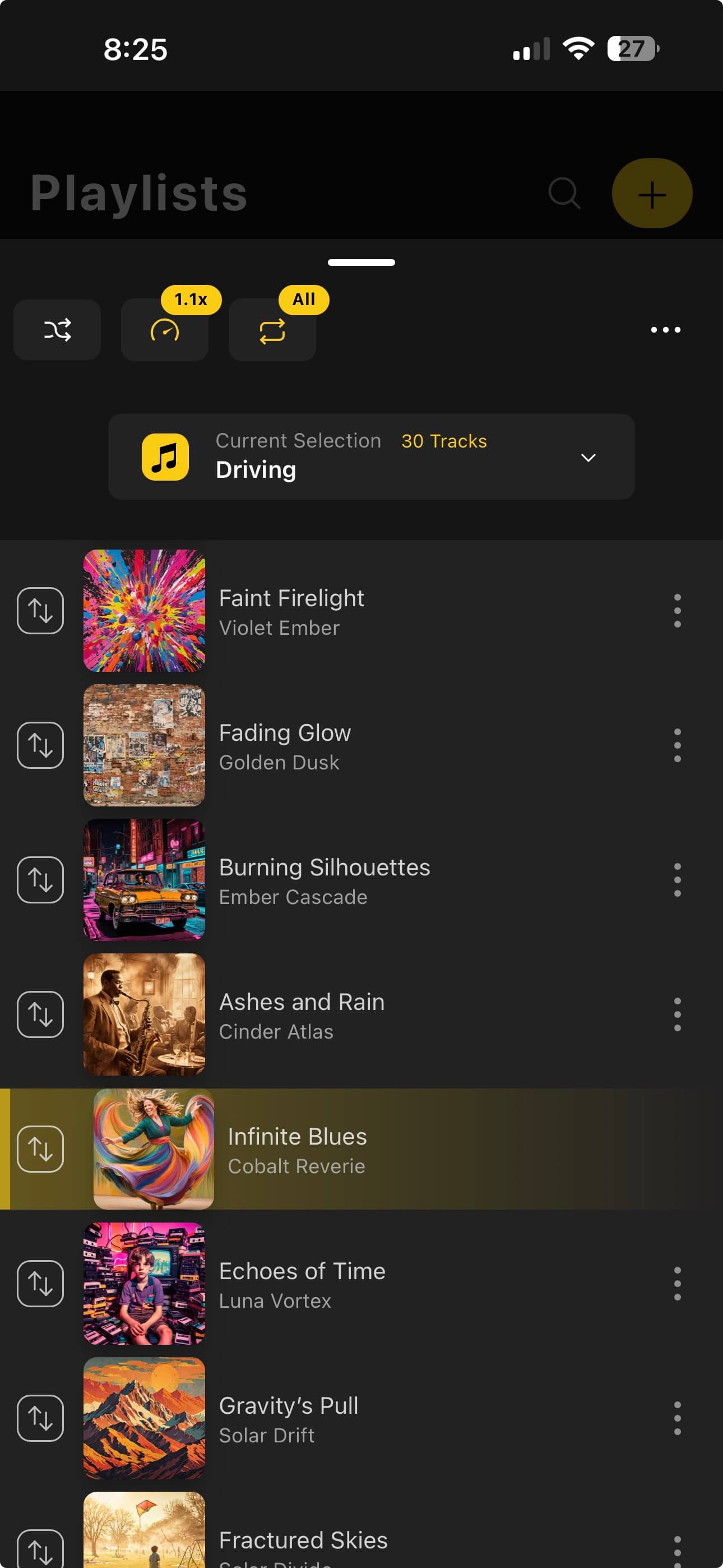
These values are stored with the specific playlist or folder rather than treated as one permanent player-wide choice. “Driving” can stay shuffled at 1x with Repeat All, while “Guitar Practice” stays ordered at 0.75x with a different EQ.
Each Collection Becomes Its Own Listening Workspace
The value is not saving one speed slider. It is saving a useful combination. A playlist or folder can behave like a purpose-built player that happens to live inside the larger OfflineTunes library.
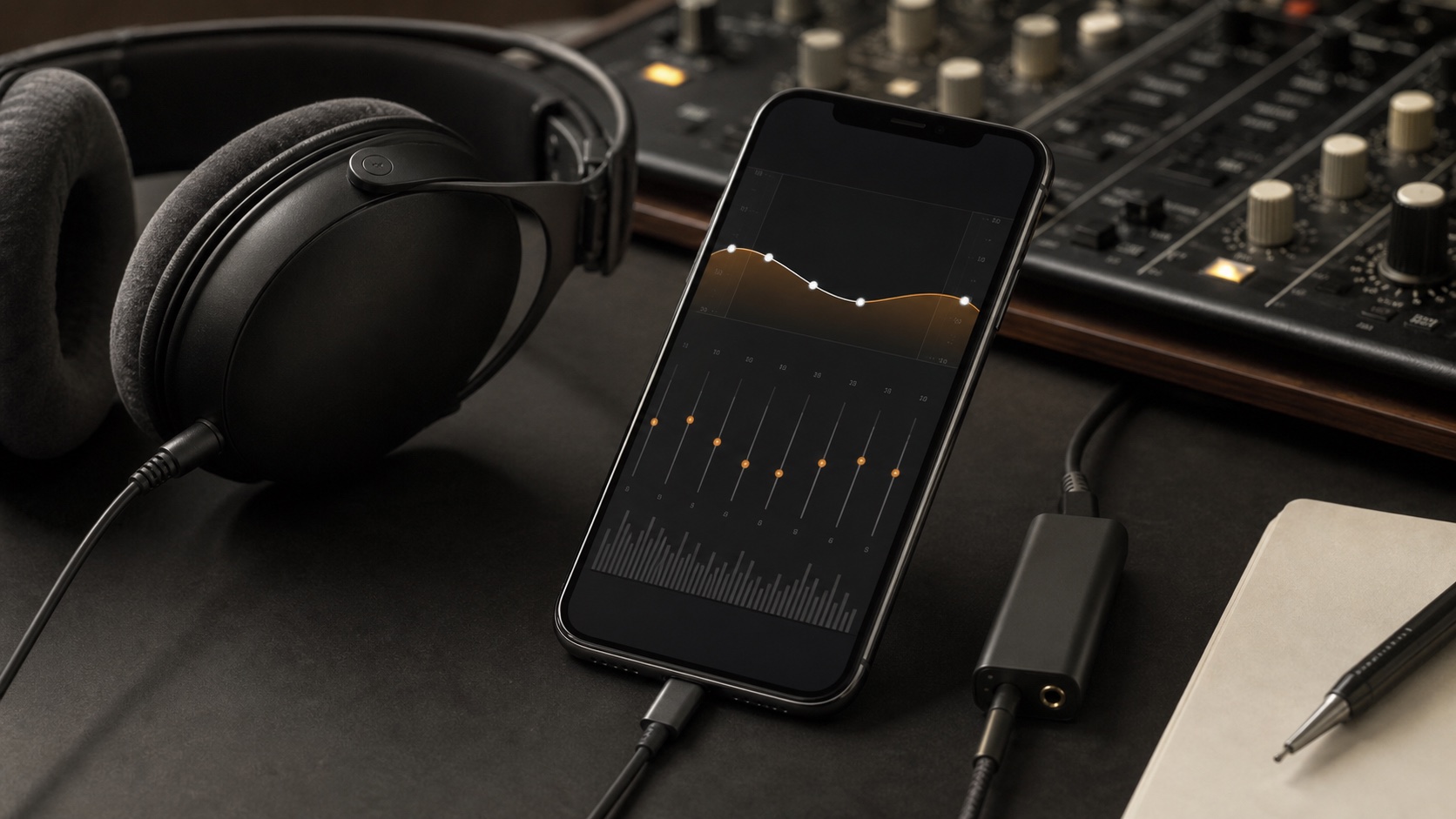
Open its mode controls to set Shuffle, Repeat, Speed, Timer, and Equalizer. Those choices stay attached to that collection. Folder Mode also remembers its sorting choice, so physical music folders can keep the view and playback behavior that fit their contents.
Queue Memory Makes Resume Mean Resume
OfflineTunes saves the queue itself, not only the source playlist name. If you reorder tracks, change the current queue, or move deep into a long folder, the session remembers that working state alongside the current track and timestamp.
When you return, choose Resume to restore the saved queue and continue at the stored position. Choose Start Over when the same collection should begin fresh but keep its saved playback settings. Queue changes are saved as they happen, while playback position updates during listening.
- Resume: restore saved queue order, current track, and timestamp.
- Start Over: rebuild from the beginning while applying that collection’s saved settings.
- Queue edits: reordering and queue changes stay associated with the active session.
- Position updates: current playback time is saved continuously during listening.
Settings Follow the Session, Then the Old Player State Returns
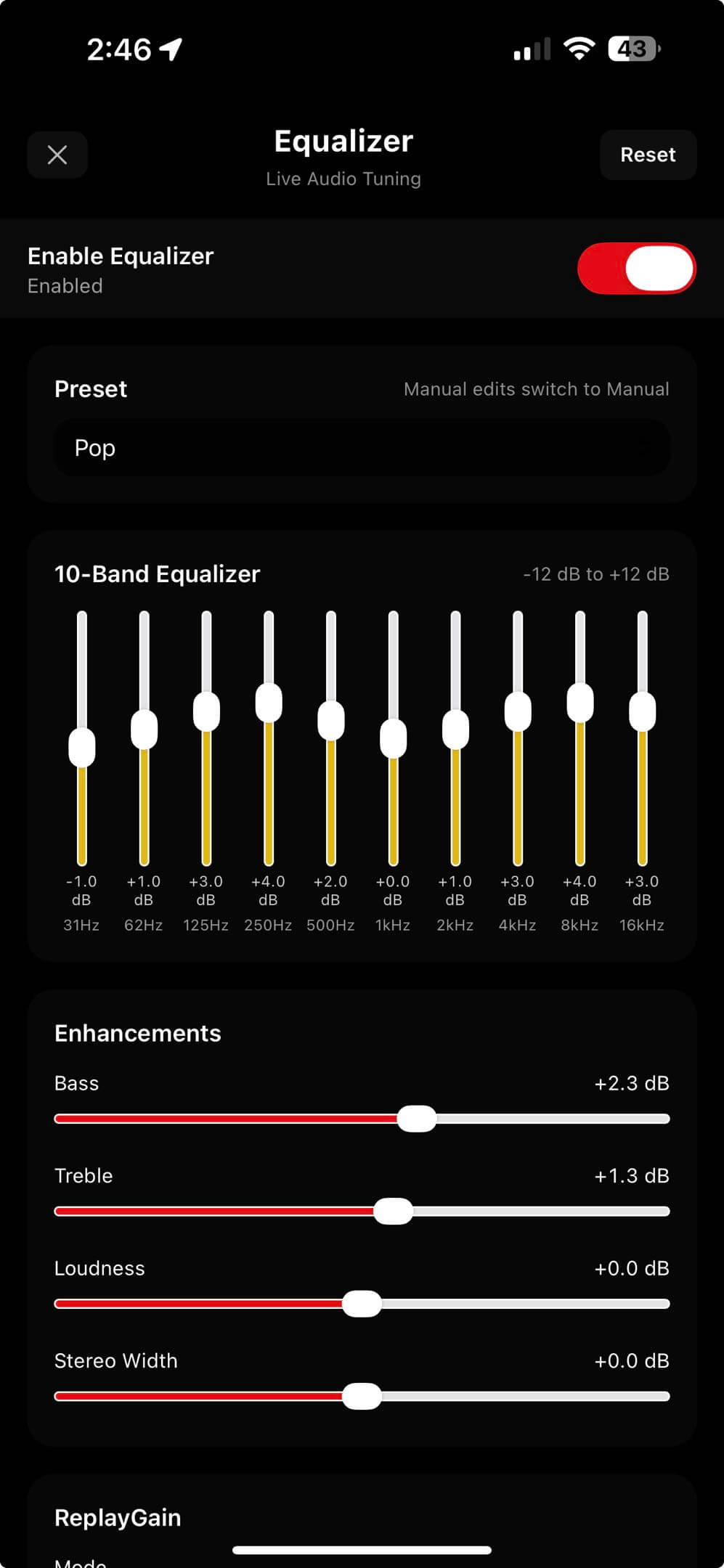
Entering Playlist Mode or Folder Mode first preserves the player state you were using outside that collection. OfflineTunes then applies the session’s repeat mode, speed, timer, EQ, and saved queue.
Leaving the mode restores the earlier player setup. Switching from a folder to a playlist cleanly exits the first session before entering the second. That separation prevents a 0.7x study speed or aggressive workout EQ from leaking into the next unrelated album.
Playlist Mode and Folder Mode Share the Idea, Not the Source
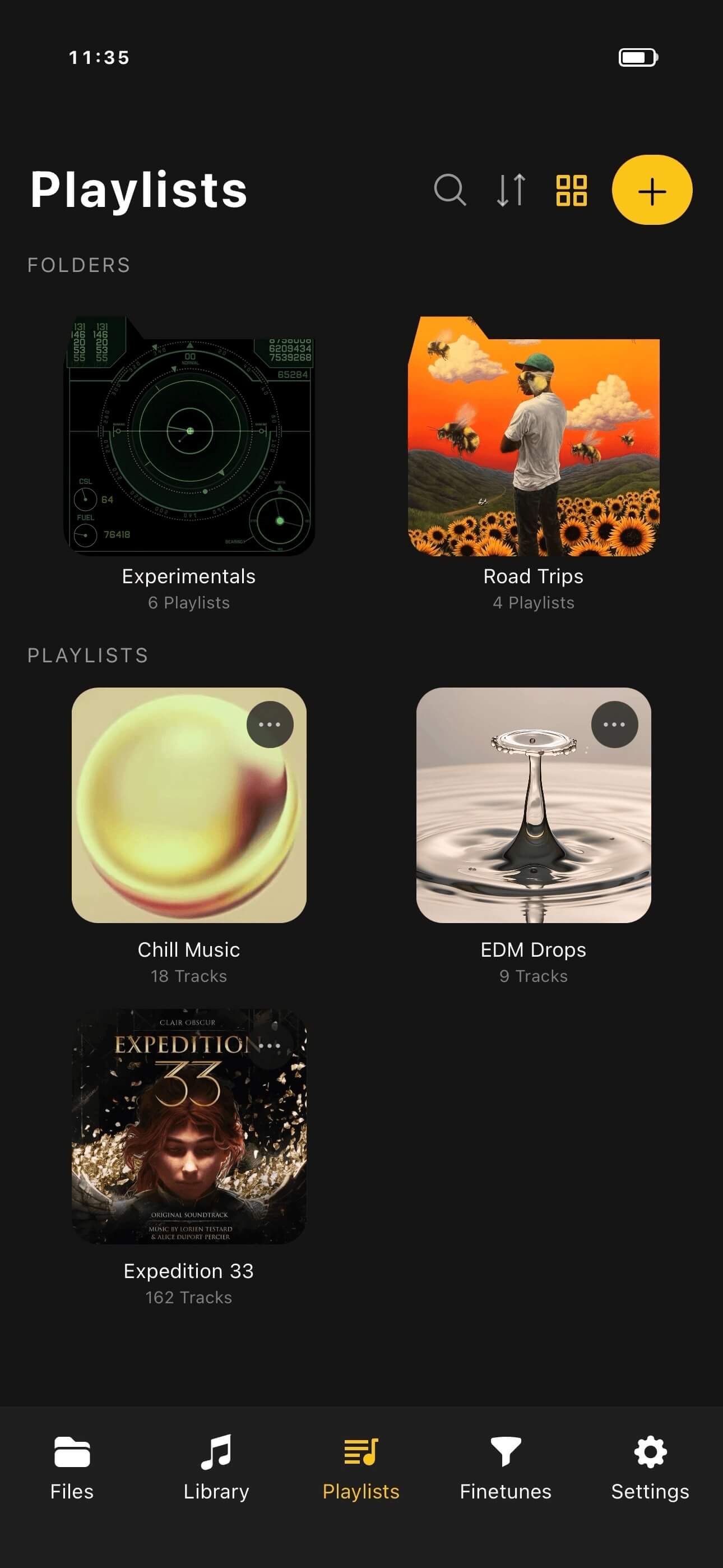
Playlist Mode begins with a curated list. Use it when membership is intentional: a workout mix, language course, sleep playlist, party sequence, or practice set. Playlist folders can organize those collections without changing their independent session memory.
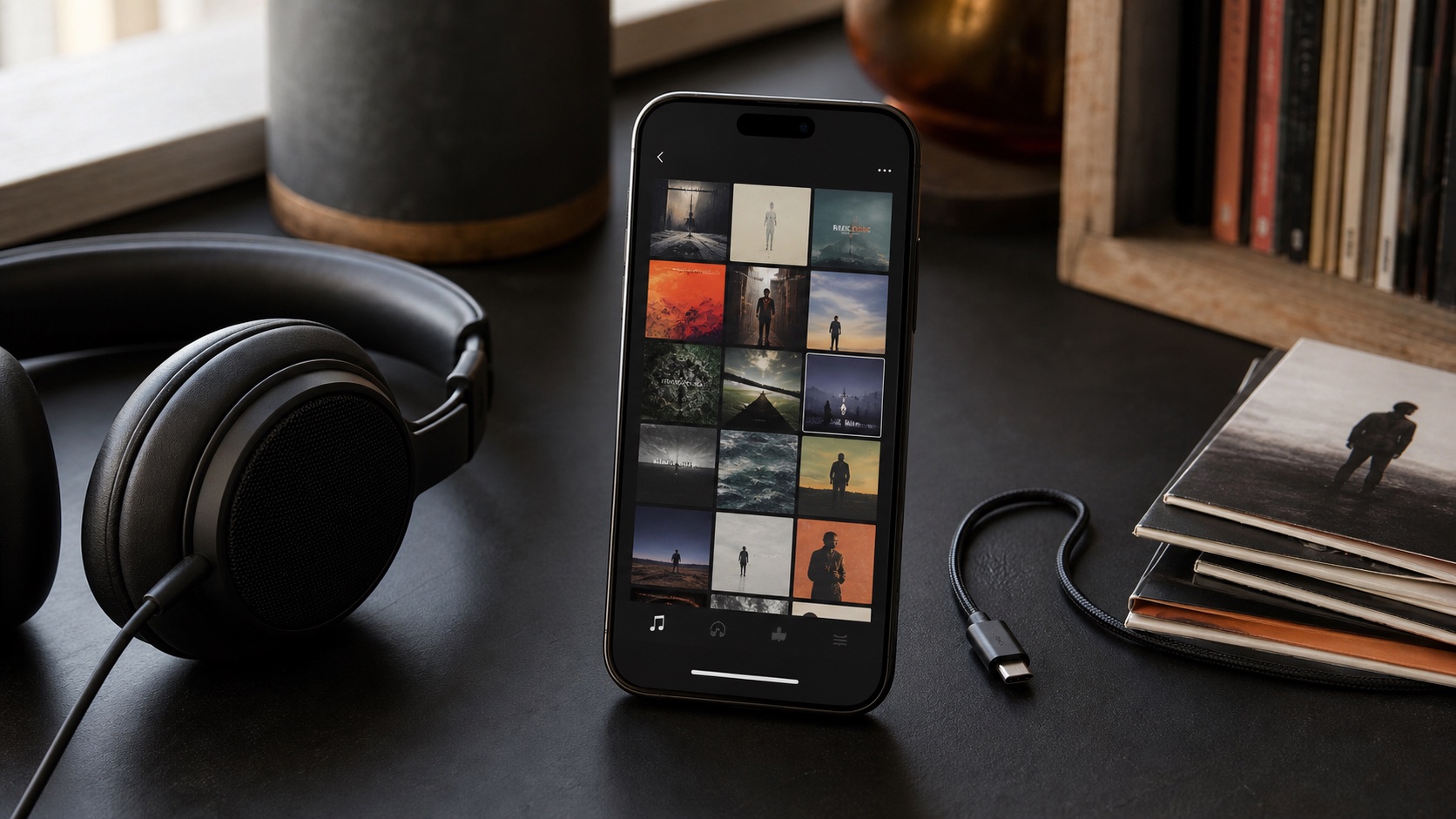
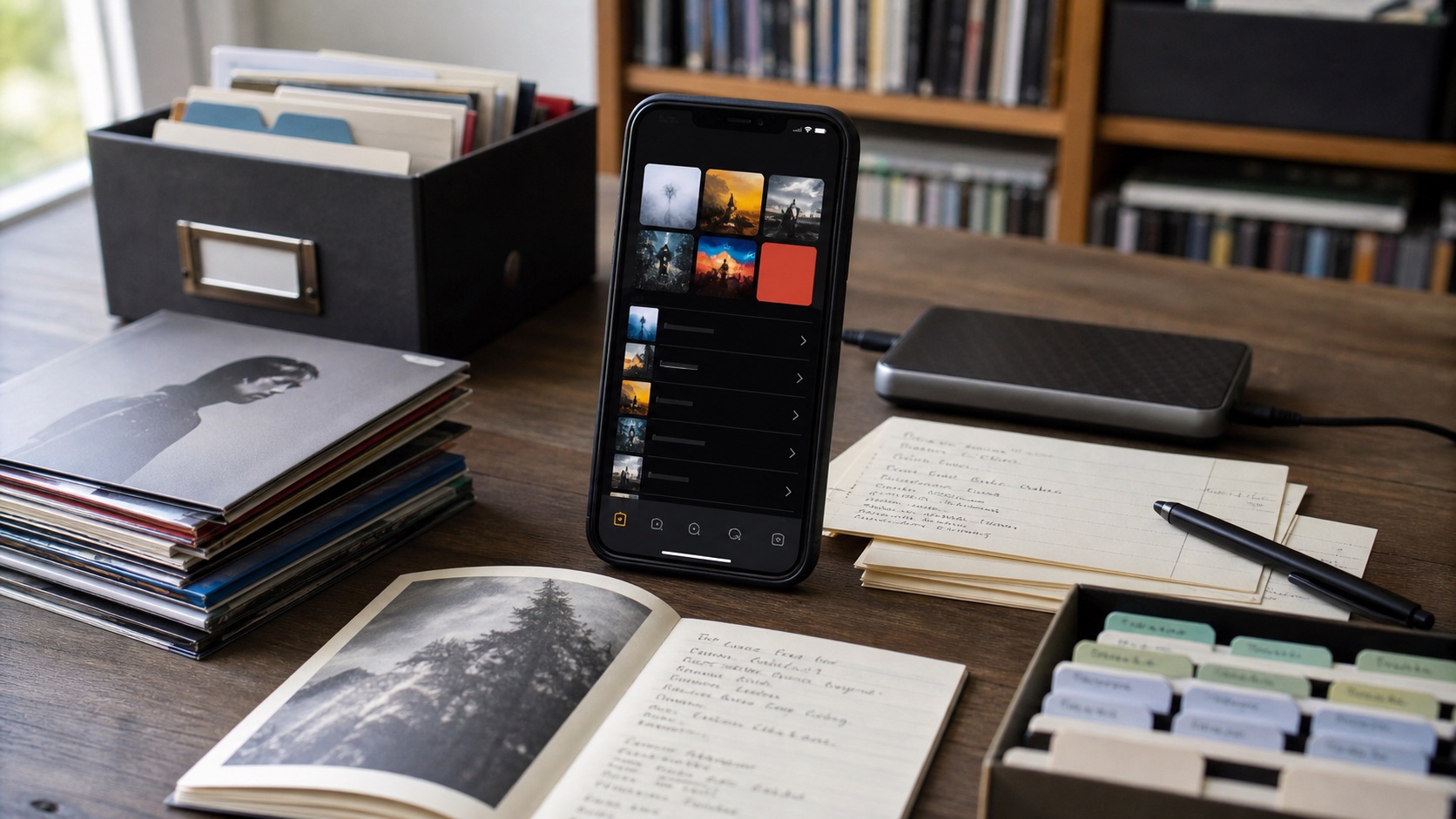
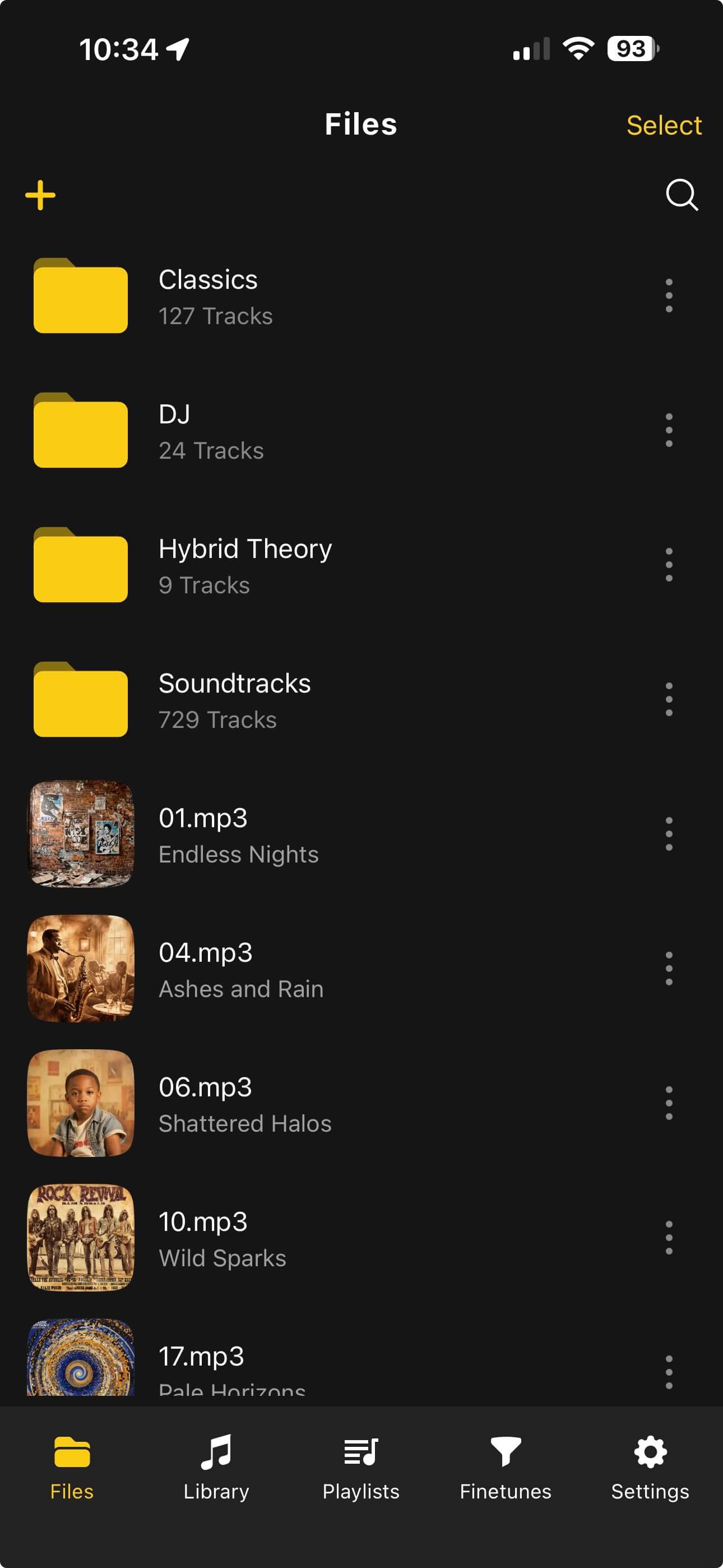
Folder Mode begins with the real file structure. Use it for albums, audiobook directories, DJ crates, live-show folders, or archives whose physical organization matters. It offers the same core playback session controls and adds folder-specific sorting.
Useful Playlist and Folder Session Recipes
Start with a real listening problem instead of changing every control. Save only the settings that make the collection easier to return to. The strongest sessions are obvious enough that you immediately understand why they differ.
Repeat One and Repeat All refer to track or collection repetition. For looping a precise section inside one track, use Bookmarks and A-B Loop instead.
- 1Language course folder.Ordered queue, 0.8x speed, Repeat One when practicing, and a saved timestamp.
- 2Workout playlist.Shuffle on, Repeat All, 1x speed, no timer, and a punchier custom EQ.
- 3Sleep playlist.Ordered or shuffled queue, a gentle EQ, and a timer set for the session.
- 4DJ or live-set folder.Preserved queue order, 1x speed, suitable EQ, and Resume for long listening sessions.
- 5Instrument practice playlist.Reduced speed, Repeat One, a focused queue, and exact position memory.