Modern Mode vs Retro Mode: Two Ways to Enjoy OfflineTunes
Use the full-power modern library when you want tools, or switch to the stripped-back click-wheel experience when you want music without distractions.
In this article Open
Most music apps force one interface philosophy on every listening session. OfflineTunes offers two. Modern Mode treats the iPhone as a powerful library workstation; Retro Mode treats it like a focused music object.
The tracks do not change when you switch. The amount of interface and decision-making does. That makes the choice about mood and intent rather than migration.
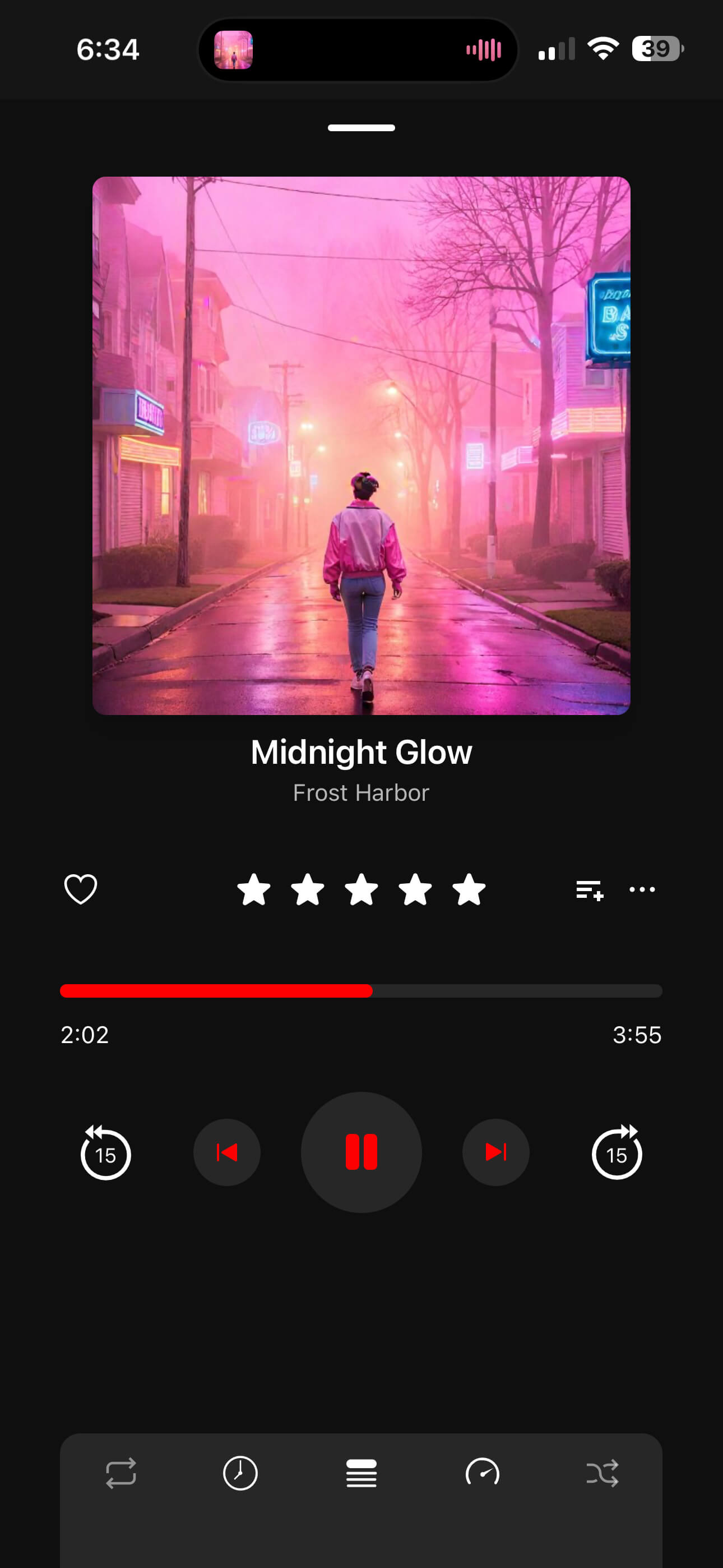
Modern Mode Is the Full-Power Player
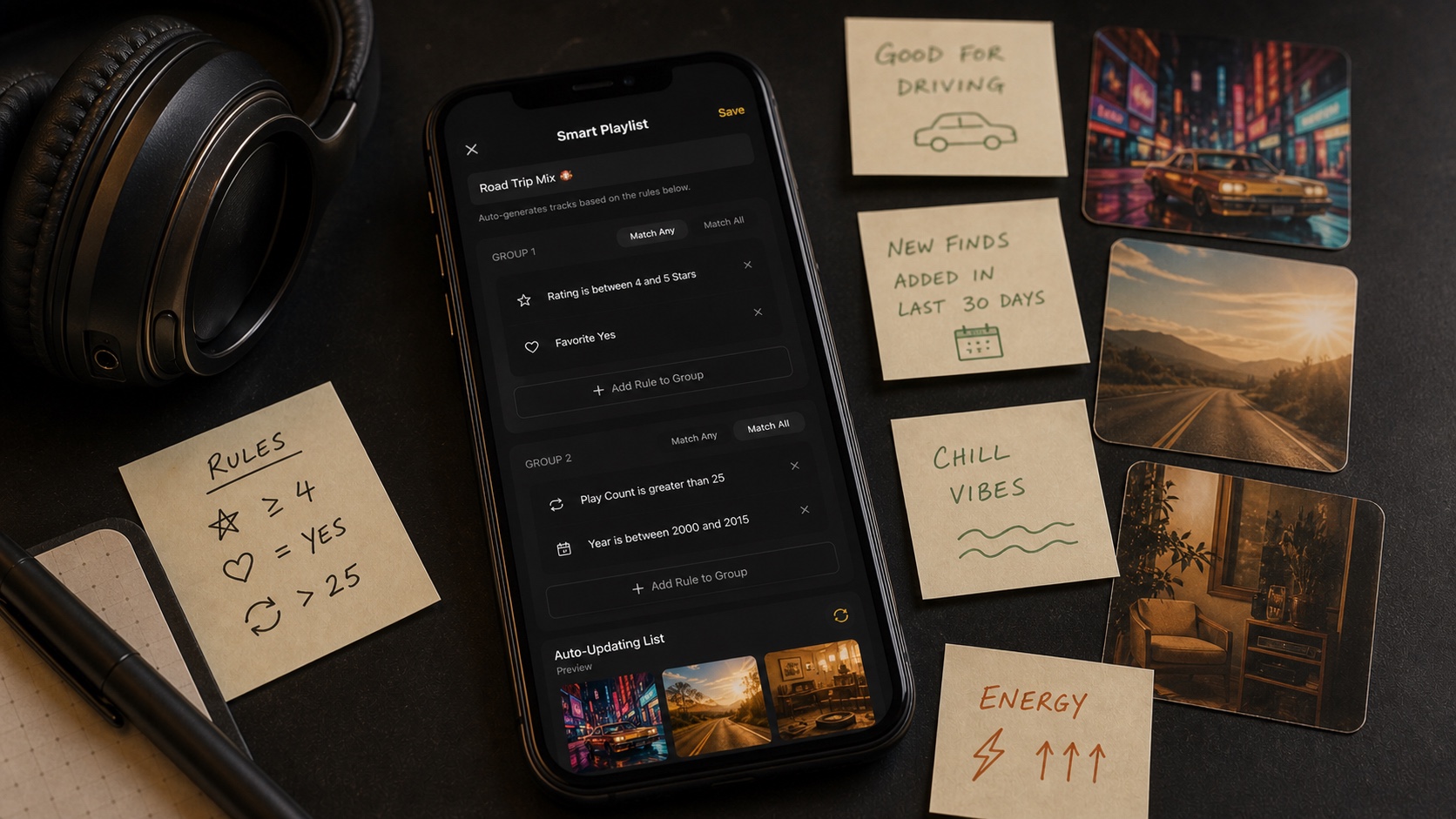
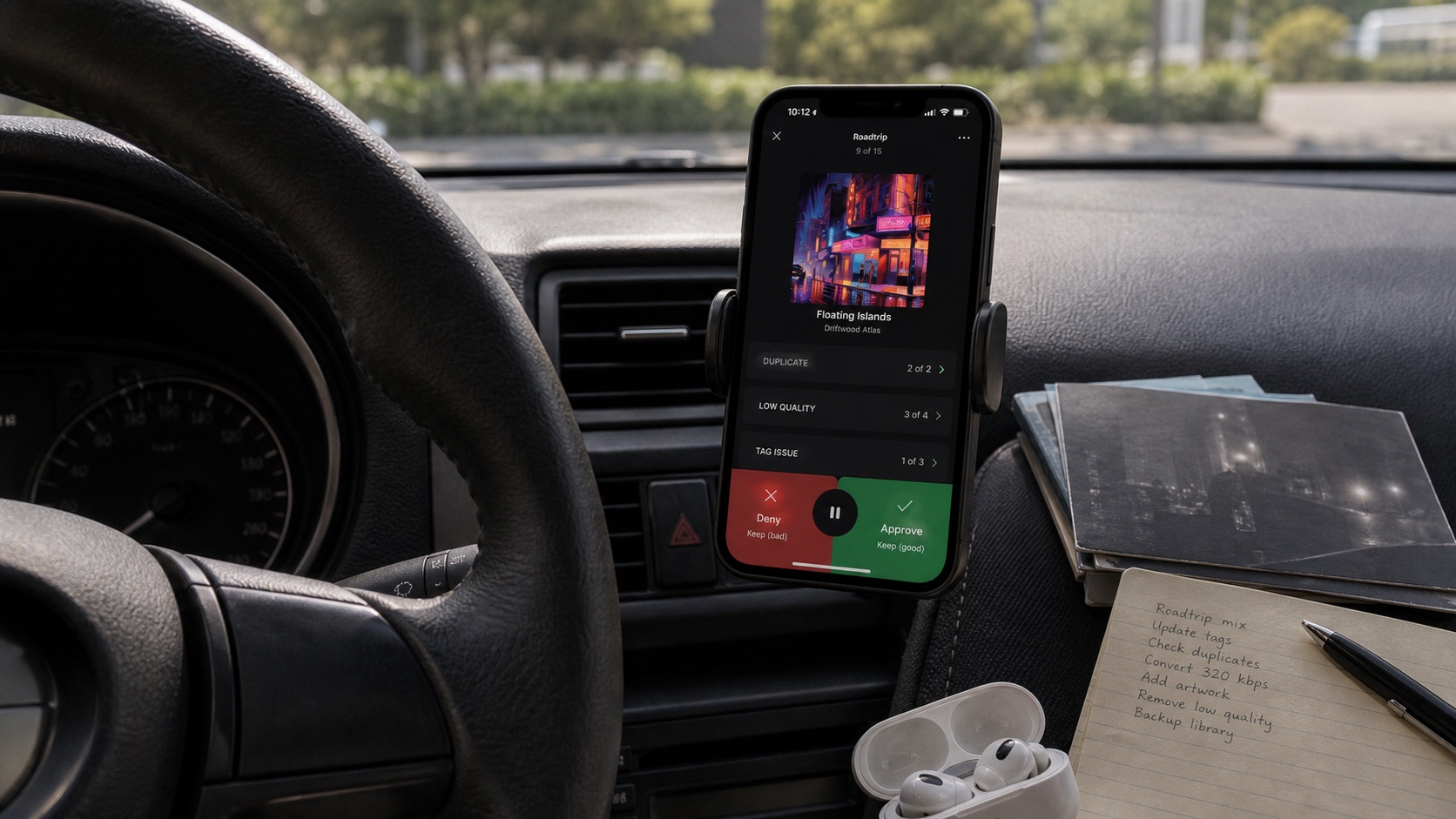
Use Modern Mode when the library needs work or deeper navigation. It exposes Smart Lists, Track Radio, Moods, Sonic Analysis, FineTune, metadata tools, themes, queues, EQ, ReplayGain, visualizer controls, and import workflows.
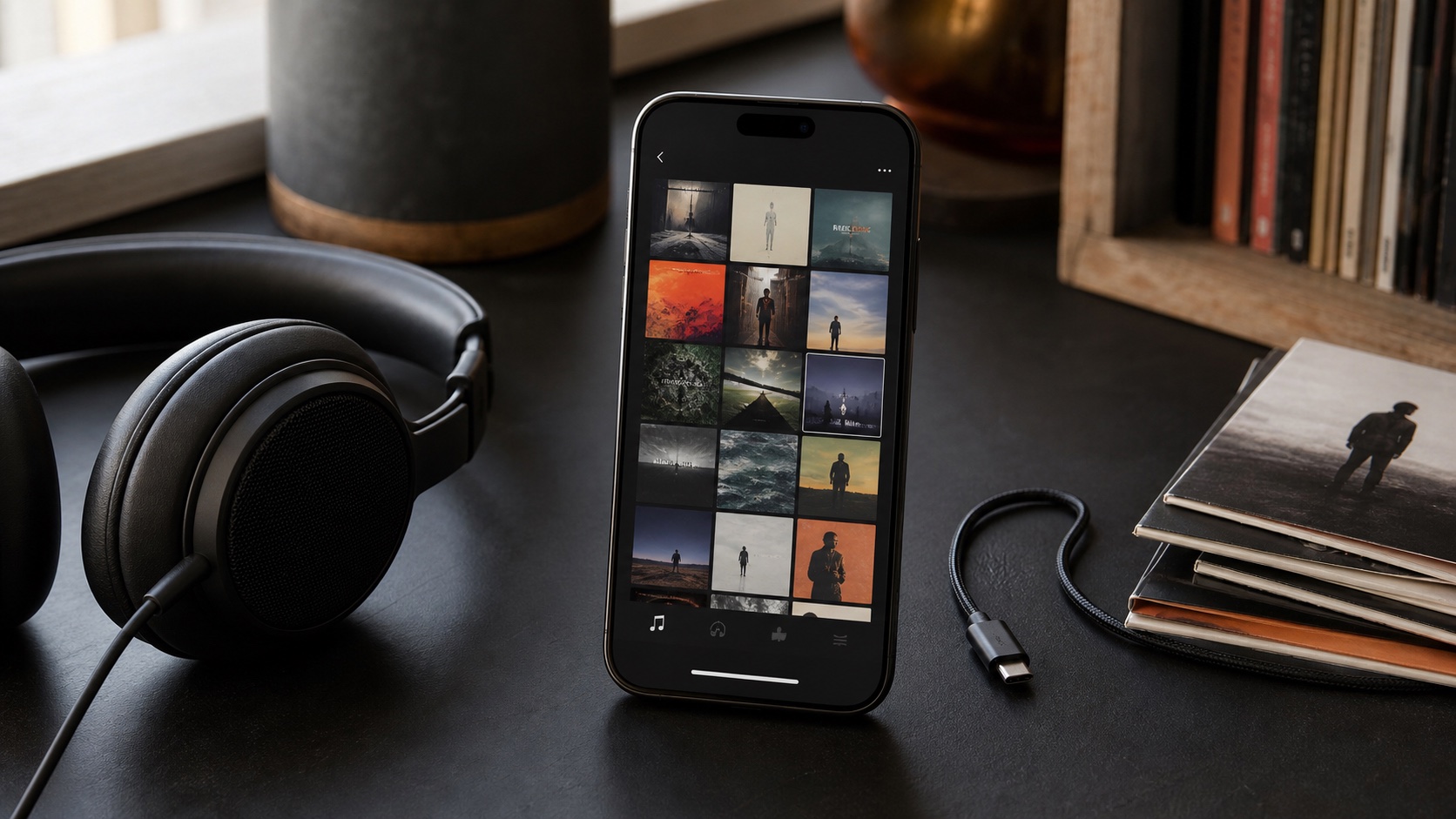
This is where a collection of thousands of tracks becomes manageable. Search, folder browsing, playlist organization, bulk edits, and audio controls remain close instead of being hidden behind desktop software.
Retro Mode Removes Everything Except Music
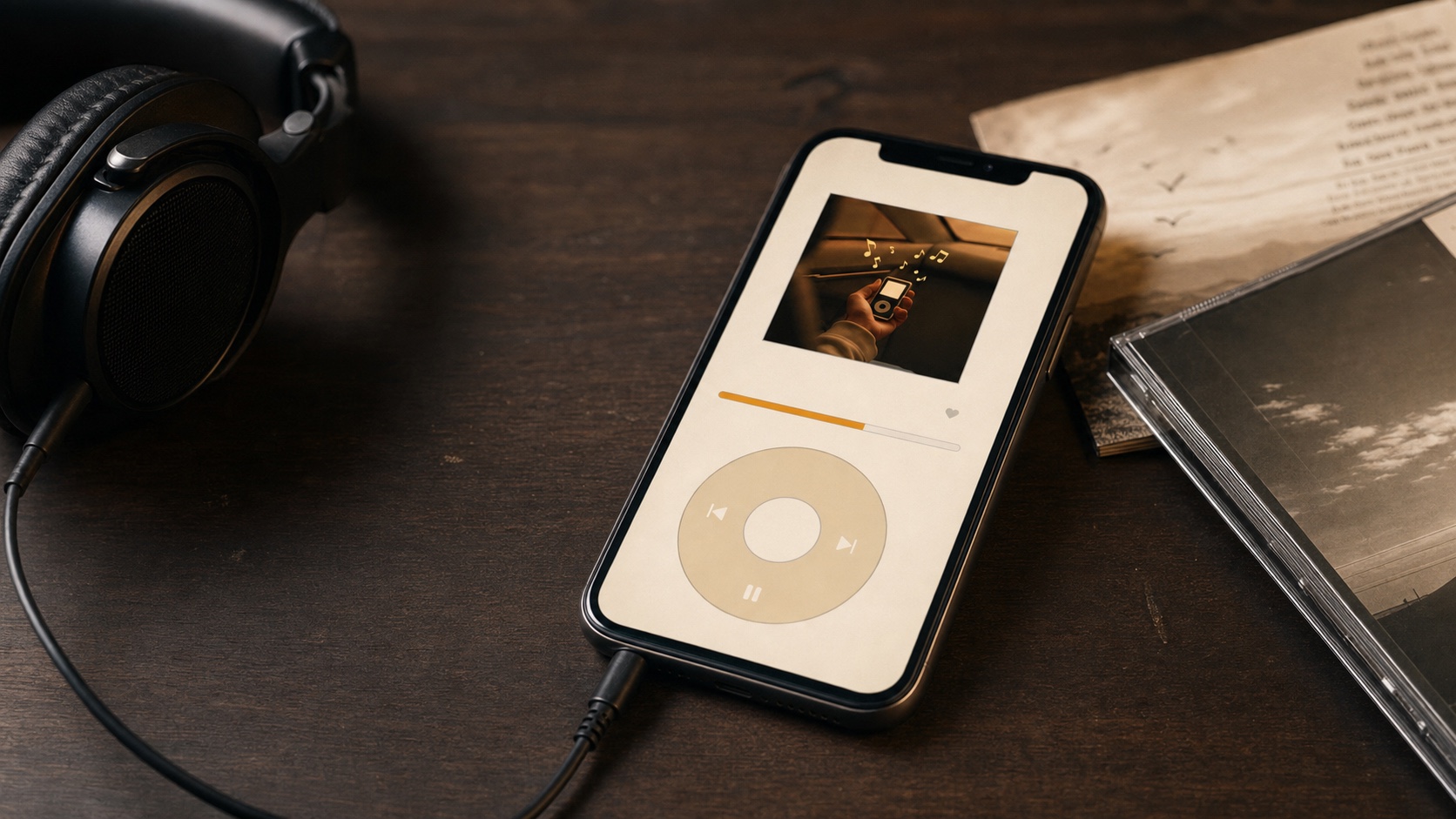
Retro Mode deliberately strips advanced tools away. A click-wheel interface, simple menus, Now Playing, playlists, queue, and Retro-specific themes recreate the direct rhythm of using an iPod.
That limitation is the feature. When the library is already prepared, fewer controls make it easier to browse, choose, and listen without turning every session into maintenance.
Switch Modes Around the Job
Import, analyze, tag, and organize in Modern Mode. Build playlists, repair artwork, tune ReplayGain, or create a Smart List while every tool is available.
Then switch to Retro Mode when the work is finished and the session should feel lighter. A commute, late-night album, or old playlist can benefit from an interface that asks less of you.
- Modern morning: import a folder, fix tags, and build a Focus queue.
- Retro commute: browse artists and albums with the click wheel.
- Modern cleanup: use FineTune, search, and bulk metadata tools.
- Retro album night: choose one record and leave the library tools behind.
One Library Means No Duplicate Setup
Dual mode would be frustrating if each interface required a separate library. OfflineTunes uses the same imported music, playlists, and playback state, so switching changes presentation rather than ownership.
That shared foundation is the point of “modern or retro.” The app can behave like a power-user tool when needed and a dedicated player when wanted, without making you choose one identity forever.
- 1Prepare in Modern Mode.Import, tag, analyze, and organize local music.
- 2Switch to Retro Mode.Enter the click-wheel interface without rebuilding the collection.
- 3Listen simply.Browse Music, Playlists, Now Playing, and Queue.
- 4Return when needed.Advanced tools remain waiting in Modern Mode.