Turn Your iPhone Into a Music Server
Play your local and cloud music in a desktop browser with OfflineTunes Player Server. Start on your iPhone and connect over Wi-Fi or the internet.
In this article Open
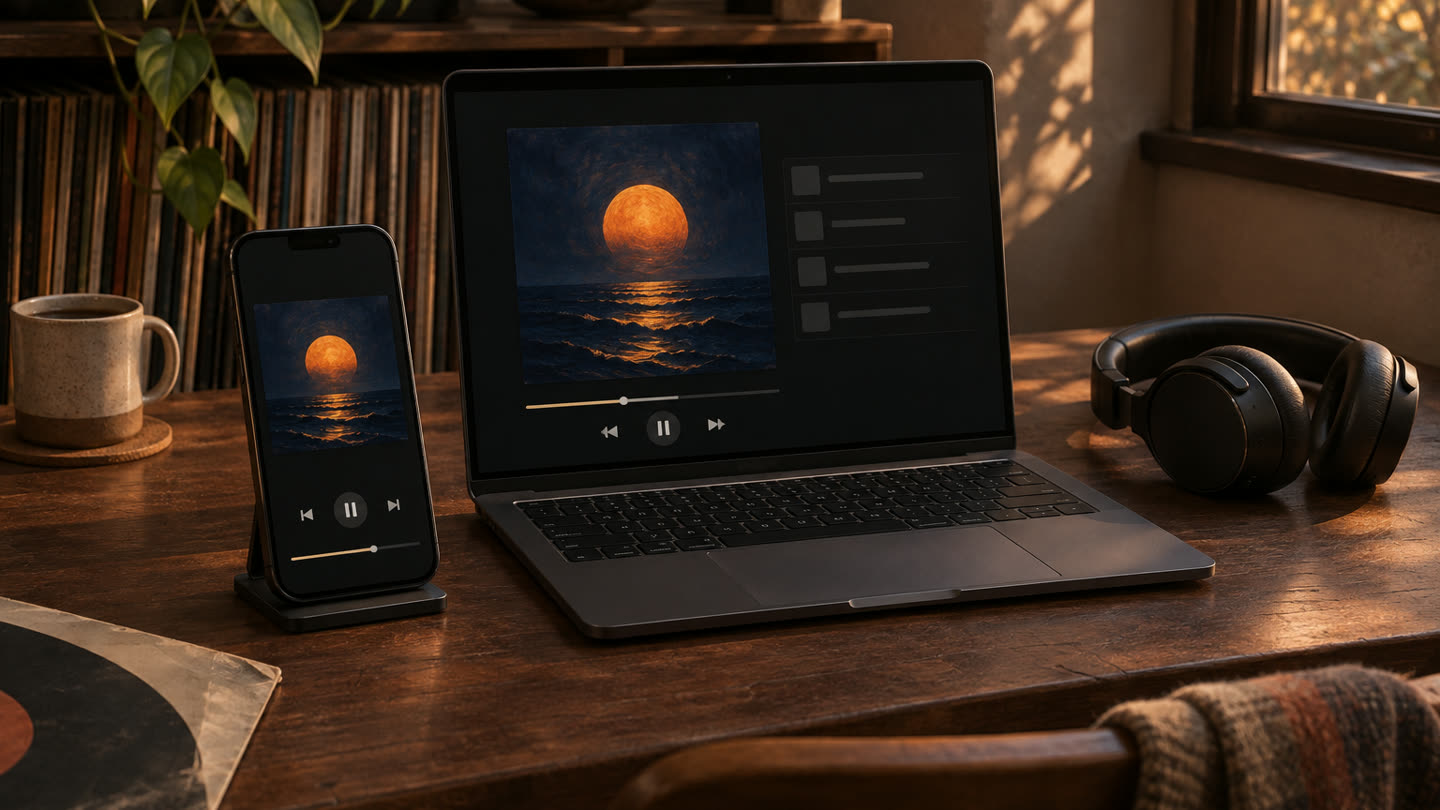
If your music is spread across an iPhone, a NAS, and a cloud drive, playing it at your desk can mean syncing another copy or setting up a separate server. OfflineTunes Player Server turns your iPhone into the host. Start a session on the phone and open your library in a computer browser, where you can listen, browse playlists, and organize the same collection.
How Player Server works
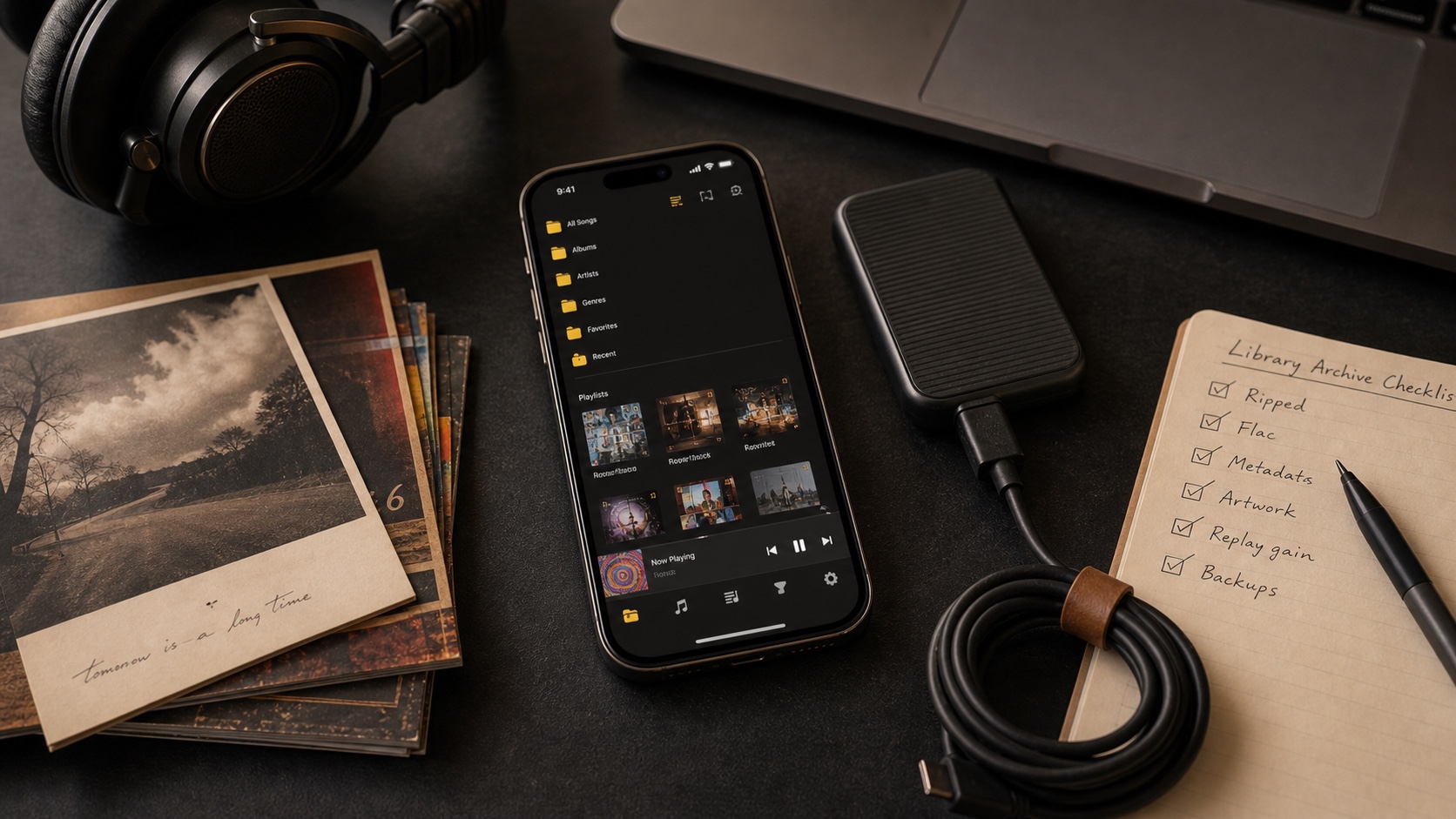
OfflineTunes serves audio files stored in the app, including music you imported from your computer. It also gives the browser access to tracks you've added from connected sources such as Dropbox, OneDrive, Box, S3, and WebDAV drives like Nextcloud. Your phone handles access to those sources and can fetch tracks as needed. You can keep most of the collection in cloud storage and still browse and play it from your desk.
Music already on Plex, Jellyfin, or Navidrome can sit alongside your local and cloud tracks. Those services still host their own music. Player Server gives you one place to use them alongside the rest of your OfflineTunes library.
The feature grew out of a setup we wanted for ourselves. When we started building OfflineTunes, we designed a way for the browser to ask the phone for music and library actions. Moving most of our music to Nextcloud made that idea practical. The files could stay where they were, while the phone handled playlists, ratings, play counts, and access from a computer.
Choose a playback mode
Full player
The browser is your player. Search by artist, album, or track, pick songs, manage the queue, and open the visualizer directly on your computer. Your phone hosts the library while the browser runs its own playback session. Use this mode when you want to listen and work on your collection at the same time.
Playback only
Your phone chooses what plays and controls the queue. The browser plays that audio and displays Now Playing, cover art, and Up Next. Click Enable playback in the browser, then choose a track on your phone. Launch Browser Visualizer from Player Server on the phone when you want a bigger display.
Connect from your computer
On your iPhone, open Settings and tap Start Music Server to open the Player Server screen. Select Full player or Playback only, then tap Start Server.
On the same Wi-Fi
Enter the address shown in Player Server into your computer's browser. This is the direct connection and the simplest choice at home. Local files can play without internet access once the server is running. Cloud tracks still need a connection to their source.
Over the internet
- Open OfflineTunes Player in your computer's browser.
- In Player Server on your iPhone, go to Connect remotely and tap Scan QR code. Scan the code on the computer.
- After pairing, start Player Server and choose your phone under Saved devices on later visits. If the browser forgot the device or pairing was revoked, scan again.
Remote playback uses an encrypted relay and can be slower than the direct Wi-Fi connection. If the browser offers local network permission, allowing it lets the paired player use a direct connection when both devices are back on the same Wi-Fi. The hosted player can also be installed as a desktop app in supported browsers. It opens to the saved-device and pairing screen.
Keep OfflineTunes running on your iPhone while you listen. You can lock the screen. Use Paired browsers on the phone to revoke a browser's access when you no longer need it.
Manage your library from a browser
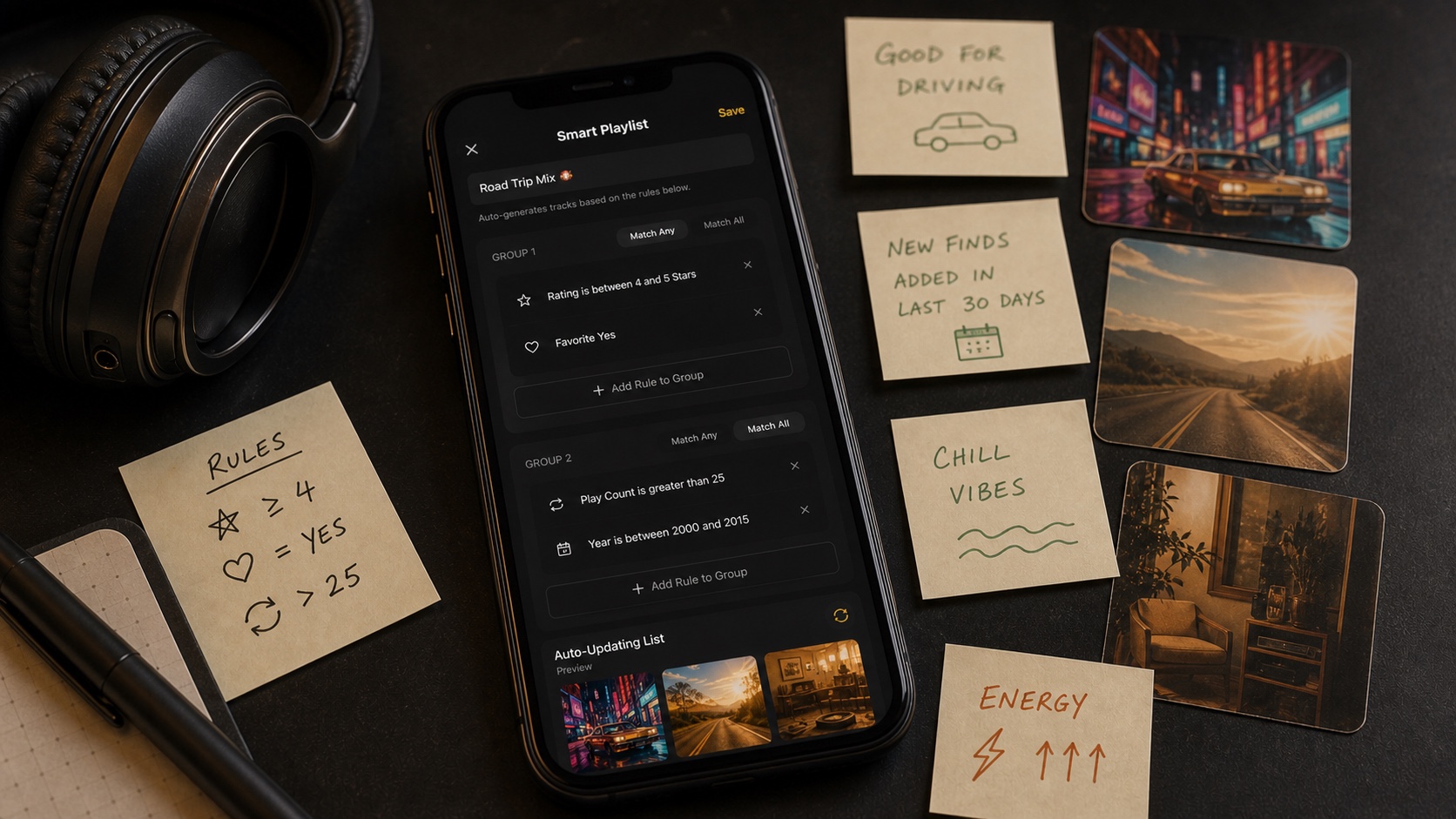
Full player opens your existing playlists, playlist folders, and Smart Playlists. You can view lyrics, rate or favorite tracks, and start Track Radio using tracks with Sonic Analysis data. Full player sends play counts back to the phone. In Playback only, the phone handles listening history and any scrobbling you've set up there.
Drop songs or folders into Local files to upload them to the iPhone. Download individual tracks to your computer from the phone or a supported connected source. Premium lets you edit tags and cover art from the browser. For sources that support write-back, such as a writable Nextcloud WebDAV folder, OfflineTunes can update the original file when write-back is enabled.
Clean up your collection with FineTune
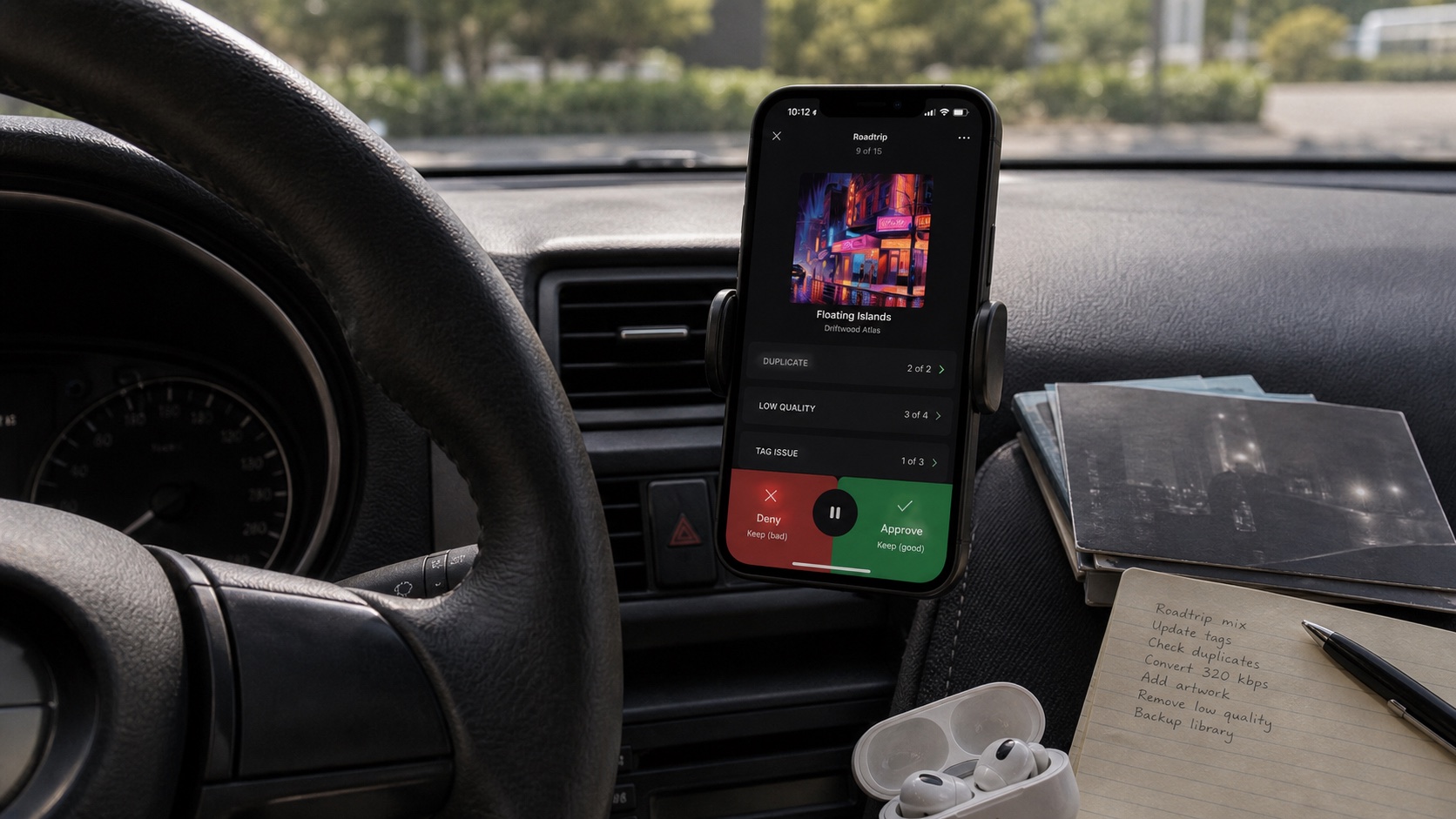
Pick a group of tracks you want to review, such as a folder of old downloads or an album you rarely play. Listen as you work, then approve or deny each song. When you're done, turn the approved tracks into a playlist or remove unwanted tracks after reviewing your decisions. The work belongs to the same library you use on your phone, so you can come back to it there. See the FineTune guide for the full review workflow.
When an iPhone can replace a music server
- Collectors and DJs. Browse a collection from your desk, check a mix, or pull a few tracks onto another computer without syncing the whole library.
- NAS and cloud users. Keep files on WebDAV, Nextcloud, OneDrive, or Dropbox. Use the phone to bring that collection into the browser without adding a separate music service.
- Plex, Jellyfin, and Navidrome users. Listen to your server's music alongside albums that live on the phone or another connected source.
- Travelers. Pair your laptop before leaving or take your iPhone and open a session as needed. For music that lives on a home NAS, the iPhone still needs to be able to reach that NAS.
- Households. Pair a trusted computer for a listening session, or use Playback only on a shared screen while you control the music from your phone.
For these setups, the iPhone can host the session whenever you want it. If you need your music available around the clock without the phone online and running OfflineTunes, a dedicated always-on server still makes sense.
Availability and limits
Player Server is an early beta on iOS. Free users can watch a rewarded ad on the phone for a 45-minute session. Premium removes the session limit and ads and unlocks browser tag editing. For longer beta testing, contact OfflineTunes support.
Apple Music subscription tracks and songs available through the synced iPod or iTunes library play in the mobile app only. To stream music you own, import the audio files directly into OfflineTunes. Use the mobile app for audio conversion, EQ, gapless playback, bit-perfect output, crossfade, Automix, and ReplayGain.
Large libraries may take longer to load, and a remote session can be interrupted by network changes. If a saved device won't reconnect, check that Player Server is running and try pairing again. You can report issues through Quick Feedback in Settings.