How to Create and Use Music Folders on iPhone
Create folders in Files, choose a durable Artist/Album hierarchy, and use a player that preserves that structure instead of flattening it.
In this article Open
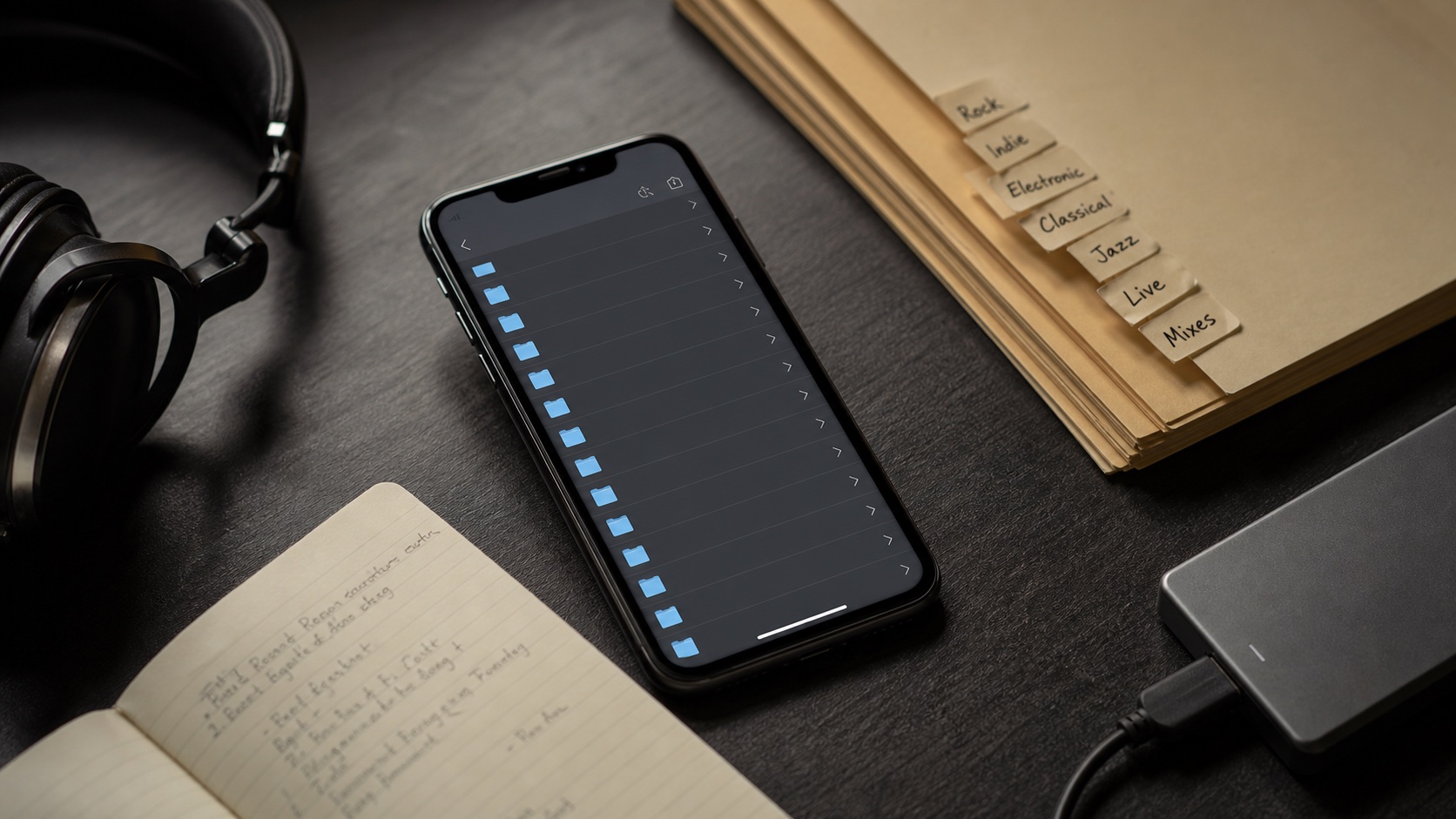
You can create real music folders on iPhone in Files app. What happens next depends on player. Files preserves physical hierarchy; Apple Music primarily presents a metadata library; folder-aware players can expose same hierarchy you copied.
Best setup uses both folders and tags. Folder tells where file lives. Tags tell who made it, which album it belongs to, track order, genre, year, and artwork.
Where Music Folders Live
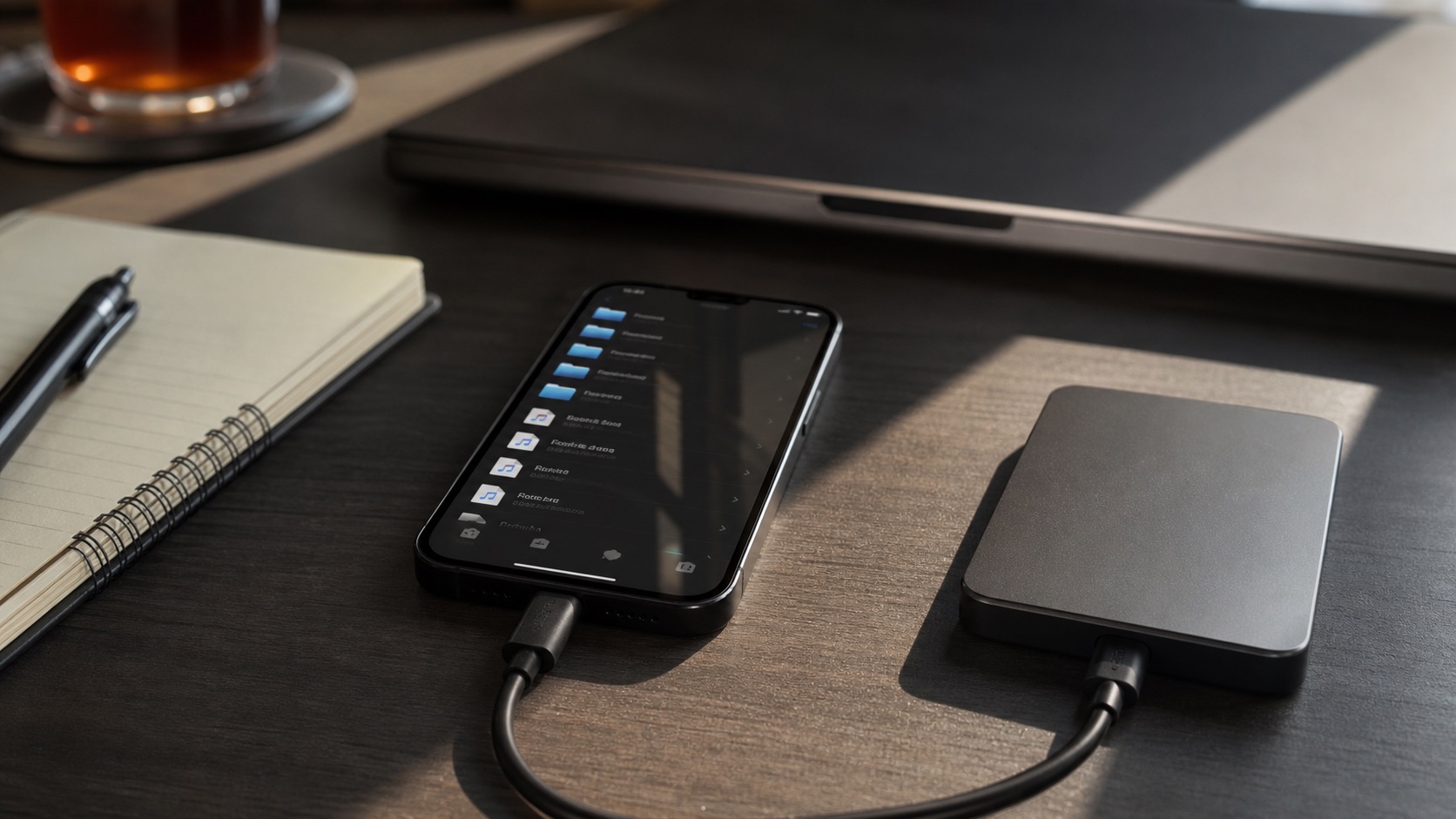
Files can show On My iPhone, iCloud Drive, external drives, and third-party providers. Apple's Files guide explains these locations. "On My iPhone" is local but usually organized beneath app-owned folders. iCloud Drive may show files that are not downloaded until opened unless you keep them local.
For guaranteed offline music, confirm files show as downloaded and test in airplane mode. A cloud icon means folder tree exists but audio may not be physically present.
Create a Folder in Files
- Open Files and tap Browse.
- Choose writable location such as iCloud Drive or app's On My iPhone folder.
- Tap More button, then New Folder.
- Name it
Musicor another clear root. - Repeat inside it for Artists, Albums, Compilations, Live, or another system.
Apple's folder documentation also covers move, rename, compress, duplicate, delete, tags, and favorites. If New Folder is missing, chosen provider or location does not allow folder creation.
Choose a Durable Structure
Simple hierarchy survives app changes:
Music/
Artist/
2024 - Album/
01 - Track Title.flac
Use Album Artist for compilations and collaborations. Prefix multi-disc tracks with disc and track, such as 2-03. Keep characters portable across Mac, Windows, NAS, and cloud providers. Avoid stuffing genre or mood into folder names if tags can handle changing classifications.
Move Music Safely
Copy first, verify, delete source later. Moving thousands of files within cloud provider may be server-side and fast; moving between providers may download and re-upload every file. Keep iPhone awake and charged for large jobs.
- Move one album into target structure.
- Open it in player and verify order, tags, artwork, and playback.
- Move remaining library in artist-sized batches.
- Compare file counts and total bytes.
- Retain independent backup outside iPhone.
Why Apple Music Does Not Browse Your File Tree
Apple Music library is database organized around metadata-songs, albums, artists, genres, composers, and playlists. Finder folder structure is ingestion detail, not primary navigation model. That is useful when tags are clean, but frustrating if collection's meaning lives in folders such as DJ Sets, Bootlegs, Study, or Family Archive.
Playlist folders in Apple Music group playlists, not underlying audio files. A folder-aware local player is appropriate when physical hierarchy is part of library.
Keep Folders Clean
- Do renames and major moves on master library, then sync/import deliberately.
- Keep one album per folder and one consistent cover filename.
- Use tags for artist, album, genre, mood, BPM, rating, and year.
- Avoid duplicate "Music/Music" roots created by repeated imports.
- Export playlists before large path changes because M3U files may contain old paths.
Folder structure should remain boring. Boring structure is predictable, portable, easy to back up, and easy for a future player to understand.