Best ID3 Tag Editor Apps for iPhone: What to Check Before You Choose
The best editor is the one that safely writes your formats, handles artwork and batch changes, preserves unknown fields, and makes backups easy.
In this article Open
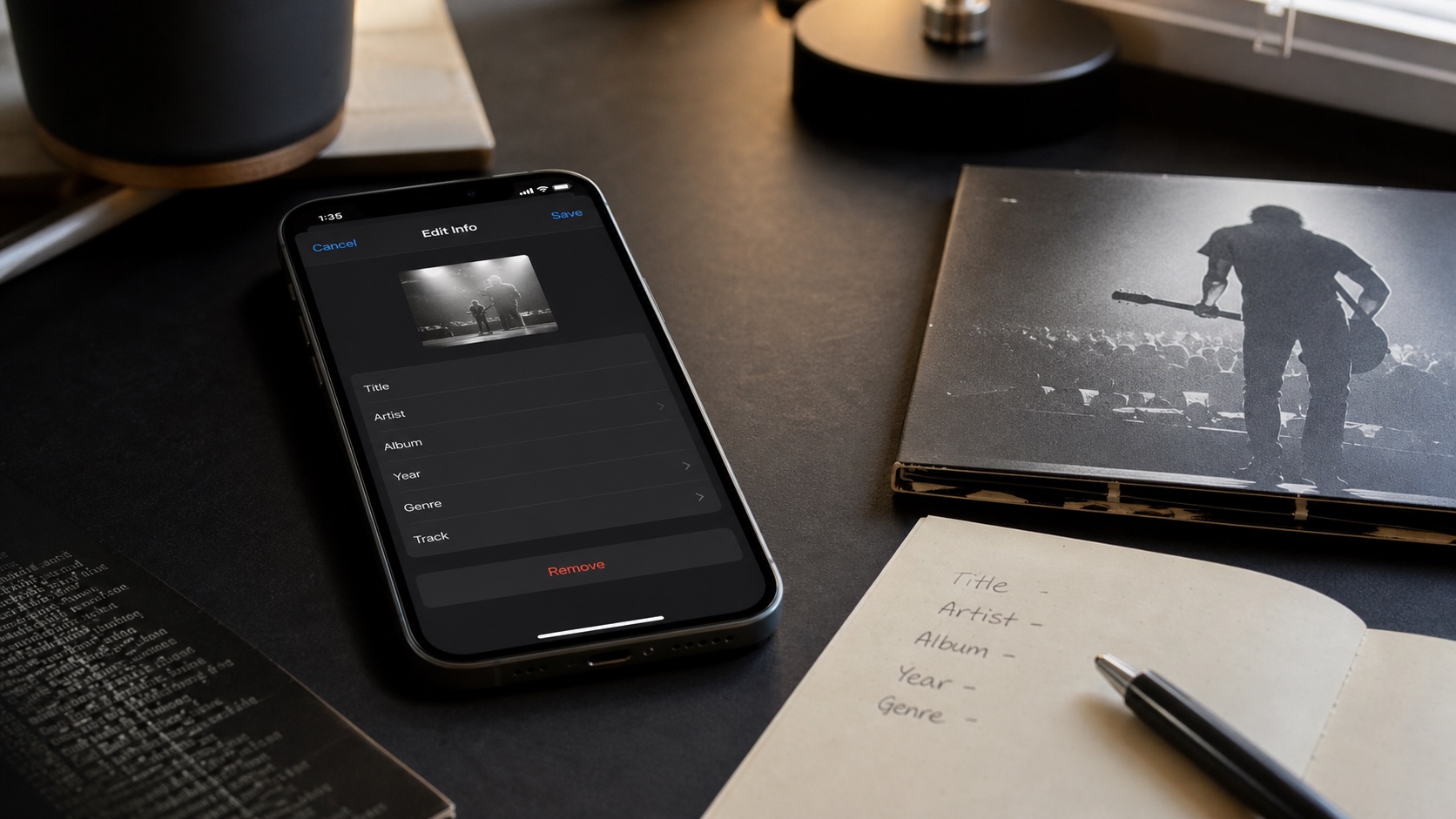
Best iPhone ID3 tag editor depends on where files live and how many you need to change. One wrong batch operation can stamp same title over an album or strip unknown fields, so safe writes and backups matter more than flashy field count.
Strictly, "ID3" belongs to MP3. FLAC usually uses Vorbis comments; M4A uses MP4 atoms. Good music tag editor understands each container instead of pretending every file uses ID3.
Best Picks by Use Case
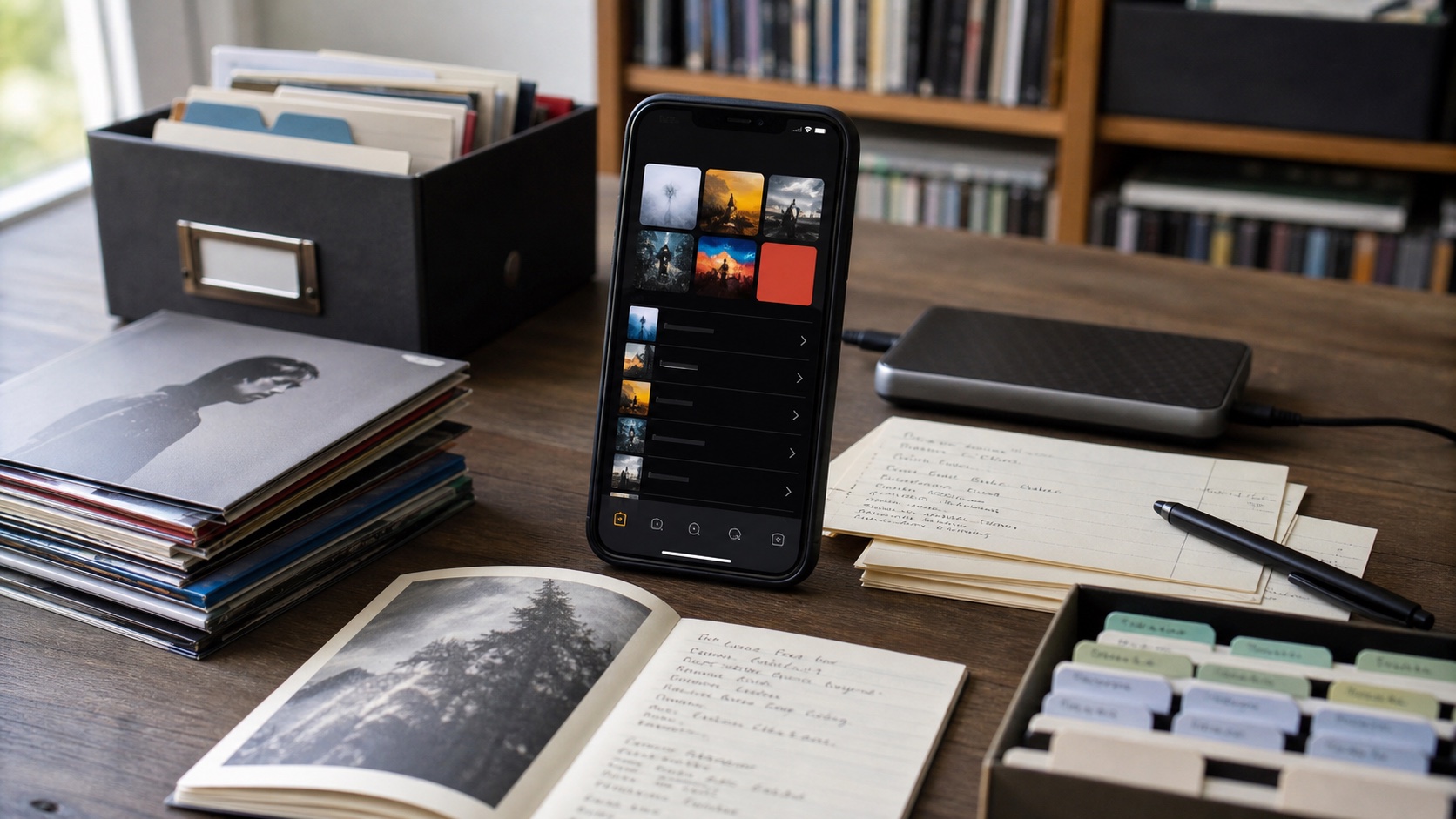
OfflineTunes: daily local-library fixes
Best when you want to correct titles, artists, albums, artwork, and related metadata inside same local player used for listening and organizing.
Evertag: deep batch editing
Its current App Store listing advertises 30+ formats, 120+ fields, and batch mode. Strong fit for advanced cleanup.
Evermusic or Flacbox: cloud-file edits
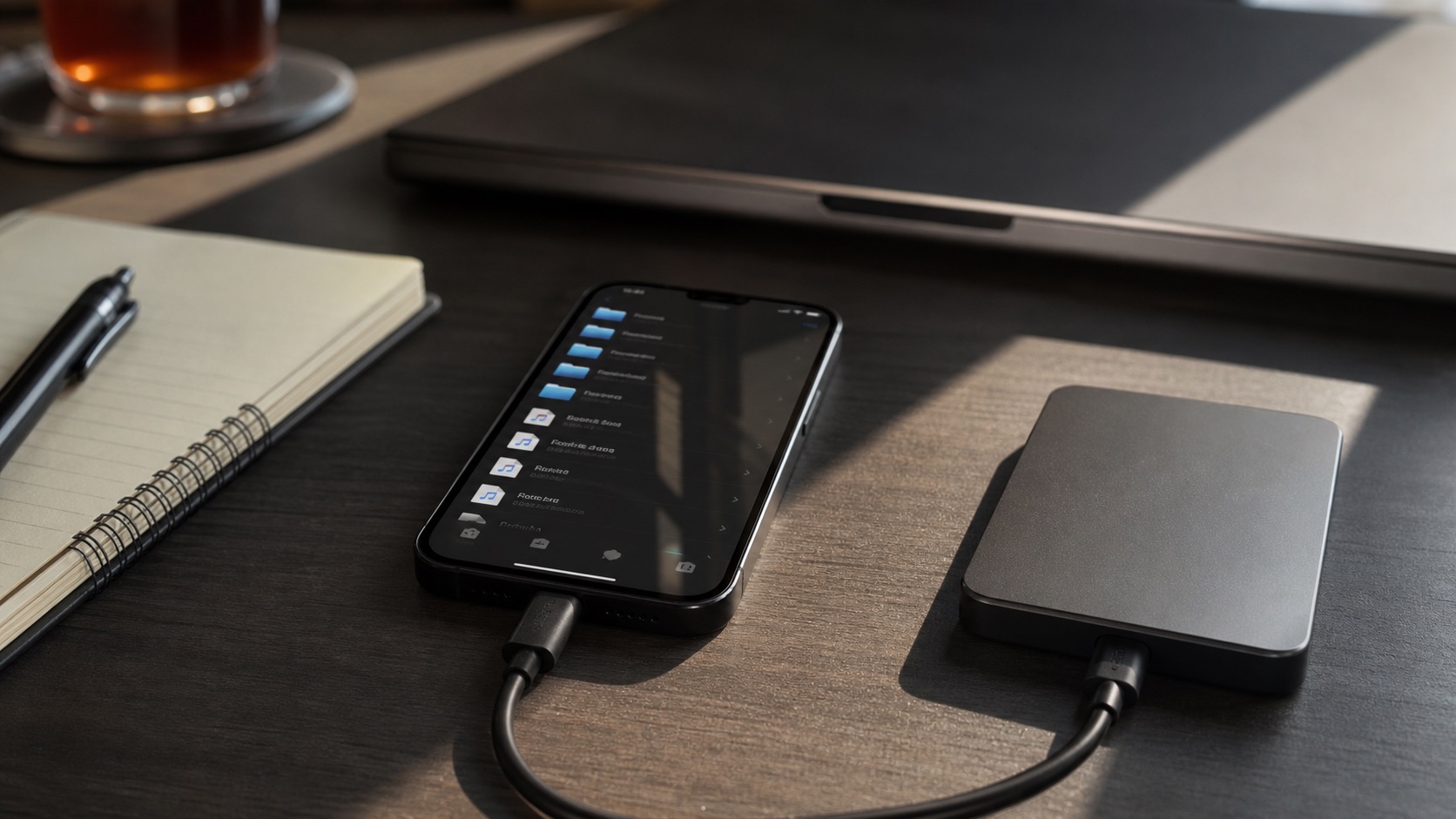
Both include tag editors within cloud/local players. Developer guide documents download-edit-upload flow and optional cloud write-back.
MusicBrainz Picard on desktop: major rebuilds
Not an iPhone app, but safer for fingerprinting, release matching, scripting, and reviewing hundreds of changes on a large screen.
Apps and pricing change. Test current version against copies of your actual MP3, FLAC, ALAC/M4A, and WAV files before committing whole library.
Check Format Support
Do not stop at "supports FLAC." Ask whether app can read and write album artist, disc number, track total, compilation, sort fields, embedded lyrics, rating, ReplayGain, MusicBrainz IDs, and multiple artwork images without removing unknown tags.
WAV metadata is especially inconsistent between software. If rich portable tags matter, FLAC or ALAC may be easier lossless archive choice.
Batch Editing
Batch editor needs distinction between "leave unchanged," "clear," and "set same value." Safe album batch:
- set album, album artist, year, genre, and artwork across selection;
- preserve different title and track number per file;
- preview changes before save;
- undo or restore from backup if result is wrong.
Evertag's editor guide documents single-file and batch modes plus extended tags. For 5,000 files, desktop workflow still offers faster review and recovery.
Write-Back Safety
Some players only change their library database; others rewrite audio file. Database-only correction disappears when file moves to another app. File write-back is portable but riskier. Cloud editing may download full file and upload replacement, consuming time and bandwidth.
Evermusic/Flacbox documentation explains settings for automatic cloud updates, confirmation, or local-only changes. Choose confirmation until you trust workflow. Keep versioned backup before first batch.
Artwork and Auto-Match
Artwork editor should resize predictably and show whether image is embedded or cached. Huge 4000-pixel covers embedded in every track waste space. Around 1000-1500 pixels is generally enough on phone.
Auto-match tools such as MusicBrainz suggestions save time but are not truth. Confirm release, country, year, track list, and edition. Deluxe, remastered, live, and compilation releases are common false matches.
Safe Test Workflow
- Copy one mixed-format album folder.
- Edit title, album artist, disc number, artwork, and one uncommon field.
- Close app, reopen file, and verify changes persisted.
- Open same file in second player or desktop tagger.
- Confirm audio duration and playback remain unchanged.
- Only then scale to batches.
Tagging is library maintenance, not emergency surgery. Work from backup, make changes in logical batches, and keep a log when cleanup spans days.